Want to use Samsung DeX on TV without any cables or docks? You actually can — and it works better than most people think. By using your Samsung Galaxy phone’s wireless DeX feature with Miracast, you can turn any compatible smart TV into a full desktop screen. No HDMI cable, no DeX Station, no extra hardware. Just your phone and your TV on the same Wi-Fi network.
Wireless DeX, in simple terms, means running Samsung’s desktop mode without any cable at all — your phone connects to the TV over Wi-Fi using the Miracast protocol instead of a wired HDMI connection.
In this guide, I’ll show you the exact steps I used to set up wireless Samsung DeX on my Mi Android TV — including the Settings shortcut that most tutorials miss.
📊 10,000+ people have watched this tutorial since December 2024 — making it one of TapsVision’s most-viewed Samsung DeX guides.
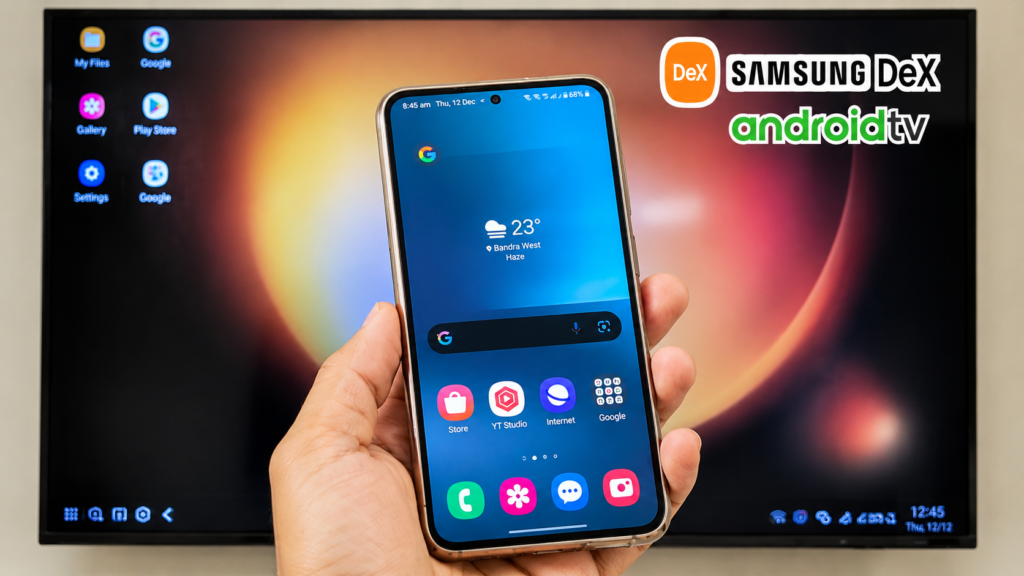
What Is Samsung DeX and Why Use It on TV?
Samsung DeX is a desktop mode built into Samsung Galaxy phones. When activated, it transforms your phone’s interface into a full desktop layout — with a taskbar, draggable windows, file manager, and multitasking — just like a PC.
Normally, DeX requires a wired connection (USB-C to HDMI cable or a DeX Station dock). But wireless DeX works over Wi-Fi using the Miracast protocol, meaning you can connect to any Miracast-compatible display — including many Android TVs and Samsung Smart TVs — without a single cable.
Here’s why it’s worth trying:
- Your phone becomes a laptop/desktop — Browse, edit docs, watch YouTube on a big screen in windowed mode
- Use your phone as a touchpad and keyboard — No separate peripherals needed to get started
- Connect Bluetooth mouse and keyboard — For a true desktop-class experience
- Great for presentations, work-from-home, or media consumption on a large screen
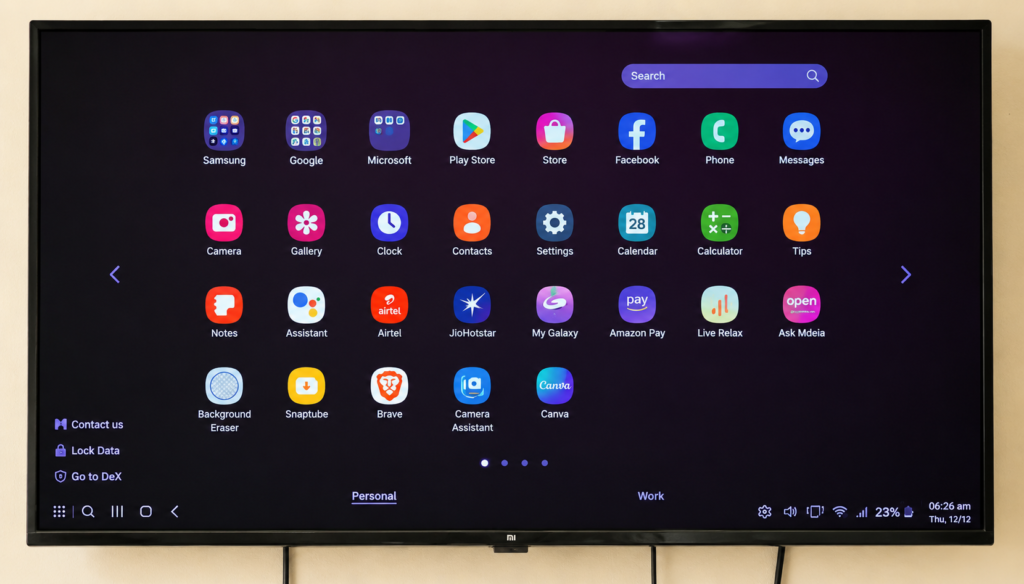
What You Need
- A Samsung Galaxy phone with DeX support — Galaxy S8 and newer, Galaxy Tab S6 and newer (wireless DeX requires Android 10+)
- A Miracast-compatible TV or monitor — Mi TV (with Miracast/screen mirroring support), Samsung Smart TV, or any Android TV
- Both devices on the same Wi-Fi network — This is mandatory for wireless DeX
- Optional: Bluetooth mouse and keyboard — Pair with your TV for the full PC experience
⚠ Important: Wireless DeX requires both your phone and TV to be on the same Wi-Fi network. A fast Wi-Fi connection (Wi-Fi 5 or Wi-Fi 6, or fiber internet) gives the smoothest, lag-free experience.
How to Connect Samsung DeX to TV Wirelessly — Step by Step
Step 1: Enable Miracast on Your TV
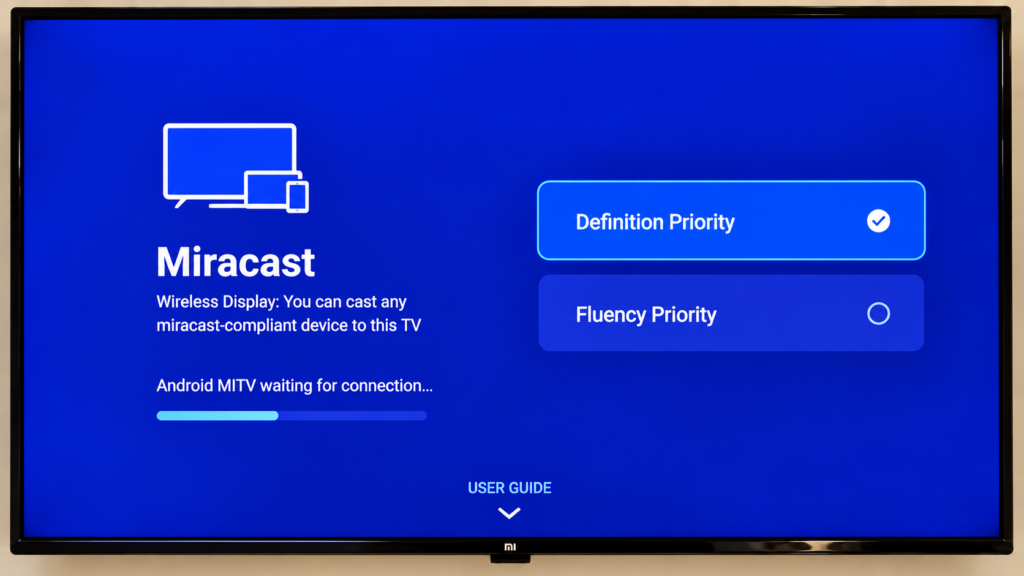
On a Mi TV or Android TV: go to Settings → Additional Settings → Apps and search for “Miracast” or “Mirror Cast”. Open the Miracast app and leave it running — it will wait for your phone to connect.
On a Samsung Smart TV: go to Settings → General → External Device Manager → Device Connect Manager and enable Screen Mirroring.
Step 2: Open DeX on Your Samsung Phone
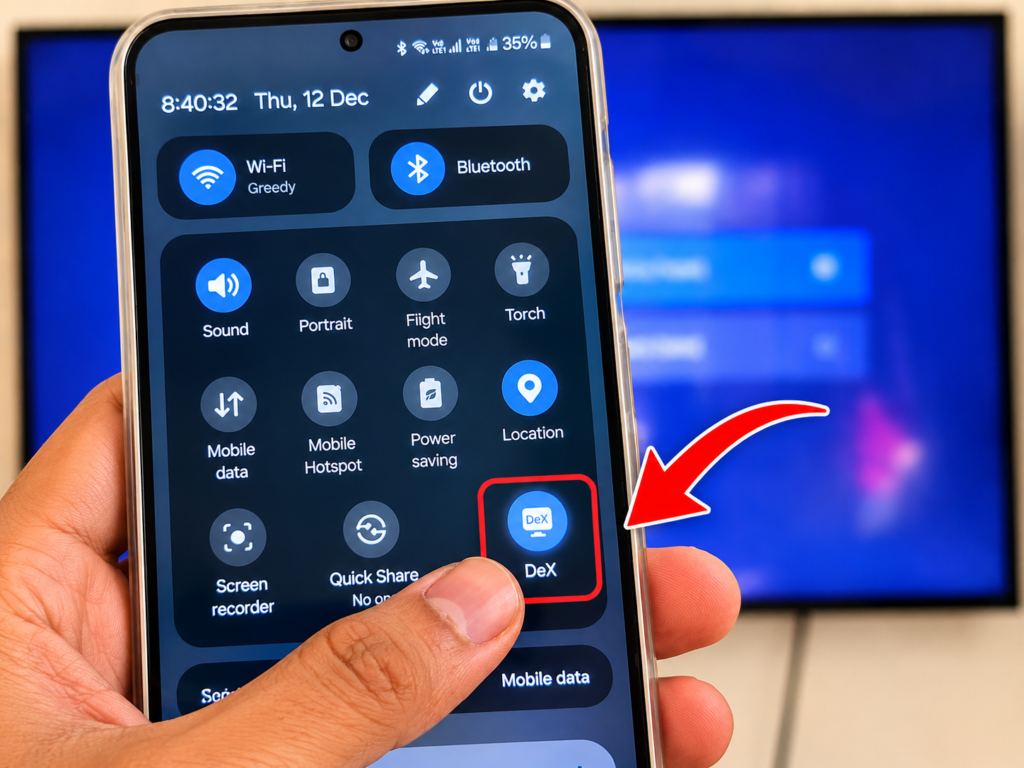
Swipe down from the top to open the Quick Panel. Look for the DeX icon (it looks like a monitor with a phone). Tap it to open DeX settings.
Alternatively, go to Settings → Connected Devices → DeX.
Step 3: Select Your TV from the DeX Screen
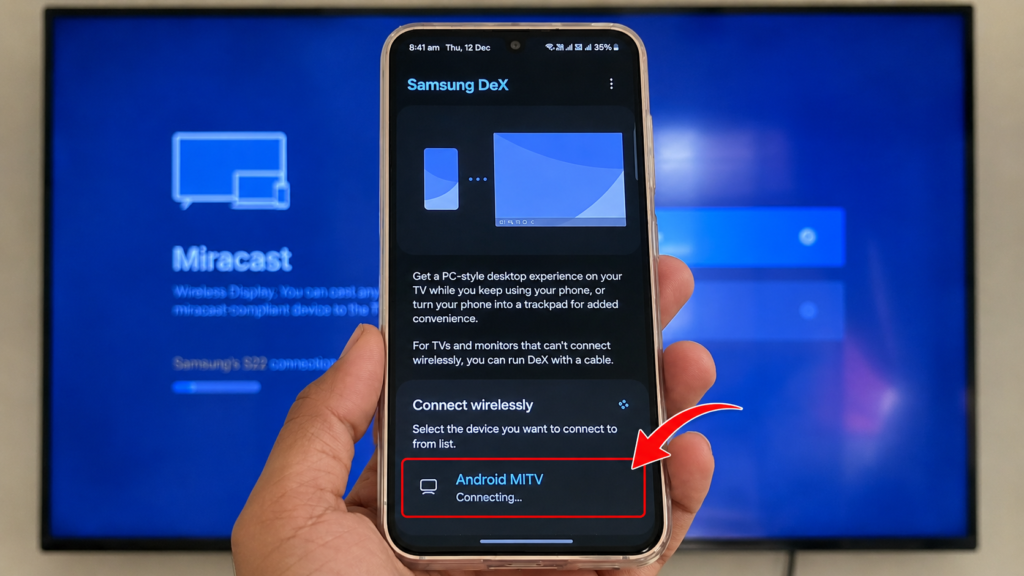
In the DeX screen, tap “Wireless” (or you may see your TV listed directly). Your phone will scan for nearby Miracast devices. Your TV should appear — tap it to connect.
You’ll see a notification: “Use your phone as a touchpad” — tap this to use your phone screen as a trackpad and keyboard while DeX runs on the TV.
Step 4: Samsung DeX Is Now Running on Your TV
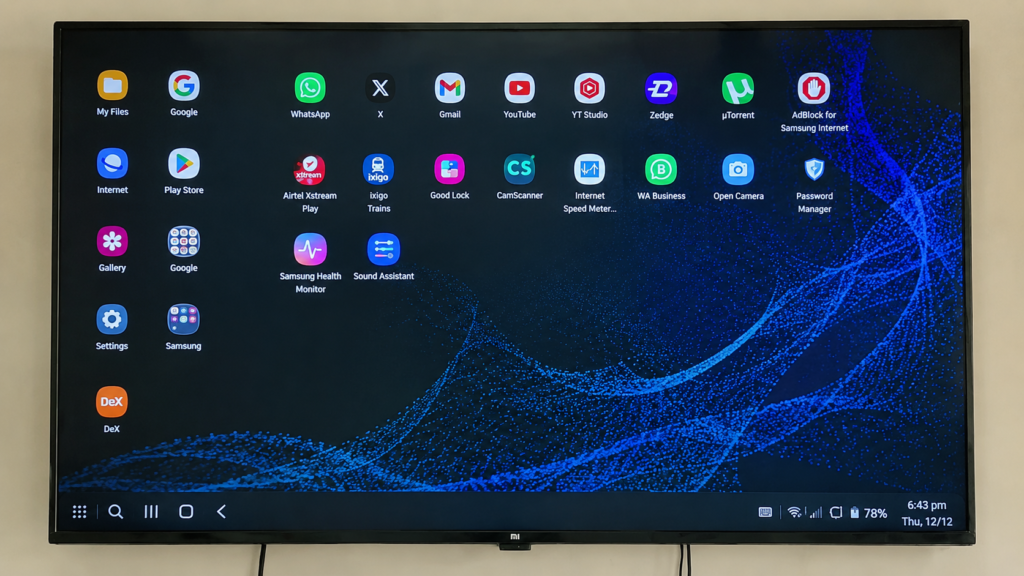
Your TV will now show the full Samsung DeX desktop interface — taskbar at the bottom, app icons, notification bar at top right. Your phone screen shows a trackpad and keyboard.
You can now open any app, browse the web, use YouTube, check files — all in windowed mode on the big screen.
Step 5 (Bonus): Connect Bluetooth Mouse and Keyboard
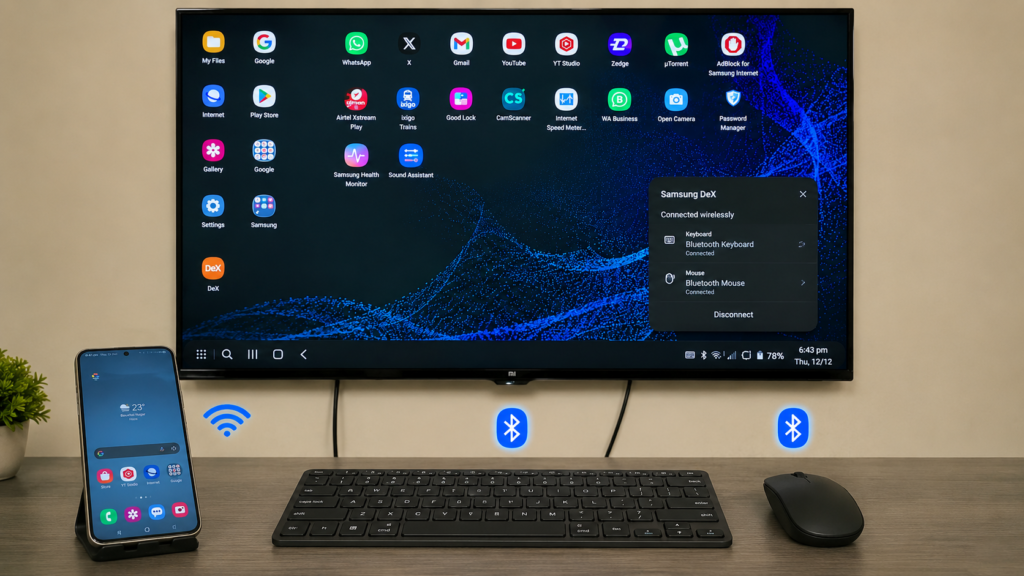
For the full PC experience, pair a Bluetooth mouse and keyboard directly to your TV (not the phone). The TV’s Bluetooth connects the peripherals, while your phone runs DeX wirelessly. This is how I personally use it — it feels exactly like a lightweight desktop setup.
What to Expect After Setting Up Wireless DeX
- Desktop layout with draggable, resizable windows on your TV
- Phone as trackpad — swipe to move cursor, tap to click, pinch to scroll
- All your apps available — Play Store, camera, gallery, browser, Office apps
- Bluetooth audio — control sound volume from the DeX interface
- Slight lag on slow Wi-Fi — upgrade to 5GHz Wi-Fi or fiber for best results
- High-resolution content — Samsung’s 200MP camera photos look incredible on a big screen through DeX
⚠ Wireless DeX performance depends heavily on Wi-Fi speed and signal strength. If you notice lag or stuttering, move both devices closer to the router, or switch to a 5GHz Wi-Fi band.
Which Samsung Phones and TVs Support Wireless DeX?
Compatible Samsung Galaxy Phones (Wireless DeX)
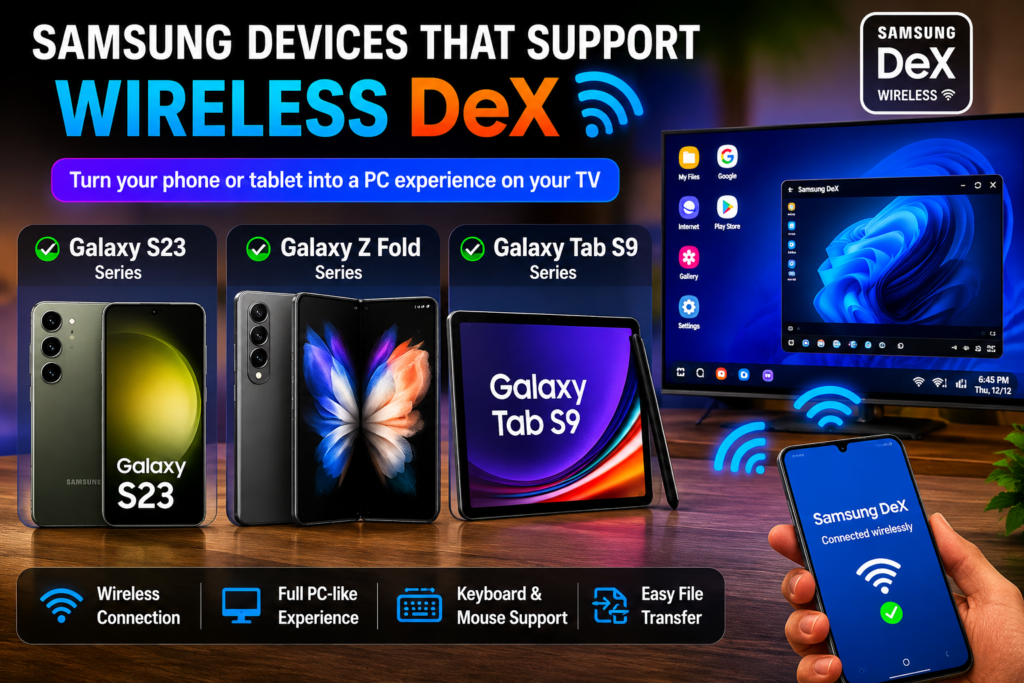
- Galaxy S20, S21, S22, S23, S24 series
- Galaxy Note 20, Note 20 Ultra
- Galaxy Z Fold 2, 3, 4, 5, 6
- Galaxy Tab S7, S8, S9 series
- Galaxy M14, M34, M54 — check Settings → DeX to confirm support
Note: Samsung Galaxy M-series and A-series support for DeX varies by model. Check Settings → Connected Devices to see if DeX is available on your phone.
Compatible Displays (Miracast / Wireless DeX)
- Mi TV / Redmi TV — Most models with Miracast support (Mi TV 4, 4A, 5X, etc.)
- Samsung Smart TV — Native wireless DeX support on 2019 and newer models
- Any Android TV with Miracast app (like the one in Mi TV settings)
- Monitors with wireless display adapters — e.g., Microsoft Wireless Display Adapter
Samsung DeX Not Working on TV? Try These Fixes
- TV not showing up in DeX: Make sure both devices are on the same Wi-Fi network. Restart the Miracast app on your TV and retry.
- Connection drops frequently: Move closer to your Wi-Fi router. Use 5GHz band if available.
- Lag or stuttering: Close background apps on your phone. Reduce video quality in DeX display settings.
- Black screen after connecting: Exit DeX and reconnect. Sometimes a second attempt works.
- Phone gets hot: Normal during wireless DeX — the phone is processing display output wirelessly. Take breaks if needed.
▶ Watch the Full Tutorial on YouTube
I’ve recorded the complete wireless DeX setup process — including the Miracast trick on Mi TV — in a 6-minute video on TapsVision.
🛒 Recommended Accessories for Samsung DeX on TV
These accessories will make your wireless DeX setup feel like a real desktop:
1. Bluetooth Keyboard and Mouse Combo — Essential for a full laptop/desktop experience on DeX. Pair directly with your TV.
2. USB-C to HDMI Cable (Wired DeX Backup) — For when you need a rock-solid wired connection. Works as a backup if Wi-Fi is slow.
3. Wi-Fi Router (5GHz, Wi-Fi 6) — A fast router makes wireless DeX lag-free. Highly recommended for smooth performance.
Disclosure: Some links above may be affiliate links. If you buy through them, I earn a small commission at no extra cost to you. I only recommend products I personally find useful.
Frequently Asked Questions
Samsung DeX on TV — which TVs are compatible?
Most Android TVs with Miracast support are compatible, including Mi TV, Redmi TV, and Samsung Smart TVs (2019+). On Mi TV, go to Settings → Additional Settings → Apps → Miracast to enable it. Samsung Smart TVs have native wireless DeX support built-in.
How to connect Samsung DeX to TV wirelessly?
Enable Miracast on your TV, then open DeX on your Samsung phone and select Wireless. Your phone will scan for nearby displays and show your TV in the list. Tap to connect. Both devices must be on the same Wi-Fi network.
How to use Samsung DeX on TV without a cable?
Use the wireless DeX feature via Miracast — no HDMI cable or DeX Station needed. Open DeX from the Quick Panel on your Samsung phone, select the Wireless option, and connect to your Miracast-enabled TV.
Wireless DeX on TV — does it work with Mi TV?
Yes! I personally tested this on a Mi 55-inch Android TV. You need to open the Miracast app from Mi TV’s Settings → Additional Settings → Apps. Once Miracast is running on the TV, connect from your Samsung phone’s DeX screen.
Samsung DeX not working — how to fix?
Common fixes: ensure both devices are on the same Wi-Fi network, restart the Miracast app on your TV, and retry the connection from DeX. If it still doesn’t work, toggle Wi-Fi off and on on your phone and try again. Slow Wi-Fi is the most common cause of connection issues.
Samsung DeX TV vs wired DeX — which is better?
Wired DeX (via USB-C to HDMI cable) is more stable and has zero lag, but requires a cable. Wireless DeX is more convenient but depends on Wi-Fi quality. For daily productivity use, wired is more reliable. For casual use or presentations, wireless is perfectly fine.
Can Samsung DeX work with any monitor or TV?
Not quite any — it needs to be Miracast-compatible. Most Android TVs (including Mi/Redmi TV), Samsung Smart TVs from 2019 onward, and monitors with a wireless display adapter all support it. Older TVs or monitors without Miracast/screen-mirroring support won’t work wirelessly — you’d need the wired USB-C to HDMI method instead.
Does Samsung DeX on TV work with HDMI instead of wirelessly?
Yes — a USB-C to HDMI cable is the wired alternative to everything in this guide. It’s more stable with zero lag, but requires the cable. This guide focuses on the wireless (Miracast) method specifically, since it needs no extra hardware.
How to connect phone to TV using DeX? (Samsung DeX connect to TV)
Open Settings → Connected Devices → DeX on your Samsung phone. Select Wireless and choose your TV from the list. Alternatively, use the Quick Panel DeX shortcut and tap Wireless. Your TV must have Miracast enabled.
Samsung DeX Hindi — kya wireless DeX Hindi me available hai?
Haan! Samsung DeX ka poora interface Hindi me use kiya ja sakta hai. Phone ki language Hindi set karo, aur DeX desktop bhi Hindi interface ke saath chalega. TapsVision ka YouTube tutorial bhi Hindi me hai.
Samsung DeX on laptop — kya PC pe bhi chalta hai?
Samsung DeX can be used on a laptop or PC via the Samsung DeX for PC app (Windows/Mac). It mirrors your phone’s DeX interface in a window on your computer. This is different from the wireless TV method covered here, but equally useful.
Wireless DeX samsung — which Galaxy phones support it?
Wireless DeX is supported on Galaxy S20 and newer, Note 20 series, Z Fold series (Fold 2+), and Tab S7 and newer. Older Galaxy S8/S9/S10 models support wired DeX only. Check Settings → Connected Devices to confirm on your specific model.
Final Thoughts
Setting up Samsung DeX on TV wirelessly is genuinely one of the most impressive things you can do with a Samsung phone — and most people have no idea it’s possible. Whether you want to use your phone as a laptop for work, run apps on a big screen, or just browse the internet comfortably from your couch, wireless DeX makes it all possible without any extra hardware.
The key steps are simple: enable Miracast on your TV, open DeX on your Samsung phone, select Wireless, and connect. Add a Bluetooth keyboard and mouse for the full desktop experience.
If this guide helped you, subscribe to TapsVision on YouTube for more Samsung tips, Android how-to videos, and tech guides in Hindi.
— TapsVision