Did your Google Pixel just show a notification saying ‘Liquid or Debris in USB Port’? Before you panic — this is actually one of Google Pixel’s smartest safety features, and in most cases your phone will fix itself automatically. This guide explains exactly what the warning means, how Google Pixel’s unique self-repair notification works, and what to do if the USB port stays disabled.
This TapsVision video has accumulated 70,700 views since publication — with top search terms including ‘liquid or debris in usb port’ (3.2K views, 5.1%) and ‘phone no longer detects liquid or debris’ (936 views, 1.5%) — making it one of the most searched Google Pixel problems globally.
What Is the ‘Liquid or Debris in USB Port’ Warning on Google Pixel?
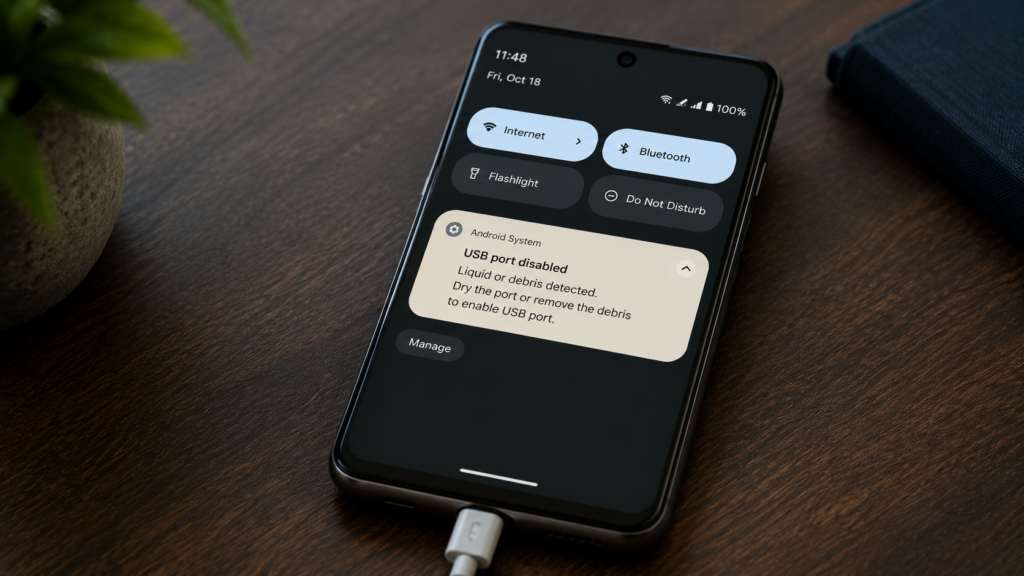
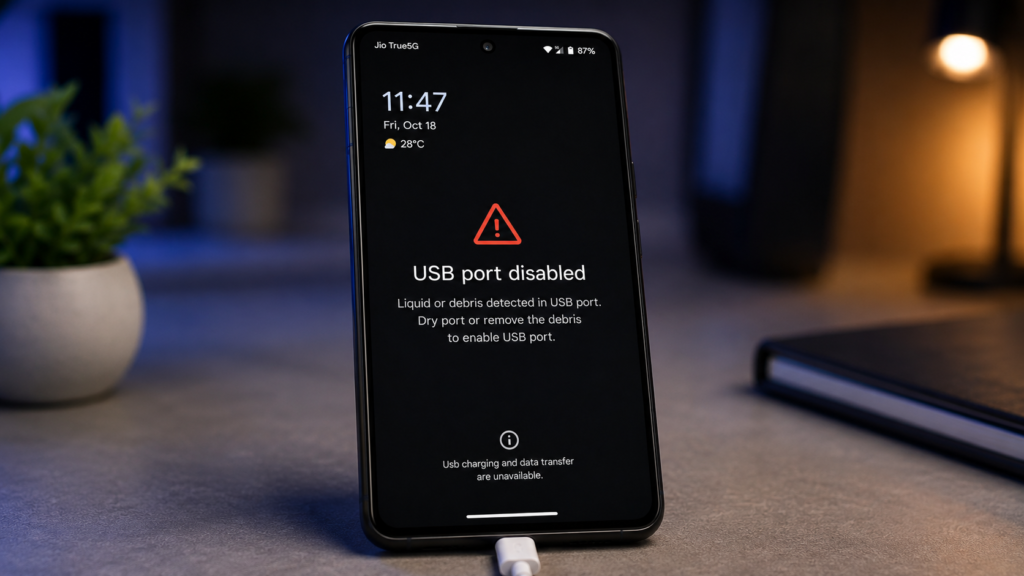
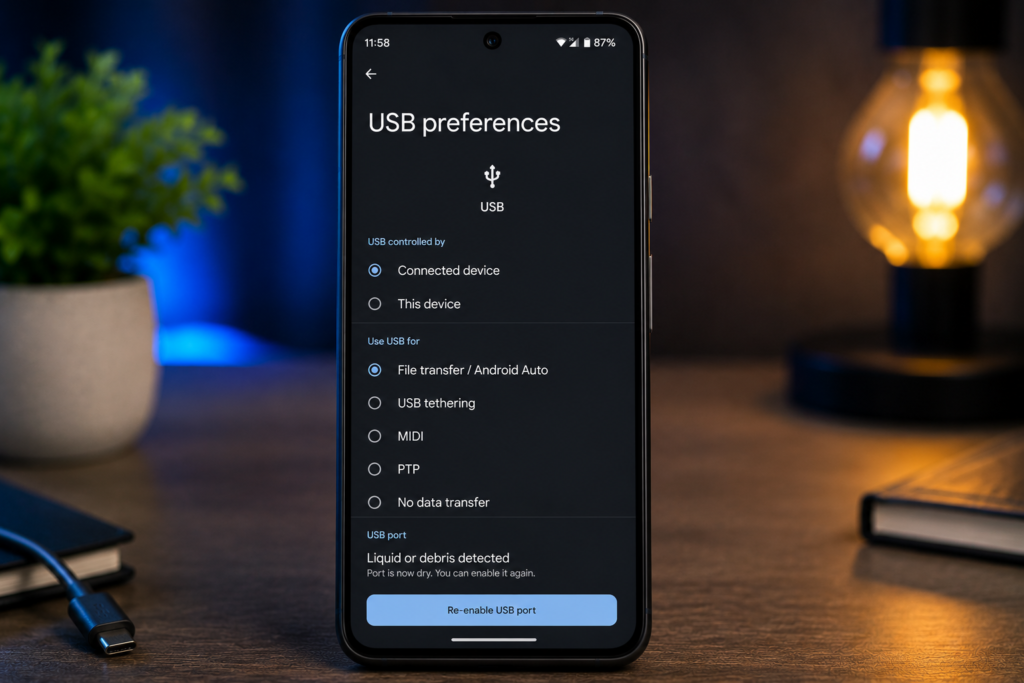
All modern Google Pixel phones — from Pixel 6 through to Pixel 9 — have a built-in liquid and debris detection sensor in the USB-C port. When the sensor detects moisture, water, dust, or foreign debris, the phone automatically disables the USB port and shows this notification:
- “Liquid or debris in USB port — To protect your device from liquid or debris, the USB port is disabled and won’t detect any accessories. You’ll be notified when it’s OK to use the USB port again.”
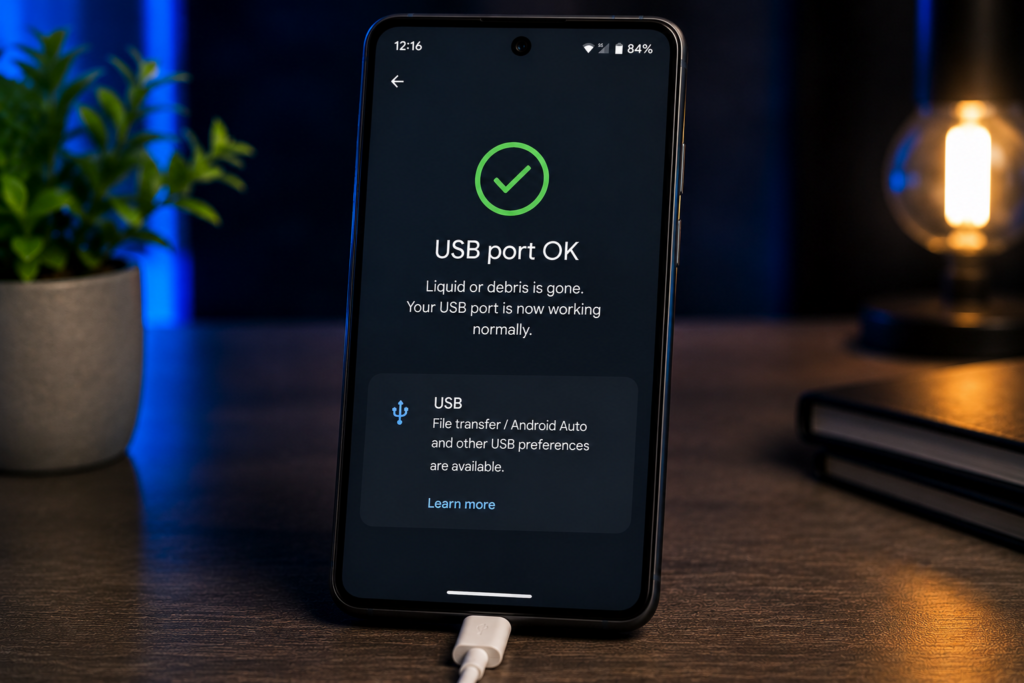
The key phrase here is: ‘You’ll be notified when it’s OK to use the USB port again.’ This is what makes Google Pixel different from other phones — it has a self-repair notification system that automatically tells you when the port is dry and safe to use again. You do not need to do anything except wait.
Which Google Pixel Models Have This Feature?
If you own any of the following Pixel devices, this guide applies to you:
| Google Pixel Model | USB Liquid Detection | IP Rating | Self-Repair Notification |
| Pixel 6 / 6 Pro | Yes | IP68 | Yes |
| Pixel 6a | Yes | IP67 | Yes |
| Pixel 7 / 7 Pro | Yes | IP68 | Yes |
| Pixel 7a | Yes | IP67 | Yes |
| Pixel 8 / 8 Pro | Yes | IP68 | Yes |
| Pixel 9 / 9 Pro / 9 Pro XL | Yes | IP68 | Yes |
| Pixel 9 Pro Fold | Yes | IPX8 | Yes |
The liquid detection and self-repair notification system is consistent across all Pixel models listed above. The fix process is identical regardless of which Pixel you own.
How Google Pixel’s Self-Repair Feature Works — What Makes It Unique
This is the feature that TapsVision’s video showcased — and it genuinely is impressive. Here is what happens automatically when Pixel detects liquid in the USB port:
- Pixel detects liquid or debris in the USB-C port via the internal sensor.
- The USB port is immediately and automatically disabled — no charging, no data transfer, no accessory detection.
- A notification appears on screen explaining what happened and that the phone will monitor the situation.
- As the port dries out naturally, Pixel continues checking the sensor in the background.
- Once the port is confirmed dry and safe, Pixel sends you another notification: ‘USB port is OK to use again.’
- You can then plug in your charger or accessories safely.
As TapsVision’s creator shared in the video — the first time this happened, it was alarming. But then the automatic ‘you can use it now’ message arrived, and it became clear just how well-designed this safety system is. Samsung tells you there is moisture and stops there. Pixel tells you there is moisture AND tells you when it is gone.
What to Do When You See ‘Liquid or Debris in USB Port’
Follow these steps for any Google Pixel model — Pixel 6, 6a, 7, 7a, 8, or 9:
Step 1: Read the Notification and Stay Calm
- Do not try to override the warning or force charge the phone.
- Tap ‘Got it’ or dismiss the notification — the USB protection stays active regardless.
- Do NOT tap ‘Enable USB’ unless the port is completely dry — this manually overrides the safety feature at your own risk.
Step 2: Dry the Phone Naturally
- Gently shake the phone with the USB port facing downward.
- Wipe the outside of the phone with a soft, dry cloth.
- Do NOT use a hairdryer, compressed air directly into the port, or insert anything into the port.
- Place the phone in a dry, well-ventilated area — near a fan or in an air-conditioned room.
Step 3: Wait for Pixel’s Self-Repair Notification
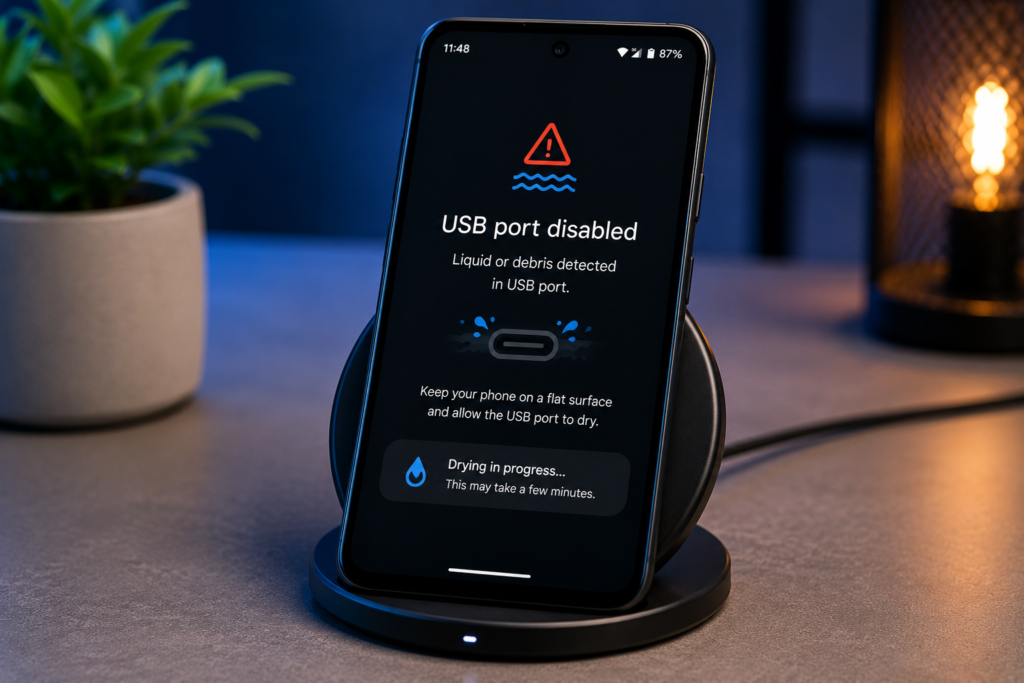
This is the step that is unique to Google Pixel. Simply wait — Pixel will automatically monitor the port and send you a notification when it is safe to use again. This typically takes 15 minutes to a few hours depending on how much moisture entered the port.
Step 4: Use Wireless Charging While Waiting
All Pixel 6 and newer models support Qi wireless charging. While waiting for the USB port to clear, you can charge your phone wirelessly without any risk. This completely bypasses the disabled USB port.
Step 5: Enable USB Manually If Urgent (Use With Caution)
If you see an ‘Enable USB’ button in the notification and the port appears visually dry, you can tap it to manually re-enable the port. However, this overrides the safety system — only do this if you are certain the port is fully dry and you need to charge urgently.
‘Phone No Longer Detects Liquid or Debris’ — What This Means
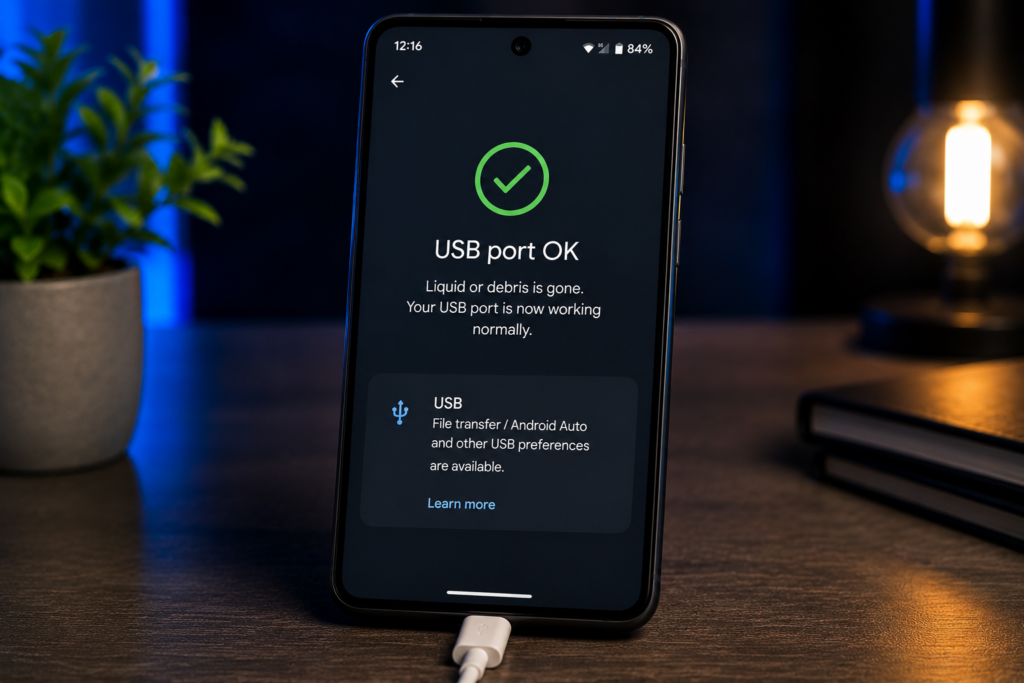
This is the message you want to see. When Google Pixel sends you the notification ‘Phone no longer detects liquid or debris’ or ‘USB port is OK to use again’, it means the sensor has confirmed the port is dry. You can now safely plug in your charger or any USB accessory. This self-notification system is the most user-friendly implementation of liquid detection available on any Android phone.
Google Pixel vs Samsung Galaxy — Liquid Detection Comparison
Since TapsVision covers both platforms, here is how the two approaches compare:
| Feature | Google Pixel | Samsung Galaxy |
| Warning Message | Liquid or Debris in USB Port | Moisture Detected in Charging Port |
| USB Charging Blocked | Yes — automatically | Yes — automatically |
| Self-Repair Notification | Yes — notifies when dry | No — manual check needed |
| Water Eject Feature | No built-in eject | Yes — Water Eject vibration |
| IP Rating | IP67 / IP68 depending on model | IP68 across S-series |
| Fix Process | Wait for auto-dry notification | Manual dry + Water Eject |
Both systems protect your phone effectively. Google Pixel’s approach is more hands-off — it does the monitoring for you and notifies you when it is safe. Samsung gives you the Water Eject tool to actively speed up drying. Neither is better or worse — they are just different design philosophies.
Google Pixel USB Port Disabled — How to Re-enable It
If the USB port stays disabled even after the phone appears dry, here are the steps to re-enable it:
- Wait for Pixel’s automatic notification — this is always the best first option.
- If no notification after 2 hours in a dry environment, restart the phone.
- Go to Settings > Connected devices > USB — check if port is shown as disabled.
- If the ‘Enable USB’ option appears in the liquid detection notification, tap it only if the port is visibly dry.
- If USB remains disabled with no moisture present, visit a Google authorised service centre — the sensor may be faulty.
Pro Tips: Prevent Liquid or Debris in Your Pixel USB Port
- Use a protective phone case with a port cover in wet or dusty environments.
- After rain or swimming, point the port downward and gently shake before plugging anything in.
- Never charge with a wet cable — the moisture detection can be triggered by a damp cable even if the phone is dry.
- At the beach or pool, keep your Pixel in a sealed waterproof pouch.
- IP67 and IP68 ratings degrade over time — older Pixels may be less resistant than when new.
- When outdoors in rain, use wireless charging rather than plugging in a cable.
Frequently Asked Questions
Q1. What does ‘liquid or debris in USB port’ mean on Google Pixel?
It means Google Pixel’s built-in sensor has detected moisture, water, or debris inside the USB-C charging port. The phone automatically disables the USB port to protect the hardware from short circuit damage, and will notify you when the port is dry and safe to use again.
Q2. How long until Google Pixel sends the ‘OK to use’ notification?
It varies depending on how much moisture is present. Minor dampness typically clears within 15-30 minutes in a dry room. Heavy water exposure can take 1-3 hours. Place the phone near a fan in a dry room to speed up the process.
Q3. Is it safe to tap ‘Enable USB’ when the warning appears?
Only if you are certain the port is completely dry — you can visually check with a torch. Tapping Enable USB overrides the safety protection. If there is any remaining moisture, you risk permanently damaging the charging port or internal components.
Q4. Does this happen on Pixel 6a, 7a? They have IP67, not IP68.
Yes. Pixel 6a and 7a have IP67 rating (1 metre for 30 minutes) rather than IP68, but both still have the liquid detection sensor and self-repair notification system. The fix process is identical across all Pixel models.
Q5. My Pixel USB port is disabled but there is no moisture — why?
The sensor can sometimes be triggered by high humidity, condensation from temperature changes, or even a slightly damp cable rather than direct water exposure. Restart the phone and wait 30 minutes in a dry room. If it persists with no moisture present, the sensor may be faulty — visit a Google service centre.
Q6. Can I charge my Pixel wirelessly while the USB port is disabled?
Yes. All Pixel 6 and newer models support wireless Qi charging. Simply place the phone on a compatible wireless charger — this completely bypasses the disabled USB port and is fully safe to use while the port dries.
Q7. Does Google Pixel have a Water Eject feature like Samsung?
No. Google Pixel does not have a built-in Water Eject vibration feature like Samsung. Instead, Pixel relies on passive drying and automatically monitors the sensor, notifying you when the port is clear. You can however gently shake the phone port-downward to help remove excess water.
Q8. What is ‘usb port disabled nothing phone 1’?
Nothing Phone 1 also shows a similar USB port disabled warning when liquid is detected in the USB-C port. The fix process is similar — disconnect the cable, allow the port to dry naturally, and wait for the notification to clear. Nothing Phone 1 does not have Google Pixel’s self-repair notification system.
Q9. Will this fix work on future Google Pixel phones?
Yes. Google has used consistent liquid detection and self-repair notification technology across all Pixel models since Pixel 6. This same system will almost certainly continue in Pixel 10, 11, and beyond. This guide will remain relevant for future Pixel releases.
Q10. What is the difference between ‘liquid or debris in USB port’ on Pixel and ‘moisture detected’ on Samsung?
Both warnings serve the same protective purpose. The key difference: Google Pixel automatically notifies you when the port is dry again (self-repair notification), while Samsung requires you to manually check or actively use the Water Eject feature to speed up drying. Both systems are effective — they just work differently.
Final Thoughts
The ‘liquid or debris in USB port’ warning on Google Pixel is not a malfunction — it is one of the best-designed safety features on any Android phone. The self-repair notification system that automatically tells you when your port is safe again is genuinely unique and thoughtful. The first time it happens it is alarming, as TapsVision’s creator experienced firsthand — but once you understand what it is doing, it is reassuring to know your phone is protecting itself and communicating clearly.
For more Google Pixel tips, Samsung troubleshooting, Android guides, and mobile tech coverage — subscribe to TapsVision on YouTube. We cover both Pixel and Samsung in depth, with practical guides in plain English.
TapsVision –