Is your Samsung Galaxy phone showing a ‘Moisture Detected’ or ‘Charging Paused’ warning? Whether you have an S23, S24, S25, or you’re reading this when the S26 or S27 launches — this guide covers you completely. The samsung charging port moisture detected error is one of the most common Samsung issues worldwide, and the fix is almost always the same across all Galaxy models. No service centre needed in most cases.
TapsVision’s video on this topic received 536 views in just 48 hours — with 521 views from YouTube Search alone — confirming this is a globally searched problem affecting millions of Samsung users.
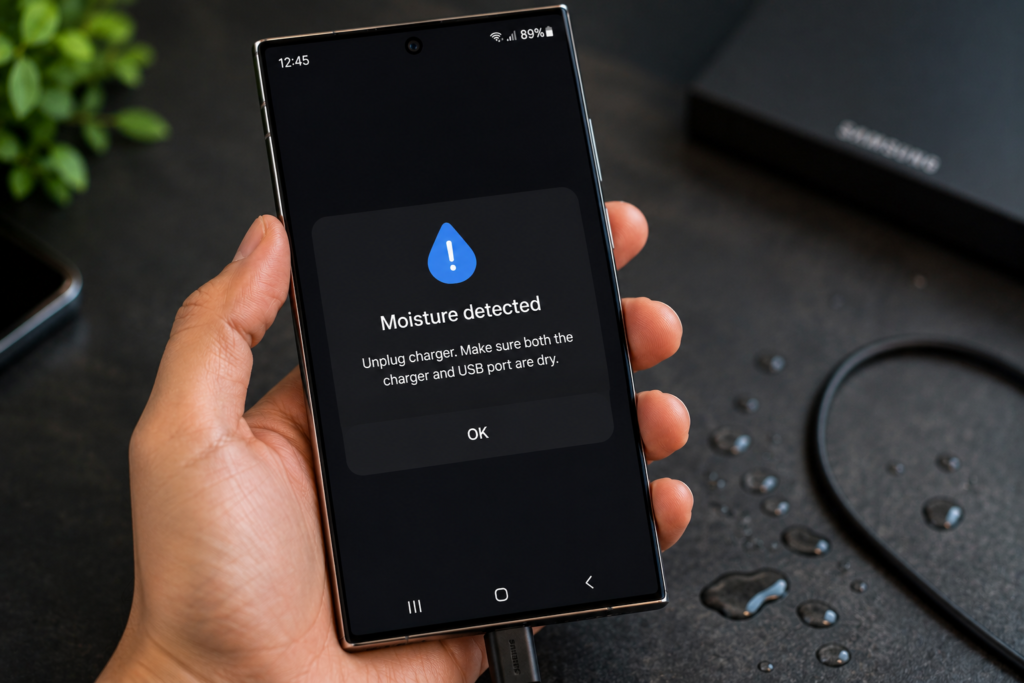
What Is the Samsung ‘Moisture Detected’ Warning?
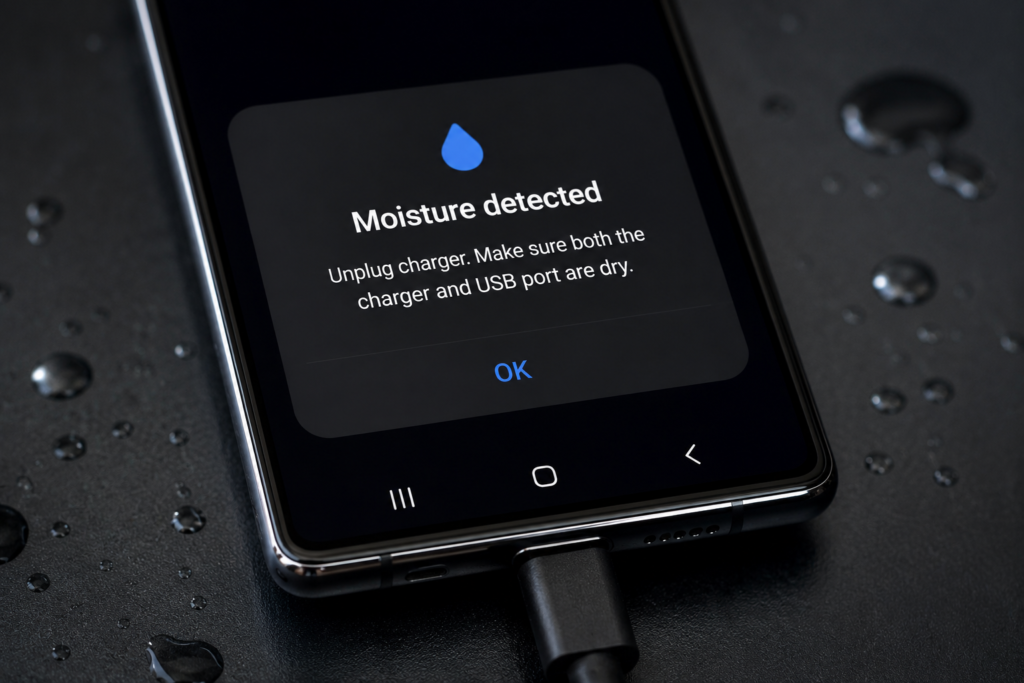
All modern Samsung Galaxy smartphones — from the S23 series right through to the upcoming S27 — include a built-in moisture detection sensor inside the USB-C charging port. When the sensor detects water or dampness, Samsung automatically blocks wired charging and shows one of these messages:
- “Moisture detected in charging port. Unplug charger.”
- “Charging paused. Remove moisture from the charging port.”
- “USB port detected moisture. Disconnect cable.”
This is NOT a bug. It is a deliberate safety feature Samsung has built into every Galaxy flagship and mid-range device since the S7 series. It prevents short circuits, permanent port damage, and fire hazards caused by charging with a wet port.
Which Samsung Models Have This Feature?
If you own any of the following Samsung devices, this guide applies to you:
| Samsung Model | Moisture Detection | IP Rating | Water Eject Feature |
| Galaxy S23 / S23 FE / S23 Ultra | Yes | IP68 | Yes |
| Galaxy S24 / S24 FE / S24 Ultra | Yes | IP68 | Yes |
| Galaxy S25 / S25 Ultra | Yes | IP68 (upgraded) | Yes |
| Galaxy S26 / S27 (upcoming) | Yes (expected) | IP68+ (expected) | Yes (expected) |
| Galaxy A-series (A54, A55, A35) | Yes | IP67 | Yes (select models) |
| Galaxy Z Fold / Z Flip series | Yes | IPX8 | Yes |
Bottom line: if your Samsung Galaxy phone has a USB-C port and was released after 2019, it almost certainly has moisture detection. The fix process is the same across all models.
Why Does Water Get Into the Samsung Charging Port?
- Using the phone with wet or sweaty hands
- Exposure to rain, splashing, or humid weather
- Taking the phone into the bathroom or near a sink
- Dropping the phone in water (pool, puddle, sink)
- Plugging in a damp or wet USB cable
- Storing the phone in a humid environment (gym bag, beach bag)
- Wearing the phone in a pocket while sweating during exercise
Important: Even IP68-rated Samsung phones (S23, S24, S25 and beyond) can trigger the moisture sensor. IP68 means the phone survived a controlled lab test — it does not mean you can freely use it in water repeatedly without consequence. Seals degrade over time, and moisture can still enter the port in everyday situations.
Situation vs Warning vs Fix — Quick Reference
| Situation | Warning Shown | Safe to Charge? | Fix |
| Phone dropped in water | Moisture Detected | No | Dry port, wait 30 min |
| Damp USB cable connected | USB Port Warning | No | Use a dry cable |
| Port completely dry | No warning | Yes | Charge normally |
| Emergency — port still damp | Warning still active | At risk | Use wireless charging |
How to Fix Samsung Charging Port Moisture Detected — Step by Step
These steps work for Samsung S23, S24, S25, S26, S27, Galaxy A-series, Z Fold, Z Flip, and all other Galaxy models with USB-C ports.
Step 1: Unplug the Charger Immediately
- Disconnect the USB cable from your Samsung phone right away.
- Do not try to force charge — this risks permanent port damage.
- Place the phone on a clean, dry flat surface.
Step 2: Dry the Exterior
- Gently shake the phone with the port facing downward to let excess water drip out.
- Wipe the outside with a soft, dry, lint-free cloth.
- Do NOT insert cotton swabs, paper, toothpicks, or any object into the port.
- Do NOT use a hairdryer, heat gun, or oven — heat permanently damages internal seals and the sensor itself.
Step 3: Use a Water Eject Tool to Remove Moisture
If moisture remains inside your Samsung Galaxy charging port after drying the exterior, you can optionally use a water eject tool to help remove trapped water using sound vibrations. I personally use Fix My Speakers� when I need extra help drying moisture from my device. It plays low-frequency sound waves that may help push water out of the charging port. While this is not an official Samsung feature, many users find it useful as an additional drying step.
- Open Fix My Speakers on your phone or another device.
- Tap the button to start the water eject sound.
- Hold your Samsung phone with the charging port facing downward.
- Let the sound play for 2–3 minutes to help remove trapped moisture.
- Repeat 2–3 times if the phone was exposed to heavy moisture.
- Leave the phone in a dry, well-ventilated area afterward.
- Wait at least 30 minutes before charging again.
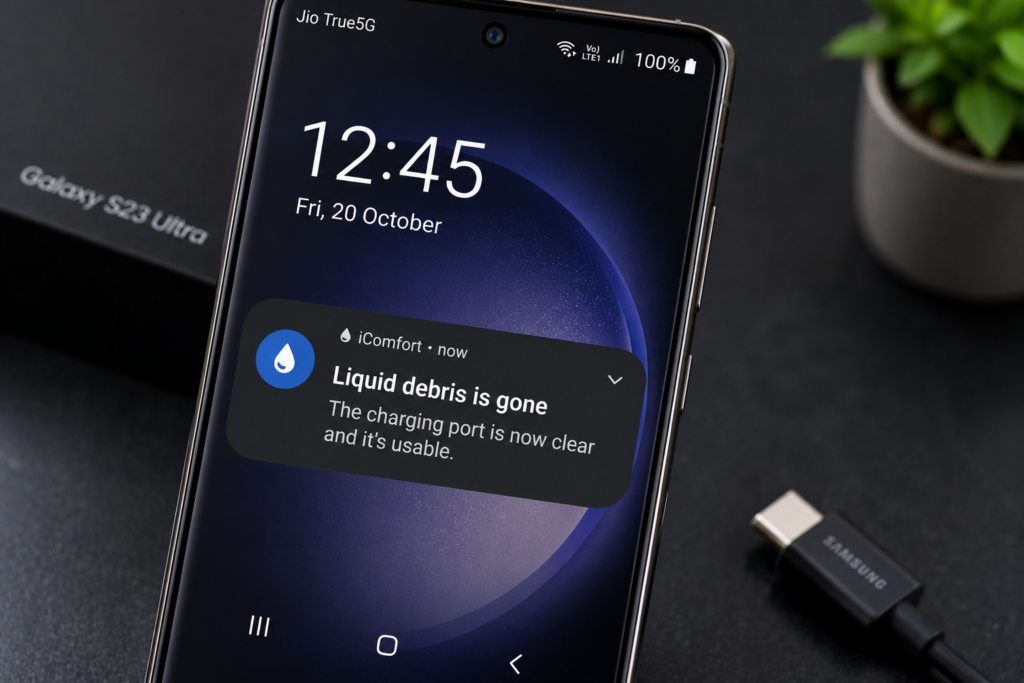
Step 4: Wait at Least 30 Minutes
After using Water Eject, leave your phone in a dry room with good airflow — near a fan or in an air-conditioned room. Wait a minimum of 30 minutes before plugging in a charger again. For heavier water exposure (like a full drop in water), wait 1-2 hours. Rushing this is the most common reason the warning keeps coming back.
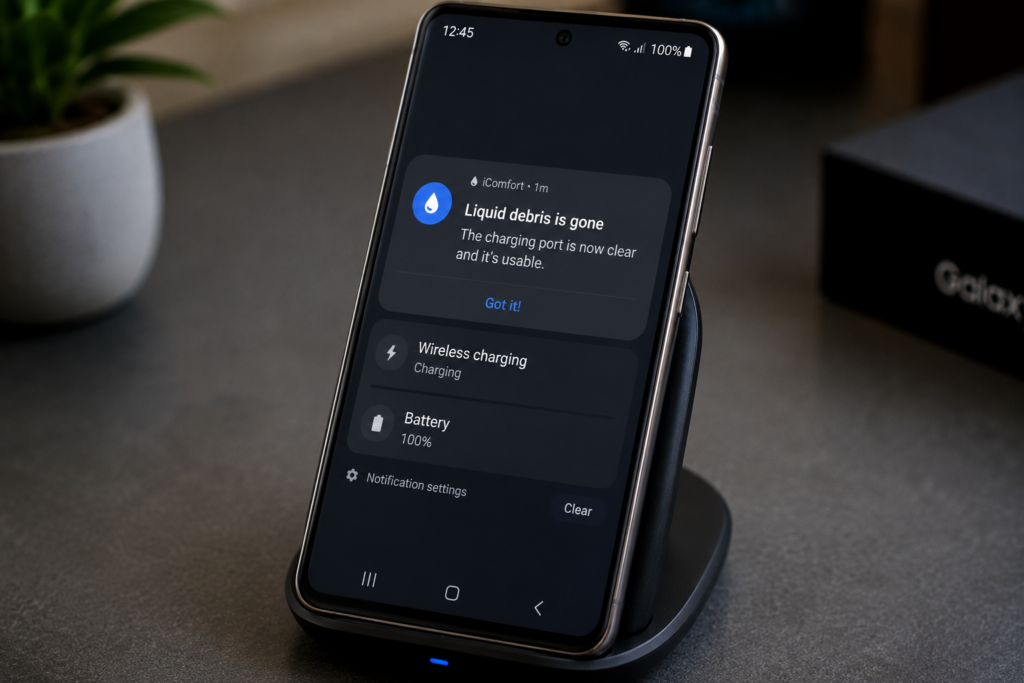
Step 5: Use Wireless Charging as a Workaround
All Samsung Galaxy S-series phones (S23 through S27 and beyond) support Qi wireless charging. If you urgently need to charge while the port is still drying, place the phone on any compatible wireless charger. This completely bypasses the wet port and is perfectly safe.
Step 6: Warning Still Showing After Port is Dry?
- Restart the phone — the sensor reading sometimes gets cached in software.
- Try a different USB cable and charger brick.
- Check for debris or corrosion inside the port with a torch.
- If the warning persists on a visibly dry port, the moisture sensor itself may be faulty — visit a Samsung authorised service centre.
Future-Proofing: Will This Fix Work on Samsung S26 and S27?
Yes. Samsung has used the same moisture detection system across all its Galaxy flagships since 2016, and there is no indication this will change with S26 or S27. The Water Eject feature, the IP68 rating, and the port-drying process will remain consistent across future models. Bookmark this guide — it will stay relevant for every new Samsung release.
Pro Tips: Prevent Moisture Getting Into Your Samsung Charging Port
- Use a waterproof phone case when outdoors, at the gym, or near water.
- Fit a charging port dust cover/plug in humid or dusty environments.
- Never plug in a charger with wet hands or a damp cable.
- At the beach or pool, keep your phone in a sealed waterproof pouch.
- After rain or swimming, always run the Water Eject feature before plugging in — even if no warning appears.
- IP68 is a lab rating. Real-world conditions and aging seals mean it is not a guarantee of complete waterproofing.
Frequently Asked Questions
Q1. Which Samsung models get the ‘moisture detected’ warning?
All modern Samsung Galaxy phones with USB-C ports — including S23, S23 FE, S23 Ultra, S24, S24 FE, S24 Ultra, S25, S25 Ultra, Galaxy A-series, Z Fold and Z Flip — have moisture detection. The same fix applies to all of them.
Q2. How do I fix ‘moisture detected’ on Samsung Galaxy?
Unplug the charger, shake the phone port-down, run the Water Eject feature (Quick Settings > Water Eject), and wait 30 minutes in a dry room before trying to charge again.
Q3. Where is the Water Eject feature on Samsung?
Quick Settings panel (swipe down twice) > Water Eject tile. Also available in Samsung Members app > Support, or Settings > Battery on some firmware versions. Available on S23, S24, S25, and most Galaxy models from 2019 onward.
Q4. Can I charge my Samsung wirelessly when moisture is detected?
Yes. All Samsung Galaxy S-series phones support Qi wireless charging. This bypasses the wet port entirely and is safe to use while the port dries out.
Q5. Is Samsung S23/S24/S25 waterproof?
They are IP68 rated — tested to survive 1.5 metres of water for 30 minutes under controlled conditions. But IP68 is not a permanent waterproof guarantee. Seals degrade, and the moisture sensor can still trigger from everyday dampness.
Q6. How long should I wait before charging after water exposure?
At least 30 minutes after using Water Eject for minor moisture. For heavy water exposure (a full drop in water), wait 1-2 hours in a dry, well-ventilated area.
Q7. Will this fix work on Samsung S26 and S27?
Yes. Samsung uses the same moisture detection system and Water Eject feature across all Galaxy flagships. The fix process documented here will work on S26, S27, and future models.
Q8. My Samsung port is dry but still shows moisture warning — why?
The sensor reading can sometimes get cached in software. Try restarting the phone first. If the warning persists, test with a different cable and charger. If it still shows, the moisture sensor may be faulty — visit a Samsung service centre.
Q9. What is the Samsung water eject sound?
When Water Eject activates, Samsung plays a low-frequency vibration and tone designed to physically push water out of the port — similar to Apple Watch’s water lock feature. You will feel the phone vibrate strongly during the process. This is normal and effective.
Q10. Does Samsung A-series have moisture detection too?
Yes. Most Samsung Galaxy A-series phones (A54, A55, A35 and others) also have moisture detection. The Water Eject feature is available on select A-series models via Samsung Members app. The drying and wait steps are the same.
Final Thoughts
The Samsung ‘moisture detected’ warning works exactly as intended — it is protecting your phone from serious and expensive damage. Whether you are on an S23 today or picking up an S27 in 2027, the fix is the same: stay calm, use Water Eject, wait it out, and use wireless charging as a bridge when you need power urgently.
Enjoyed this guide? Subscribe to TapsVision on YouTube for clear, practical Samsung tips, Android troubleshooting, Google Pixel coverage, and mobile tech guides — updated regularly as new devices launch.
TapsVision-