Before you upgrade — or before you worry that you can’t — it takes less than two minutes to know for certain whether your laptop or desktop is Windows 11 compatible. This guide covers the exact requirements Microsoft checks for and the official tool that gives you a clear yes-or-no answer, so you’re not left guessing based on your processor’s age alone.
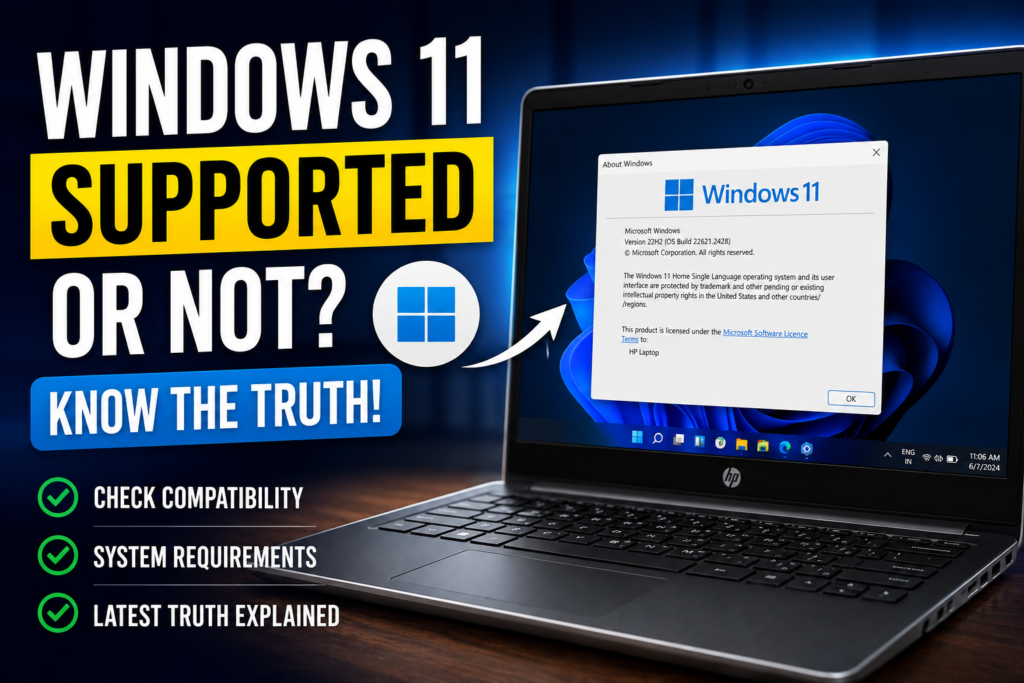
Windows 11 Minimum System Requirements
Microsoft checks your device against a specific set of requirements. If even one of these is missing, your PC will be flagged as unsupported:
- Processor: 1GHz or faster, with 2 or more cores, on a compatible 64-bit processor
- RAM: 4GB or more
- Storage: 64GB or larger storage device
- System firmware: UEFI, Secure Boot capable
- TPM: Trusted Platform Module (TPM) version 2.0
- Graphics card: Compatible with DirectX 12 or later, with a WDDM 2.0 driver
- Display: High definition (720p) display greater than 9 inches diagonally
- Internet connection: Required for setup on Windows 11 Home edition
Step-by-Step: How to Check If Your PC Is Windows 11 Compatible
Step 1: Download the PC Health Check App
Microsoft’s official PC Health Check tool is the fastest and most reliable way to check compatibility. Download it directly from Microsoft’s website — avoid third-party “checker” tools, since these often bundle unnecessary or unsafe software.
Step 2: Run the Check Now Button
Open the app after installing it, then click Check Now under the “Introducing Windows 11” section. Within a few seconds, it will tell you whether your PC meets all the requirements or which specific ones it fails.
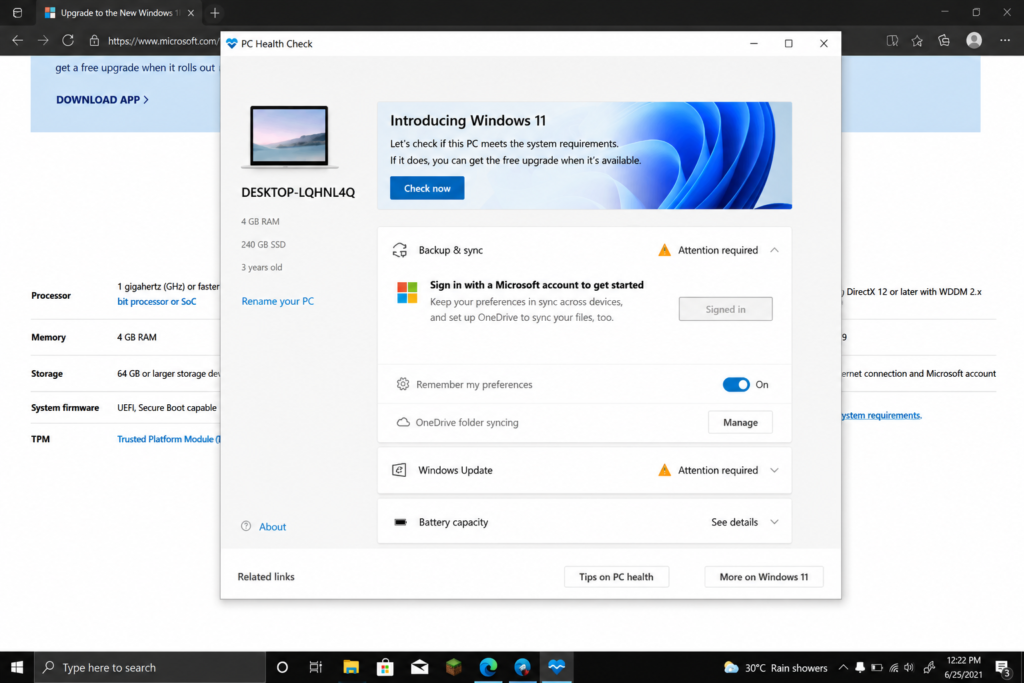
Step 3: Check TPM Status Manually (Optional)
If you want to double-check TPM specifically, type tpm.msc into the Windows search bar and press Enter. This shows whether TPM is present and which version is active — useful if the Health Check app flags TPM as the issue, since it can sometimes be disabled in BIOS rather than genuinely missing.
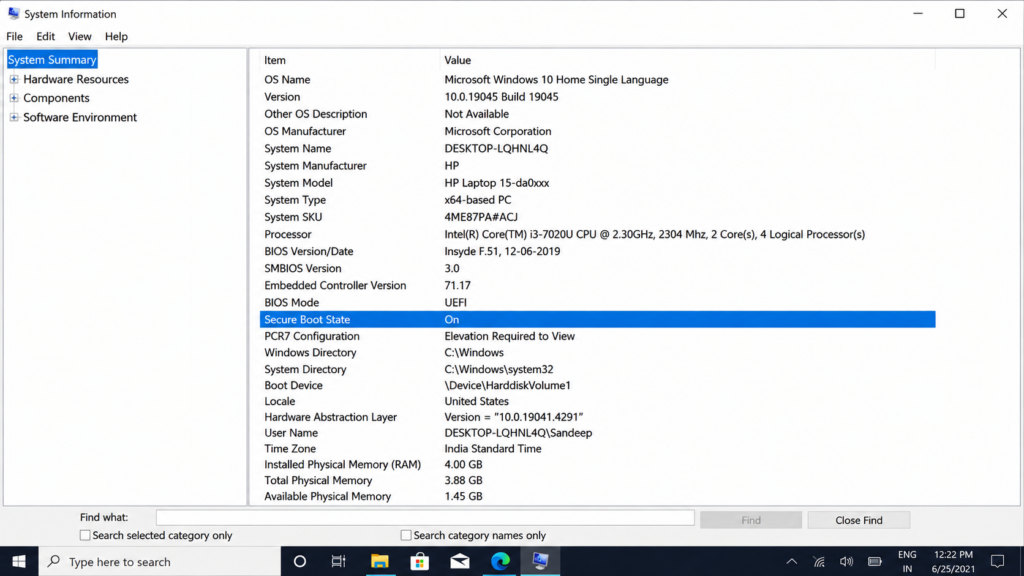
Step 4: Check Secure Boot Status
Type msinfo32 into the search bar, open System Information, and look for “Secure Boot State” in the list. If it says “Off” rather than “Unsupported,” it can usually be enabled from your BIOS settings without any hardware changes.
What to Do Based on Your Result
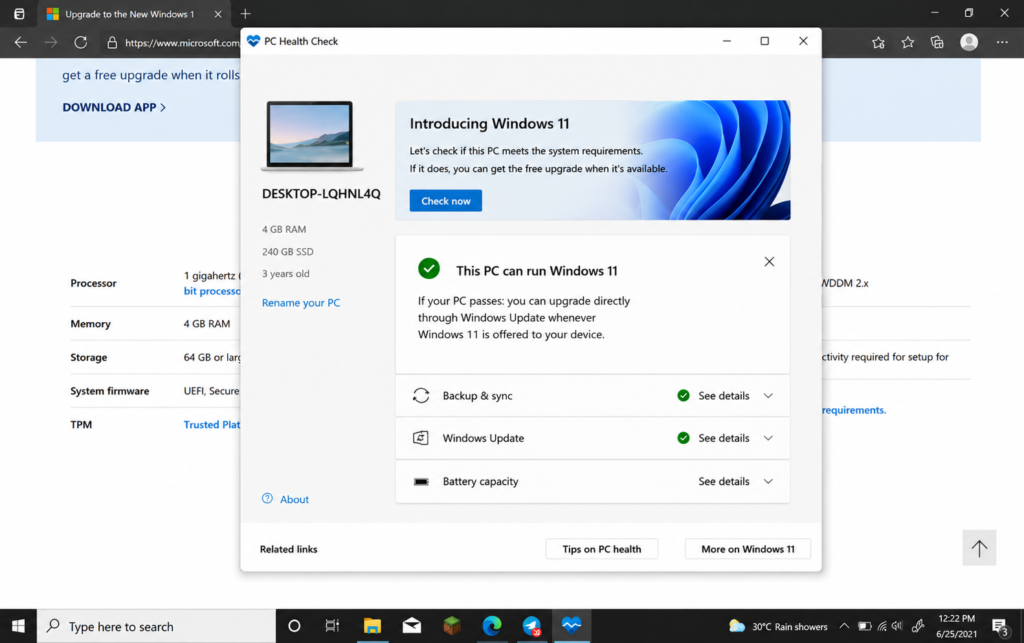
If your PC passes: you can upgrade directly through Windows Update whenever Windows 11 is offered to your device.
If your PC fails on TPM or Secure Boot only: these can often be enabled in BIOS if the hardware is present but simply switched off — check your laptop manufacturer’s BIOS settings before assuming it’s unsupported.
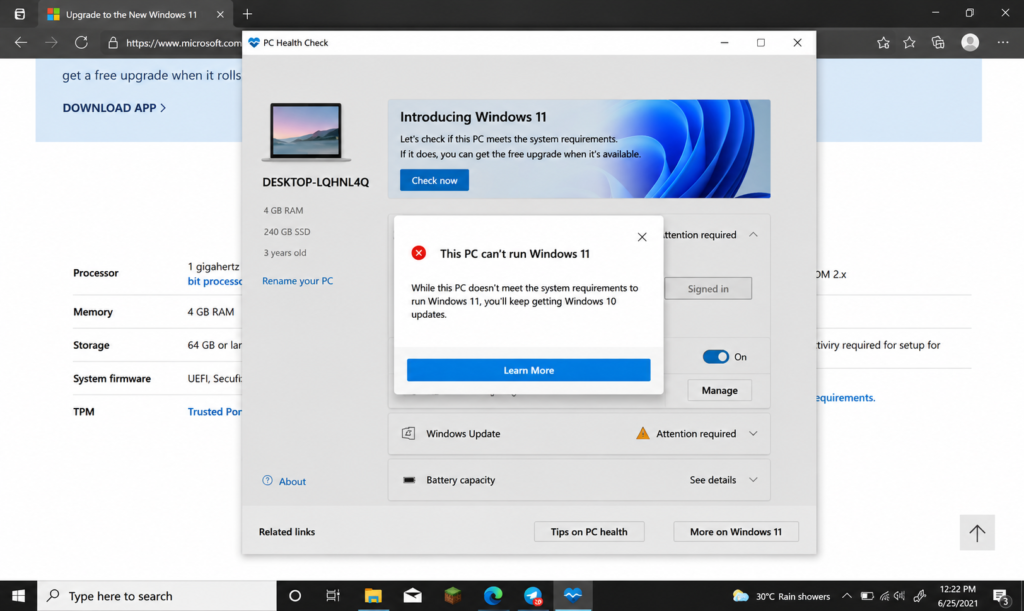
If your PC isn’t supported because of its processor generation, it may still be possible to install Windows 11 by bypassing the compatibility check. Before doing so, it’s important to understand the potential trade-offs, such as missing official support and possible future update limitations. For a step-by-step walkthrough, check out our detailed guide on installing Windows 11 on an unsupported i3 7th Gen laptop: https://tapsvision.in/install-windows-11-on-i3-7th-gen-laptop/
Which Devices Typically Pass the Check
- 8th Gen Intel Core processors and newer (most laptops from 2018 onward)
- AMD Ryzen 2000 series and newer
- Devices originally sold with Windows 10 and UEFI firmware pre-installed
- Any laptop or desktop with TPM 2.0 enabled and at least 4GB RAM
Watch the Full Video Walkthrough
If Your PC Isn’t Compatible, Here’s What Helps
1. Crucial / Kingston DDR4 RAM Upgrade
If your PC fails only on the 4GB RAM requirement, a simple RAM upgrade can resolve it on most laptops with an accessible RAM slot.
2. SanDisk / Crucial SSD (240GB and above)
If your storage is under 64GB, moving to a larger SSD solves the storage requirement and speeds up your whole system at the same time.
3. USB Wi-Fi Adapter (for desktops without built-in Wi-Fi)
Since Windows 11 Home requires an internet connection during setup, a USB Wi-Fi adapter is a cheap fix for older desktops without a network card.
Frequently Asked Questions
How do I check if my laptop is compatible with Windows 11?
Download Microsoft’s official PC Health Check app and click Check Now. It instantly tells you whether your device meets all requirements, and if not, which one is missing.
Why does my PC show “this PC can’t run Windows 11”?
This usually means one requirement is missing — most commonly TPM 2.0, Secure Boot, or an unsupported processor generation. The PC Health Check app tells you exactly which one.
Can I still get Windows 11 if my PC is not compatible?
Yes, in many cases. If your hardware has TPM 2.0 and Secure Boot but simply isn’t on the officially supported processor list, you can bypass the check during installation.
Is TPM 2.0 available on all laptops?
Most laptops made from 2016 onward have TPM 2.0 hardware built in, but it’s sometimes disabled by default in BIOS. Check tpm.msc first before assuming your device lacks it.
What is the minimum RAM needed for Windows 11?
Microsoft’s official minimum is 4GB, though 8GB is recommended for a smoother day-to-day experience, especially if you multitask.
Does Windows 11 work on old laptops?
It can, especially on 6th and 7th Gen Intel laptops with TPM 2.0 and an SSD. Performance is generally fine for browsing and everyday use, though very old or HDD-only laptops may struggle.
Is there a free tool to check Windows 11 compatibility?
Yes — Microsoft’s PC Health Check app is free, official, and the most reliable option. Avoid unofficial third-party checker tools.
TapsVision-