If you keep seeing “Your computer is low on memory” pop-ups and Windows force-closes your apps — even when you’re barely running anything — you’re dealing with a known Windows issue, not a hardware fault. High RAM usage windows 10 problems like this are often traced to a specific background service quietly leaking memory over time. This guide explains why it happens and walks through a safe, well-documented registry fix.

Why This Happens
This specific symptom — RAM usage staying high even with few apps open, followed by Windows abruptly closing programs to “free up memory” — is commonly linked to a known bug in the Ndu service (Network Data Usage Monitor), a background Windows component that tracks network data usage per app. In affected systems, this service can leak memory over time instead of releasing it, gradually eating up your available RAM until Windows starts closing things on its own.
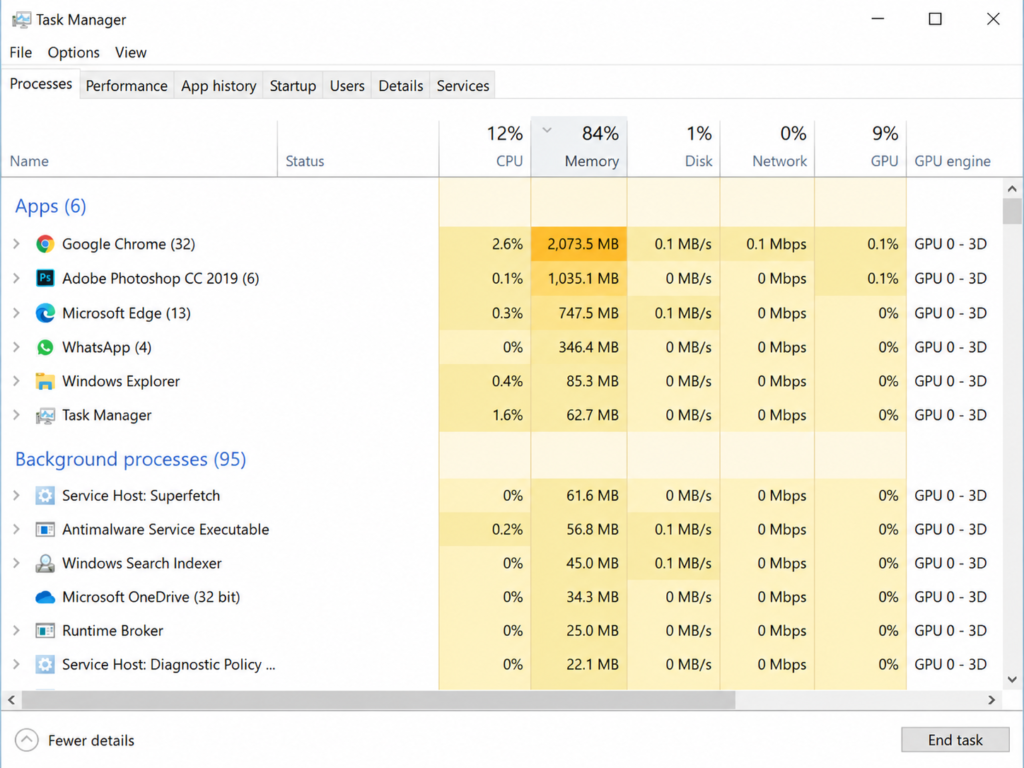
Before assuming it’s this specific bug, open Task Manager (Ctrl+Shift+Esc), sort by Memory, and check what’s actually using RAM. If one specific app is clearly the culprit, closing or updating that app is the simpler fix. If RAM stays high with no obvious app responsible, the fix below is worth trying.
Step-by-Step: Disabling the Ndu Service via Registry
This involves editing the Windows Registry. Registry changes are generally safe when you follow the exact steps below, but as a precaution, it’s worth creating a system restore point first (Control Panel > System > System Protection > Create) in case you want to undo the change later.
Step 1: Open Registry Editor
Press Win + R, type regedit, and press Enter. Click Yes if prompted for permission.
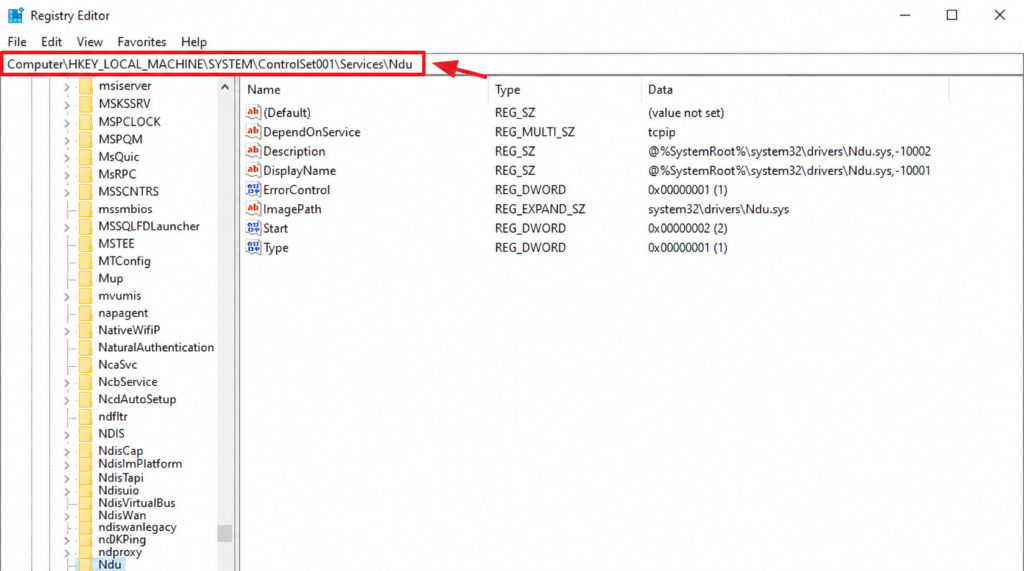
Step 2: Navigate to the Ndu Service Key
Go to: HKEY_LOCAL_MACHINE > SYSTEM > CurrentControlSet > Services > Ndu. Use CurrentControlSet specifically rather than a numbered ControlSet (like ControlSet001) — CurrentControlSet always points to whichever control set your system is actively using, so it’s the reliable path regardless of your specific machine’s numbering.
Step 3: Modify the Start Value
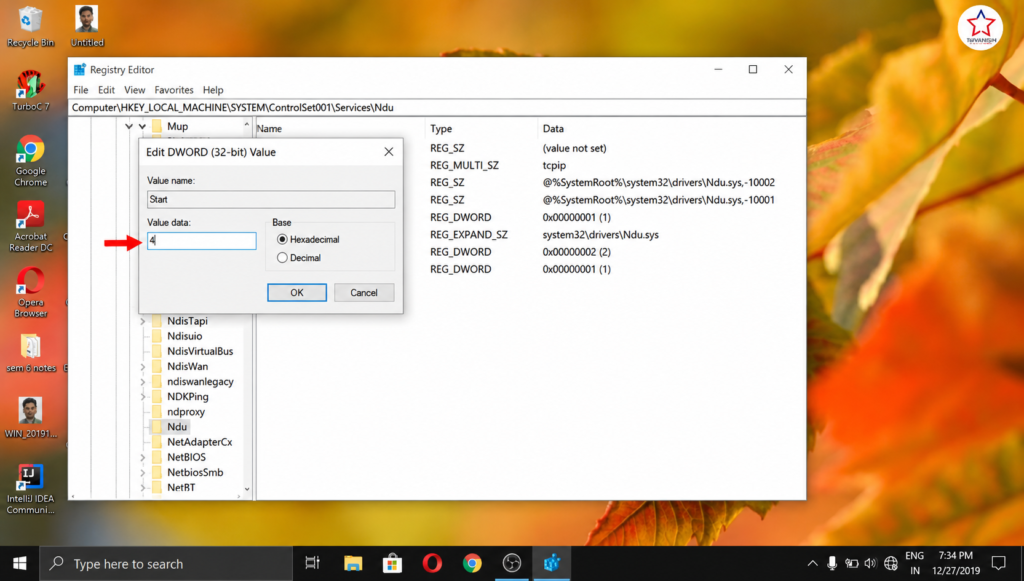
With the Ndu folder selected, find the “Start” value on the right side, right-click it, and choose Modify. Change the Value data from 2 to 4, then click OK. A value of 4 tells Windows to disable this service from starting.
Step 4: Restart Your PC
Close Registry Editor and restart your laptop or PC for the change to take effect.
What to Expect After the Fix
If the Ndu service was the cause, RAM usage should stay noticeably lower over time instead of climbing steadily until Windows intervenes. Keep an eye on Task Manager over the next day or two of normal use to confirm the improvement holds up. Disabling this service only affects Windows’ internal per-app network data tracking feature — it doesn’t affect your actual internet connection or any app’s ability to use the network.
If RAM usage is still high after this, the cause is likely a specific app or background process rather than this particular bug — go back to Task Manager and look for what’s actually consuming memory, or check for pending Windows updates, since Microsoft has patched this issue in some builds.
Compatible Devices
- Any Windows 10 PC or laptop showing high RAM usage with few apps open
- Systems experiencing repeated ‘low on memory’ warnings
- Also applicable on Windows 11 systems where the Ndu service is present
Watch the Full Video Walkthrough
If RAM Usage Is Still an Issue After This
1. RAM Upgrade Kit (8GB or 16GB)
If Task Manager consistently shows RAM maxed out even after this fix, your system may simply need more RAM for your workload.
2. SATA or NVMe SSD
When RAM runs low, Windows relies on your storage drive as virtual memory. An SSD makes this fallback dramatically faster than a traditional hard drive.
3. Reputable Antivirus/Anti-Malware Software
Persistent high memory usage is sometimes caused by malware running in the background. A scan with trusted, well-known security software rules this out.
Frequently Asked Questions
Why is my RAM usage so high on Windows 10?
It’s commonly caused by a specific background service (Ndu) leaking memory over time, though it can also be a single resource-heavy app, too many startup programs, or malware. Check Task Manager first to narrow down the cause.
How do I fix high memory/RAM usage in Windows 10?
Check Task Manager for the specific culprit first. If nothing obvious stands out and RAM stays high regardless, disabling the Ndu service through Registry Editor (as detailed above) resolves this for many affected systems.
Why is my CPU usage also at 100% along with high RAM?
High CPU and high RAM often go together when a single runaway process is consuming both. Sort Task Manager by CPU as well as Memory to identify whether one specific app is responsible for both.
What is a memory leak in Windows 10?
A memory leak happens when a program or service keeps allocating RAM without releasing it back when it’s done, causing usage to climb steadily over time until you restart or the system runs out of memory.
How do I fix Windows 10 RAM usage permanently?
Disabling the specific service causing the leak (if that’s the cause), keeping Windows updated so Microsoft’s patches apply, and avoiding unnecessary startup programs all help keep RAM usage stable long-term.
Why does PC memory usage stay too high even with nothing open?
This is the classic sign of a background service or leaked process rather than an actual app — Task Manager’s Processes tab (not just what you can see on-screen) will show what’s really using memory.
Does this Ndu service fix affect my internet connection?
No. It only disables Windows’ internal feature that tracks how much data each app uses — it doesn’t affect your actual Wi-Fi, Ethernet, or internet speed in any way.
TapsVision-