WiFi module not working, Bluetooth not turning on, display acting strange, battery not detected properly? Before assuming your laptop’s hardware is actually broken, it’s worth checking one thing first: the driver. This guide covers exactly how laptop drivers work, why they break (often right after a Windows update), and the complete, current fix process — from the simplest built-in troubleshooter to manually downloading a driver from your laptop manufacturer’s site.
Quick answer: most laptop hardware “faults” are actually a driver problem, not broken hardware. Try the built-in Windows troubleshooter first, then Device Manager’s driver update option, then Windows Update’s Optional Updates section, and finally a manual download from your laptop manufacturer’s official support site if the issue persists.
Why Do Laptop Drivers Stop Working in the First Place?
A smartphone is built as a single System on Chip (SoC) — WiFi, Bluetooth, the processor, and everything else is integrated together as one unit. A laptop or PC works differently: WiFi cards, Bluetooth modules, graphics cards, and sound cards are separate components connected through the motherboard. Each of these needs a driver — software that lets Windows actually communicate with that specific piece of hardware. When Windows updates, it sometimes installs a new driver that isn’t fully compatible with a specific component yet, which is exactly why a WiFi, Bluetooth, or display module can suddenly start “misbehaving” right after an update, even though nothing physically changed.
Method 1: Run the Built-In Windows Troubleshooter First
- On Windows 11, go to Settings → System → Troubleshoot → Other troubleshooters (on Windows 10, right-click the device in Device Manager and select Troubleshoot).
- Run the troubleshooter for the affected device (network adapter, Bluetooth, display, etc.).
- Let it detect and attempt to automatically fix the problem — this alone resolves a good number of driver hiccups.
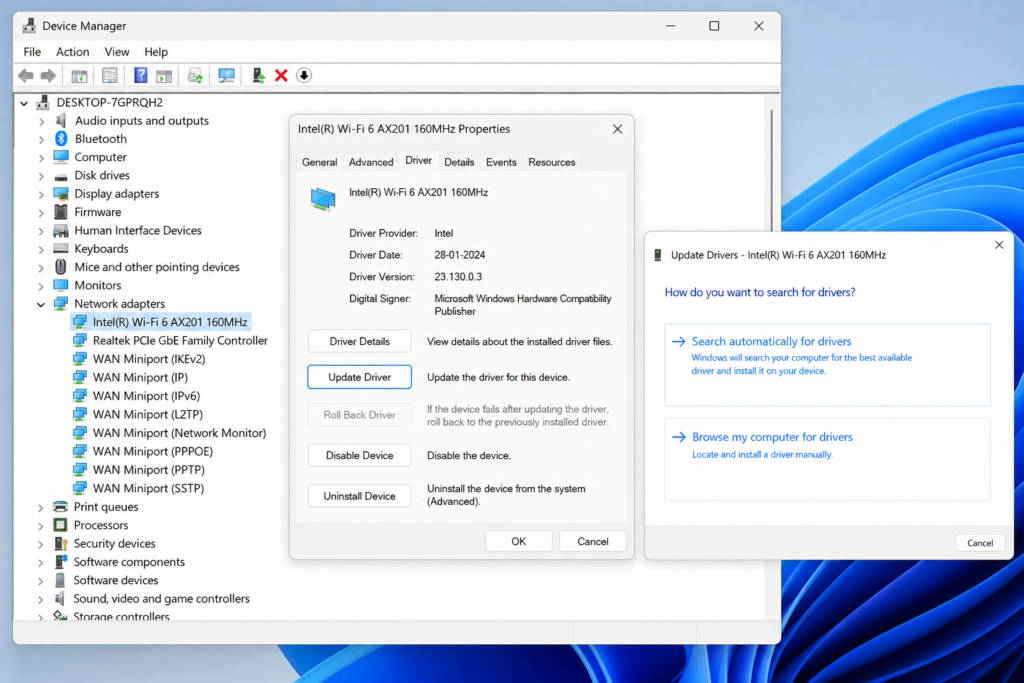
Method 2: Update the Driver Through Device Manager
- Open the Start menu and type “Device Manager,” then open it.
- Find the affected component under its category (for example, “Network adapters” for WiFi, “Bluetooth,” or “Display adapters”).
- Right-click the specific device and select Update driver.
- Choose Search automatically for drivers — Windows will check its own driver catalog and install anything newer it finds.
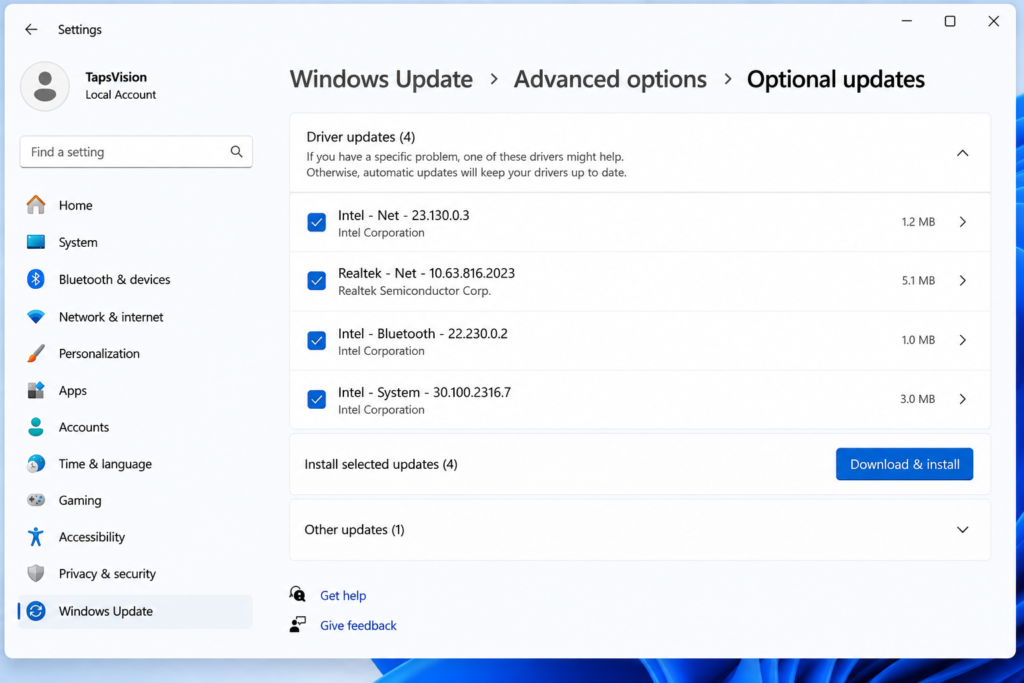
Method 3: Check Windows Update’s Optional Updates (Often Missed)
This is the part most people skip, and it’s genuinely one of the most useful places to check on current Windows 11 — Microsoft ships many driver updates here before they ever reach Device Manager’s automatic search.
- Go to Settings → Windows Update → Advanced options → Optional updates.
- Expand the Driver updates section if it appears.
- Check any driver listed for your affected component, then click Download and install.
- Restart your laptop once installation finishes.
Method 4: Download the Driver Directly From Your Laptop Manufacturer
If the automatic methods don’t fix it, go straight to the source — this is the most reliable method for laptop-specific components.
- Search your exact laptop model name plus “drivers” (for example, “HP ProBook 4540s drivers”) and go to the official manufacturer support page.
- Find the specific driver category affected — WiFi/network adapter, Bluetooth, graphics, chipset, etc.
- Download the driver package for your exact model and Windows version.
- Run the downloaded installer file and restart your laptop once it completes.
This process is nearly identical across brands — HP, Dell, Acer, Lenovo, and ASUS all have a dedicated support/drivers page you can reach by searching your model number. For components like graphics cards specifically, dedicated tools like the Intel Driver & Support Assistant or NVIDIA/AMD’s own driver utilities can also scan and update automatically.
What If a Windows Update Broke a Driver That Was Working Fine?
This is a genuinely useful addition since 2020 — Windows now makes it easier to undo a bad driver update instead of just reinstalling blind:
- Roll back the driver: In Device Manager, right-click the affected device → Properties → Driver tab → Roll Back Driver (only available if a previous version exists).
- Force a clean reinstall: Right-click the device → Uninstall device → check “Delete the driver software for this device” if shown → restart, and Windows will attempt to reinstall a fresh driver automatically.
- Stop a bad driver from reinstalling on repeat: use the “Show or hide updates” troubleshooter tool from Microsoft to block that specific update, or pause updates temporarily under Settings → Windows Update → Pause updates.
Power-user tip: if Windows Update keeps silently replacing a manually installed graphics driver with an older version, you can lock your driver choice in place via Settings sync options — search “Device Installation Settings” and choose No for automatic driver downloads from Windows Update, then continue managing that specific driver manually.
FAQs — Frequently Asked Questions
Q1. Why did my laptop’s WiFi/Bluetooth/display stop working after a Windows update?
This is almost always a driver compatibility issue, not broken hardware. Windows updates sometimes install a driver version that isn’t fully compatible with your specific component yet, causing it to misbehave until the correct driver is installed.
Q2. How do I check if a driver is actually the problem?
Open Device Manager and look for a yellow warning icon next to any device — that’s a clear sign of a driver issue. You can also check Properties → Driver tab on a specific device to see its version and provider details.
Q3. What’s the safest way to update laptop drivers?
Start with the built-in Windows troubleshooter, then Device Manager’s “Update driver” option, then check Windows Update’s Optional Updates section. Only go to the manufacturer’s website directly if those don’t resolve it — it’s the most complete source but requires picking the exact right file yourself.
Q4. Can updating a driver make things worse?
Occasionally, yes — a new driver can sometimes cause a different issue than it fixes. This is exactly why Device Manager’s Roll Back Driver option and the ability to pause updates both exist, so you’re never stuck with a broken update permanently.
Q5. Where do I find drivers for my specific laptop model?
Search your exact model name plus “drivers” and go to the official manufacturer’s support page (HP, Dell, Acer, Lenovo, ASUS, etc. all have one). Avoid third-party “driver update” software from unofficial sites — stick to your manufacturer’s own page or Windows Update.
Q6. What’s the difference between Windows Update drivers and manufacturer drivers?
Windows Update offers Microsoft-certified drivers, which are generally safe but can lag behind by weeks or months compared to the manufacturer’s latest release — especially for graphics cards and laptop-specific components. The manufacturer’s own site or utility usually has the most current version.
Q7. My battery driver shows a problem — is that dangerous?
A battery driver issue is usually a software reporting problem (inaccurate charge percentage, missing battery icon) rather than a physical battery hazard. Still, if you notice actual physical symptoms — unusual heat, swelling, or the laptop not charging at all — that’s a hardware concern worth getting checked separately from a driver fix.
Final Thoughts — Check the Driver Before You Assume It’s Broken
A huge number of “my laptop hardware stopped working” situations are actually a driver mismatch that’s fixable in a few minutes, not a real hardware fault. Work through the troubleshooter, Device Manager, Windows Update’s Optional Updates, and the manufacturer’s site in that order, and you’ll resolve the large majority of WiFi, Bluetooth, display, and battery-reporting issues without ever needing a repair shop.
If you found this guide helpful, subscribe to the TapsVision YouTube channel and hit the bell icon — we post practical laptop and PC troubleshooting guides regularly, in both Hindi and Hinglish, just for you!
Subscribe TapsVision on YouTube for daily Hindi tech tips — laptops, Windows, and more!
Have a question? Comment below or message us on the YouTube video. Everyone is welcome in the TapsVision community!
— TapsVision