Opening MEmu and seeing “the core process of emulator has ended” or “HyperV is detected, which may cause malfunction of MEmu, repair it”? Don’t worry — this is a common Windows virtualization conflict that affects thousands of MEmu, Nox, LDPlayer, and BlueStacks users. In this guide, we’ll explain step-by-step why this error happens, how Hyper-V and VT-x are connected, and which fix will actually work for your PC — without reinstalling Windows.
Note: This original MEmu fix video has generated 300+ dedicated YouTube searches for “the core process of emulator has ended” and related Hyper-V terms — meaning thousands of users are still facing this exact problem today.
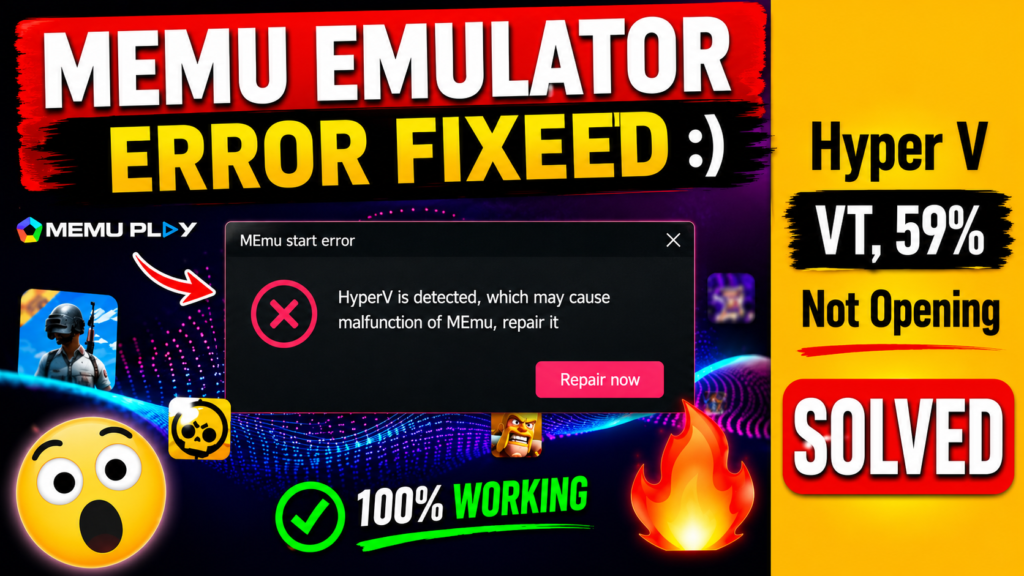
“The Core Process of Emulator Has Ended” — What Does This Error Mean?
In simple terms: this error happens when another Windows hypervisor (Hyper-V, or a feature that silently switches it on, like VBS, Memory Integrity, Windows Sandbox, or WSL2) takes exclusive control of your CPU’s virtualization (Intel VT-x / AMD-V). MEmu can’t get the direct access it needs, so its core process crashes right at startup.
All of these error messages are actually the same underlying problem — just worded differently:
- “The core process of emulator has ended”
- “The core process of MEmu has ended”
- “HyperV is detected, which may cause malfunction of MEmu, repair it”
- “MEmu is not opening” / “MEmu play error”
- “MEmu Hyper V headless frontend has stopped working”
Why Does This Happen? Hyper-V vs VT-x Conflict Explained
MEmu, Nox, LDPlayer, and older BlueStacks builds are all VirtualBox-based emulators. They need direct access to your CPU’s hardware virtualization (VT-x/AMD-V). But Windows’ Hyper-V is a “Type-1” hypervisor that takes control of CPU virtualization before Windows even finishes booting. Two tools fight over the same resource — and Hyper-V always wins, which is why MEmu fails.
The confusing part is that even when the Hyper-V “checkbox” looks unchecked, these features silently turn it on anyway:
- VBS (Virtualization Based Security)
- Memory Integrity / Core Isolation
- Windows Sandbox
- WSL2 (Windows Subsystem for Linux)
- Windows Hypervisor Platform
- Credential Guard / Device Guard
Important 2026 update: on many clean installs of Windows 11 24H2 and 25H2, VBS/Hyper-V is now ON by default — which is why older fixes sometimes stop working, and why an extra advanced step (Step 5 below) has become necessary.
Situation vs Error vs Fix — Quick Reference Table
Before following the steps below, check this table to identify your exact situation:
| Situation | Error / Warning | Real Cause | Fix |
| MEmu crashes right at startup | “The core process of emulator has ended” | Hyper-V/VBS has taken VT-x | Turn off Memory Integrity |
| MEmu won’t launch at all | “HyperV is detected, which may cause malfunction of MEmu” | Hyper-V is ON in Windows Features | Turn off hypervisor with bcdedit |
| VT is enabled, error still appears | “VT-x is not available (VERR_VMX_NO_VMX)” | Antivirus is blocking VT-x | Check Avast/Kaspersky virtualization settings |
| Nothing works on Windows 11 24H2 | Repeated crashes, VBS shows ‘Running’ | Windows 11 24H2 has VBS ON by default | Force-disable VBS via registry (advanced) |
| Nothing has worked so far | MEmu simply won’t open | Hardware/PC configuration limitation | Try Nox / LDPlayer / BlueStacks (Hyper-V compatible) |
MEmu “Core Process Has Ended” Error — Step-by-Step Fix Guide
Follow these steps in order — try the safest step first, and move to the next one only if it doesn’t work. Note: disabling Hyper-V/VBS/Memory Integrity slightly lowers security, and WSL2/Docker/Windows Sandbox may stop working until you re-enable it.
Step 1: Check If VT-x/AMD-V Is Enabled in BIOS
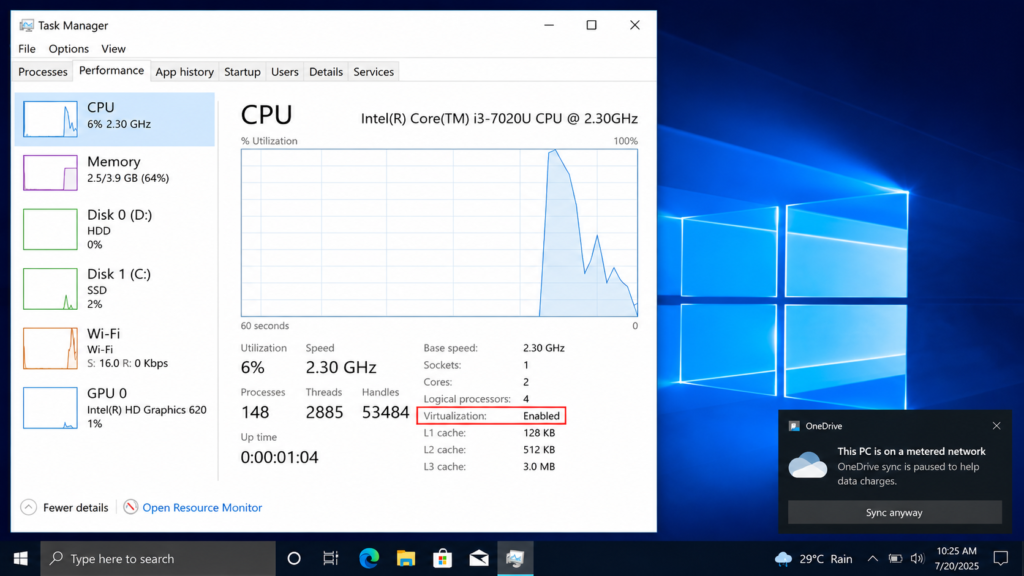
- Open Task Manager (Ctrl+Shift+Esc) → Performance tab → CPU.
- Check “Virtualization: Enabled.” If it shows “Disabled,” restart your laptop and enter BIOS/UEFI (F2/Del/F10 key).
- Go to Advanced or CPU Configuration and enable “Intel Virtualization Technology (VT-x)” or “SVM Mode (AMD-V).”
- Save & Exit, and return to Windows.
Step 2: Turn Off Memory Integrity (Core Isolation)
- Open the Windows Security app → Device Security → Core Isolation details.
- Toggle “Memory Integrity” to Off.
- Restart your laptop.
Step 3: Disable Hyper-V and Related Windows Features
- Open Control Panel → Programs → “Turn Windows features on or off.”
- Uncheck Hyper-V, Virtual Machine Platform, Windows Hypervisor Platform, and Windows Sandbox.
- Click OK and restart.
Step 4: Turn Off the Hypervisor at Boot Level (bcdedit)
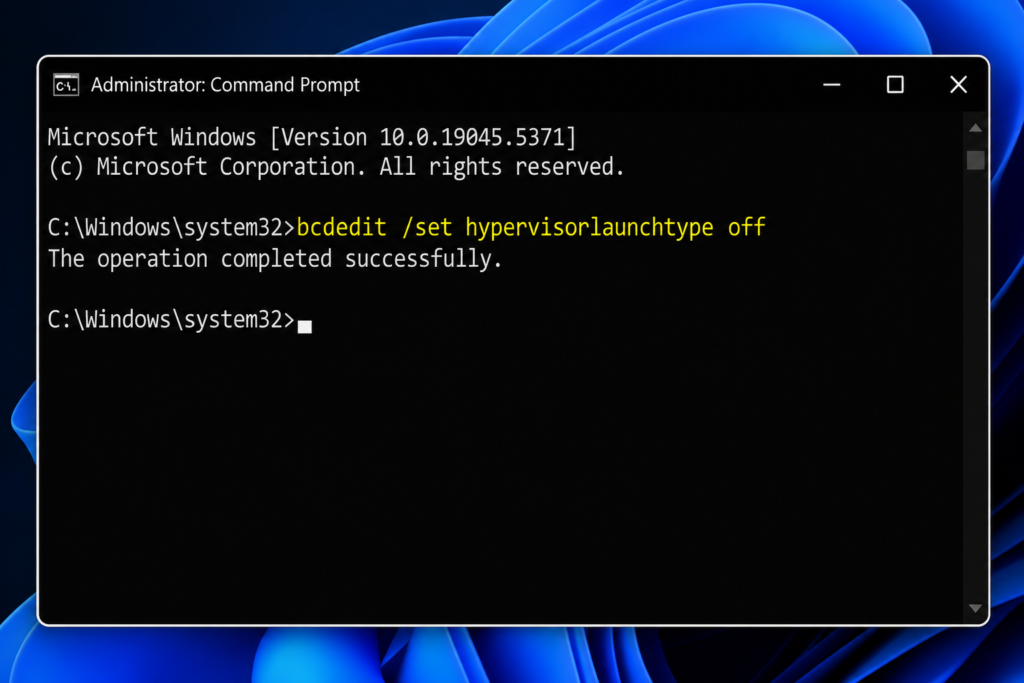
- Open Command Prompt or Terminal as Administrator.
- Run this command: bcdedit /set hypervisorlaunchtype off
- Restart your laptop and try MEmu again.
- To re-enable it later: bcdedit /set hypervisorlaunchtype auto
Step 5: Still Seeing VBS ON in Windows 11 24H2? (Advanced Fix)
Open msinfo32 and check the status of “Virtualization-based security.” If it still shows “Running” after the steps above, try this advanced fix — back up your registry first:
- Temporarily turn off Tamper Protection in Windows Security.
- In Registry Editor (regedit), go to HKLM\SYSTEM\CurrentControlSet\Control\DeviceGuard\Scenarios\WindowsHello and set “Enabled” to 0.
- Go to HKLM\SYSTEM\CurrentControlSet\Control\DeviceGuard and set “EnableVirtualizationBasedSecurity” to 0.
- Restart and confirm again using msinfo32.
Caution: This advanced step can affect Windows Hello sign-in. If you’re not comfortable with it, try Step 6 instead.
Step 6: Nothing Working? Switch Emulators Instead
If you’re on a locked office/corporate laptop where Hyper-V can’t be changed, or none of the steps above worked, use a Hyper-V compatible emulator instead: current NoxPlayer, BlueStacks 5.20+, or LDPlayer 14. These can coexist with Hyper-V automatically.
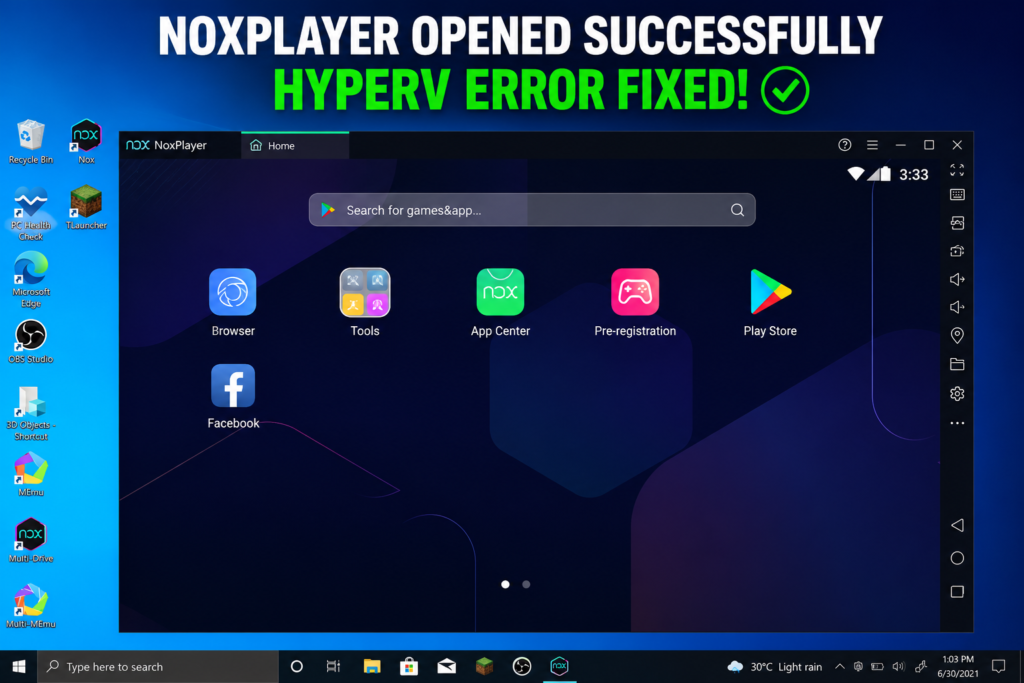
How I Actually Fixed It — By Installing Nox (Real Experience)
When I faced this problem myself, I tried a lot of YouTube solutions — changed the launcher, reinstalled MEmu — nothing worked. Even MEmu’s own “Repair now” button couldn’t fix the HyperV error. So I searched online and downloaded a different emulator (Nox) — a 400-500MB installer. After installing it, when I opened it, it auto-repaired itself and handled the Hyper-V conflict on its own, because Nox is a bit more “powerful” and directly compatible with Hyper-V.
This is exactly the reason we explained above — NoxPlayer is Hyper-V compatible, so where MEmu fails, Nox runs fine. But two important cautions:
- Only download Nox from the official website (bignox.com) — the random links that show up first when you search “Nox download” can contain bundled or fake installers.
- NoxPlayer’s default build runs on an older Android (Nougat) base — if you need the latest Android for a banking app or a strict app, disabling Hyper-V and using MEmu/LDPlayer is the better option.
Best Android Emulators in 2026 — MEmu vs Nox vs LDPlayer vs BlueStacks
If you want a permanently Hyper-V compatible emulator, here’s an updated 2026 comparison:
| Emulator (2026) | Hyper-V Compatible? | Best For |
| MEmu Play 9 | Partial (has its own Hyper-V mode) | Multi-instance, Android 11-13 |
| NoxPlayer 7 | Yes | When you can’t disable Hyper-V/VBS |
| LDPlayer 14 | Yes | Gaming, Android 14, high FPS |
| BlueStacks 5.20+ | Yes (official build) | Popular games, easy setup |
| MuMu Player 12 | Partial (Nebula variant is no-VT) | Lightweight multitasking |
Extra note: Microsoft officially discontinued the Windows Subsystem for Android (WSA) in March 2025, so third-party emulators are now the best option for running Android apps on a PC.
Pro Tips — Stop This Error From Coming Back
- Install only one emulator at a time — running multiple emulators (MEmu + Nox + LDPlayer) together often creates conflicts.
- Recheck your VT/Hyper-V settings after Windows Updates — updates can silently turn VBS back on.
- If you use WSL2 or Docker, don’t permanently disable Hyper-V — switching emulators (Step 6) is the better option.
- Keep checking your antivirus settings for virtualization blocks, especially if you use Avast or Kaspersky.
- Always download MEmu, Nox, and LDPlayer from their official websites.
Video Stats: “Memu Emulator Not Opening Fix | Hyper-V, VT … SOLVED” | 20.2K views since published | 357 watch hours | Estimated revenue: $12.57 | Top YouTube search: ‘the core process of emulator has ended’ (333 views, 2.4%)
FAQs — Frequently Asked Questions
Q1. What does “the core process of emulator has ended” mean?
It means Windows’ Hyper-V or VBS has taken over your CPU’s virtualization (VT-x/AMD-V), and MEmu couldn’t get access to it. That’s why MEmu’s core process crashes right at startup.
Q2. How do I fix the “memu hyper v is detected” error?
Turn off Memory Integrity, uncheck Hyper-V in Windows Features, and then run the bcdedit /set hypervisorlaunchtype off command. After a restart, MEmu should open normally.
Q3. How to enable VT in MEmu emulator?
VT (Virtualization Technology) isn’t enabled inside MEmu — it’s a BIOS/UEFI setting on your laptop called “Intel VT-x” or “AMD-V.” Check Task Manager → Performance → CPU to see if it’s already enabled.
Q4. Where do I find the MEmu VT enable option?
In BIOS/UEFI — restart your laptop and press F2, Del, or F10, then enable VT-x/SVM Mode under the Advanced or CPU Configuration section.
Q5. BlueStacks has stopped working on Windows — will the same fix work?
Yes, the root cause is the same — a Hyper-V/VBS conflict. But download the latest BlueStacks 5.20+ from the official website, since it’s already Hyper-V compatible and needs less manual fixing.
Q6. Is the “mumu player vt problem” fixed differently?
No, the same fix works — disable Memory Integrity, disable Hyper-V, and run the bcdedit command. If the problem persists, try the MuMu Nebula variant, which runs without VT.
Q7. Hyper-V is not showing in Windows 11 — what should I do?
On Windows 11 Home, the Hyper-V option doesn’t appear in “Turn Windows features on or off” because that feature is only available on Pro/Enterprise editions. Home users should focus on checking VBS/Memory Integrity instead.
Q8. MEmu still won’t open even after enabling VT — what now?
If MEmu still won’t open after enabling VT in BIOS, disable both Memory Integrity and Hyper-V (Steps 2 and 3). Windows 11 24H2 users should try the advanced VBS fix in Step 5.
Q9. Is it safe to disable Hyper-V?
Yes, it’s generally safe for gaming/emulator use. Just remember that WSL2, Docker Desktop, and Windows Sandbox won’t work until you re-enable Hyper-V (bcdedit /set hypervisorlaunchtype auto).
Q10. What’s the best lightweight Android emulator for PC in 2026?
If your PC is low-spec, MuMu Nebula or NoxPlayer are lightweight options. For gaming, LDPlayer 14 gives the best performance, and MEmu is good for multi-instance work.
Q11. Is it safe to download Nox?
Yes, but only from the official bignox.com website. Third-party or mirror sites that show up when you search “Nox download” can contain bundled adware or fake installers.
Final Thoughts — This Error Is Fixable, Just Follow the Right Step
Seeing “the core process of emulator has ended” or “HyperV is detected” can be scary, but in 90% of cases it’s fixable at home in 10-15 minutes. The root cause is always the same — a VT-x conflict between Hyper-V/VBS and MEmu. Follow the step-by-step guide, or if you need a quick solution, switch to a Hyper-V compatible emulator (Nox/LDPlayer/BlueStacks).
If you found this blog helpful, subscribe to the TapsVision YouTube channel and hit the bell icon — we post new Android tips, emulator troubleshooting, and PC tricks regularly, in both Hindi and Hinglish, just for you!
Subscribe TapsVision on YouTube for daily Hindi tech tips — Android, Windows, emulators, and more!
Have a question? Comment below or message us on the YouTube video. Everyone is welcome in the TapsVision community!
TapsVision-