Updated your OnePlus 6 or 6T to Android 11 (OxygenOS 11) and now your Always On Display / Ambient Display has just stopped showing anything? You’re not alone — this is one of the most common issues after that specific update, and the good news is it’s a simple, well-documented fix that takes less than five minutes. In this guide, we’ll walk through exactly why this happens and the fix that still works today, plus a few extra troubleshooting steps in case the basic fix doesn’t solve it for you.
Note: This original AOD fix video has generated 500+ dedicated YouTube searches across terms like “oneplus always on display,” “oneplus 6t android 11,” and “horizon light oneplus 6” — meaning this is still a very common problem for OnePlus 6/6T owners today.
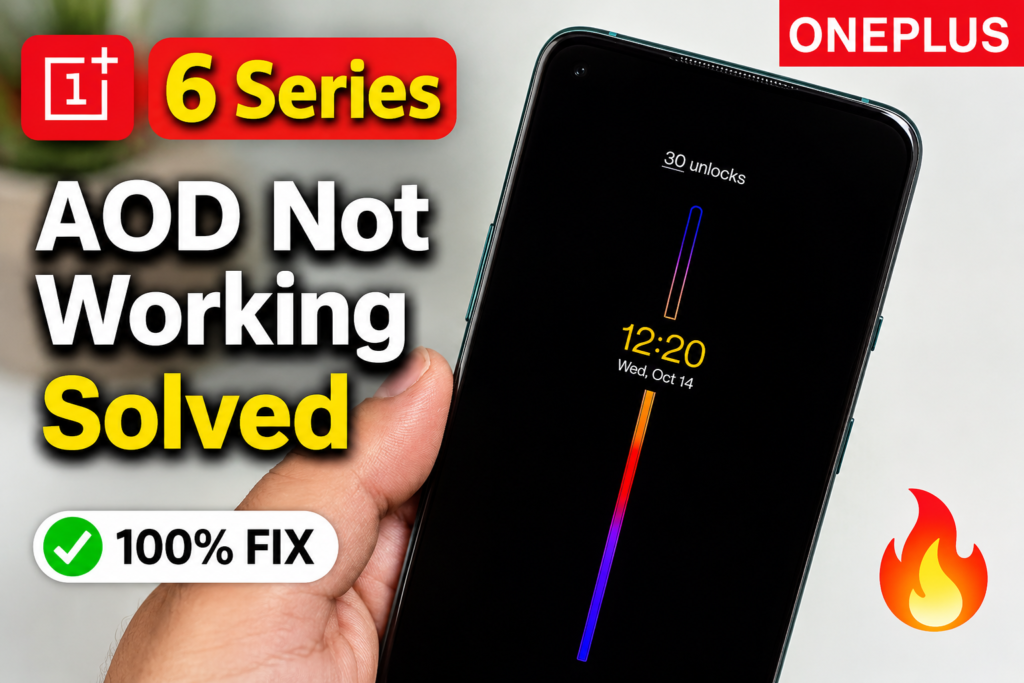
Video Stats: “Fix Always On Display Not Working on OnePlus P…” | 84.0K views since published | 1.2K watch hours | Top YouTube searches: ‘oneplus 6t android 11’ (112 views), ‘oneplus always on display’ (98 views), ‘horizon light oneplus 6’ (109 views)
Does This Fix Still Work Today?
Yes — and here’s why this fix will keep working indefinitely. OnePlus officially declared the OnePlus 6 and 6T End-of-Life in December 2021, permanently frozen on OxygenOS 11.1.2.2 (Android 11) with no further OS updates ever released. That means the exact scenario in this guide — AOD breaking after the jump to Android 11 — is now a fixed, unchanging state for these devices. Nothing about this problem or its fix will change going forward, which makes this one of those rare tech guides that doesn’t go out of date.
If you want a newer Android version with continued updates instead of just fixing AOD on the stock firmware, custom ROMs like LineageOS are the only route left for these devices — but that requires unlocking your bootloader and wiping your data, so it’s a separate, more advanced decision from the simple fix below.
Why Does OnePlus Always On Display Stop Working After the Android 11 Update?
When OnePlus 6/6T users update from Android 10 to OxygenOS 11 (Android 11), the system’s Ambient Display / Canvas AOD service sometimes doesn’t migrate its settings cleanly. The AOD toggle can still show as “on” in Settings, but the screen stays completely black when it should be showing the clock. This isn’t a hardware fault — it’s a known software glitch that OnePlus’s own community forum documented back when OxygenOS 11 first rolled out, and the same fix from that thread still applies today.
This is really the same underlying issue, just described differently depending on how someone searches for it:
- “OnePlus always on display not working”
- “OnePlus 6T Android 11 AOD not working”
- “Horizon Light oneplus 6” (edge glow not appearing)
- “Clock on ambient display oneplus not showing”
- “Canvas AOD oneplus not working”
Situation vs Cause vs Fix — Quick Reference Table
Before jumping into the steps, check this table to match your exact symptom:
| Situation | What You’ll Notice | Real Cause | Fix |
| AOD stopped after Android 11 update | Screen stays fully black when off | System wallpaper/Canvas service didn’t migrate properly | Update Canvas app + clear OnePlus Wallpaper data |
| AOD toggle is ON but nothing shows | Settings say enabled, screen still stays off | Battery optimization is killing the Canvas/Wallpaper service | Remove Canvas & OnePlus Wallpaper from battery optimization |
| Horizon Light not working | No edge glow on notifications | Horizon Light toggle got reset during the update | Re-enable it under Settings → Customization → Horizon Light |
| Clock shows but no notifications on AOD | Only time/date visible, no icons | Notification access permission got revoked | Re-grant notification access to OnePlus Wallpaper/Canvas |
| Phone won’t turn on at all | Completely black screen, no response | Different issue — not AOD-related | Force restart (hold Power + Volume Up for 10s) |
OnePlus Always On Display Not Working — Step-by-Step Fix
This is the exact community-documented fix for AOD breaking after the Android 11 update, still valid today since the OnePlus 6/6T software hasn’t changed since December 2021.
Step 1: Update the Canvas App from the Play Store
- Open the Google Play Store on your OnePlus device.
- Search for “Canvas” (this is the app that powers OnePlus’s AOD wireframe feature).
- If an update is available, install it.
- If Canvas doesn’t appear as a separate app on your version, it may be bundled inside the OnePlus Wallpaper system app — continue to Step 2 either way.
Can’t Find Canvas in the Play Store? Do This First
Canvas AOD is a restricted-distribution app — Google Play only shows or allows installing it on devices it recognizes as Canvas-compatible. This causes three common problems, and each has a different fix:
- “Canvas” search shows nothing at all: search results depend on your Play Store cache and region — this doesn’t necessarily mean the app is gone from your device.
- The listing shows up but “Install” is greyed out or missing: Play Store isn’t recognizing your OnePlus 6/6T as compatible for that build, usually after clearing Play Store’s own data.
- It says “Your device isn’t compatible with this version”: you may be on an old cached listing — clearing Play Store cache and retrying usually resolves this.
- Go to Settings → Apps & notifications → Show system apps → Google Play Store.
- Tap Storage & cache → Clear cache (try this before Clear data, since Clear data will sign you out).
- Reopen Play Store and search for Canvas again.
- Still not showing? Skip Canvas entirely and go straight to Step 2 below — Canvas only controls the wireframe art style. The clock, notifications, and Ambient Display itself work through the OnePlus Wallpaper app and don’t require Canvas to function.
Caution: Some third-party sites host a Canvas AOD APK outside the Play Store. Only use one if it’s clearly signed by “OnePlus Ltd.” (check the app’s publisher/certificate details before installing), since this app requests wallpaper and notification-level permissions. When in doubt, skip Canvas and rely on the standard Ambient Display fix in Step 2 instead — it doesn’t need Canvas to work.
Step 2: Clear Data for the “OnePlus Wallpaper” System App
- Go to Settings → Apps & notifications → Show system apps.
- Search for “OnePlus Wallpaper” and open it.
- Tap Storage & cache, then tap Clear storage / Clear data (this resets the AOD service, not your photos or personal data).
- If you don’t see a Clear Data option, tap “Uninstall updates” instead — this reverts it to the factory version so it can rebuild the AOD service.
Step 3: Reapply Your AOD Style to Trigger It
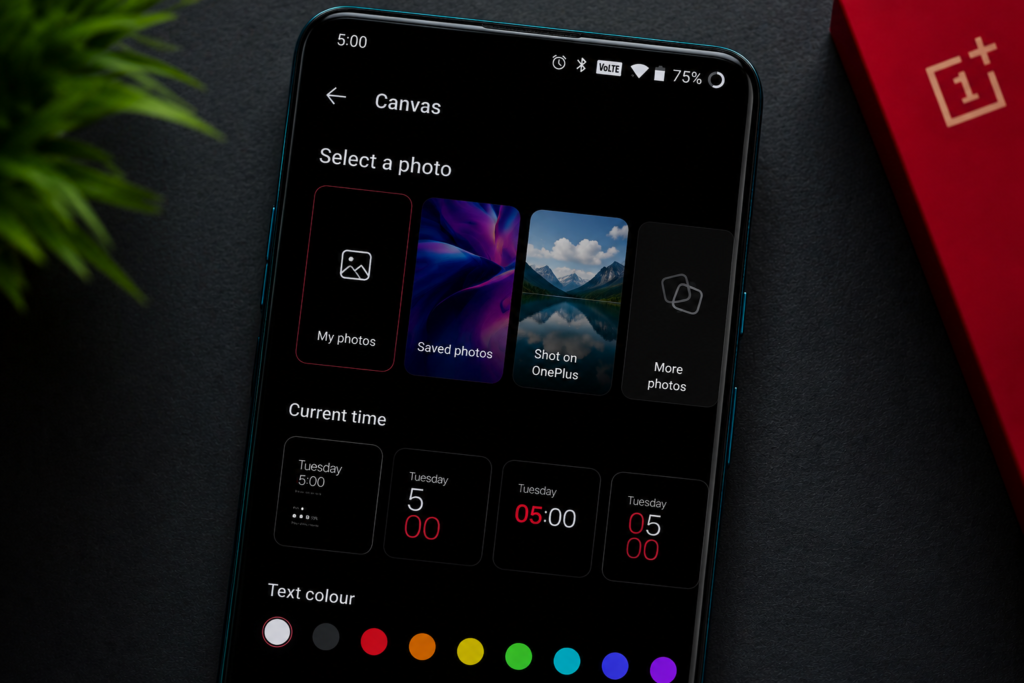
- Go to Settings → Customization → Wallpaper → Canvas (or Settings → Display → Ambient Display, depending on your OxygenOS build).
- Choose any photo and let it generate the wireframe preview.
- Apply it as your Canvas AOD style — this change itself is what “wakes up” the broken AOD service.
- Restart your phone.
Step 4: Still Not Working? Check Battery Optimization
If AOD still doesn’t show after Steps 1-3, Android’s battery optimization may be killing the background service that powers it.
- Go to Settings → Battery → Battery optimization.
- Find “OnePlus Wallpaper” and “Canvas” in the list.
- Set both to “Don’t optimize.”
- Restart your phone and check AOD again.
Step 5: Check Notification Access (For Missing Icons on AOD)
If the clock shows on your Ambient Display but notification icons don’t, this is a permissions issue rather than an AOD issue:
- Go to Settings → Apps & notifications → Special app access → Notification access.
- Make sure OnePlus Wallpaper / Canvas has notification access enabled.
- Restart your phone.
Step 6: Re-Enable Horizon Light Separately
Horizon Light (the edge glow for notifications) is a separate toggle from AOD itself, and it commonly resets during major updates:
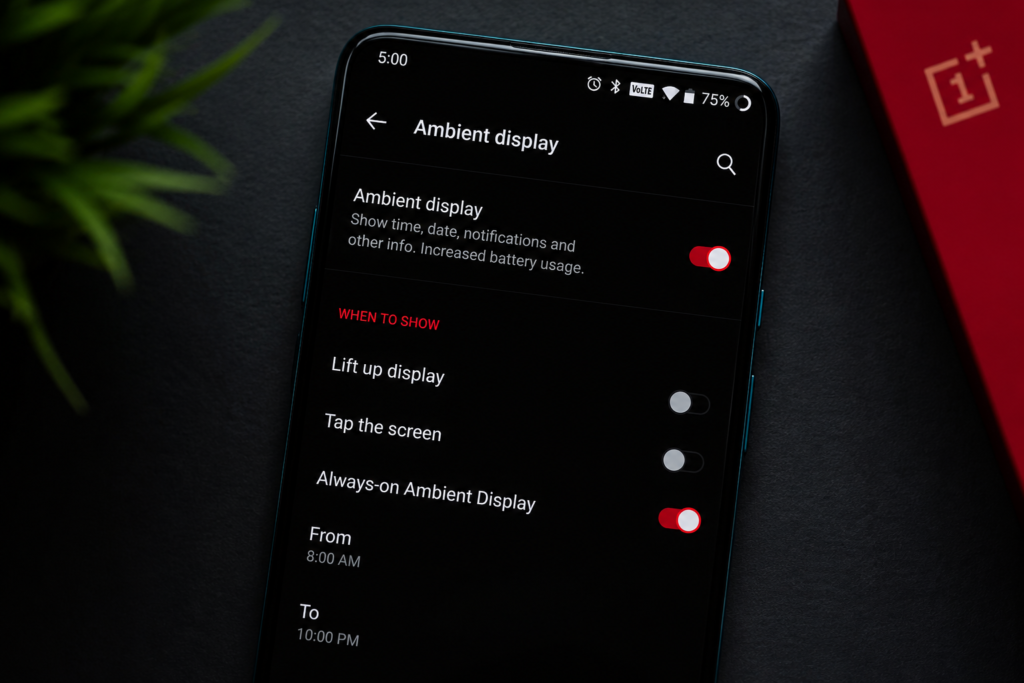
- Go to Settings → Customization → Ambient Display (or Horizon Light, depending on your build).
- Toggle Horizon Light back on and pick your preferred color.
- Test it by sending yourself a notification.
Note: If your phone won’t turn on at all (a completely black, unresponsive screen), that’s a different, more serious issue — not related to AOD. Try a force restart first (hold Power + Volume Up for about 10 seconds); if that doesn’t work, it likely needs a service center visit.
Pro Tips — Keep AOD Working Long-Term
- Avoid using third-party “battery saver” or “app killer” apps — they’re the most common reason AOD or Horizon Light silently stops working again after a few days.
- If you use a custom lock screen or icon pack app, check it isn’t overriding the Canvas AOD service.
- Since OnePlus 6/6T no longer receive updates, avoid factory resets unless necessary — reapplying this fix from scratch after a reset is more work than just leaving a working setup alone.
- If you’re open to a modern Android version instead of patching AOD repeatedly, look into LineageOS or other actively maintained custom ROMs for the OnePlus 6/6T.
FAQs — Frequently Asked Questions
Q1. Why did my OnePlus Always On Display stop working after updating to Android 11?
The Ambient Display/Canvas service sometimes fails to migrate its settings cleanly during the OxygenOS 11 update. It’s a known software glitch, not a hardware fault, and updating the Canvas app plus clearing OnePlus Wallpaper’s data fixes it in most cases.
Q2. My OnePlus 6T is on Android 11 — is this the last update it will ever get?
Yes. OnePlus marked the OnePlus 6 and 6T as End-of-Life in December 2021, with OxygenOS 11.1.2.2 as the final official build. No further Android version or feature updates will be released for these devices.
Q3. Horizon Light on my OnePlus 6 isn’t working — how do I fix it?
Horizon Light is a separate toggle from AOD itself. Go to Settings → Customization → Ambient Display (or Horizon Light) and re-enable it — this setting commonly resets after a major OS update.
Q4. Always on display shows the clock but not notifications — why?
This usually means notification access was revoked for the OnePlus Wallpaper/Canvas app during the update. Re-grant it under Settings → Apps & notifications → Special app access → Notification access.
Q5. How do I get “clock on ambient display” set up on OnePlus?
Go to Settings → Customization → Ambient Display, and under Contextual Info or Clock Style, choose your preferred clock style for the ambient display. If it isn’t appearing at all, follow the full fix above first.
Q6. What does Canvas AOD do on OnePlus phones?
Canvas AOD automatically turns a photo you choose into a wireframe-style sketch shown on your Always On Display. It’s a OnePlus-exclusive feature introduced with OxygenOS 11.
Q7. My OnePlus 6 isn’t turning on — is that the same issue as AOD not working?
No, this is a different and more serious problem. AOD issues only affect the screen-off display; a phone that won’t turn on at all needs a force restart (hold Power + Volume Up for 10 seconds) and, if that fails, a service center check.
Q8. Can I still get Android 12 or 13 on my OnePlus 6T?
Not officially — OnePlus ended software support at Android 11. The only way to run a newer Android version is by flashing a custom ROM like LineageOS, which requires unlocking your bootloader and wiping your device.
Q9. Will clearing OnePlus Wallpaper app data delete my photos?
No. Clearing data for the OnePlus Wallpaper system app only resets its AOD/wallpaper service settings — it does not delete your gallery photos or personal files.
Q10. Always on display keeps turning off by itself — how do I fix that?
Check Settings → Battery → Battery optimization and make sure OnePlus Wallpaper/Canvas is set to “Don’t optimize.” Aggressive battery savers are the most common reason AOD silently stops after working fine initially.
Q11. Canvas app isn’t showing up in the Play Store on my OnePlus — what do I do?
Clear the Play Store app’s cache (not data) under Settings → Apps → Show system apps → Google Play Store, then search again. If it still doesn’t appear, you can skip Canvas entirely — it only controls the wireframe art style. Clearing the OnePlus Wallpaper app’s data (Step 2) is what actually restores the clock and notifications on your Ambient Display.
Final Thoughts — A Fix That Holds Up for Good
Since the OnePlus 6 and 6T are permanently frozen on OxygenOS 11, this AOD glitch and its fix are about as “final” as tech advice gets — nothing here will change with a future update, because there won’t be one. Update Canvas, clear the OnePlus Wallpaper app’s data, reapply your AOD style, and you should have your Always On Display back in a few minutes.
If you found this guide helpful, subscribe to the TapsVision YouTube channel and hit the bell icon — we post practical Android and OnePlus troubleshooting guides regularly, in both Hindi and Hinglish, just for you!
Subscribe TapsVision on YouTube for daily Hindi tech tips — Android, OnePlus, Windows, and more!
Have a question? Comment below or message us on the YouTube video. Everyone is welcome in the TapsVision community!
TapsVision-