Most “best Android emulator” lists are written on gaming PCs with high-end CPUs — not much help if you’re running an ordinary office laptop. This guide is different: every step below was tested on modest hardware (Intel i3, no dedicated GPU), so you know exactly what to expect before you install anything. We’ll set up MEmu Play, confirm which everyday apps actually run smoothly, fix the errors people commonly hit during setup, and compare it honestly against BlueStacks, LDPlayer, and the other top picks for 2026.
Quick answer: for everyday apps (WhatsApp, Chrome, Flipkart) on a low-end laptop, MEmu Play is the easiest and lightest option to set up. For gaming performance specifically, LDPlayer or BlueStacks 5 perform better if your hardware can handle them — see the comparison table below for exactly which one fits your PC.
Note: This tutorial has been quietly answering variations of “best android emulator for pc” and “how to run android apps on pc” since it was first published in 2021 — the setup steps below still work exactly the same way today.
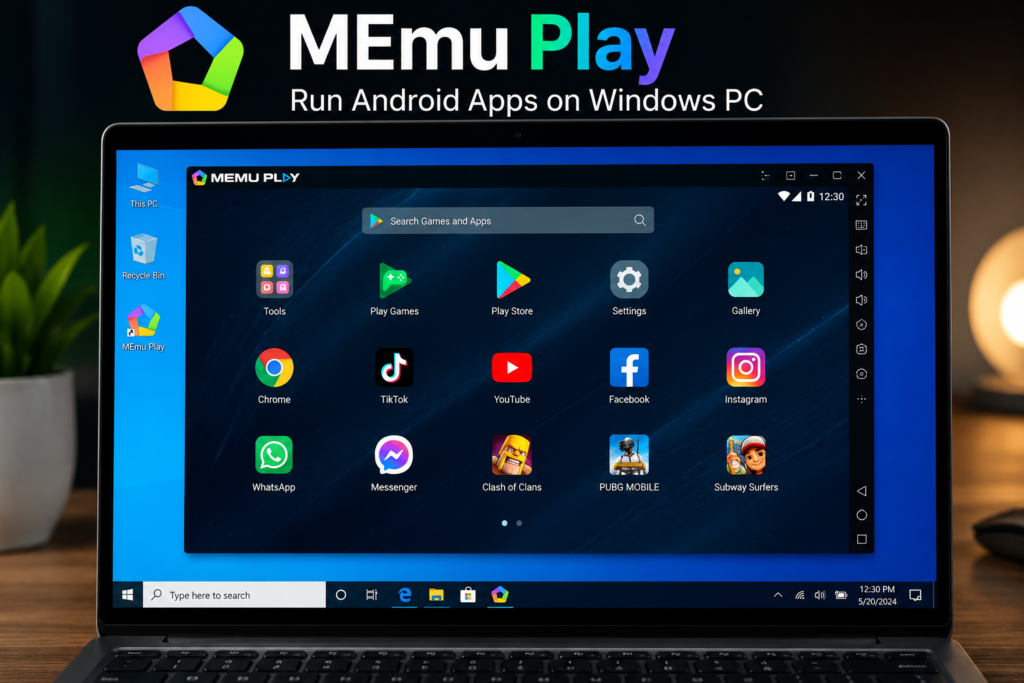
Video Stats: “How To Run Android Apps On Any Laptop/Pc Device” | Published February 2021 | Top related searches: ‘best android emulator for pc,’ ‘best emulator for pc,’ ‘how to run android apps on pc,’ ‘pc emulator for android’
Does This Still Work in 2026?
Yes. MEmu Play is still actively maintained and continues to show up in independent 2026 emulator comparisons as a solid pick, particularly for multi-instance use and lower-end PCs. The core setup process — download, install, sign in with a Google account, and use the Play Store like you would on a phone — hasn’t changed since this guide was first made. That said, if you’re specifically chasing gaming performance or the newest Android version, it’s worth seeing how MEmu stacks up against the alternatives in the comparison table below before you commit to one.
Best Android Emulator for PC in 2026 — Quick Comparison
Before you install anything, here’s how the major options compare today:
| Emulator | Best For | Works on Low-End PC? | 2026 Notes |
| MEmu Play | Multi-instance, general apps | Yes, runs on Intel i3 (slower startup) | Free, simple setup, direct Play Store sign-in |
| BlueStacks 5 | Most popular games, all-round use | Needs mid-range hardware | Android 13 beta as of 2026, cloud gaming option |
| LDPlayer 9/14 | Competitive/FPS gaming | Yes, tunable for low-end PCs | Lowest input lag in most 2026 benchmarks |
| NoxPlayer | Multi-instance account management | Yes | Hyper-V compatible, good for running many accounts |
| MuMu Player 12 | Smooth gaming, frame interpolation | Needs moderate hardware | Backed by NetEase, gaining market share |
| GameLoop | Tencent games (PUBG, COD Mobile) | Yes, has a no-VT compatibility mode | Official emulator for several big titles |
| Android Studio (AVD) | App development & testing | No, needs a capable dev machine | Not for casual use — built for developers |
If you just want to run everyday apps like WhatsApp, Chrome, or Flipkart without much fuss, MEmu Play (covered in this guide) is still one of the simplest options. If you’re chasing gaming performance specifically, LDPlayer or BlueStacks are generally the stronger picks in 2026 benchmarks.
Minimum vs Recommended System Requirements
Before choosing an emulator, check your laptop against these baselines — this is the difference between “it runs” and “it runs smoothly”:
| Component | Bare Minimum (MEmu) | Recommended (Smooth Use) |
| CPU | Intel i3 / equivalent (slower app launches) | Intel i5 or AMD Ryzen 5 and above |
| RAM | 4GB (basic apps only) | 8GB or more (multitasking, games) |
| Storage | HDD (slower load times) | SSD (noticeably faster boot and app launch) |
| Virtualization (VT-x/AMD-V) | Not strictly required for basic apps | Enabled in BIOS — required for smooth gaming |
| Windows Version | Windows 7 SP1 or newer | Windows 10/11, updated |
Which Emulator Should You Actually Pick? (Quick Decision Guide)
- Old laptop, just need WhatsApp/Chrome/basic apps → MEmu Play (lightest to set up, covered step-by-step below).
- Mid-range PC, want to play competitive games (Free Fire, COD Mobile) → LDPlayer (lowest input lag in 2026 benchmarks).
- Want the most popular, all-round option with the biggest community → BlueStacks 5.
- Need to run several accounts/instances at once → NoxPlayer or MEmu’s multi-instance mode.
- Specifically play Tencent games (PUBG Mobile, COD Mobile) → GameLoop, since it’s the official emulator for those titles.
- Building or testing your own Android app → Android Studio’s built-in emulator, not a consumer one.
How to Run Android Apps on PC Using MEmu Play
Here’s the exact setup process, based on what’s shown in the video above.
Step 1: Download and Install MEmu Play
- Search “MEmu Play” and go to the official website (memuplay.com) — avoid third-party download sites.
- Download the installer; it’s a few hundred MB, so give it a little time depending on your internet speed.
- Run the installer and follow the on-screen steps. If you hit any installation errors, check MEmu’s official troubleshooting page or search for the specific error message.
- Launch MEmu Play once installation completes.
Step 2: Sign in and Access the Play Store
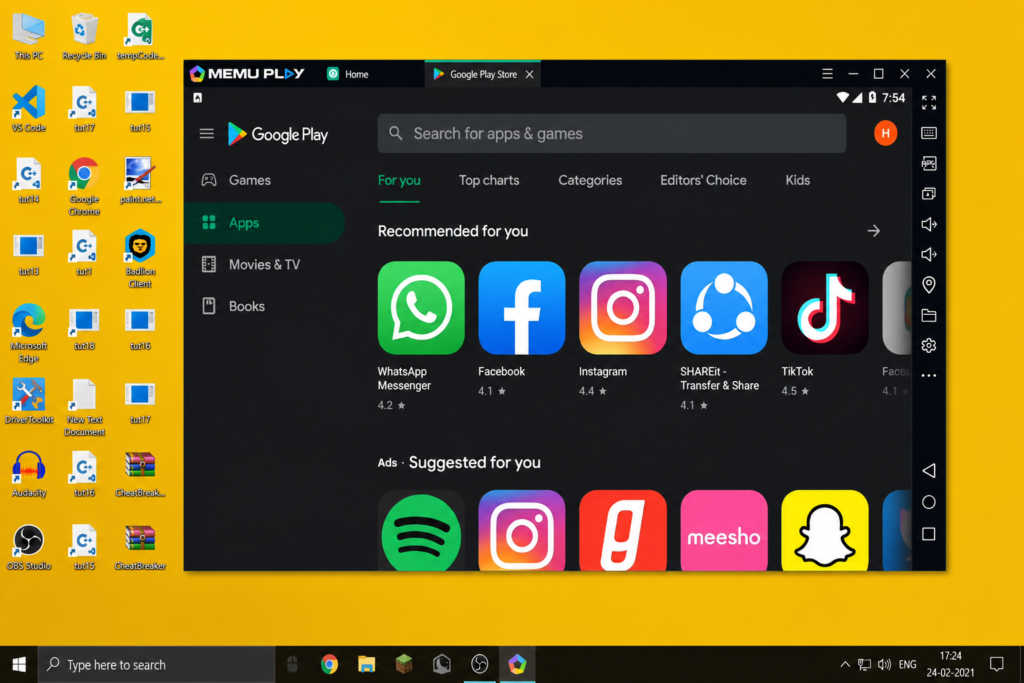
- Open the Play Store icon inside MEmu Play.
- Sign in with your Google account, just like you would on an Android phone.
- Once signed in, you can search for and install any Android app available on the Play Store.
Step 3: Install and Use Your Apps
- Search for the app you want — WhatsApp, Zoom, Chrome, Flipkart, or games like Subway Surfers all work fine.
- Install it the same way you would on a phone.
- Open the app directly from the MEmu home screen from then on.
A Quick Note on Performance
If your laptop has a decent CPU and enough RAM, everything runs smoothly. On lighter hardware — like an older Intel i3 — MEmu Play still works, but expect a slower startup time and a short delay when opening heavier apps. This isn’t unique to MEmu; every emulator on this list performs better with more CPU headroom, an SSD, and at least 8GB of RAM.
Common Problems When Setting Up an Emulator (and How to Fix Them)
These are the issues that actually stop people mid-setup — most “best emulator” guides skip them entirely.
“The core process of emulator has ended” or a HyperV error on startup
This is the single most common setup error across MEmu, Nox, and LDPlayer — it means Windows’ Hyper-V/VBS has taken control of your CPU’s virtualization before the emulator could get access to it. We’ve written a full step-by-step fix for this exact error, including the Windows 11 24H2-specific fix: see our MEmu Not Opening / Hyper-V Fix guide.
Installer gets stuck or won’t finish
- Temporarily disable your antivirus during installation — some antivirus tools flag emulator drivers incorrectly.
- Make sure you have at least 5-10GB of free disk space before installing.
- Redownload the installer if it was interrupted partway — a partial download is a common cause of a stuck install.
Play Store won’t let you sign in
- Check your system clock — an incorrect date/time on your PC is a common, overlooked reason Google sign-in fails.
- Make sure you have an active internet connection inside the emulator itself, not just on your PC.
- If sign-in still fails, clear the Play Store’s cache from within the emulator’s app settings and try again.
Apps installed but running slowly or lagging
- Increase the RAM/CPU cores allocated to the emulator from its settings menu, if your PC has headroom to spare.
- Close other heavy programs on your PC while the emulator is running — it shares your machine’s actual resources.
- Lower the emulator’s resolution/FPS settings for games specifically — this trades visual quality for smoothness.
Pro Tips for a Smoother Setup
- Only download emulator installers from official websites — search results for “free download” versions of popular emulators are a common source of bundled adware.
- If an app crashes or won’t install, check whether it needs Google Play Services specifically — MEmu supports this out of the box, but some app-store alternatives don’t.
- Running one emulator at a time avoids most conflicts — if you hit a Hyper-V/virtualization error switching between emulators, see our dedicated MEmu Hyper-V fix guide above.
- Close background apps inside the emulator itself (not just on your PC) if things start to feel sluggish — emulated Android manages background processes independently from Windows.
FAQs — Frequently Asked Questions
Q1. What is the best Android emulator for PC in 2026?
It depends on your goal. For everyday apps and simplicity, MEmu Play is a solid, beginner-friendly choice. For gaming performance specifically, LDPlayer and BlueStacks 5 tend to rank highest in independent 2026 benchmarks.
Q2. How do I run Android apps on a Windows 10 or 11 laptop?
Install an Android emulator like MEmu Play, BlueStacks, or LDPlayer, sign in with a Google account through the built-in Play Store, and install apps exactly as you would on a phone.
Q3. Will an Android emulator work on a low-spec PC or an Intel i3?
Yes, MEmu Play and LDPlayer both run on modest hardware like an Intel i3, though you’ll notice a slower startup time and some lag with heavier apps or games. More RAM and an SSD make a noticeable difference.
Q4. Is MEmu Play safe and free to use?
Yes, MEmu Play is free and safe when downloaded from the official website (memuplay.com). Like most free emulators, it may show some ads, which is how the developers fund continued updates.
Q5. Can I install any Play Store app on a PC emulator?
Most apps install and run fine, since emulators like MEmu ship with Google Play Services built in. A small number of apps with strict device checks (mainly some banking apps) may refuse to run on an emulator.
Q6. What’s the difference between MEmu, BlueStacks, and LDPlayer?
They’re all Android emulators built on similar underlying technology, but each optimizes for something different — MEmu for multi-instance flexibility, BlueStacks for all-round gaming popularity, and LDPlayer for the lowest input lag in competitive games.
Q7. Can I run Android apps on my PC without installing anything (no download)?
Not fully — all major options, including MEmu, BlueStacks, and LDPlayer, require installing the emulator software itself. Browser-based options like ARChon exist for very light apps, but they don’t support most mainstream apps or games.
Q8. Does this work for gaming, like Free Fire or PUBG Mobile?
MEmu Play can run most games, but if gaming performance is your main priority, GameLoop (built specifically for titles like PUBG Mobile and Call of Duty Mobile) or LDPlayer will generally give you a smoother experience.
Q9. I searched for “run PC software on Android” — is that the same thing?
No, that’s the reverse of what this guide covers. This guide is about running Android apps on a Windows PC. Running Windows software on an Android device is a different topic and generally requires remote desktop tools or specialized virtualization apps, not an Android emulator.
Q10. Is Windows Subsystem for Android (WSA) a better option instead?
No — Microsoft officially discontinued WSA in March 2025, so it’s no longer available for new installs. Third-party emulators like the ones covered in this guide are now the only practical way to run Android apps on Windows.
Q11. How do I install an Android OS directly on my PC instead of using an emulator?
That’s a different approach called a “native Android-x86 install” (using projects like Bliss OS), where Android becomes a bootable operating system on your PC rather than an app running inside Windows. It’s more technical to set up and isn’t necessary for casual use — an emulator like MEmu is simpler and doesn’t require partitioning your drive.
Q12. Can I run Android apps on an old laptop with Windows 10?
Yes — MEmu Play officially supports Windows 7 SP1 and newer, so an older Windows 10 laptop works fine. Just expect slower app launches on weaker CPUs, as covered in the system requirements table above.
Q13. What’s a good lightweight Android emulator for PC if my laptop struggles with MEmu or BlueStacks?
Try lowering the allocated RAM/CPU in your current emulator’s settings first — often the emulator is fine, it just needs different resource settings. If it’s still too heavy, MEmu with a single instance is generally lighter than BlueStacks on the same hardware.
Q14. My emulator downloaded but won’t install on Windows 10 — why?
This is usually antivirus interference, insufficient disk space, or a corrupted download. Temporarily disable your antivirus, confirm you have at least 5-10GB free, and try redownloading the installer directly from the official website before trying again.
Final Thoughts — Pick Based on Your Actual Hardware, Not Just a Ranking
There’s no single “best” Android emulator for everyone — the right pick depends on your laptop’s actual specs and what you’re trying to run. If you’re on modest hardware and just want everyday apps working reliably, MEmu Play (tested step-by-step above) remains a genuinely solid, low-friction choice in 2026. If you have the hardware headroom and gaming performance matters more, LDPlayer or BlueStacks are worth trying instead. Whichever you choose, the system requirements table and troubleshooting section above should save you the trial-and-error most people go through.
If you found this guide helpful, subscribe to the TapsVision YouTube channel and hit the bell icon — we post practical Android and PC troubleshooting guides regularly, in both Hindi and Hinglish, just for you!
Subscribe TapsVision on YouTube for daily Hindi tech tips — Android, Windows, emulators, and more!
Have a question? Comment below or message us on the YouTube video. Everyone is welcome in the TapsVision community!
TapsVision-