Got an old Android phone sitting in a drawer because it became too laggy, stopped getting updates, or started acting strange with random ads and Chinese apps popping up on their own? Before writing it off as dead, it’s worth knowing: in most cases, the hardware is still fine — it’s the abandoned software that’s actually the problem. This guide covers how a custom ROM can genuinely bring an old phone back to life, what to check before trying it, and an important 2026-specific caveat around banking apps that’s more relevant now than ever.
Quick answer: if your old phone’s hardware (processor, camera, build) still holds up but the stock software has become slow, unsupported, or bloated with ads, installing a community-built custom ROM (like LineageOS) can genuinely restore it to a fast, usable state — as a secondary device, calling phone, or content-recording backup.
| ⚠ Before you start: unlocking your bootloader and flashing a custom ROM will erase all data on the phone, will void any remaining manufacturer warranty, and carries a small risk of making the device unusable (“bricked”) if done incorrectly. Only proceed using official tools and instructions written for your exact phone model, and back up everything first. |
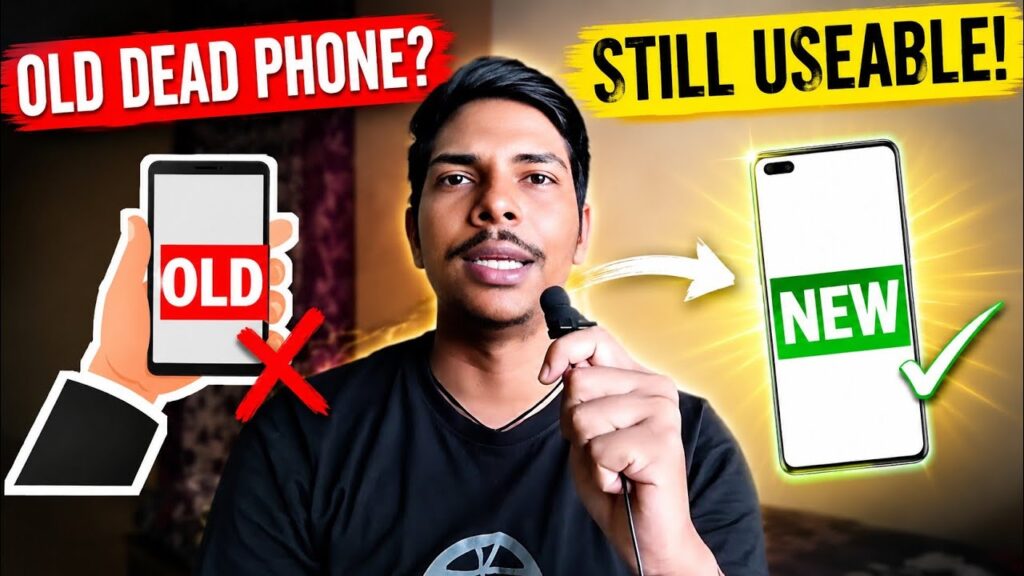
A Real Example: Reviving a 2015-16 Coolpad Cool 1
A friend had a Coolpad Cool 1 (a phone from a Coolpad-LeEco collaboration, launched around 2015-16) sitting unused. The stock software was genuinely painful — laggy, no more customer support, and random Chinese apps would auto-open on their own after the software support officially ended. But here’s the key detail: the hardware itself was still solid for its time — a capable Snapdragon processor, 1080p video recording, and a decent camera. The phone wasn’t dead. Its software was.
After installing a custom ROM (a Pixel Experience build, in this case), the phone came back to life — fast, smooth, no lag, and genuinely usable again as a secondary device for calling and even content recording.
Is Your Old Phone a Good Candidate for a Custom ROM?
Not every old phone is worth reviving this way. Use this checklist before you commit:
| Check This | Good Candidate | Skip It |
| Reason it feels dead | Laggy software, no more updates, random ads/apps | Physically damaged (broken screen, no charging) |
| Chipset era | Mid-range or better Snapdragon/MediaTek from its time | Extremely low-end even by its original standards |
| Community support | Listed on LineageOS wiki or has an active XDA thread | Zero community ROM builds exist for it |
| Your planned use | Secondary phone, content recording, calling, browsing | Primary phone for banking-heavy daily use |
Try Official Manufacturer Options First
Before unlocking anything, it’s worth ruling out simpler, fully official fixes — these carry no warranty or data risk and sometimes solve the problem on their own:
- Check the manufacturer’s official support page for your exact model to confirm whether a newer official firmware update is actually available but simply hasn’t installed yet.
- Try an official factory reset first (Settings → System → Reset, or via the phone’s stock recovery menu) — this alone sometimes clears out the accumulated lag and unwanted apps without needing a custom ROM at all.
- Check if your device qualifies for any manufacturer extended-support program — some brands (and Android One/Google-backed devices in particular) offer longer official update windows than others.
- Contact the manufacturer’s official customer support to confirm, in writing, that software support has genuinely ended before assuming a custom ROM is your only option.
If none of these official routes solve it and the phone’s hardware is still genuinely capable, a custom ROM is the next reasonable step — covered below.
How to Actually Do It — Using Only Official Tools and Sources
The value of this process depends entirely on sourcing everything from official channels — never from third-party “one-click unlock” tools or unofficial APK aggregator sites, which are a common source of malware.
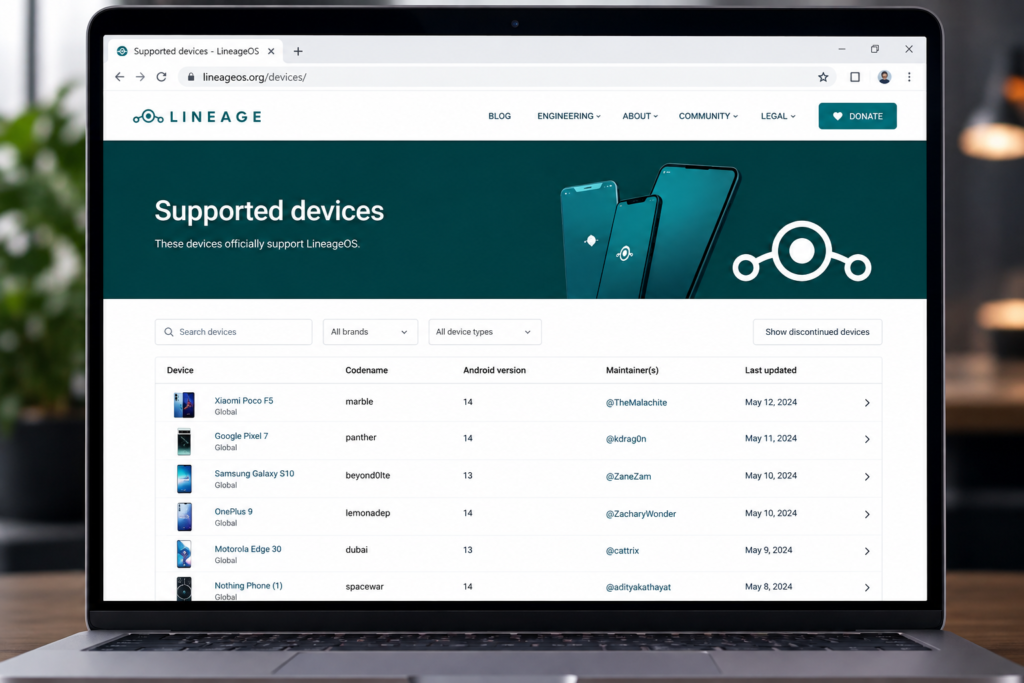
- Find your exact phone model’s codename and check whether it’s listed on the official LineageOS wiki (wiki.lineageos.org/devices) — this is the only source you should trust for compatibility and official build downloads.
- Back up everything on the phone first — installing a custom ROM wipes all existing data, with no way to recover it afterward.
- Unlock the bootloader using your manufacturer’s own official tool — for example, Xiaomi’s Mi Unlock, Sony’s official Developer World unlock page, Google’s official Android Flash Tool for Pixel devices, or the manufacturer-provided fastboot unlock command for brands like OnePlus and Motorola. Avoid any third-party “universal unlock” tool.
- Flash the custom ROM using the official method documented on the LineageOS wiki page for your specific device — typically via a custom recovery like TWRP or official fastboot commands, exactly as instructed for your model.
- Set up the phone from scratch once the new ROM boots, and test your essential apps — especially anything banking-related — before relying on it daily.
Tip: if any tutorial you find asks you to download an unlock tool or ROM from a random file-sharing link instead of the manufacturer’s own site or the official LineageOS wiki, treat that as a red flag and look for the official source instead.
Reminder: exact unlock and flashing steps vary significantly by phone brand and model — don’t copy generic steps from another device’s tutorial. Search specifically for “[your exact model] LineageOS install” to find the correct official instructions.
The 2026 Caveat: Banking Apps Are Harder on Custom ROMs Now
This was already a minor annoyance back in 2022, but it’s a much bigger, well-documented issue today. Google’s Play Integrity API is now enforced more strictly, and many banking, payment, and government apps check for it directly — meaning they may refuse to work on a custom ROM device by default. There are community workarounds (tools like Magisk with a Play Integrity Fix module can restore basic-level compatibility for many apps), but they require extra setup and can break again after ROM updates. If your revived phone needs to run banking apps reliably, plan for this specifically rather than assuming it’ll “just work” the way it might have a few years ago.
The most reliable route if banking-app compatibility matters most to you: use the revived phone as a secondary/backup device (calling, content recording, casual browsing) rather than your primary banking phone, unless you’re comfortable working through the Play Integrity workarounds yourself.
Pro Tips Before You Flash
- Only download custom ROM builds from the official project page or a verified XDA thread — never from random third-party download sites.
- Read the ROM’s dedicated device thread fully first — camera, fingerprint sensor, or specific features sometimes don’t work perfectly on community builds.
- Keep the phone’s original stock firmware file saved separately, in case you want or need to revert.
- Test daily-use essentials (calling, WiFi, camera) thoroughly before treating the revived phone as reliable for regular use.
FAQs — Frequently Asked Questions
Q1. Old phone ko new phone kaise banaye?
If the hardware is still decent but the software has become slow or unsupported, installing a custom ROM (like LineageOS or a Pixel Experience build) can genuinely revive it — check the LineageOS wiki or XDA Forums for a build matching your exact phone model.
Q2. What is a custom ROM?
It’s a community-built version of Android, built and maintained by independent developers instead of the phone’s original manufacturer, often supporting devices long after official manufacturer software support has ended.
Q3. Is it safe to install a custom ROM on an old phone?
It carries some risk — an incorrect flashing process can leave a device unusable — but it’s a well-established, widely-used practice when done carefully, following instructions specific to your exact phone model, with your data backed up first.
Q4. Will banking apps work after installing a custom ROM?
Not always by default. Google’s Play Integrity checks, which many banking and payment apps rely on, are stricter in 2026 and often flag custom ROM devices. Workarounds exist (like Magisk with a Play Integrity Fix module) but require extra setup and aren’t guaranteed to keep working after updates.
Q5. How do I find a custom ROM for my specific phone?
Search the official LineageOS wiki’s supported devices list, or search your exact phone model plus “XDA” to find an active forum thread — most custom ROM builds are tied to a specific device codename, not a generic download.
Q6. Does installing a custom ROM delete everything on my phone?
Yes, in almost all cases — back up your photos, contacts, and files before starting, since the installation process typically wipes the device’s existing data.
Q7. My old phone’s software has ended support — is that normal?
Yes, manufacturers typically stop providing software updates and support after a few years, especially for budget and mid-range devices. This is exactly the situation where a custom ROM is most useful, since it can keep providing updated software long after official support ends.
Q8. Should I use my revived old phone as my main phone?
It depends on your needs — it works well as a secondary device for calling, browsing, or content recording. If you rely heavily on banking apps daily, weigh the Play Integrity caveat above before making it your primary device.
Final Thoughts — Don’t Throw Out a Phone Because of Its Software
An old phone that feels “dead” is very often just stuck with abandoned, bloated software — not actually broken hardware. A custom ROM can genuinely restore real, daily usability, exactly like it did for the Coolpad Cool 1 in this example. Just go in with the right expectations for 2026: back up first, expect some setup effort, and know that banking-app compatibility is a real constraint worth planning around rather than assuming will just work.
If you found this guide helpful, subscribe to the TapsVision YouTube channel and hit the bell icon — we post practical Android tips and revival guides regularly, in both Hindi and Hinglish, just for you!
Subscribe TapsVision on YouTube for daily Hindi tech tips — Android, custom ROMs, and more!
Have a question? Comment below or message us on the YouTube video. Everyone is welcome in the TapsVision community!
— TapsVision