Published: May 2026 (Updated 2026) | tapsvision.in
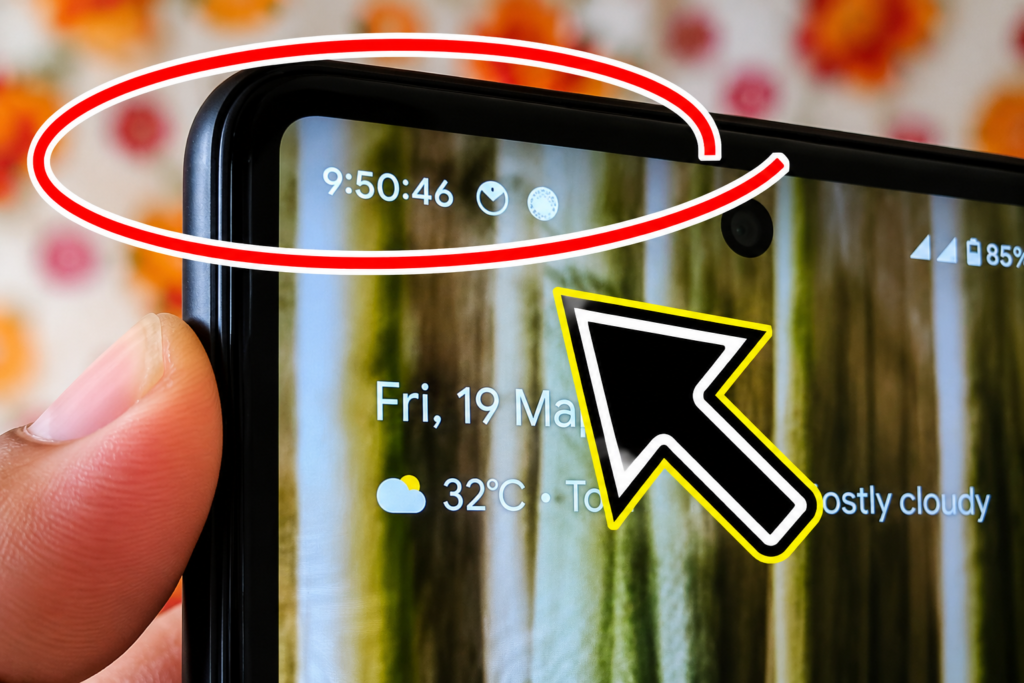
By default, your Android phone shows only hours and minutes in the status bar at the top of the screen. But what if you want to see seconds live — ticking in real time, right there on your home screen? No app switching, no unlocking your phone — just a live seconds display on the status bar.
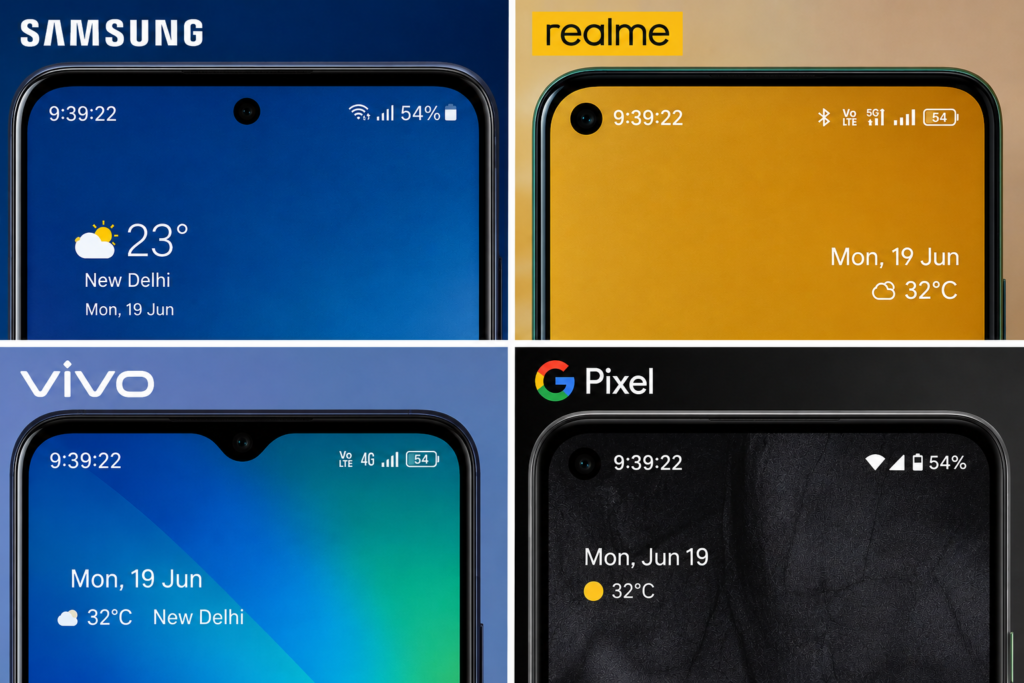
This guide shows you exactly how to enable seconds on the Android clock for any Android smartphone — Samsung, Realme, Vivo, OnePlus, Pixel — using a simple trick with Nova Launcher and System UI Tuner. No root required.
1.6 lakh people have watched this trick on YouTube. It works on Android 10, 12, and 13. Read on.
Why Doesn’t Android Show Seconds on the Clock by Default?
Android hides the seconds display by default to save battery and reduce status bar clutter. Updating the display every second uses more processing power than updating every minute. However, Android does have a hidden setting — called System UI Tuner — that lets you enable seconds. The problem is, this setting is not easy to access directly. That is where the Nova Launcher trick comes in.
Learn how to show seconds in Android status bar on Samsung, Xiaomi, Redmi, Poco and OnePlus phones. Easy step-by-step guide.
What You Need Before Starting
- Any Android smartphone (Samsung, Realme, Vivo, Redmi, OnePlus, Pixel — all work)
- A browser (Chrome or any browser)
- Nova Launcher old version (2021 APK) — link in the steps below
- 5 minutes of your time
⚠ Important: You do not need to permanently switch to Nova Launcher. You will install it, use it for one step only, then uninstall it. Your original launcher and home screen will stay exactly as it was.
How to Enable Seconds on Android Status Bar Clock — Step by Step
Step 1 — Download Nova Launcher Old Version (2021 APK)
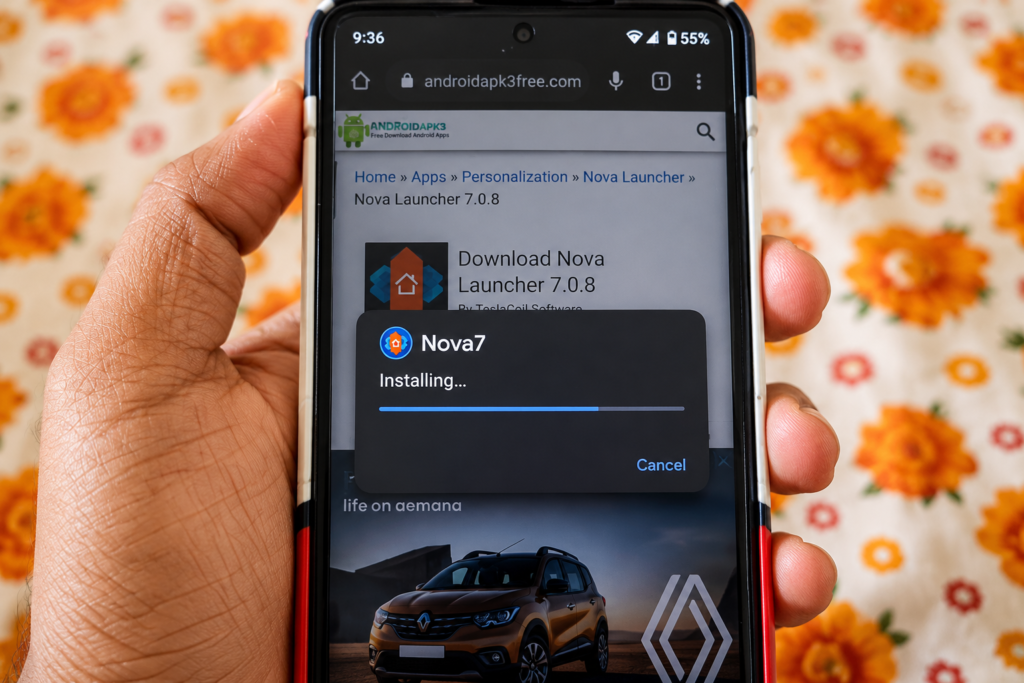
Open any browser on your phone — Chrome, Firefox, or any browser works. Search for “Nova Launcher old version 2021” or use the direct link from the video description. Download the 2021 version of Nova Launcher as an APK file.
Why the old version? The newer versions of Nova Launcher have removed the System UI activity shortcut that we need for this trick. The 2021 version still has it.
Step 2 — Install the APK
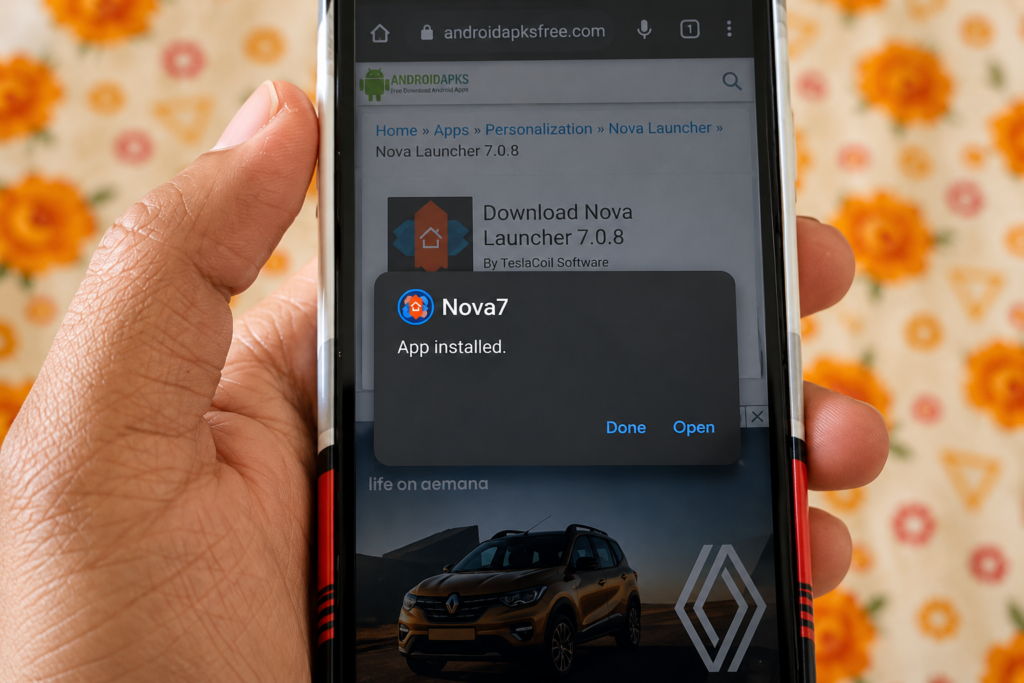
Once downloaded, open the APK file to install it. Your phone may ask for permission to install from unknown sources — allow it. After installation is complete, do not open Nova Launcher yet.
Step 3 — Set Nova Launcher as Default Home App (Temporarily)
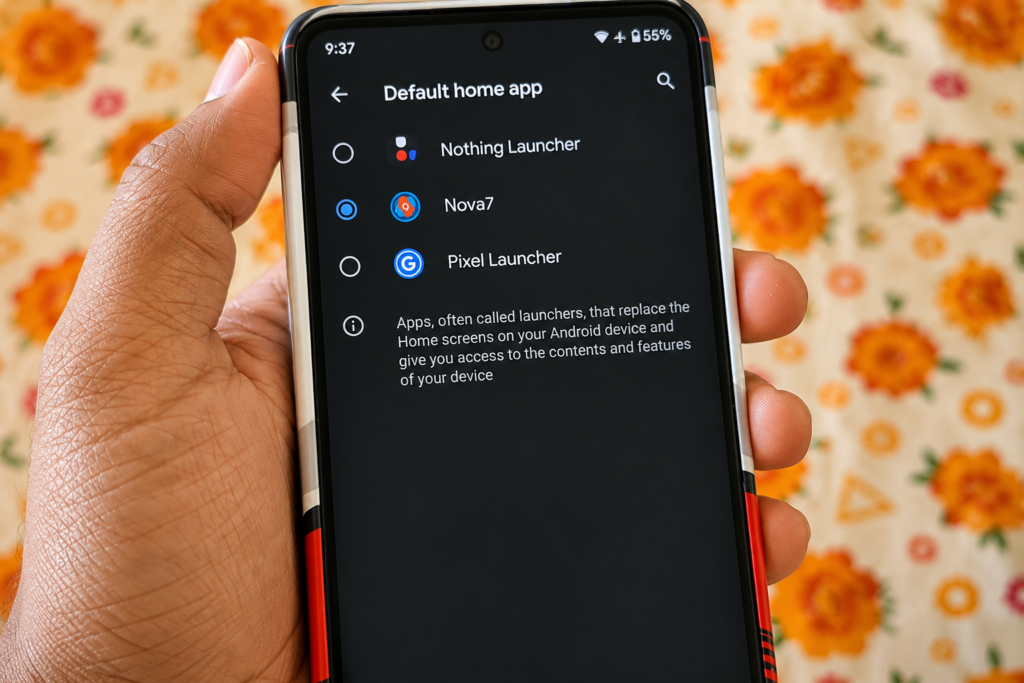
Go to your phone’s Settings. Then go to Apps & Notifications (or just Apps on some phones). Look for Default Apps, then tap on Home App. You will see Nova Launcher listed here. Select it as your default home app.
Step 4 — Add the Nova Activities Widget to Home Screen
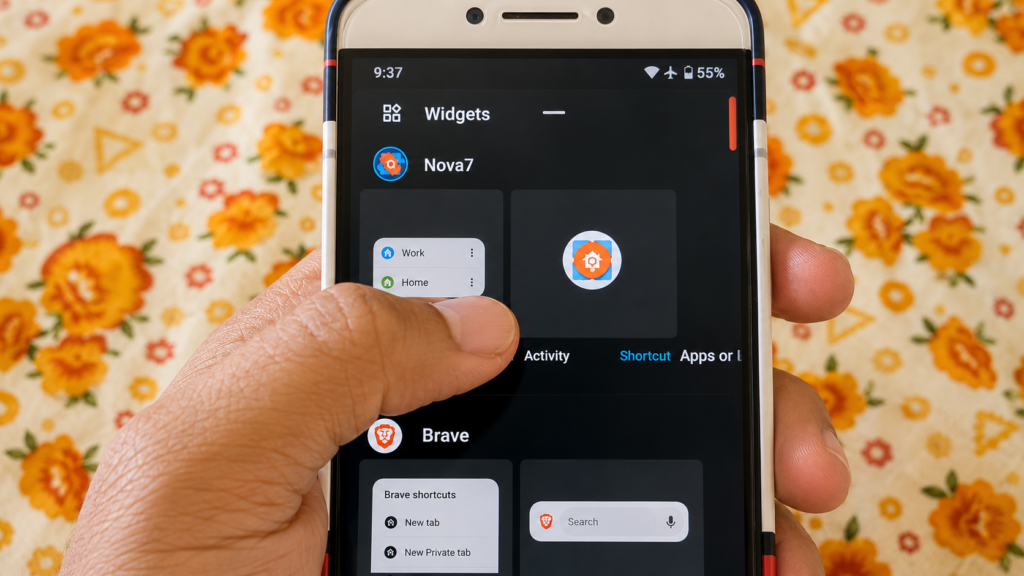
Now press and hold on your home screen (with Nova Launcher active). You will see an option called Widgets. Tap on it. Scroll up to find the Nova section at the top. Look for Activities widget and press and hold it to drag it onto your home screen.
When you place the Activities widget on the home screen, a menu will open asking you to choose which activity to launch.
Step 5 — Select System UI Tuner from the Activity List
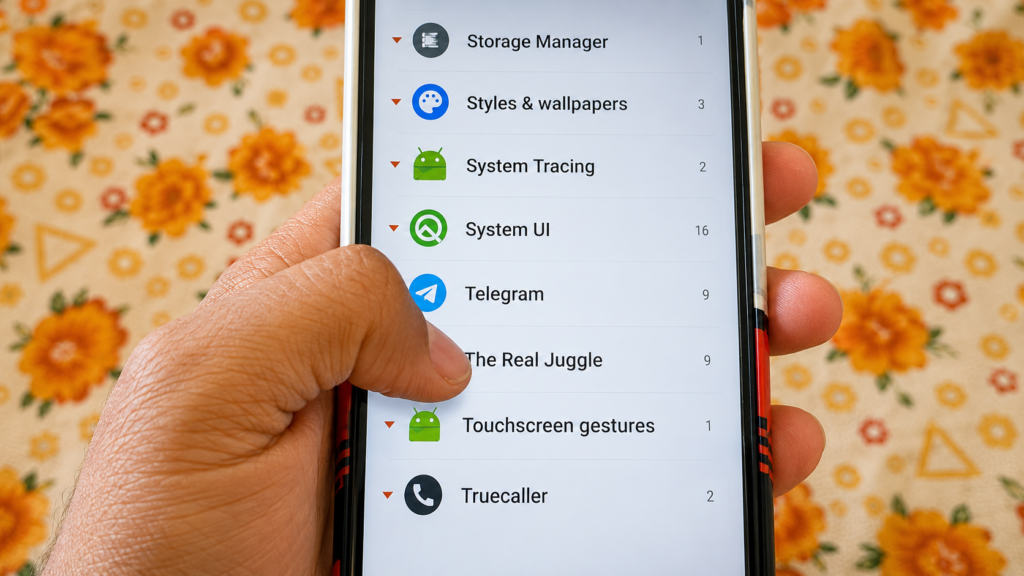
After placing the Activities widget, a list of apps will appear. Scroll down and find System UI. Tap on it, then scroll to the bottom of the list inside System UI. You will see an option called Status Bar. Select it.
This creates a shortcut on your home screen that opens directly into the System UI Tuner’s Status Bar settings — the hidden Android settings where seconds can be enabled.
Step 6 — Enable Seconds from Status Bar Settings
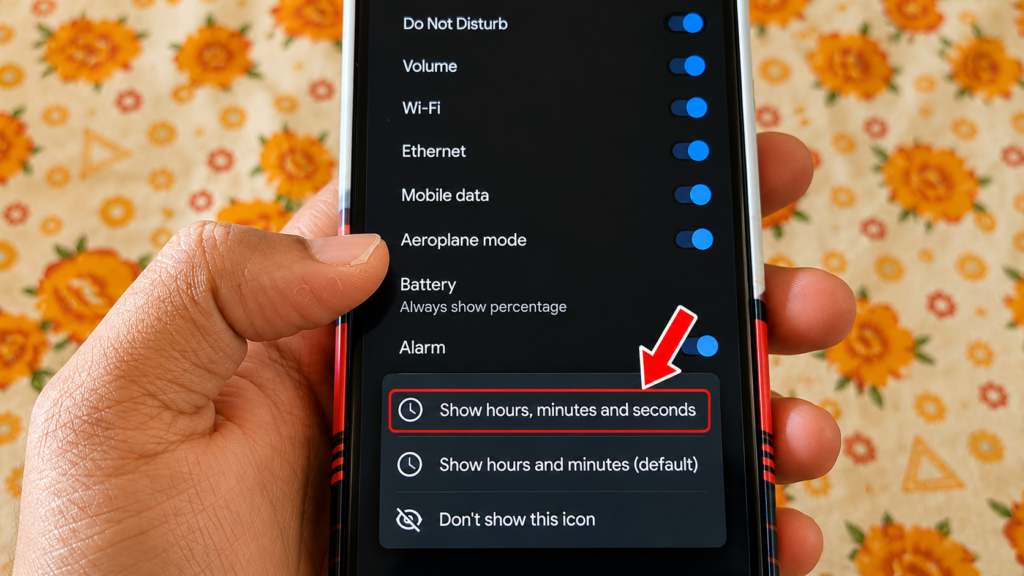
Tap the shortcut you just created on the home screen. It will open the Status Bar section of System UI Tuner. You will see a Time option. Inside it, you will find Show Hours, Minutes, and Seconds. Toggle on the Seconds option.
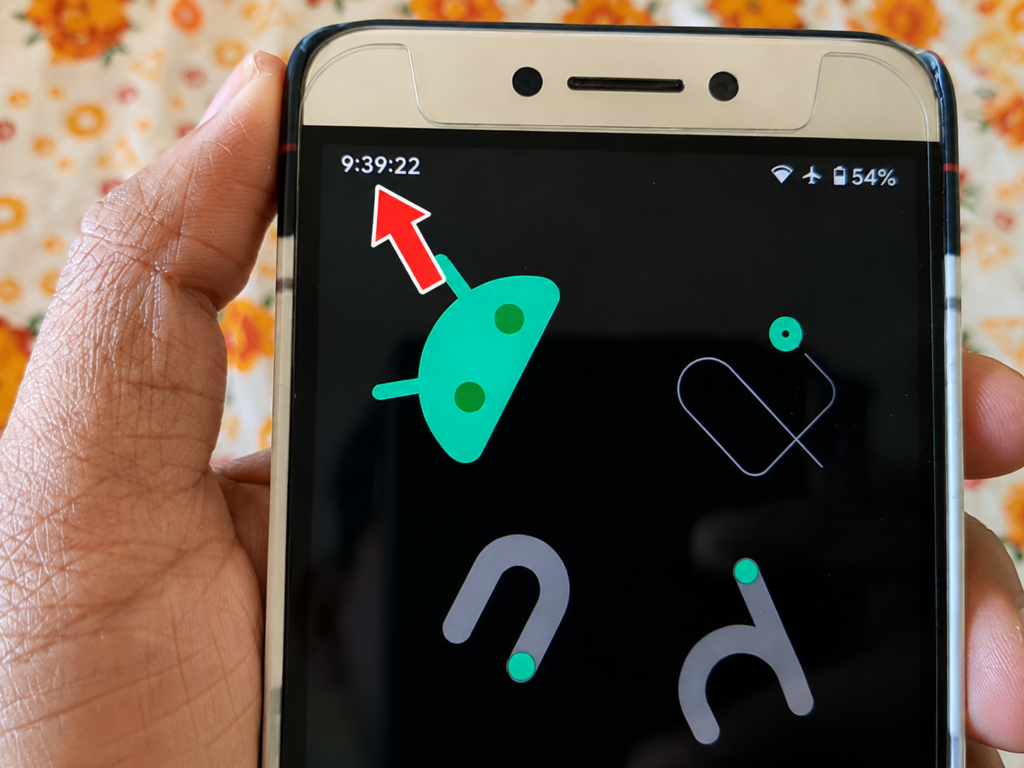
The moment you enable it, your status bar clock will immediately start showing seconds — live, updating every second.
Step 7 — Switch Back to Your Original Launcher and Uninstall Nova
Go back to Settings > Apps > Default Apps > Home App and switch back to your original launcher (One UI Home, Realme UI, or whichever your phone uses). Then uninstall Nova Launcher — you do not need it anymore.
The seconds setting will stay active even after you uninstall Nova Launcher and even after you restart your phone. The setting is saved in the system — not in the launcher.
After Enabling Seconds — What to Expect
- Your status bar will show time in HH:MM:SS format — updating live every second
- The setting persists after restart — it will not reset when you reboot your phone
- Nova Launcher can be safely uninstalled after the setup — you do not need it permanently
- Works on Android 10, 12, and 13 — tested on Pixel 6a and other Android devices
Which Android Phones Does This Work On?
This method works on:
- Samsung Galaxy phones (Android 10 and above)
- Realme phones — confirmed working (search term: realme time second setting)
- Vivo phones (search term: time seconds minutes hours vivo)
- Redmi and Xiaomi phones
- OnePlus phones
- Google Pixel phones (tested on Pixel 6a with Android 13)
- Any Android 10+ smartphone
Watch the Full Tutorial Video
I have shown this entire process live in my YouTube video with a real Android phone demo — including the System UI Tuner shortcut setup and the final result on the status bar. Watch it if you want to see each screen clearly.
Search ‘Enable Seconds Status Bar Android TapsVision’ on YouTube or use the link in the video description.
Recommended Products for Android Users
If you found this trick useful, here are some accessories that go great with any Android phone:
1. USB Type-C Cable (Fast Charging)
A reliable Type-C cable is essential for every Android user. Good for fast charging and stable data transfer.
2. Fast Charging Adapter (20W / 33W)
Pair your cable with a good fast charger. Works across all Android phones — Samsung, Realme, Vivo, and more.
3. Tempered Glass Screen Protector
Protect that beautiful display where your live seconds clock will now be showing.
Note: The links above are affiliate links. If you purchase through them, TapsVision earns a small commission at no extra cost to you. This helps support the channel and blog.
Frequently Asked Questions
How to set time with seconds in Android?
Install Nova Launcher (old 2021 version), temporarily set it as your default home app, add the Activities widget to your home screen, and navigate to System UI > Status Bar. From there, enable the seconds display. After that you can uninstall Nova Launcher — the seconds setting stays permanently.
How to show seconds on Android clock / status bar?
This can be done through the hidden System UI Tuner settings. The easiest way to access it is using the Nova Launcher Activities widget shortcut — which is exactly what this guide covers in 7 simple steps.
Mobile me time me second kaise kare?
Nova Launcher ka old version (2021) download karein. Usse temporarily default home app banayein. Home screen pe press karke Widgets open karein. Nova Activities widget add karein. System UI > Status Bar > Time mein jaake Seconds enable karein. Uske baad Nova Launcher uninstall kar dein — setting saved rahegi.
Realme time second setting — how to enable on Realme phones?
The same method works on Realme phones. Install Nova Launcher old version, use the Activities widget to reach System UI Tuner’s Status Bar settings, and toggle on seconds. Tested and confirmed working on Realme UI.
Does this work on Android 13?
Yes. This has been tested on Android 13 running on a Google Pixel 6a and it works. The System UI Tuner seconds option is present across Android 10, 12, and 13.
Will the seconds display go away after I restart my phone?
No. The seconds display setting is saved in the System UI — not in Nova Launcher. Even after you uninstall Nova Launcher and restart your phone, the seconds will continue to show on your status bar clock.
How to add seconds in time in phone without root?
This entire method requires no root access at all. It uses a legitimate Android hidden setting (System UI Tuner) accessed through Nova Launcher’s Activities shortcut. Your phone’s warranty and security are not affected.
How to turn off seconds if I want to go back to default?
Simply repeat the process — install Nova Launcher, use the Activities widget to reach System UI > Status Bar > Time, and toggle off the Seconds option. Your clock will go back to showing only hours and minutes.
Final Thoughts
Seeing live seconds on your Android status bar is a small but satisfying customization that most people do not even know is possible. The best part — it takes less than 5 minutes, requires no root, and works on almost every Android phone.
If this guide helped you, share it with a friend who is always watching the clock.
— TapsVision