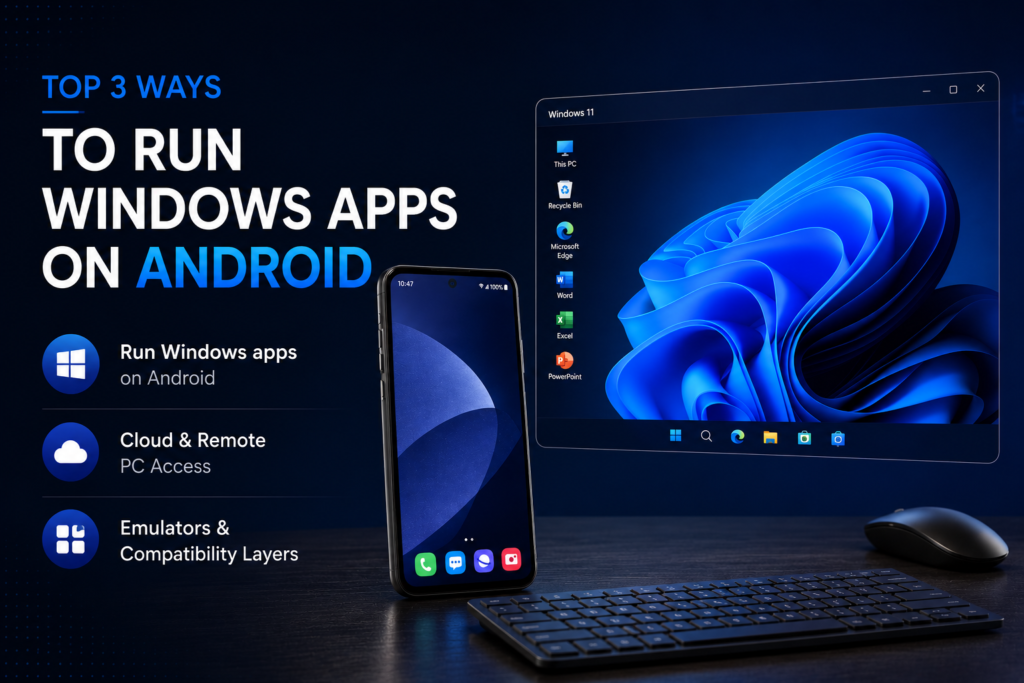
Don’t have a laptop or PC? You can still run PC apps on Android — and it is easier than most people think. Whether you want to run Windows apps on Android, use PC software from your phone, or open EXE files without a computer, there are working methods available right now in 2026.
This guide covers the top 3 ways that actually work today — from cloud-based Windows environments to remote desktop access and finding Android alternatives to popular PC software.
2,23,000+ people have watched these methods on YouTube. These are the 3 methods that are confirmed working in 2026 — no root, no risky downloads.
🔗 Want to run EXE files directly on Android? A dedicated guide using Winlator is coming soon on TapsVision — stay tuned.
Why Would You Need to Run PC Apps on Android?
Most people in India do not own a PC or laptop — but there are many tasks where a Windows application is needed. Office work, specific software tools, or apps that simply have no Android version yet. Instead of buying an expensive computer, your Android phone can handle many of these tasks.
⚠ Note: Running PC apps on Android uses more RAM and battery. For best performance use a phone with 4GB+ RAM. A Bluetooth keyboard improves the experience significantly.
What You Need
- Any Android smartphone (4GB RAM recommended)
- Google account (for cloud-based methods)
- Internet connection for Methods 1 and 2
- Optional: Bluetooth or USB keyboard for a better experience
Method 1 — Roll App (Cloud-Based Windows Apps — Best Method, No Downloads)
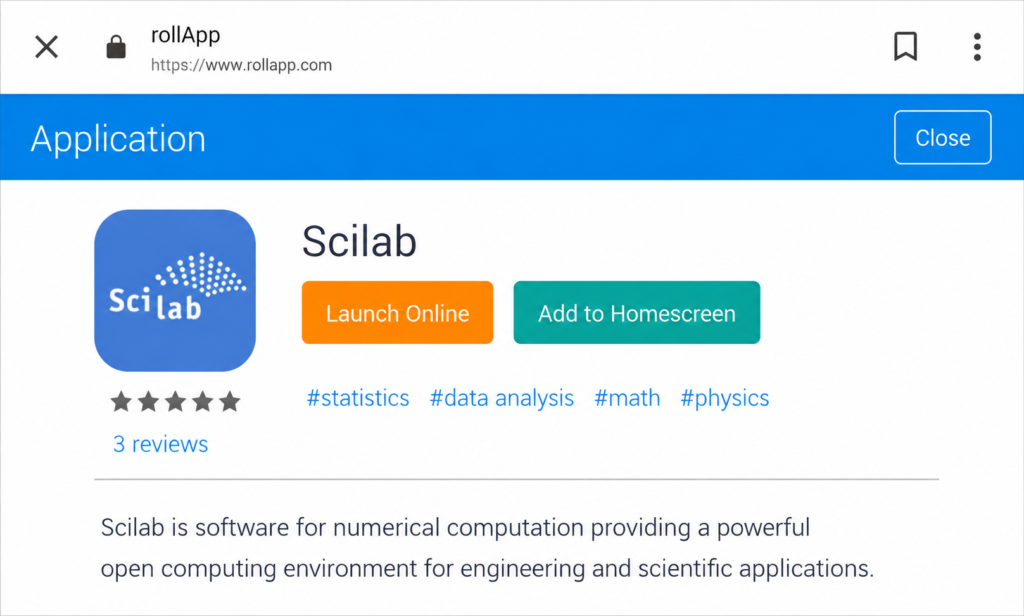
Roll App is a cloud-based platform that lets you run Windows applications directly from your Android browser — no installation, no EXE file needed, no storage used on your phone. The app runs on a powerful cloud server and streams to your device.
Think of it like Google Drive — just like Google stores your files on their servers, Roll App runs your Windows software on their servers and delivers it to your screen.
How to Use Roll App on Android:
- Open Chrome on your Android phone and go to rollapp.com (link in video description)
- Sign in with your Google account — free plan available
- Tap Apps and search for the Windows app you need
- Tap the app and select Launch Online
- The app opens in your browser — fully functional, cloud-powered
- Tap Add to Home Screen to create a desktop shortcut for quick access
Free plan works well for most basic Windows apps. Premium plan is $6.99/month for advanced features — not necessary for casual use.
Method 2 — Remote Desktop (Control Your Full Windows PC from Android)
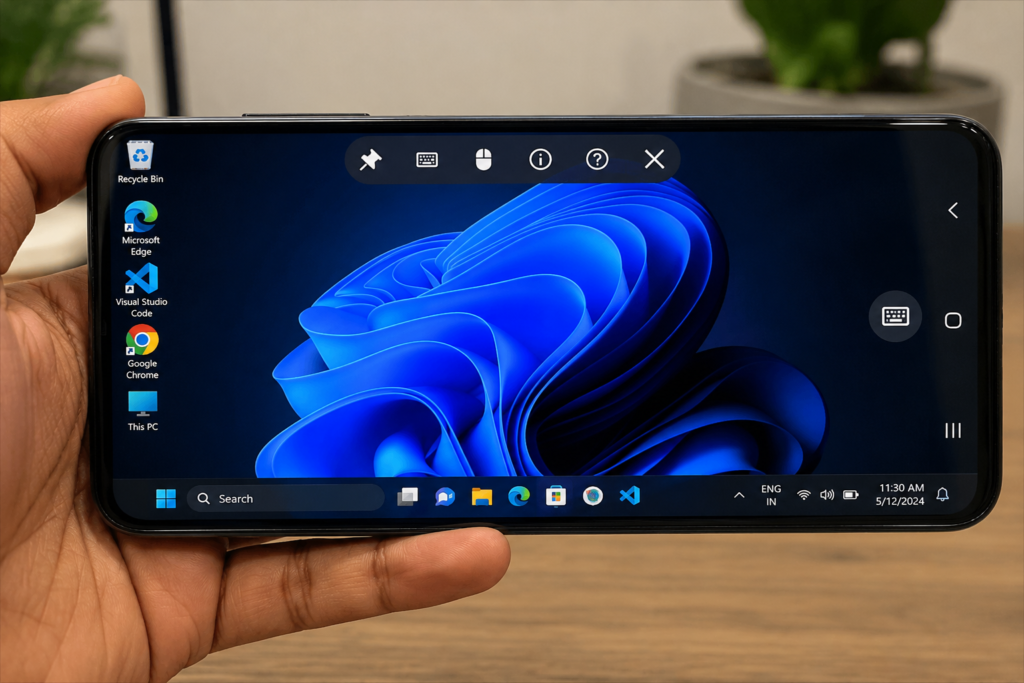
If you have a Windows PC at home or office, remote desktop apps let you access your full desktop from your Android phone — over WiFi or mobile internet. Every app, file, and software on your PC becomes accessible from your phone screen.
Best Free Remote Desktop Apps for Android:
- Chrome Remote Desktop — Completely free, made by Google, works excellently
- Microsoft Remote Desktop — Free, official Microsoft app
- AnyDesk — Free for personal use, fast and reliable
- TeamViewer — Free for personal use
How to Set Up Chrome Remote Desktop:
- On your Windows PC, open Chrome and go to remotedesktop.google.com
- Set up remote access and create a PIN
- On your Android phone, install Chrome Remote Desktop from Play Store
- Sign in with the same Google account — your PC will appear in the list
- Tap your PC name and enter the PIN — your full Windows desktop appears on your phone
Method 3 — Find the Android Version of Your PC Software (Easiest Method)
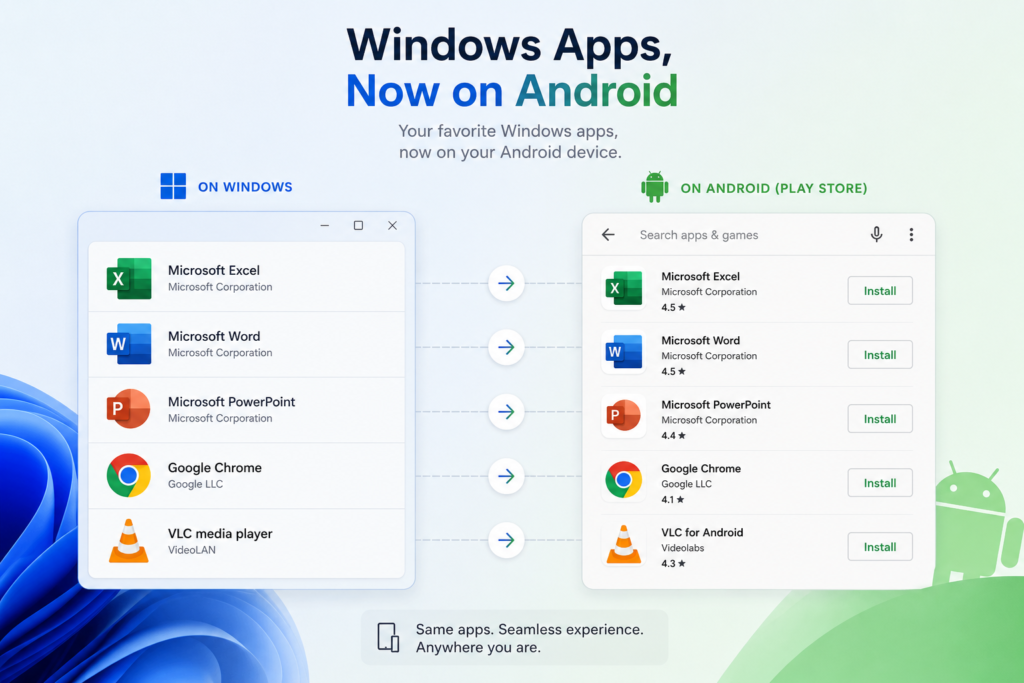
Before going through any complex setup, always check if an Android version of the same software already exists on the Play Store. Most popular PC apps now have Android equivalents that work just as well.
Common PC Apps With Android Equivalents:
- Microsoft Office → Microsoft Word, Excel, PowerPoint apps (free on Android)
- VLC Media Player → VLC for Android
- Notepad++ → QuickEdit or similar text editors on Play Store
- CCleaner → CCleaner for Android
- Programming / coding tools → AIDE, Dcoder, Pydroid
- Photo editing → Adobe Lightroom, Snapseed (match most PC photo editors)
If the app is not on the Play Store, trusted developer websites sometimes offer Android-compatible APK versions. Be very careful with APK sources — only download from the official developer’s website.
⚠ Safety Warning: Only download APK files from the official developer website. Third-party APK sites carry real malware risks. Always verify the source before installing anything outside the Play Store.
Bonus — Want to Run EXE Files Directly on Android?
If you specifically need to run Windows EXE files locally on Android — without internet and without a PC — there is a dedicated method using WINE for Android. This is a more advanced process and deserves its own full guide.
🔗 The dedicated method for running EXE files locally on Android is Winlator — a modern tool that uses WINE + Box64 under the hood. It works significantly better than older WINE-only approaches. We are working on a full Winlator tutorial — check back soon.
Which Method Should You Use? — Quick Summary
Method 1 — Roll App: Best if you need Windows apps without any files or setup. Works in browser. Needs internet. Free plan available.
Method 2 — Remote Desktop: Best if you already own a Windows PC. Access your full desktop remotely. Completely free. PC must be on and connected.
Method 3 — Play Store Alternative: Always try this first. Simplest, fastest, safest. No extra setup at all.
Want to run EXE files locally? → See our WINE guide (linked above).
Watch the Full Tutorial on YouTube
I have demonstrated all 3 methods live — Roll App cloud setup, remote desktop walkthrough, and finding Android alternatives for PC software. Watch for the complete visual guide.
“Note: The video covers an older method (ExaGear) which is no longer recommended. The 3 methods above are the current working solutions.”
Recommended Products — Use Android Like a PC
1. Compact Bluetooth Keyboard for Android
Makes using Roll App and remote desktop on Android feel like a real PC. Essential upgrade for anyone doing serious work on their phone.
2. OTG USB Hub (Keyboard + Mouse Together)
Connect keyboard and mouse simultaneously to your Android phone via OTG — ideal for remote desktop use.
3. Phone Stand / Desktop Holder
A good stand keeps your phone at a comfortable angle while working with PC apps — reduces strain during long sessions.
Disclosure: Links above are affiliate links. TapsVision earns a small commission at no extra cost to you.
Frequently Asked Questions
How to run PC apps on Android in 2026?
Three working methods in 2026: Roll App (cloud-based, run Windows apps in your browser), Remote Desktop (control a real Windows PC from your phone), or find a Play Store alternative for your PC software. For running EXE files locally, check our dedicated WINE for Android guide.
How to run Windows apps on Android?
The easiest way is Roll App — open rollapp.com in Chrome on your Android phone, sign in with Google, and launch any Windows app directly in the browser. No downloads or installations needed. It works on any Android phone.
How to run EXE files on Android?
To run EXE files locally on Android, use WINE for Android — we have a dedicated step-by-step guide for this. For cloud-based EXE access, Roll App can also run many Windows EXE applications directly in your browser.
How to use PC software on Android without a computer?
Roll App is the best solution — it runs PC software entirely on cloud servers and streams it to your phone browser. No computer needed at all. Free plan available at rollapp.com.
How to install PC apps on Android?
For Play Store alternatives — just install normally. For Roll App — no installation needed, everything runs in the browser. For EXE files on Android — use WINE (see our separate guide). Remote desktop requires no installation on the phone side either.
What is the best app to run Windows apps on Android?
For cloud use: Roll App is the best option — no storage needed, works in browser, free plan available. For remote PC access: Chrome Remote Desktop (free, made by Google) is the most reliable. For local EXE files: WINE for Android — see our dedicated guide.
Can I run Windows on Android?
Running full Windows on Android is technically possible but very slow and impractical for most users. Running individual Windows apps (via Roll App or WINE) is much faster, lighter, and more practical. Focus on the app you need, not the full OS.
How to run exe on Android phone?
The dedicated method for running EXE files on Android is WINE — a compatibility layer that runs Windows executables on Linux-based systems like Android. We have a full guide on this. For cloud-based EXE access, Roll App also supports many Windows EXE applications.
Android windows app — what does this mean?
An ‘Android Windows app’ refers to running a Windows application on an Android device — either through emulation (WINE), cloud streaming (Roll App), remote desktop, or using an Android equivalent from the Play Store. All four approaches are covered in detail on TapsVision.
Final Thoughts
Not having a PC is no longer a barrier to using PC apps. Whether you use Roll App to stream Windows software from the cloud, connect to your home PC remotely, or find a Play Store equivalent — your Android phone is far more capable than most people realize.
Start with Method 3 — check Play Store first. Then try Roll App. Need to run an EXE file locally? Head to our WINE guide.
If this guide helped, share it with someone who keeps saying they need to buy a laptop.
— TapsVision