Laptop Screen Flickering, Flashing or Blinking?
How to Fix It in Windows 10 and Windows 11 — Display Driver Solution
Published: September 2020 (Updated 2026) | tapsvision.in
Laptop screen flickering, flashing, or blinking can start suddenly while you are working normally on your Windows laptop. One moment everything looks fine, and the next the display becomes unstable, making the laptop almost impossible to use.
This is one of the most common and frustrating laptop problems — and the good news is that in most cases, it is not a hardware failure. It is a display driver issue that you can fix yourself in a few minutes, without spending any money.
This blog covers exactly what causes the problem and two ways to fix it, depending on whether you have a WiFi connection or not.
2.4 lakh people have watched this fix on YouTube. It works. Read on.
Why Is Your Laptop Screen Flickering or Blinking?
There are two main reasons a laptop screen flickers, flashes, or blinks:
Reason 1 — Display Driver Issue (Most Common)
When Windows updates automatically, it sometimes installs a driver that is incompatible with your graphics hardware. This is the most common cause. The display driver controls how your screen renders everything, and a corrupted or outdated driver can cause the screen to flicker continuously.
Reason 2 — Display Hardware Damage
In some cases, the physical display panel or the cable connecting it to the motherboard may be damaged. If your screen flickers even at the BIOS screen (before Windows loads), it is more likely a hardware issue and needs a service center visit.
⚠ Quick test: Restart your laptop and watch the screen during startup. If flickering happens before Windows loads, it may be hardware damage. If it only happens after Windows loads, it is almost certainly a driver issue — and this guide will fix it.
Method 1 — Fix Using Device Manager (WiFi Required)
This is the easiest method. Windows will automatically search for and install the correct display driver.
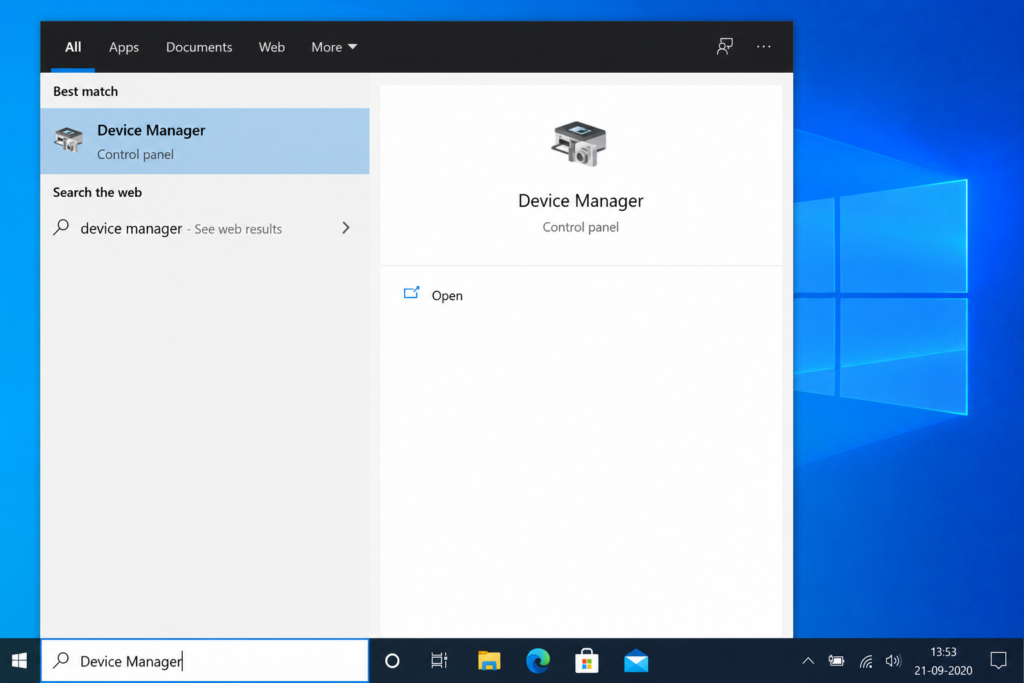
Step 1 — Press the Windows key and type Device Manager. Press Enter.
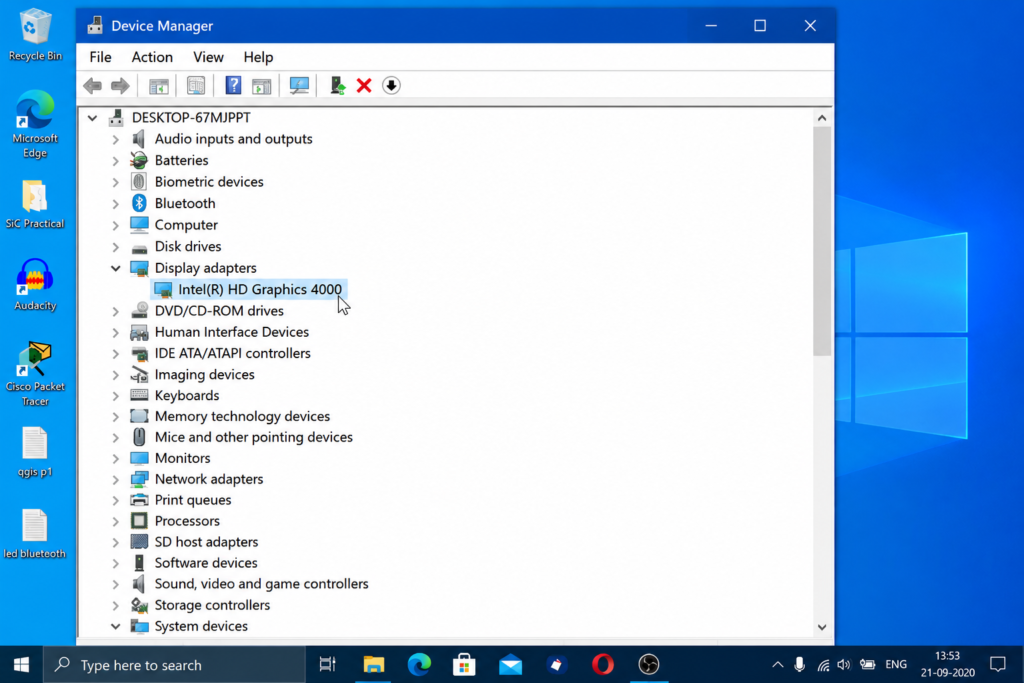
Step 2 — In Device Manager, click on Display Adapters to expand it.
Step 3 — Right-click on your graphics driver (Intel, NVIDIA, or AMD) and click Properties.
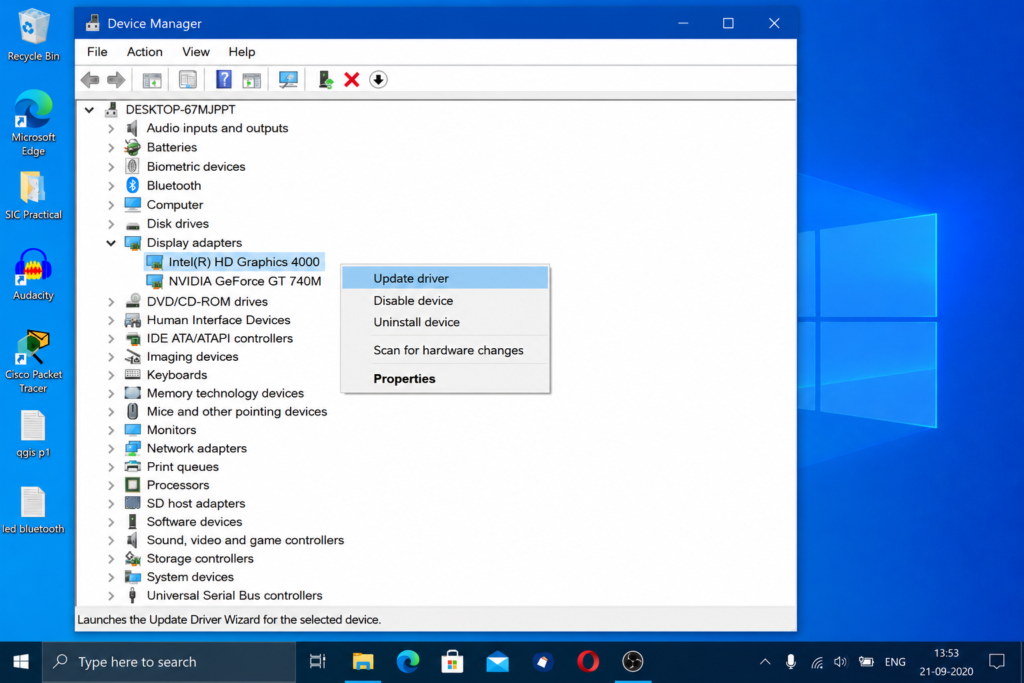
Step 4 — Click on the Driver tab at the top, then click Update Driver.
Step 5 — Select ‘Search automatically for drivers’. Windows will check online for the latest driver.
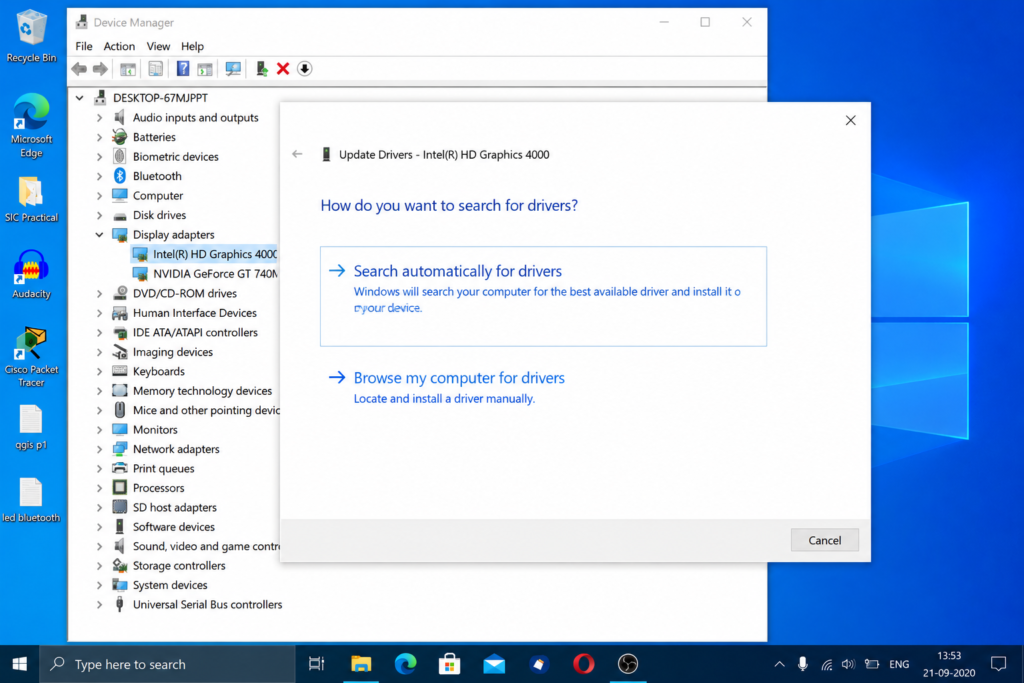
Step 6 — If Windows says ‘The best drivers for your device are already installed’, click ‘Search for updated drivers on Windows Update’.
Step 7 — Download and install any available updates. You will need a WiFi connection for this step.
Step 8 — Restart your laptop when prompted. After restart, check if the flickering is gone.
Note: This method may download several hundred MBs of data. Use WiFi — do not do this on mobile data.
Method 2 — Fix by Downloading Driver Manually (No WiFi Needed)
If you do not have a stable WiFi connection, or if Method 1 did not fix the problem, you can manually download just the display driver using mobile data. It is a much smaller download than Windows Update.
Step 1 — Find your laptop’s model number. It is usually printed on a sticker on the back of the laptop.
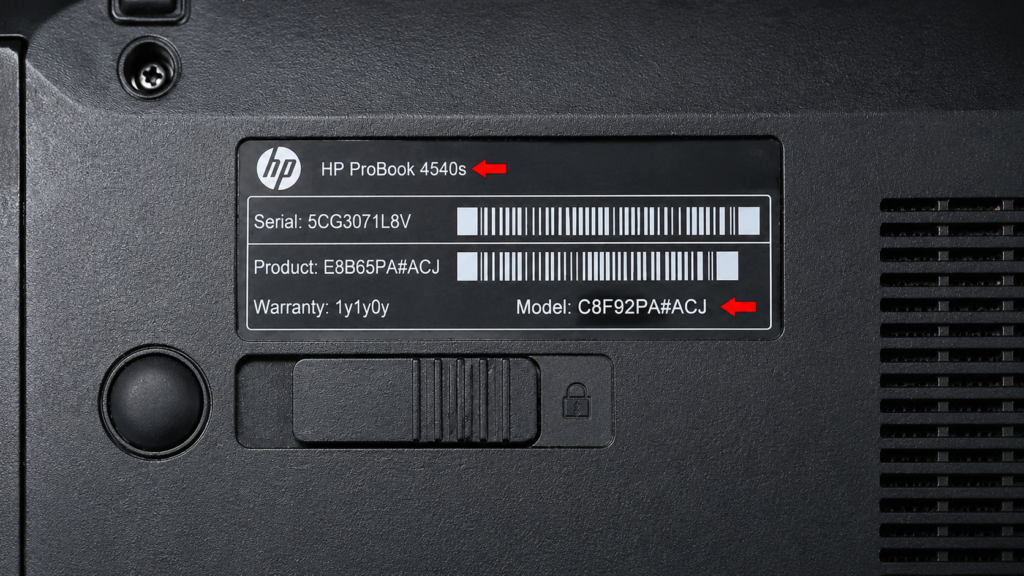
Step 2 — Open any browser and search for your laptop model number + ‘drivers download’. For example: HP ProBook 4540s drivers download.
Step 3 — Go to the official manufacturer website (HP, Dell, Lenovo, ASUS, etc.). Do not download drivers from unknown third-party sites.
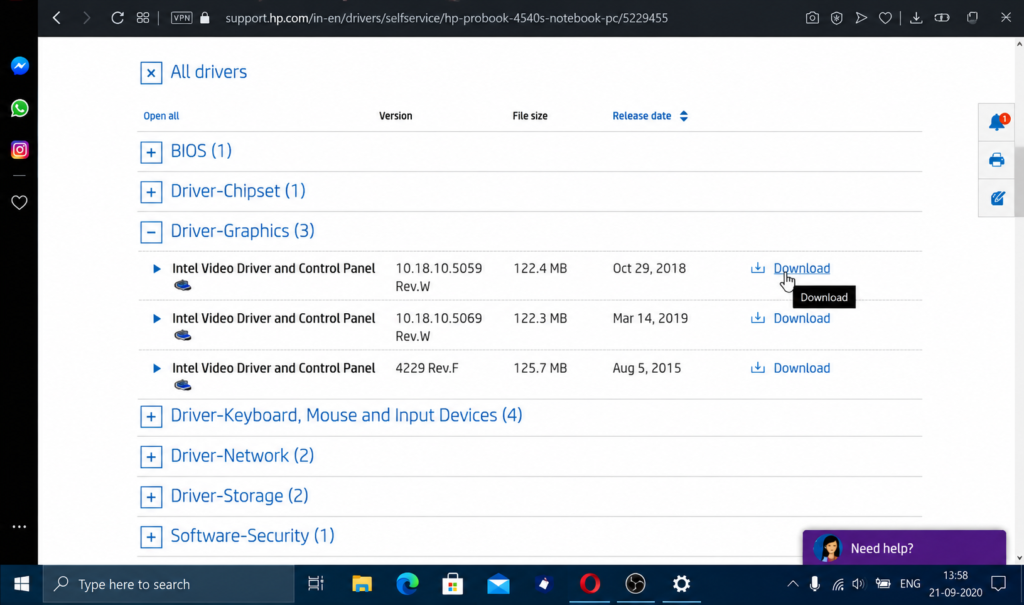
Step 4 — Find the Graphics or Display driver section. Download only the graphics driver — you do not need to download everything.
Step 5 — Once downloaded, double-click the file to run the installer.
Step 6 — Accept the terms, click Next through the installation steps.
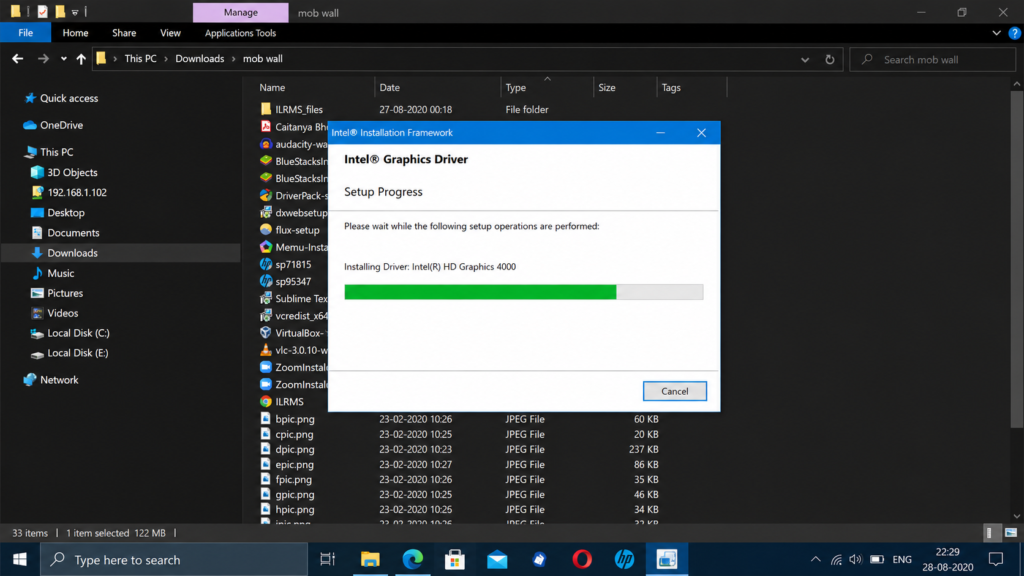
Step 7 — When installation is complete, the system will ask you to restart. Click Yes and restart.
Step 8 — After restart, an automatic process may run briefly — do not interrupt it. Wait for it to finish.
Step 9 — Your display driver is now updated. Check if the flickering is resolved.
This method only downloads the specific display driver — much smaller in size than a full Windows Update. Works on mobile data without a problem.
After the Fix — What to Expect
Once the correct display driver is installed and your laptop restarts:
- Screen flickering, flashing, and blinking should stop completely
- Your display may look slightly different if the driver version changed significantly
- Performance in games or graphics-heavy tasks may also improve
- If the problem returns after the next Windows Update, simply repeat this process
If the flickering continues even after updating the driver, the problem may be hardware-related and a visit to the service center is recommended.
Which Laptops and Systems Does This Fix Work For?
This solution works for the screen flickering problem on:
- HP laptops — ProBook, Pavilion, EliteBook, Envy
- Dell laptops — Inspiron, Latitude, XPS, Vostro
- Lenovo laptops — IdeaPad, ThinkPad, Legion
- ASUS laptops — VivoBook, ZenBook, ROG
- Acer laptops — Aspire, Swift, Nitro
- Desktop PCs with external monitors
- Works on Windows 10 and Windows 11
Watch the Full Tutorial
I have explained this entire process step by step in my YouTube video, including the live demo on a real laptop. Watch it if you want to see exactly what each screen looks like during the process.
Search ‘Fix Screen Flickering Blinking TapsVision’ on YouTube or use the link in the description.
Frequently Asked Questions
Why does my laptop screen flicker after a Windows update?
Windows updates sometimes replace your existing display driver with a generic one that is not optimised for your hardware. This mismatch causes the screen to flicker. Updating to the correct driver for your specific model fixes this.
My laptop screen is blinking but there is no display driver issue — what else could it be?
If updating the driver does not help, check if the flickering happens in a specific application only (like a browser or game). If yes, it may be a software issue, not a driver issue. If the flickering happens everywhere including on the desktop, it is almost certainly the driver.
How to fix screen flickering in Windows 11?
The same method works for Windows 11. Open Device Manager, go to Display Adapters, right-click your driver, and choose Update Driver. Windows 11 frequently pushes driver updates that can cause this issue on older hardware.
Can a blinking laptop screen damage the display permanently?
A driver-caused flicker does not damage the physical display. However, if the root cause is hardware (loose cable or panel damage), continued use without repair can eventually worsen the problem. Fix it soon.
My laptop screen flickers only when plugged in — why?
This is often a power management or refresh rate issue, not a driver issue. Try right-clicking the desktop, going to Display Settings, and checking the refresh rate. Also check your power plan settings in Control Panel.
Is it safe to download drivers from third-party sites?
No. Always download drivers from the official manufacturer website only. Third-party driver sites often bundle malware or install incorrect driver versions that can cause more problems.
Final Thoughts
A flickering, blinking, or flashing laptop screen looks serious but is usually a simple driver fix. Before assuming the worst and spending money at a repair shop, try updating your display driver first. It takes less than 10 minutes and costs nothing.
If this guide fixed your problem, share it with someone else facing the same issue. It could save them a trip to the repair shop.
— TapsVision