Do you own Google Pixel Buds A Series and the volume is so low that you can barely hear music or calls? You have tried raising the volume all the way up but the Pixel Buds A Series low volume problem just will not go away. This is one of the most reported issues with Google Pixel Buds — and the frustrating part is that most solutions you find online either do not work or give temporary relief.
This guide covers every method that exists — from enabling Absolute Volume in Developer Options to cleaning the mesh — and ends with the one permanent solution that actually works, even if your Pixel Buds are out of warranty.
11,700+ people have watched this fix on YouTube. If you have Google Pixel Buds A or Pixel Buds Pro with low volume issues — read every word of this guide.
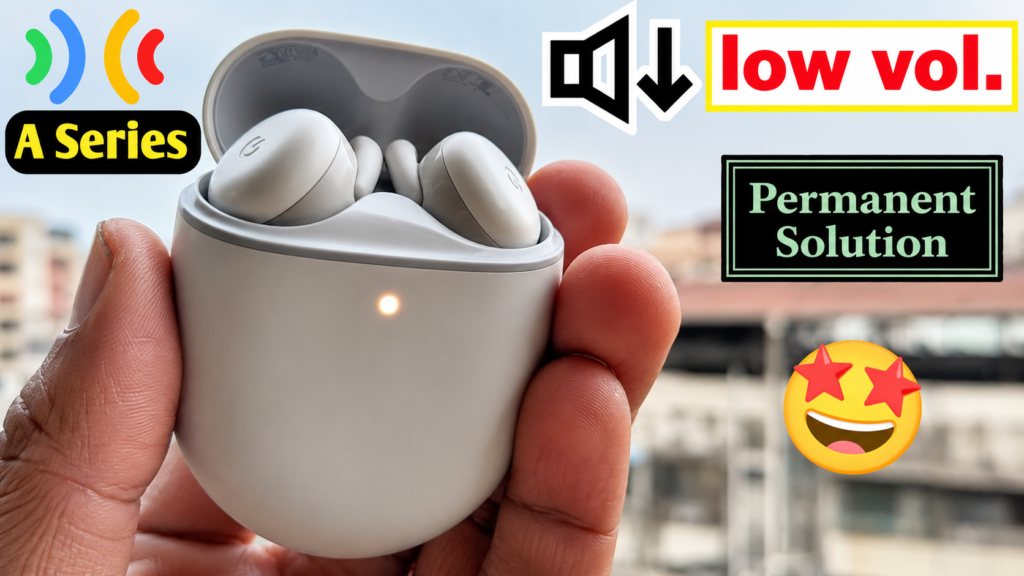
Why Do Google Pixel Buds A Series Have Low Volume?
The Google Pixel Buds A Series low volume problem typically has two causes:
Cause 1 — Earwax and Debris Blocking the Mesh
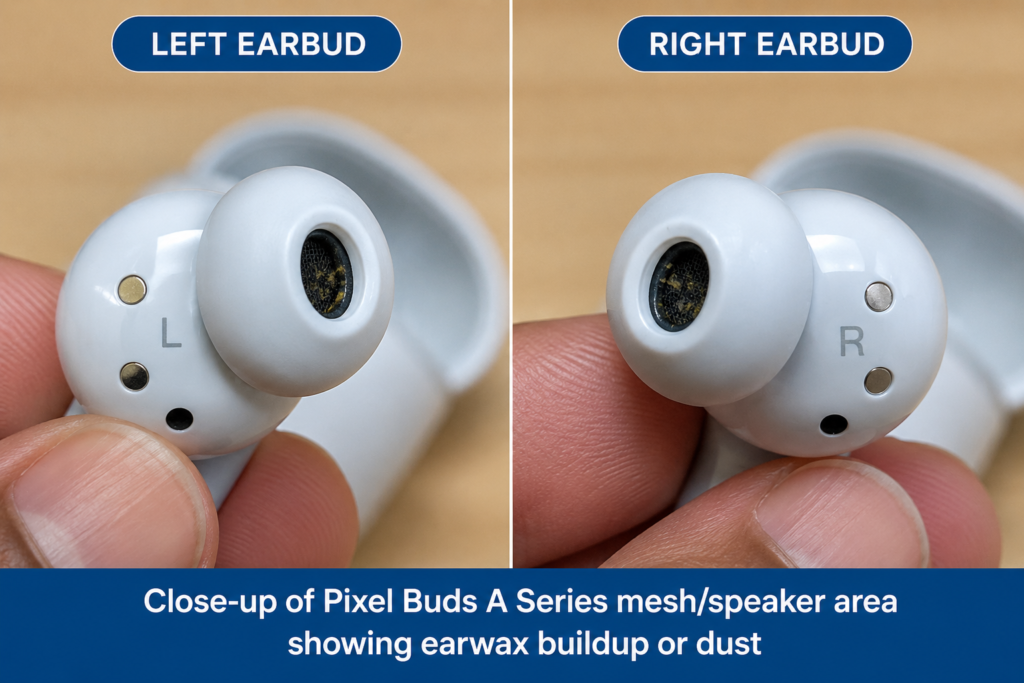
Over time, earwax, dust, and skin particles accumulate on the mesh (the small fabric/metal screen where sound comes out). This physically blocks the sound from reaching your ear, making the volume seem very low even at maximum. This is the most common reason for Pixel Buds A Series volume being too low — and it is also the most fixable.
Cause 2 — Android Bluetooth Volume Limitation (Software)
Android limits Bluetooth volume through a feature called Absolute Volume. When this is not properly enabled, the phone and the earbuds have separate volume scales — and you end up with a combined low volume even at 100%. This is a software issue and can be fixed through Developer Options.
⚠ Important: Before spending money at a service center or assuming your earbuds are broken, try both methods below. Most people fix this at home without any cost.
What You Need
- Your Google Pixel Buds A Series (or Pixel Buds Pro)
- A thin pin, toothpick, or soft bristle brush for cleaning
- Your Android phone (any brand) with Bluetooth connected
- 5 minutes of your time
How to Fix Google Pixel Buds A Series Low Volume — Step by Step
Method 1 — Enable Absolute Volume in Developer Options (Software Fix)
This is the first thing to try. It is free and takes under 2 minutes.
Step 1 — Enable Developer Options on Your Android Phone
Go to Settings > About Phone > Software Information. Tap on Build Number 7 times rapidly. You will see a message saying ‘You are now a developer.’ Developer Options is now unlocked.
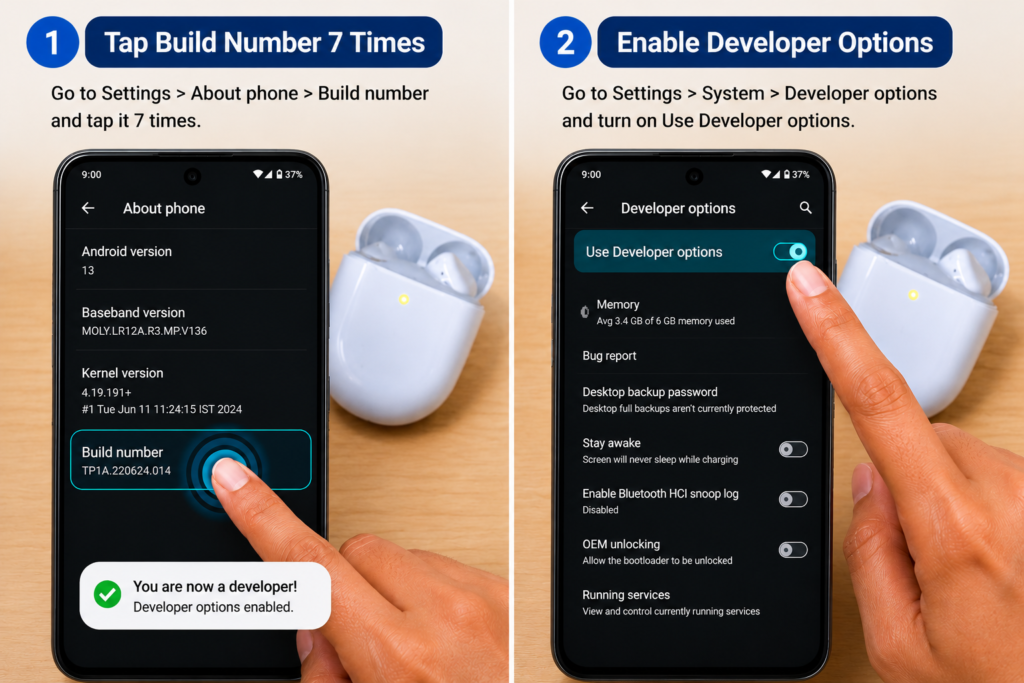
Step 2 — Disable Absolute Volume (Counter-intuitive but correct)
Go to Settings > Developer Options. Scroll down and find Disable Absolute Volume. Toggle it ON (enabling this setting disables Android’s volume restriction). This gives your Pixel Buds full independent volume control and often immediately increases the maximum volume.
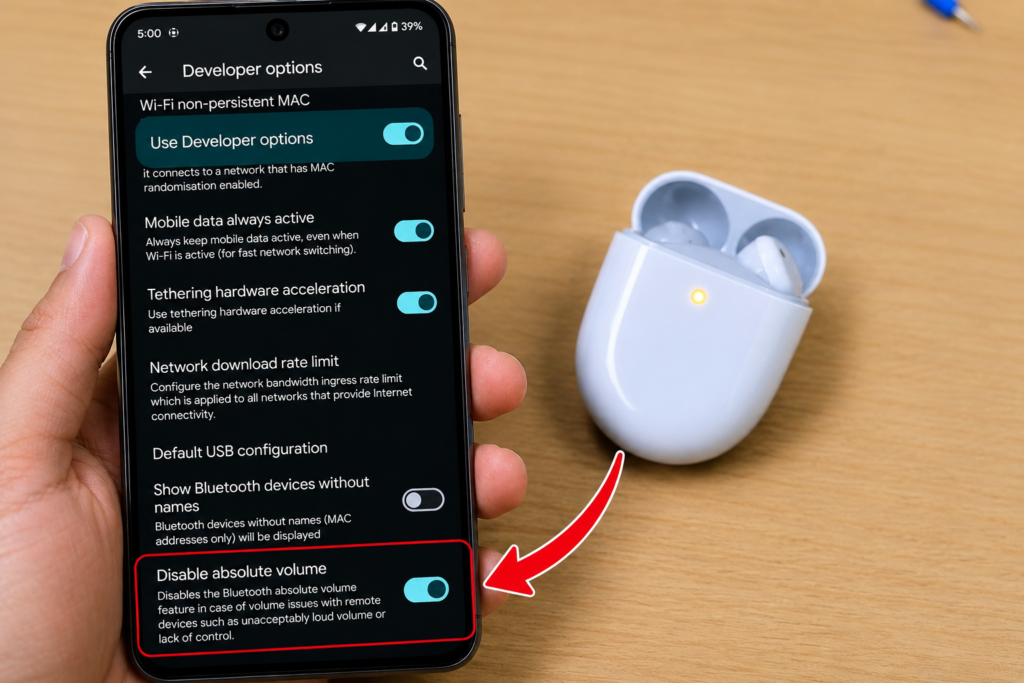
Step 3 — Reconnect Your Pixel Buds and Test Volume
After toggling the setting, forget your Pixel Buds from Bluetooth settings and reconnect them fresh. Then test the volume — it should be noticeably louder than before.
⚠ Note: This method works for many users. However, as mentioned in the video, it does not always work for every device. If the volume is still low after this, proceed to Method 2.
Method 2 — Clean the Earwax from the Mesh (Permanent Fix)
This is the permanent solution that fixes the low volume problem on Google Pixel Buds A Series in most cases where Method 1 fails.
Step 1 — Locate the Sound Mesh on Your Pixel Buds
Look at your Google Pixel Buds A Series closely. You will see a small mesh or screen area — this is where the sound comes out. Over time, earwax and debris collect on this mesh and physically block the sound output.
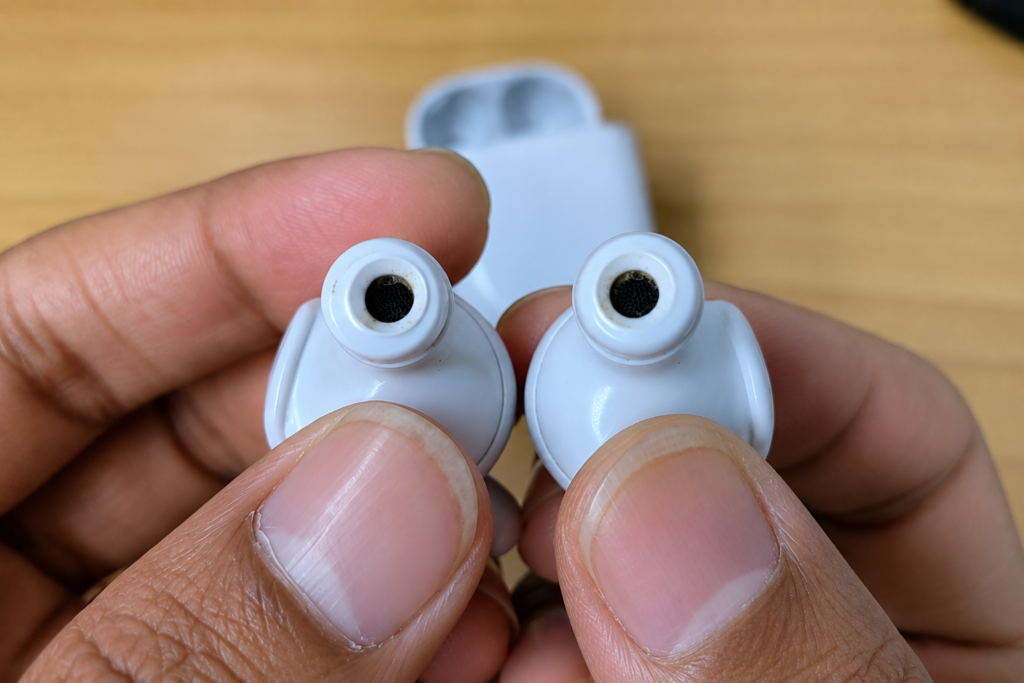
Step 2 — Use a Pin or Thin Tool to Gently Remove Debris
In many cases, simply cleaning the mesh is not enough. The actual issue is often caused by the small black cotton-like filter or debris trapped inside the speaker opening. As shown in the image, gently lifting and removing that black material with a thin pin can restore the sound volume completely. Be extremely careful not to push it deeper inside or damage the internal speaker mesh while removing it.
⚠️ Be careful: The goal is not only to clean the surface mesh, but also to carefully remove any clogged black cotton or compact debris blocking the sound channel. Avoid inserting the pin too deep, as excessive force can permanently damage the speaker driver.
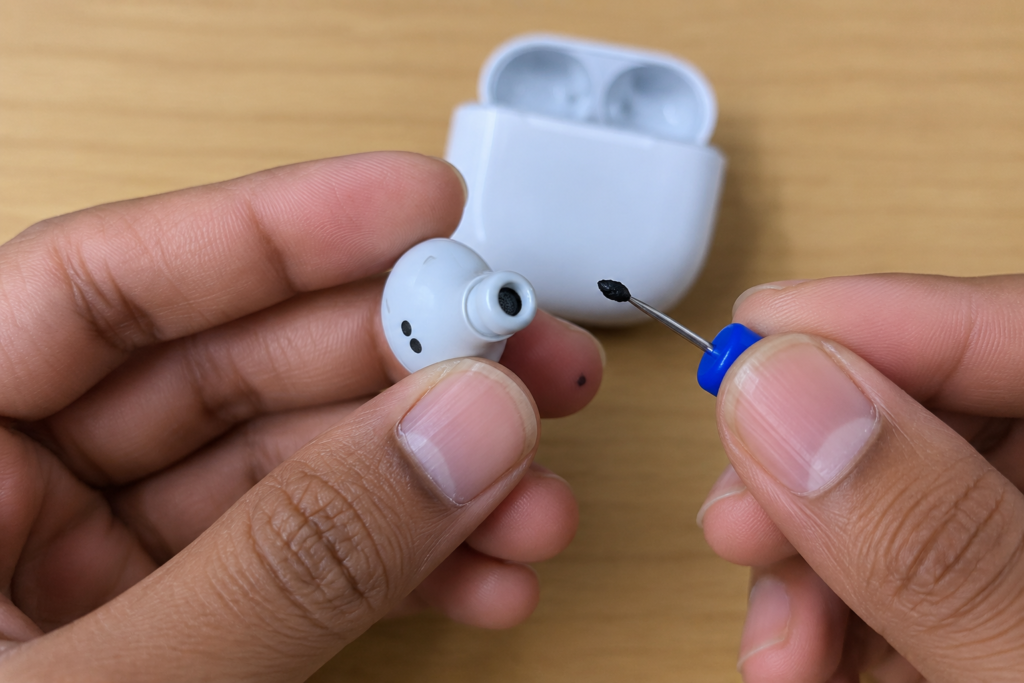
Step 3 — Test the Volume After Cleaning
After cleaning both earbuds and removing the black cotton permanently, connect them to your phone and play music or make a call. The volume should now be back to full level. This is the fix that has worked for thousands of Pixel Buds A Series users worldwide.
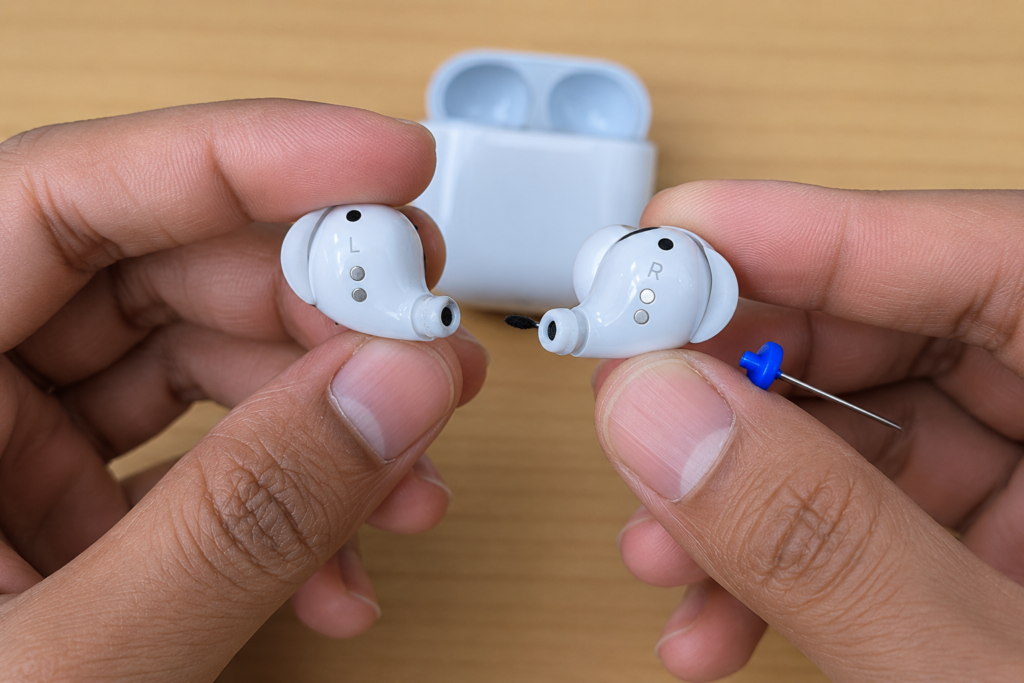
After the Fix — What to Expect
- Volume on your Pixel Buds A Series should return to full normal level
- Call audio will be clear again — no more struggling to hear the other person
- Music and media audio will be at proper levels
- Clean the mesh every few weeks to prevent the problem from returning
What If Nothing Works? — Check Your Warranty First
If both methods above do not fully resolve your Pixel Buds A Series low volume problem, here is what to consider:
- Check your warranty status — Google Pixel Buds A Series typically come with a 1-year manufacturer warranty
- If under warranty, contact Google Support or the retailer where you purchased them
- Important: Google does not have dedicated service centers in India — if you are out of warranty, repairs are very difficult to get officially
- This applies to both Pixel Buds A Series and Pixel Buds Pro — plan accordingly before your warranty expires
⚠ Real talk: If your Pixel Buds are out of warranty and the mesh cleaning does not help, the cost of unofficial repair in India can sometimes equal the cost of a new budget earbud. Consider your options carefully.
Watch the Full Tutorial Video
I have shown this entire process live — the Developer Options method, the mesh cleaning method, and the before/after volume test. Watch it for a clear visual walkthrough.
Search ‘Google Pixel Buds A Series Low Volume Fix TapsVision’ on YouTube.
Recommended Products — Alternatives and Accessories
If your Pixel Buds A Series are out of warranty and beyond repair, here are some worth considering:
1. CMF Earbuds Pro 2 — Best Value Alternative
The CMF Earbuds Pro 2 is one of the best budget alternatives to Pixel Buds A Series — great ANC, sound quality, and a proper service network in India.
2. Soft Cleaning Brush Kit for Earbuds
A proper earbud cleaning kit with soft brushes and safe cleaning tools — prevents the earwax buildup that causes low volume in the first place.
3. Google Pixel Buds A Series (New / Refurbished)
If your current pair is beyond saving, a fresh pair or a certified refurbished unit might be a better investment than repair costs.
Disclosure: Links above are affiliate links. TapsVision earns a small commission at no extra cost to you.
Frequently Asked Questions
How to fix Google Pixel Buds A Series low volume permanently?
The most permanent fix is to clean the earwax and debris from the speaker mesh using a thin pin or soft brush. This physically removes the blockage causing low sound. For a software fix, also try enabling Disable Absolute Volume in Android Developer Options and reconnecting the buds.
Why is my Pixel Buds A Series volume so low even at 100%?
This usually happens due to two reasons — earwax blocking the speaker mesh, or Android’s Absolute Volume limiting Bluetooth output. Try both fixes: clean the mesh and enable Disable Absolute Volume in Developer Options. Both methods are free and can be done at home.
Does this fix work for both Pixel Buds A Series and Pixel Buds Pro?
Yes. Both the mesh cleaning method and the Developer Options fix apply to the Google Pixel Buds A Series and the Pixel Buds Pro. The mesh cleaning is especially effective for both models since both use a similar speaker mesh design.
How to clean Google Pixel Earbuds A Series mesh safely?
Use a thin pin, toothpick, or a soft dry brush. Very gently clean the mesh surface where sound comes out — do not push debris inward. Brush or lift debris outward. Never use liquid cleaners directly on the mesh. Clean every few weeks to keep the volume consistent.
Google Pixel Buds Pro low volume — same fix applies?
Yes. The mesh cleaning method and Absolute Volume fix both work for Pixel Buds Pro as well. If you are out of warranty on the Pro model, the same warning applies — official Google service centers are very limited in India, so the mesh cleaning fix is even more important to try first.
What is Absolute Volume and does disabling it help Pixel Buds?
Absolute Volume is an Android feature that links your phone’s volume and your Bluetooth device’s volume together. When it works correctly it is fine, but with some Bluetooth earbuds like Pixel Buds A Series, it can cap the maximum volume too low. Disabling Absolute Volume in Developer Options lets the earbuds use their own full volume range — which often results in noticeably louder audio.
CMF Earbuds Pro 2 vs Google Pixel Buds A Series — which is better?
If you are in India and considering a replacement for your Pixel Buds A Series, the CMF Earbuds Pro 2 is a strong competitor. It offers ANC, good sound quality, longer battery life, and importantly — proper service support in India. The lack of official Google service centers makes Pixel Buds a riskier buy for Indian users.
Is there a Google Pixel Buds service center in India?
As of now, Google does not have dedicated Pixel Buds service centers in India. If your Pixel Buds A Series or Pixel Buds Pro are under warranty, you can contact Google Support online for a replacement or claim. If out of warranty, unofficial repair options are limited and often expensive — making the DIY mesh cleaning fix even more valuable.
Google Buds A Series sound problem — will this fix work?
Yes. Whether you call them Google Buds A, Google Buds A Series, Google Pixel Buds A, or Pixel Bud A — they are all the same product. All the fixes in this guide apply to them. Start with Developer Options, then try the mesh cleaning if needed.
Final Thoughts
Google Pixel Buds A Series low volume is a real and frustrating problem — but it is fixable in most cases. Start with the Developer Options Absolute Volume fix, and if that does not fully work, clean the speaker mesh. These two steps together have resolved the issue for thousands of Pixel Buds users.
If you are still under warranty — contact Google Support now. If out of warranty and the fix works — clean the mesh regularly to prevent it coming back.
If this guide helped you, share it with another Pixel Buds user before they spend money on a service center visit.
— TapsVision