You try to move or delete a file from your SD card on your Mi or Redmi phone — and a permission error appears. The SD card permission fix on Mi phones is simple, but the setting is buried inside Developer Options where most users never look.
Whether you see ‘SD card permission required’, ‘permission denied’, ‘allow gallery to access SD card’, or Mi File Manager is asking for permissions — this guide fixes all of it in 2 minutes. No root required.
2,83,000+ people have watched this fix on YouTube. Works on Mi, Redmi, Xiaomi — Mi Note 5 Pro, Mi A1, and all MIUI devices.
Why Does the SD Card Permission Problem Happen on Mi Phones?
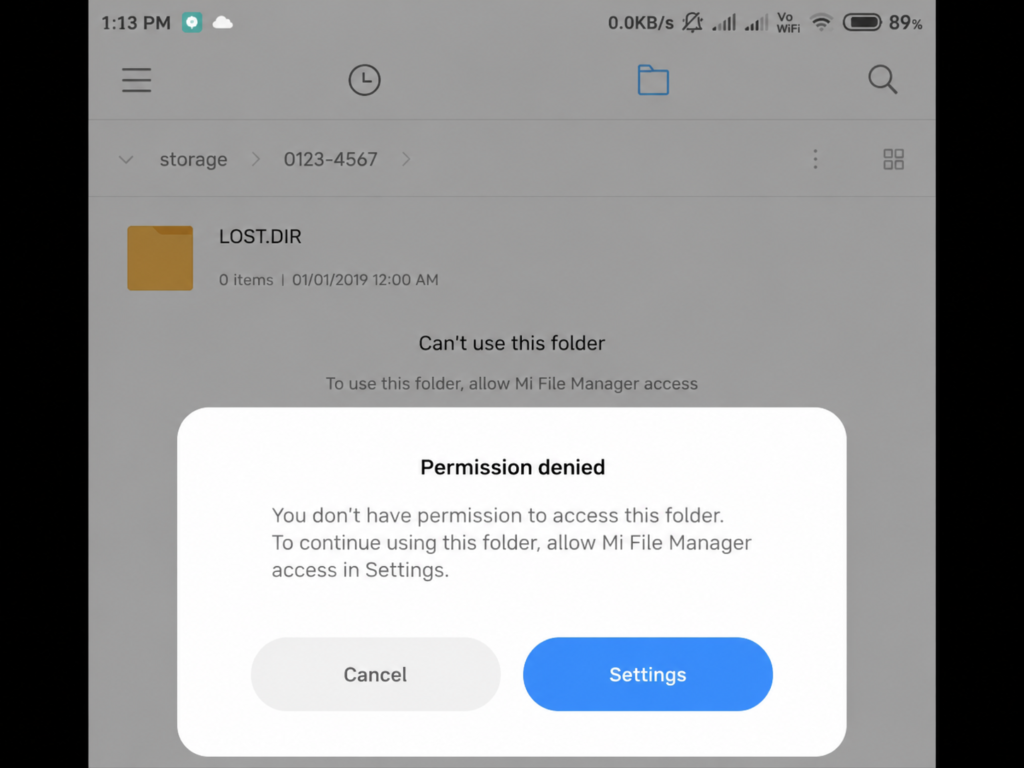
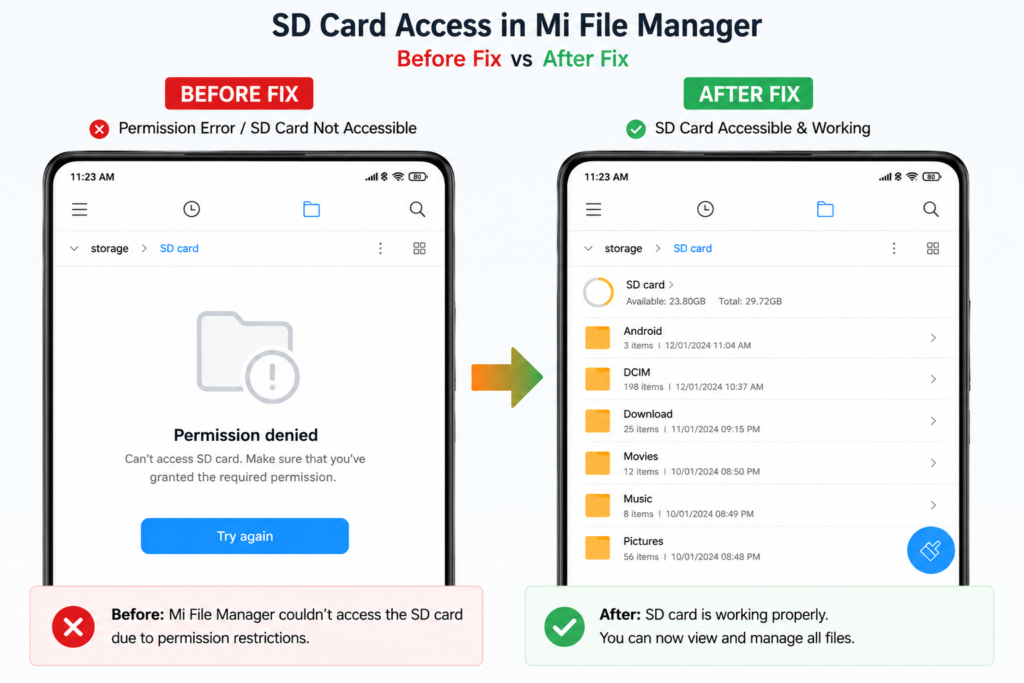
On MIUI, Android restricts direct read/write access to SD cards for apps — even the built-in Mi File Manager. This security feature blocks you from moving, deleting or managing files on your SD card. The problem shows up in different ways:
- Mi File Manager shows ‘Permission Required’ for SD card
- Gallery asks for SD card permission but the toggle does not work
- ‘Couldn’t safely eject SD card’ error on Mi phones
- Files cannot be moved or deleted from SD card
- ‘To manage files on your SD card, give permission’ popup
⚠ The fix: A hidden setting called ‘Force allow apps on external storage’ in Developer Options. Enabling this gives proper SD card access to all apps including Mi File Manager and Gallery.
What You Need
- Any Mi, Redmi or Xiaomi phone running MIUI
- SD card inserted in your phone
- 2 minutes — no root, no third-party apps needed
How to Fix SD Card Permission Problem on Mi Phone — Step by Step
Step 1 — Enable Developer Options
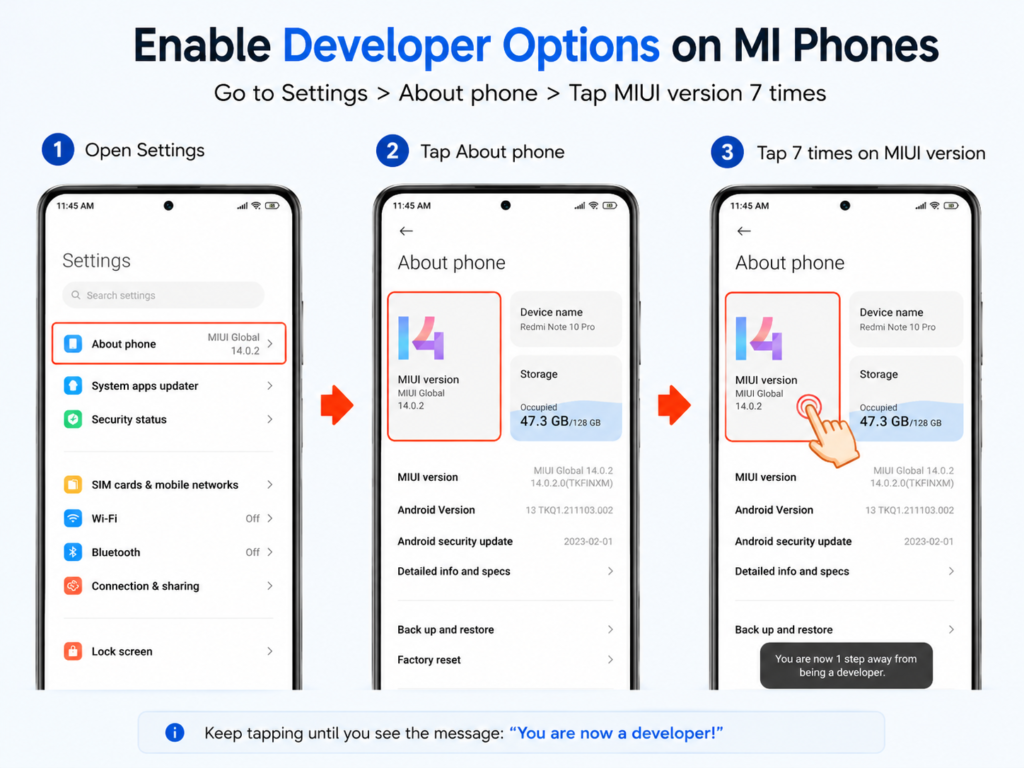
Go to Settings > About Phone. Tap MIUI Version 7 times rapidly. You will see ‘You are now a developer.’ Developer Options is now unlocked.
Step 2 — Go to Additional Settings
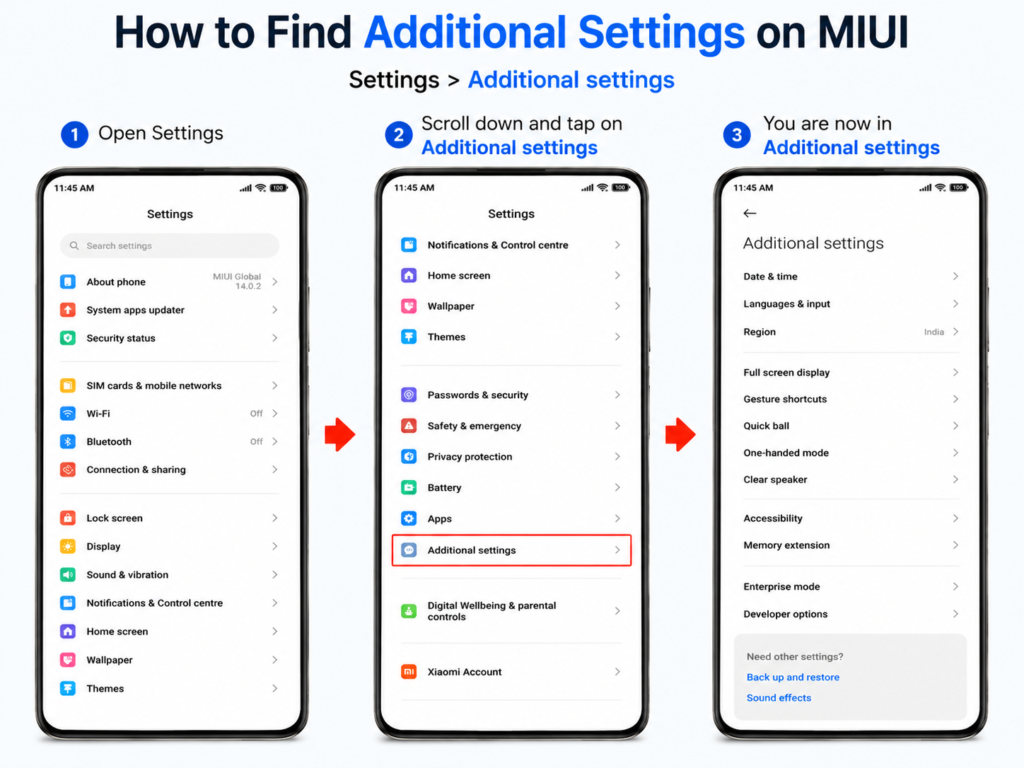
Go back to Settings and tap Additional Settings. Developer Options appears here on all MIUI devices.
Step 3 — Open Developer Options
Tap Developer Options inside Additional Settings. Scroll all the way to the bottom of the list.
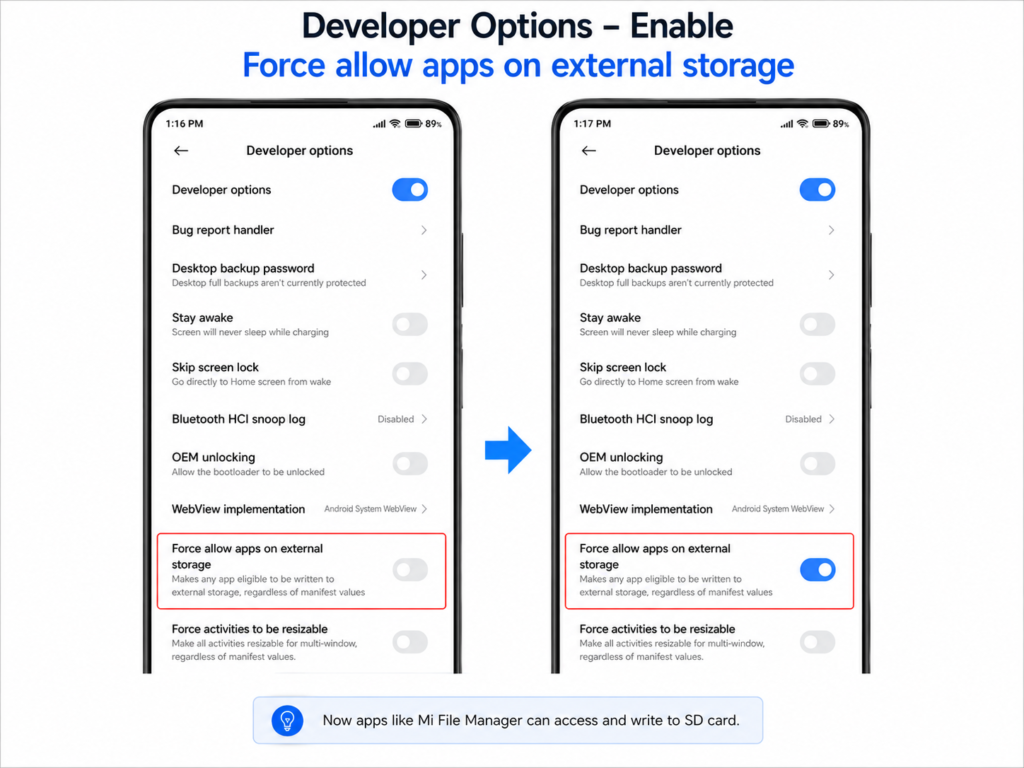
Step 4 — Enable ‘Force Allow Apps on External Storage’
Find Force allow apps on external storage at the bottom of Developer Options and toggle it ON. This gives all apps — Mi File Manager, Gallery, and third-party apps — full read/write access to your SD card.
Step 5 — Restart and Test
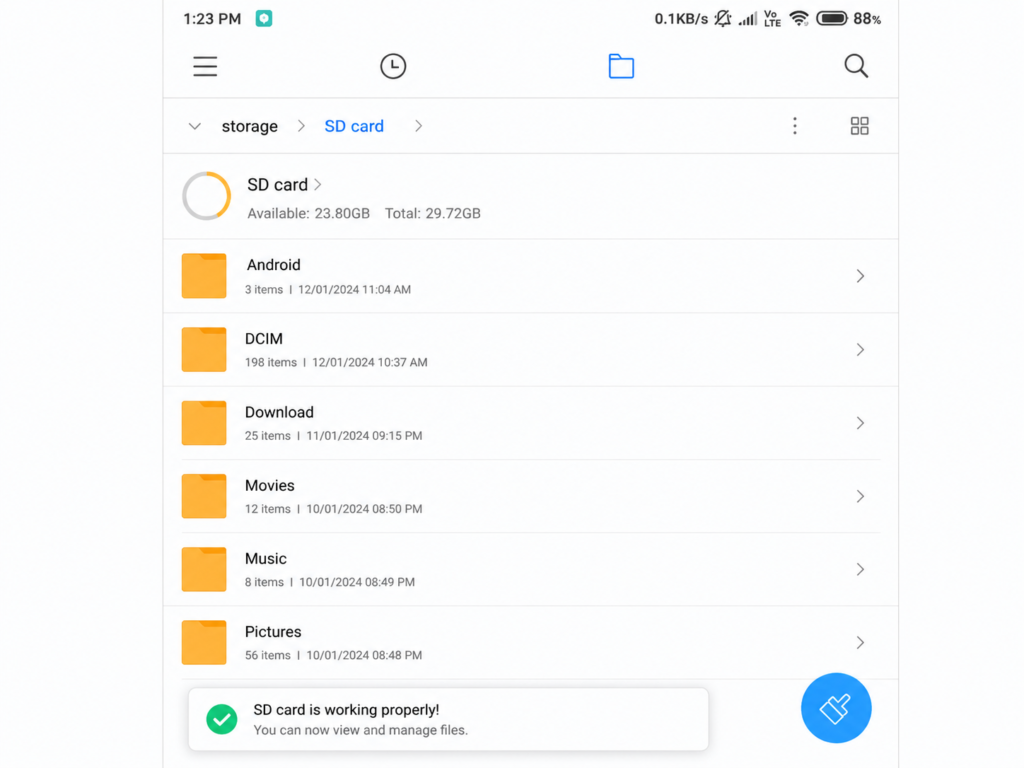
Restart your phone. Open Mi File Manager and access your SD card — you can now move, copy and delete files without any permission error.
After the Fix — What to Expect
- Mi File Manager can fully access, move, copy and delete SD card files
- Gallery permission to access SD card works normally
- ‘SD card permission required’ error is gone
- SD card can be safely ejected without errors
- All apps including third-party file managers get SD card access
Which Mi and Redmi Phones Does This Fix Work On?
This works on all MIUI devices including:
- Mi Note 5 Pro, Mi Note 4, Mi A1, Mi A2, Mi A3
- Redmi Note series (all models)
- Redmi 4, 5, 6, 7, 8, 9, 10, 12 series
- Poco F1, Poco X series
- Any Xiaomi phone with MIUI and an SD card slot
Watch the Full Tutorial on YouTube
I have shown this fix live with step-by-step screen recording — from enabling Developer Options to testing SD card access in Mi File Manager. Watch for the full visual walkthrough.
Search ‘SD Card Permission Fix Mi TapsVision’ on YouTube.
Recommended SD Cards for Mi and Redmi Phones
If your SD card is old or slow, upgrading prevents many file management issues:
1. SanDisk Ultra microSD 128GB
Most reliable microSD for Mi and Redmi phones. Fast read speeds, widely compatible.
2. Samsung EVO Plus microSD 128GB
Excellent performance for storing photos, videos and apps on Redmi or Mi phones.
3. OTG Card Reader (for SD card backup)
Back up your SD card data directly to another device — useful before any reset or repair.
Disclosure: Affiliate links above. TapsVision earns a small commission at no extra cost to you.
Frequently Asked Questions
How to fix SD card permission problem on Mi phone?
Settings > About Phone > tap MIUI Version 7 times. Then Settings > Additional Settings > Developer Options > scroll to bottom > enable Force Allow Apps on External Storage. Restart. Done.
How to fix Mi File Manager permissions for SD card?
Enable Developer Options and turn on Force Allow Apps on External Storage. This gives Mi File Manager full permission to access, move, copy and delete files on the SD card without errors.
How to allow access to SD card in Redmi phone?
Identical process on all Redmi phones. Enable Developer Options via MIUI Version tap. Then Additional Settings > Developer Options > Force Allow Apps on External Storage. Restart.
Does this SD card fix work without root?
Yes — completely rootless. Developer Options is a built-in Android feature. No third-party apps needed, no warranty impact, no risk.
How to allow Gallery to access SD card on Mi phone?
Enable Force Allow Apps on External Storage in Developer Options. Also go to Settings > Apps > Gallery > Permissions and grant Storage permission. Both together ensure Gallery has full SD card access.
How to fix ‘Couldn’t safely eject SD card’ on Mi phone?
Close all apps first, then try Settings > Storage > SD Card > Eject. If it persists, enable Force Allow Apps on External Storage in Developer Options — this resolves most SD card handling errors including safe eject.
‘To manage files on your SD card give permission’ — how to fix?
This popup appears when Mi File Manager lacks SD card write permission. Enable Force Allow Apps on External Storage in Developer Options. The popup will stop appearing after restart.
How to access SD card in Mi phone using Mi File Manager?
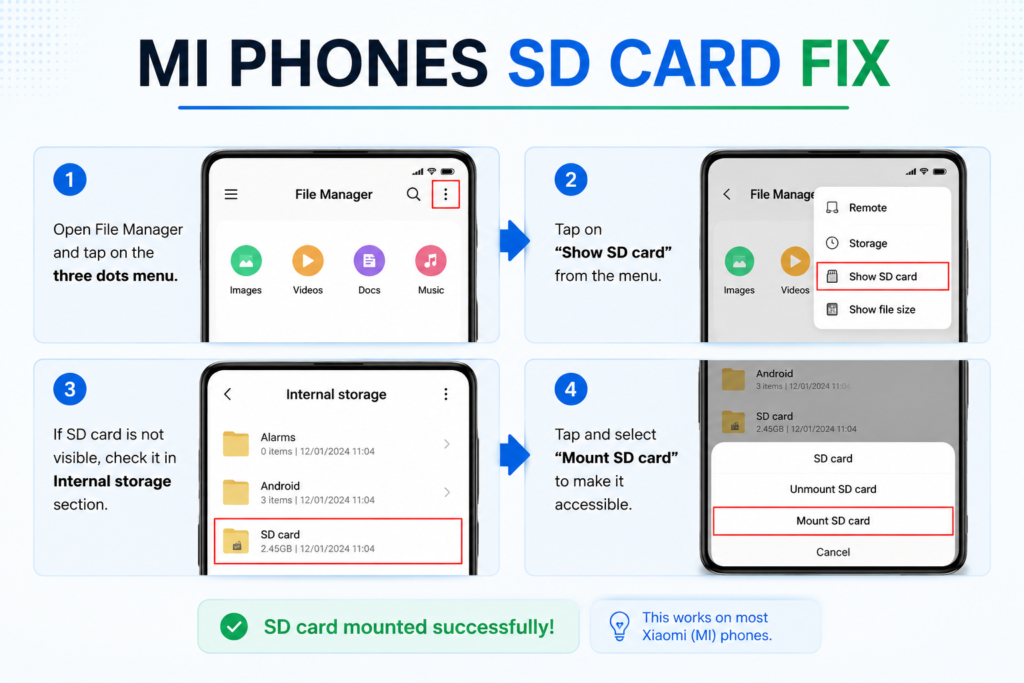
Open Mi File Manager > tap the three-dot menu > tap Show SD Card. Your SD card appears alongside Internal Storage. If permission errors occur, follow the Developer Options fix above.
Permission required Mi File Manager — quick fix?
Developer Options > Force Allow Apps on External Storage > toggle ON > restart. This is the only reliable fix for the persistent permission required error in Mi File Manager.
Gallery needs permission to access SD card on Mi — fix?
Two steps: enable Force Allow Apps on External Storage in Developer Options, AND grant Storage permission to Gallery in Settings > Apps > Gallery > Permissions. After both, Mi Gallery has full SD card access.
Pernzinan Mi File Manager — kaise fix kare?
Settings mein jaao > About Phone > MIUI Version ko 7 baar tap karo. Phir Additional Settings > Developer Options > Force Allow Apps on External Storage enable karo. Phone restart karo — SD card permission problem solve ho jayega.
Final Thoughts
The SD card permission problem on Mi, Redmi and Xiaomi phones frustrates millions of users every year — and the fix is hiding inside Developer Options where most people never look.
Enable Developer Options → Additional Settings → Force Allow Apps on External Storage → Restart. Two minutes. Done.
Share this with any Mi or Redmi user stuck on this problem.
— TapsVision