Your Samsung fingerprint sensor not working is one of the most frustrating problems — especially when it stops suddenly after a software update. You try adding a new fingerprint, you delete and re-add, you restart the phone — but nothing works.
This guide covers the exact fix that works — resetting Accessibility Settings. It takes 2 minutes, your personal data stays completely safe, and it works on Samsung Galaxy A30, A30s, A31, A50, A10, A20, A21s, M30, M31, M21 and all Galaxy phones.
2.7 lakh people have watched this fix on YouTube. Works on all Samsung Galaxy phones after software updates break fingerprint.
Why Does Samsung Fingerprint Sensor Stop Working After an Update?
Samsung periodically pushes software updates to all Galaxy phones. Sometimes these updates change or reset accessibility-related system settings — which includes the fingerprint scanner configuration. When this happens:
- Previously saved fingerprints stop being recognised
- Adding a new fingerprint works but still does not unlock the phone
- The fingerprint icon appears but does not respond to touch
- ‘Fingerprint sensor calibration needed’ message appears
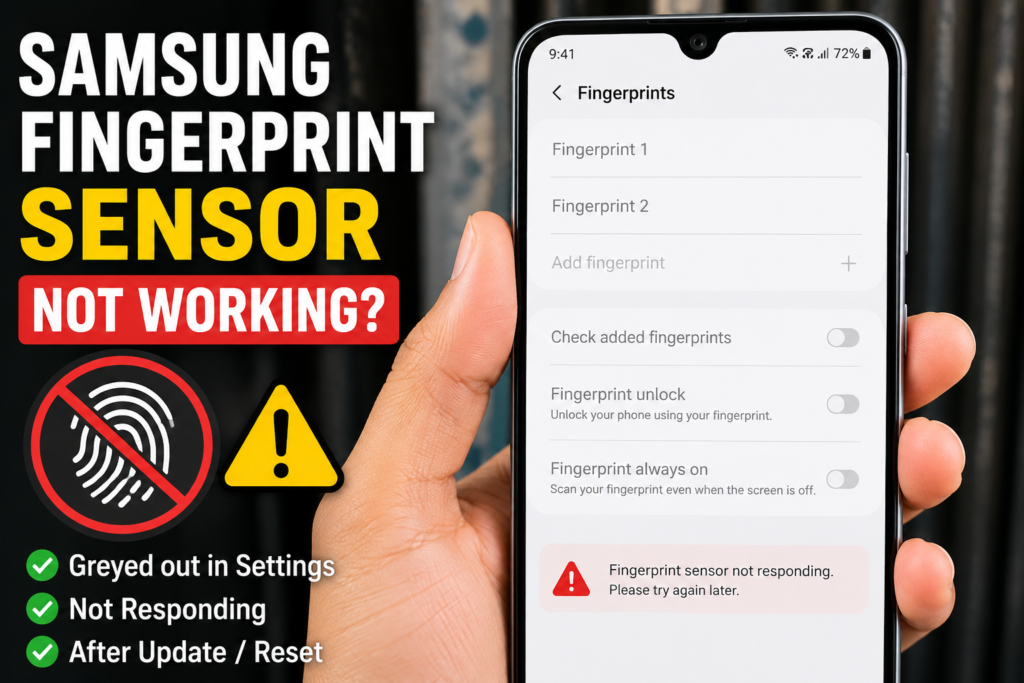
- Fingerprint option greys out in Settings
The root cause is corrupted or mismatched accessibility settings — not a hardware failure. The fingerprint sensor itself is perfectly fine. Resetting the accessibility configuration restores everything back to normal.
⚠ Important: This fix resets only your accessibility and display settings (like font size and theme). Your photos, contacts, apps, and personal data are completely safe. Nothing gets deleted.
What You Need
- Any Samsung Galaxy phone (A-series, M-series, S-series)
- Your phone’s screen lock PIN or password
- 2 minutes of your time — no apps, no root needed
How to Fix Samsung Fingerprint Sensor Not Working — Step by Step
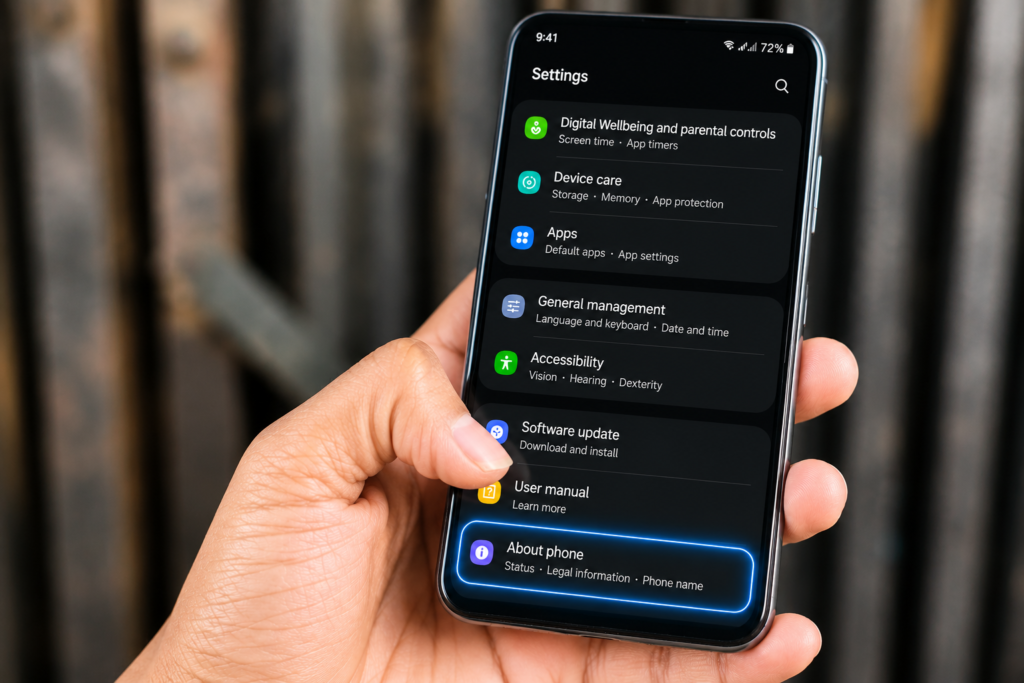
Step 1 — Go to Settings > About Phone
Open Settings on your Samsung phone. Scroll down to the bottom and tap About Phone.
Step 2 — Tap ‘Reset’ at the Bottom of About Phone
Inside About Phone, scroll to the very bottom. You will see a Reset option. Tap on it.
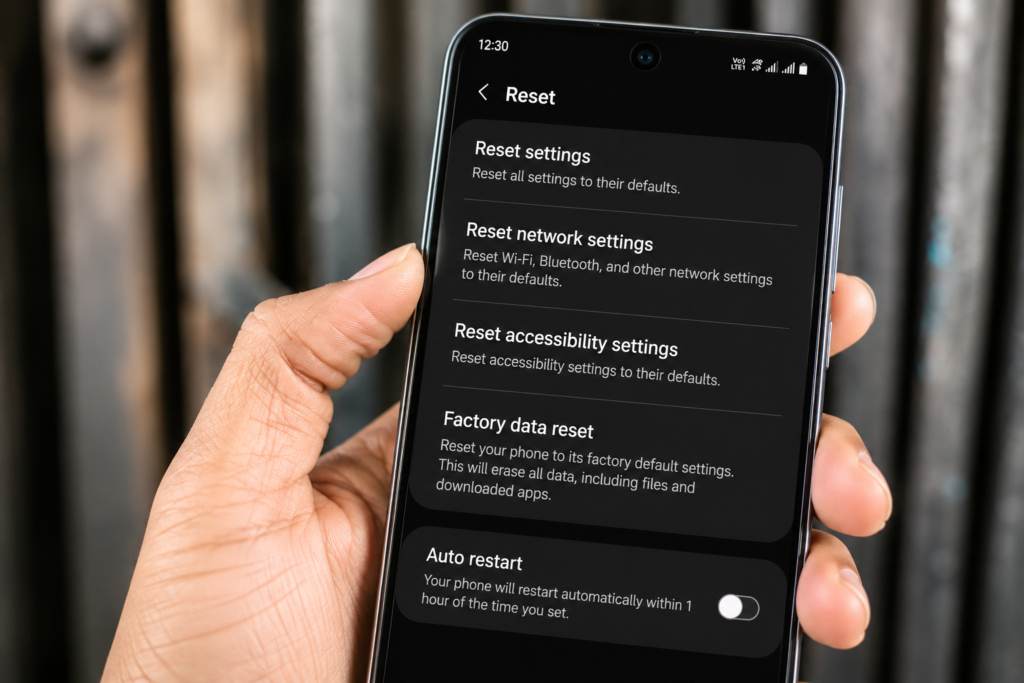
Step 3 — Select ‘Reset Accessibility Settings’
In the Reset menu, you will see multiple options. Tap on Reset Accessibility Settings. This is the specific option that fixes the fingerprint sensor — it does not factory reset your phone or delete your data.
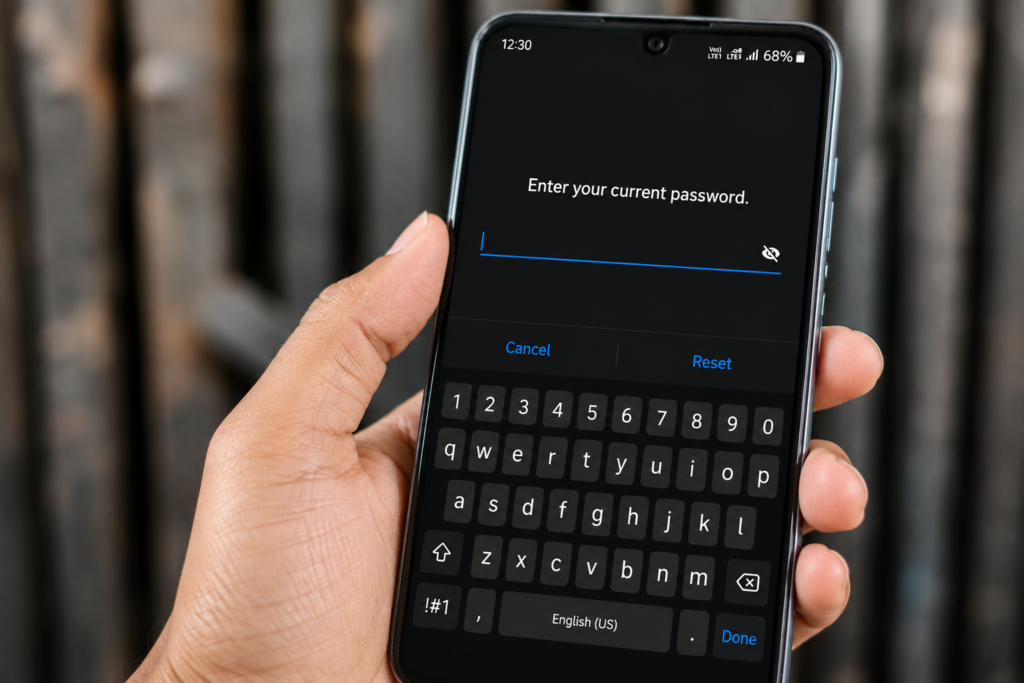
Step 4 — Enter Your Phone PIN/Password and Confirm
Samsung will ask for your screen lock PIN or password before proceeding. Enter it and confirm the reset. The process completes in a few seconds.
Step 5 — Re-add Your Fingerprint (or Test Existing)
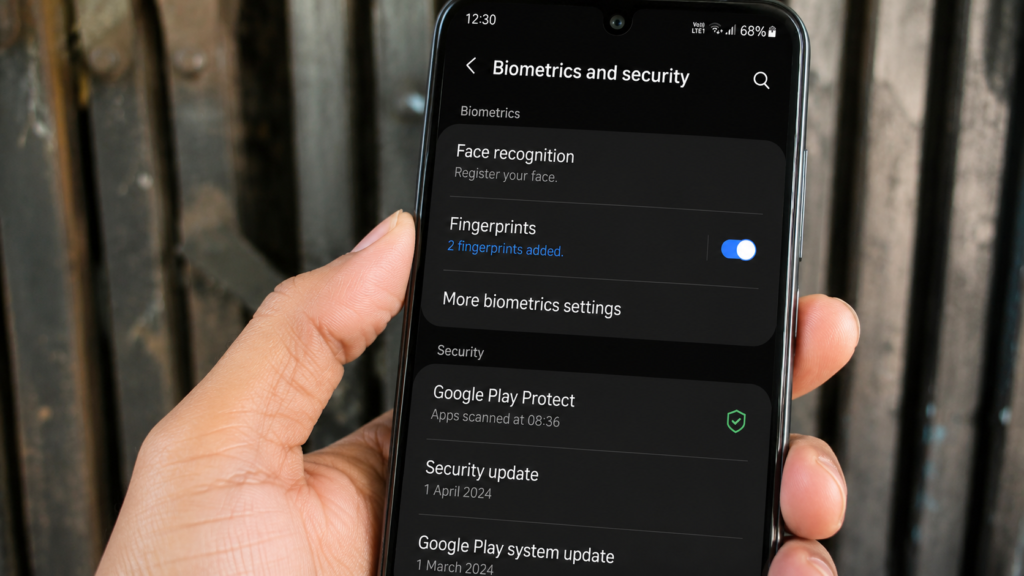
After the reset, go to Settings > Biometrics and Security > Fingerprints. Your previously saved fingerprints may still be there and now work correctly. Test them first. If they still do not work, delete the old ones and add fresh fingerprints — they will work properly now.
After the Fix — What to Expect
- Fingerprint sensor will work normally again for unlocking
- Samsung Pay and app fingerprint authentication will work again
- Your font size and theme may reset to default — just set them back
- All photos, contacts, apps and personal data remain safe
- If the problem returns after the next update — simply repeat this 2-minute process
Which Samsung Phones Does This Fix Work On?
This fix works on all Samsung Galaxy phones with a fingerprint sensor:
Samsung A-Series:
- Samsung Galaxy A30, A30s
- Samsung Galaxy A31, A32, A33
- Samsung Galaxy A50, A51, A52
- Samsung Galaxy A10, A20, A21s
- Samsung Galaxy A70, A71, A72
Samsung M-Series:
- Samsung Galaxy M30, M30s, M31, M31s
- Samsung Galaxy M21, M21s
- Samsung Galaxy M50, M51, M52
Samsung S-Series and others:
- Samsung Galaxy S10, S20, S21, S22, S23 series
- Any Samsung Galaxy phone running One UI with a fingerprint sensor
Watch the Full Tutorial on YouTube
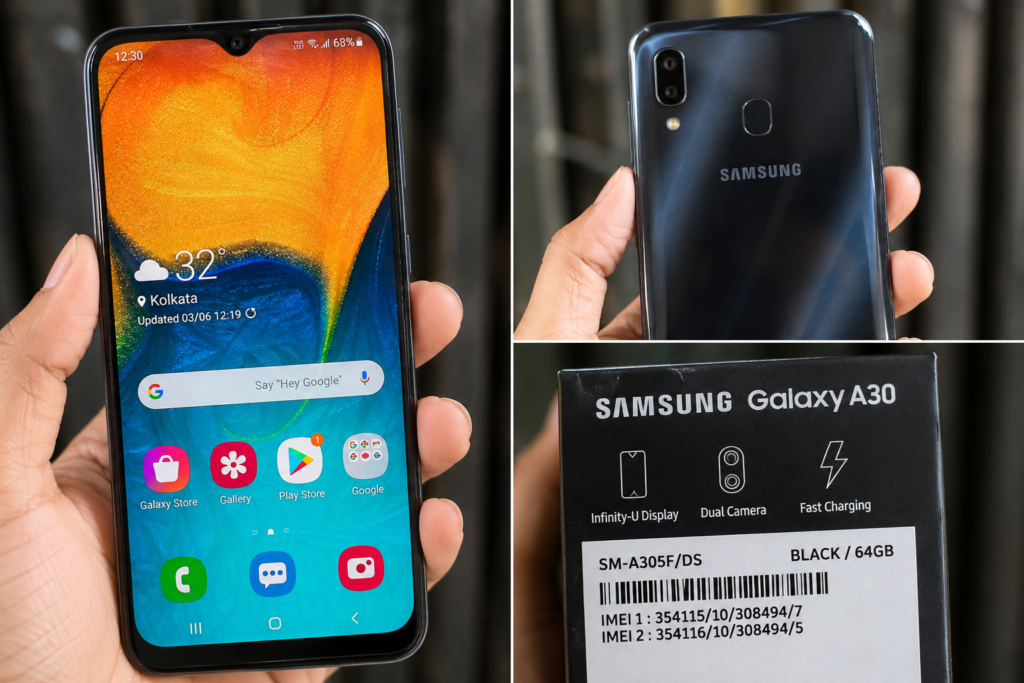
I have demonstrated this fix live on a real Samsung Galaxy phone — from navigating to About Phone all the way to testing the fingerprint working again after the reset. Watch it for the complete visual walkthrough.
Search ‘Samsung Fingerprint Sensor Not Working TapsVision’ on YouTube.
Recommended Samsung Accessories
While your fingerprint sensor is fixed, here are some accessories worth having for your Samsung Galaxy phone:
1. Tempered Glass Screen Protector (Fingerprint Compatible)
Some thick screen protectors interfere with under-display fingerprint sensors on Samsung phones. Use a fingerprint-compatible tempered glass for the best experience.
2. Samsung Original Back Cover / Case
A good case protects your Samsung phone without blocking the rear fingerprint sensor access.
3. Samsung 25W Fast Charger
Original Samsung fast charger for Galaxy A and M series phones — ensure you always have genuine charging accessories.
Disclosure: Affiliate links above. TapsVision earns a small commission at no extra cost to you.
Frequently Asked Questions
How to fix Samsung fingerprint sensor not working after update?
Go to Settings > About Phone > Reset > Reset Accessibility Settings. Enter your PIN and confirm. This resets the accessibility configuration that was corrupted by the update. After the reset, your fingerprint sensor will work again — add a new fingerprint or test your existing ones.
Samsung A30 fingerprint problem — how to fix?
The Samsung A30 fingerprint problem is most commonly caused by a software update corrupting accessibility settings. The fix is: Settings > About Phone > Reset > Reset Accessibility Settings. Takes 2 minutes and does not delete any personal data.
Samsung A30s fingerprint not working — same fix?
Yes — the Samsung A30s uses the same One UI software as the A30. The Reset Accessibility Settings fix works identically on both models. Follow the exact same steps described in this guide.
Samsung A31 fingerprint sensor not working — fix?
The Samsung A31 fingerprint issue after updates is the same root cause — corrupted accessibility settings. Go to Settings > About Phone > Reset > Reset Accessibility Settings. Confirmed working on A31.
Will this fix delete my photos and data?
No. Reset Accessibility Settings only resets accessibility-related settings like font size, display zoom, and touch sensitivity. Your photos, contacts, messages, apps, accounts and all personal data remain completely untouched.
Samsung M30 fingerprint sensor not working — same solution?
Yes. Samsung M30, M31, and M21 all run One UI and the fingerprint fix is identical. Settings > About Phone > Reset > Reset Accessibility Settings. Works on all Samsung M-series phones.
Samsung A50 fingerprint problem — how to resolve?
The Samsung A50 uses an under-display optical fingerprint sensor. If it stopped working after an update, try the Reset Accessibility Settings fix first. Also make sure you are not using a thick screen protector that blocks the sensor. The accessibility reset works on A50 as well.
What is ‘fingerprint sensor calibration needed’ on Samsung?
This message appears when the system loses sync with the fingerprint configuration — usually after an update. The Reset Accessibility Settings fix resolves this message. After the reset, re-register your fingerprint and the calibration message will stop appearing.
Samsung A10 fingerprint lock setting — how to enable?
Samsung A10 has a rear fingerprint sensor. Go to Settings > Biometrics and Security > Fingerprints. If the option is greyed out or not working, first do the Reset Accessibility Settings fix, then go back and set up fingerprint from scratch.
Samsung Galaxy A30s fingerprint problem after update — permanent fix?
The Reset Accessibility Settings fix is the most reliable solution. If the fingerprint problem returns after future updates, simply repeat the 2-minute reset process. It is completely safe to do multiple times — no data loss ever occurs.
Samsung A21s fingerprint sensor not working — fix?
Yes — Samsung A21s fingerprint issues are fixed the same way. Settings > About Phone > Reset > Reset Accessibility Settings. Confirmed working on A21s. No data loss, takes 2 minutes.
Final Thoughts
Samsung fingerprint sensor not working after an update is a software issue — not hardware damage. The Reset Accessibility Settings fix takes 2 minutes and has worked for thousands of Samsung Galaxy users across A-series, M-series and S-series phones.
Settings > About Phone > Reset > Reset Accessibility Settings > Enter PIN > Done. Your fingerprint will work again.
If this helped you, share it with a Samsung user who is about to visit a service center for this exact problem.— TapsVision