Thinking about upgrading your laptop with an SSD but not sure which SSD slot your laptop has? This is the most important thing to check before buying — because if you buy the wrong type, it simply won’t work. Your laptop’s M.2 slot is either SATA or NVMe, and they are not fully interchangeable. This guide shows you how to Check Which SSD Slot Your Laptop Has two ways to find out in under 5 minutes — no tools required, no opening your laptop needed for Method 1.
�� This video has crossed 2.2 lakh (220,000) views on TapsVision — one of the most-watched laptop upgrade guides on the channel. The methods shown here are verified and work on Windows laptops.
Why Does It Matter — M.2 SATA vs NVMe SSD Slot?
Before you buy any SSD for your laptop, you must know which type of M.2 slot it has. Here’s why:
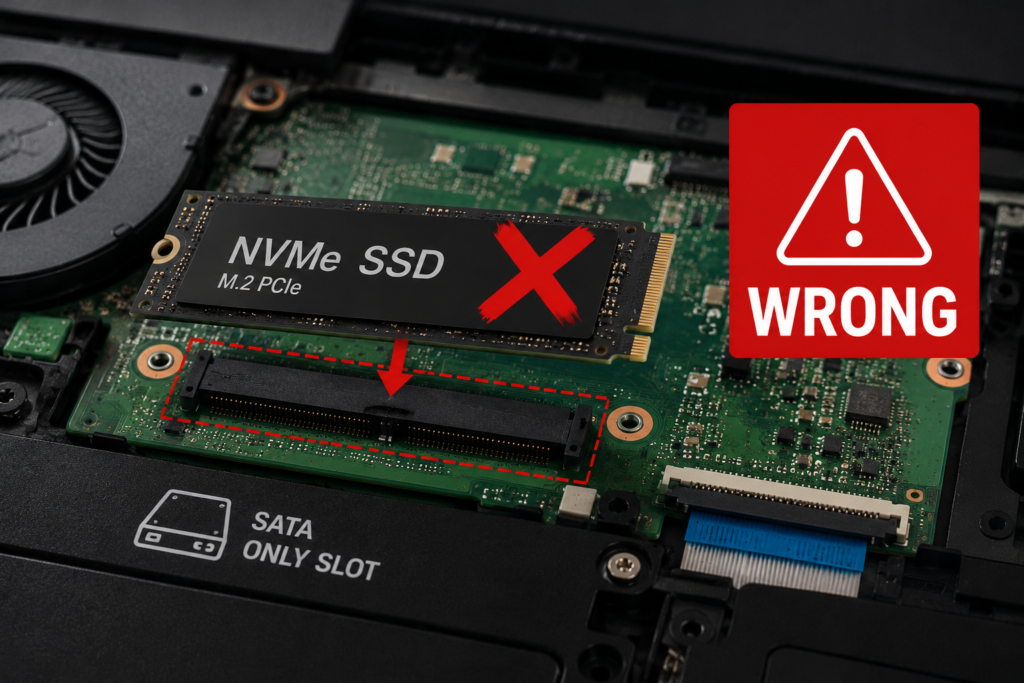
- If your laptop has an M.2 SATA slot: You must buy an M.2 SATA SSD. An NVMe SSD physically fits but will NOT work — your laptop won’t detect it.
- If your laptop has an M.2 NVMe slot: You can use an NVMe SSD (recommended — much faster) OR an M.2 SATA SSD will also work physically in most cases.
- Speed difference is massive: SATA SSDs max out around 550 MB/s. NVMe SSDs deliver 3,000–7,000 MB/s — up to 10x faster.
- Price difference: NVMe SSDs cost more. If your laptop only supports SATA, don’t waste money on an NVMe drive.
⚠ Never buy an SSD without checking your slot type first. Buying an NVMe SSD for a SATA-only slot is a common and expensive mistake. Both look identical from the outside.
What You Need
- A Windows laptop (Windows 7 / 10 / 11)
- Internet connection to download CrystalDiskInfo (Method 1 only)
- No screwdrivers or tools required for Method 1
- For Method 2 (physical check): small Phillips screwdriver to open laptop back
Method 1: Check Using CrystalDiskInfo (Easiest — Recommended)
CrystalDiskInfo is a free, trusted Windows software that shows your storage drive’s interface type, health, and details. It is the fastest way to check whether your laptop’s current drive is SATA or NVMe — and therefore what type of slot you have.
ℹ This method works best when your laptop already has a drive installed (HDD or SSD). If your slot is empty, use Method 2 (physical notch check) instead.
Step 1: Download CrystalDiskInfo
- Open Google Chrome or any browser on your laptop
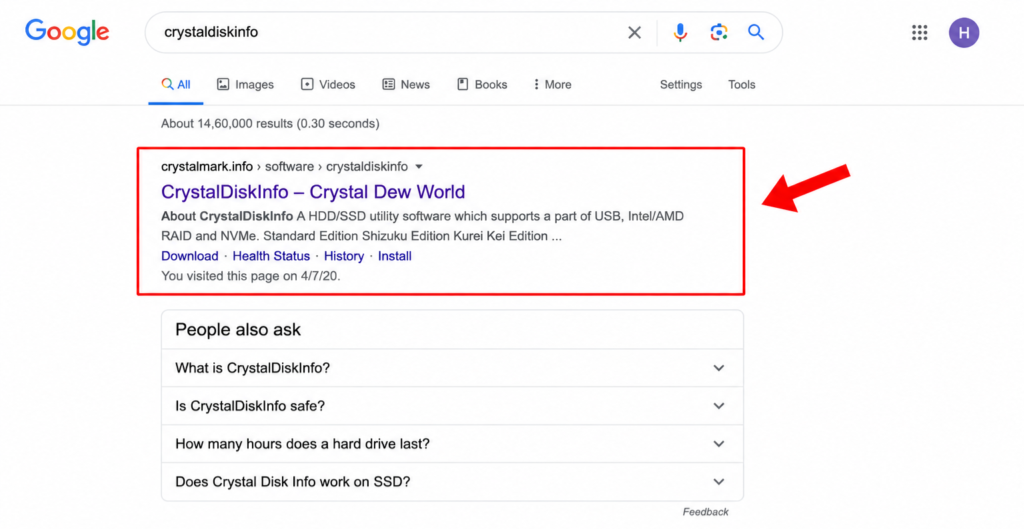
- Search for CrystalDiskInfo in Google
- Click the first result — the official Crystal Dew World website (crystalmark.info)
- On the website, click the Download button (arrow pointing down) at the top
- A ~4.5 MB file will automatically start downloading — this is safe and free
✅ Direct link: crystalmark.info — You can also find the download link in TapsVision’s YouTube video description.
Step 2: Install CrystalDiskInfo
- Once downloaded, click the installer file
- Click Yes when Windows asks for permission (UAC prompt)
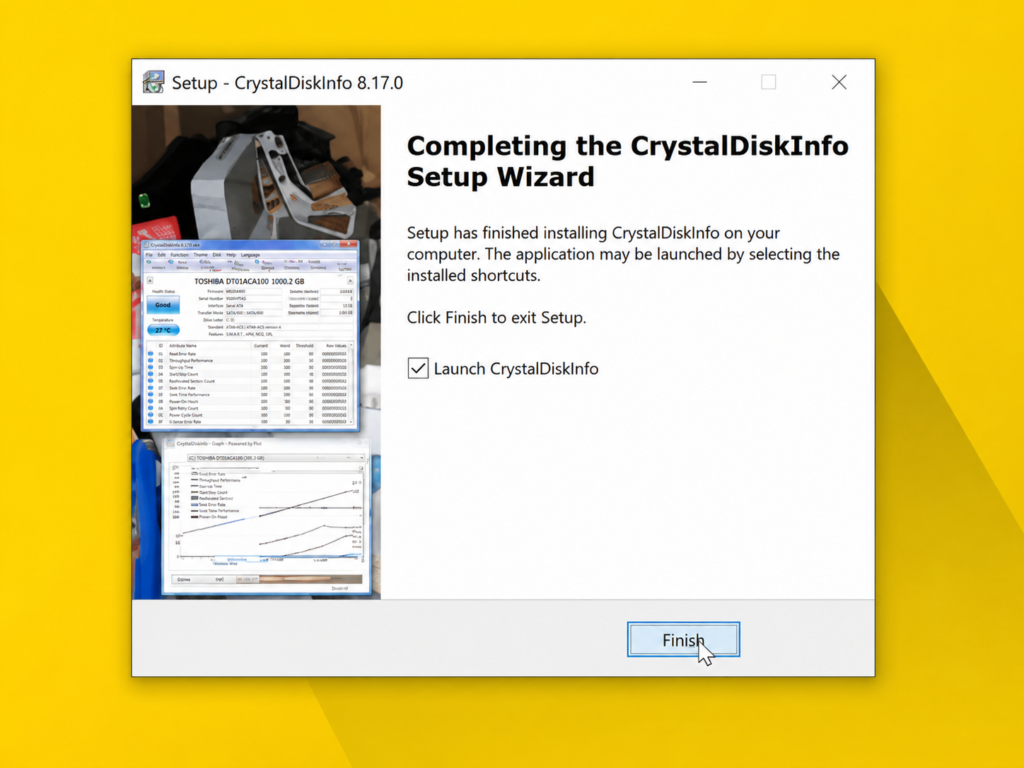
- Click Agree then Next to complete the installation — takes under 1 minute
- Click Finish to open the app
Step 3: Read the Interface Field — This Is the Answer
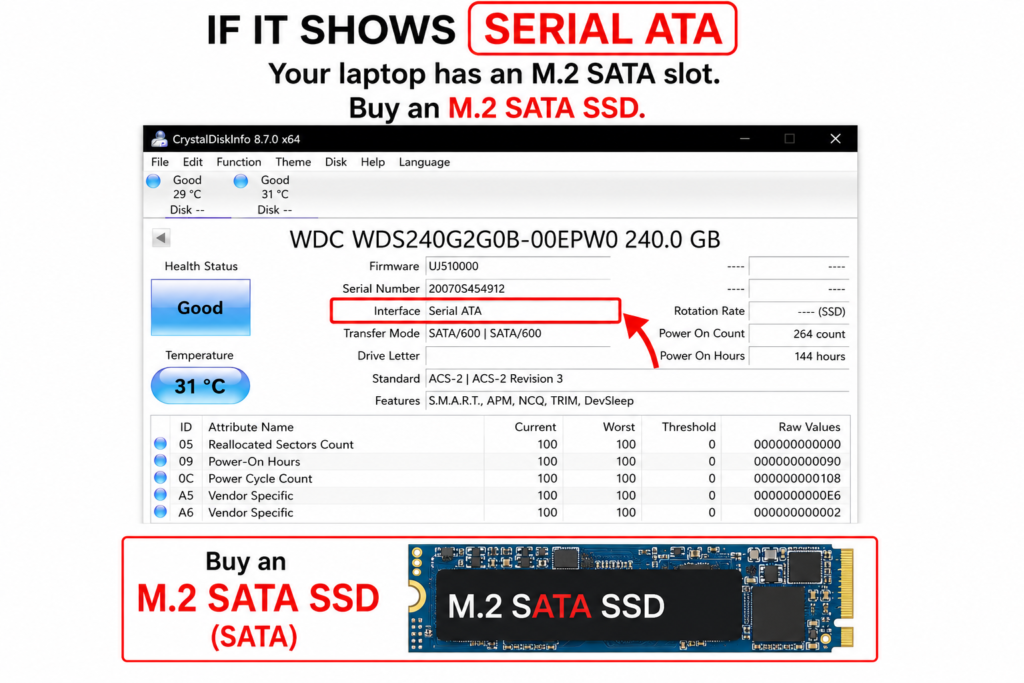
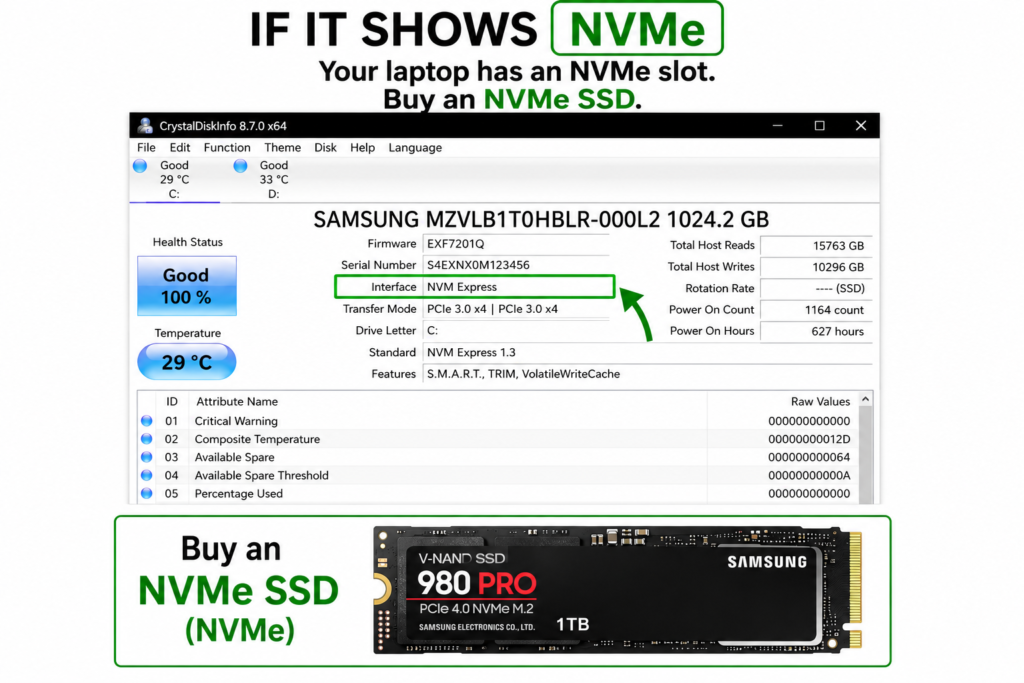
Once CrystalDiskInfo opens, look at the “Interface” or “Transfer Mode” field in the main window:
- If it shows “Serial ATA” — Your laptop has an M.2 SATA slot. Buy an M.2 SATA SSD.
- If it shows “NVMe” — Your laptop has an NVMe slot. Buy an NVMe SSD (faster and worth the extra cost).
⚠ CrystalDiskInfo shows the interface of the CURRENTLY INSTALLED drive — not the empty slot. If your laptop already has a SATA HDD or SSD installed, it confirms the slot type. If the drive slot is completely empty, use Method 2 below.
Method 2: Physical Notch Check (Works for Empty Slots Too)
If your M.2 slot is empty or you want to 100% confirm the type physically, check the notch (cut-out) position on your existing drive or the slot itself. This is the most reliable method.
How to Read the M.2 Notch (Key Type)
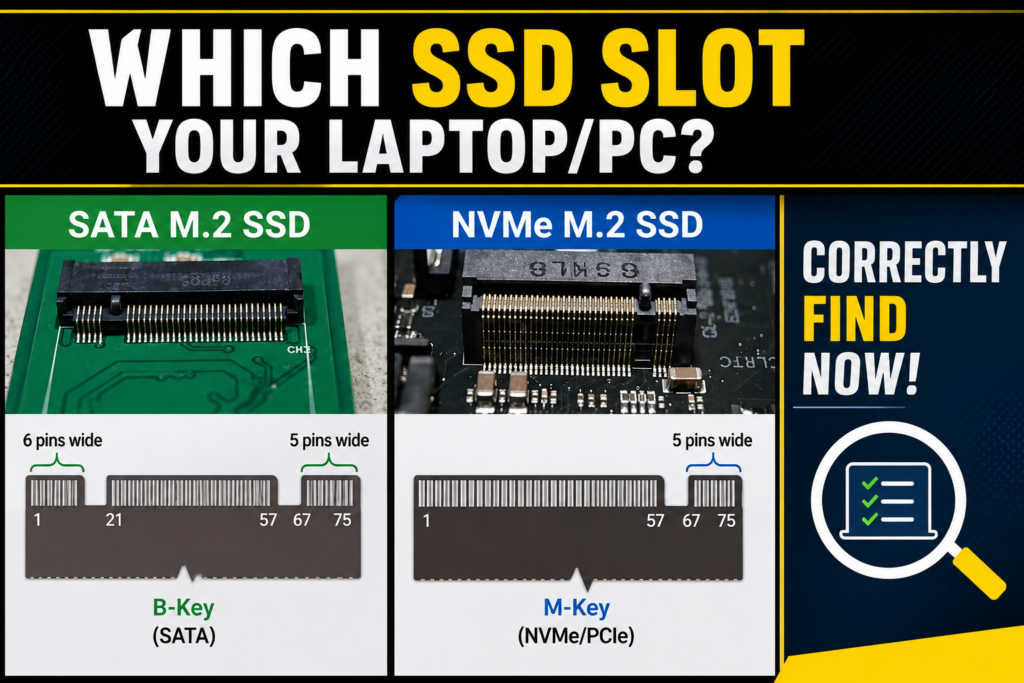
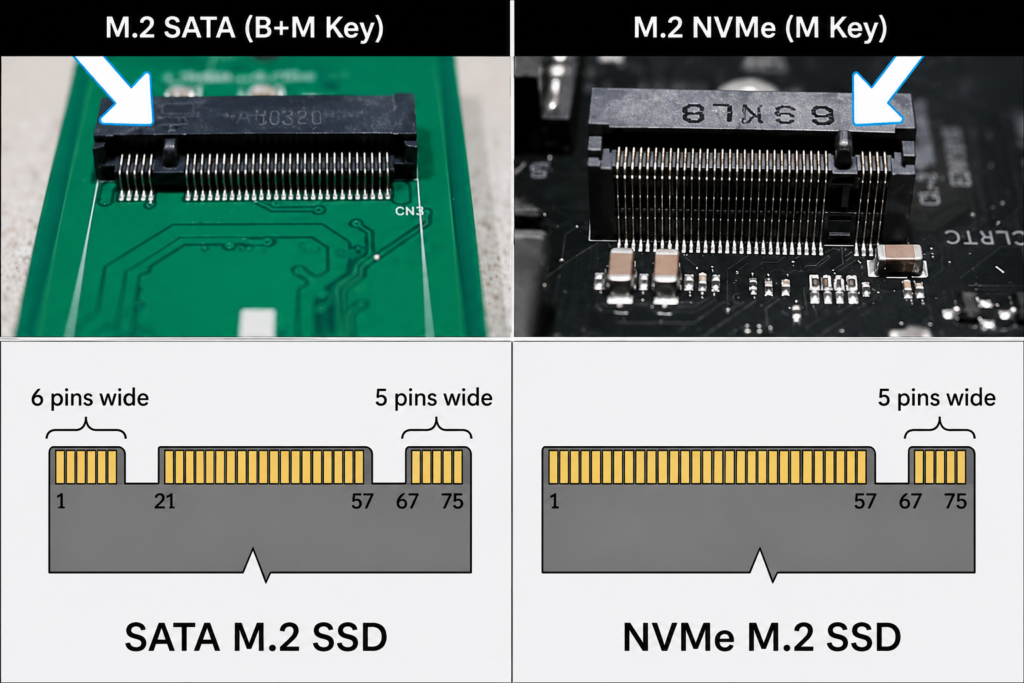
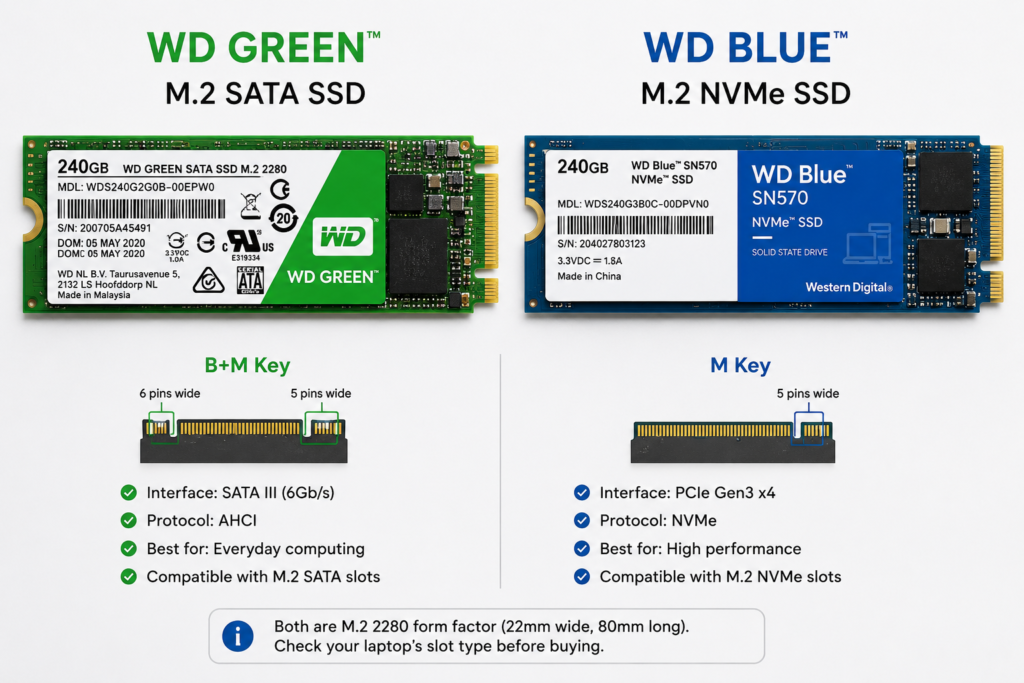
- B+M key — Two notches (one on left, one on right): Usually M.2 SATA. The notch on the left side is wider (6 pins wide). Compatible with B-key and M-key slots.
- M key — One notch on the right side only: M.2 NVMe. The notch is positioned at the 5-pin side. Fits only into M-key slots.
In the video, you can see a clear diagram: on M.2 SATA, the left notch is 6 pins wide and the right is 5 pins wide (B+M key). On NVMe M.2, there is only a single notch on the right side at 5 pins wide (M key only).
✅ Quick rule: If you see TWO notches on the SSD connector — it’s SATA. ONE notch on the right — it’s NVMe. This is 99% reliable for consumer laptop drives.
How to Check the Slot Physically
- Power off your laptop completely and unplug the charger
- Remove the back panel screws (usually Phillips head)
- Locate the M.2 slot on the motherboard — it’s a thin horizontal slot
- Look at the slot opening: if there’s a notch on the right only = NVMe. Notches on both sides = SATA.
- Some laptops print “NVMe” or “SATA” directly on the motherboard next to the slot
⚠ Always discharge static before touching internal components — touch a metal surface or use an anti-static wristband. Keep track of all screws.
M.2 SATA vs NVMe SSD — Full Comparison
| Feature | M.2 SATA SSD | M.2 NVMe SSD |
| Interface | SATA III | PCIe (NVMe protocol) |
| Max Speed | ~550 MB/s read | 3,000–7,000 MB/s read |
| Price (India) | Rs 1,200–3,500 (240GB) | Rs 3,500–15,000 (256GB) |
| Notch Type | B+M key (2 notches) | M key (1 notch, right side) |
| CrystalDiskInfo shows | Serial ATA | NVMe |
| Best for | Old laptops, budget builds | Modern laptops, fast workflows |
| Can use NVMe slot? | Yes (fits physically) | No — NVMe slot only |
Key takeaway: If your laptop supports NVMe, always buy an NVMe SSD — the speed difference is dramatic and the price gap has narrowed significantly. If it only supports SATA, an M.2 SATA SSD like the WD Green or Kingston A400 is a great affordable upgrade that’s still far faster than any HDD.
Which SSD to Buy — Based on Your Slot Type
If Your Laptop Has M.2 SATA Slot
- WD Green 240GB / 480GB M.2 SATA SSD — budget-friendly, reliable
- Kingston A400 M.2 240GB — very affordable, popular in India
- Samsung 870 EVO (2.5 inch SATA) if you have a 2.5 inch slot instead
If Your Laptop Has M.2 NVMe Slot
- WD Blue SN570 NVMe SSD — best value NVMe for most laptops
- Samsung 980 NVMe — slightly more expensive but excellent performance
- Kingston NV2 NVMe — budget NVMe option available on Flipkart/Amazon India
Watch the Full Tutorial on YouTube
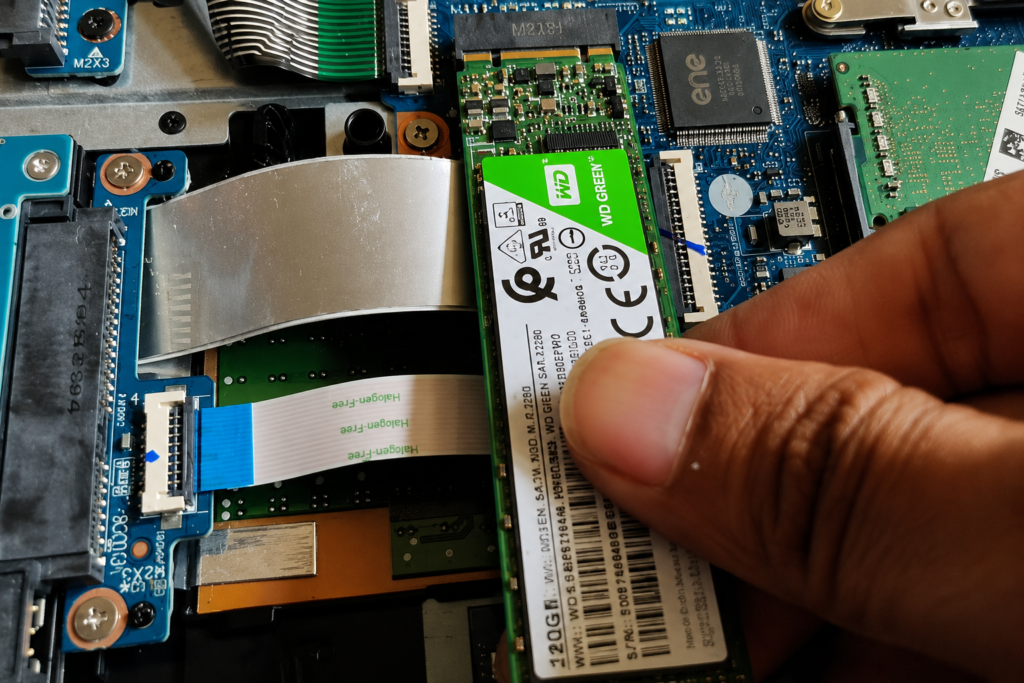
I demonstrate both methods live in this video — including a real installation of a WD Green 240GB M.2 SATA SSD into a laptop. You can see the CrystalDiskInfo check, the notch difference, and the physical installation.
�� Recommended SSDs to Buy in India
Based on my personal experience, here are the best SSDs for Indian laptop upgrades:
1. WD Green 240GB M.2 SATA SSD — Best Budget SATA SSD — Reliable, affordable, perfect for SATA slot laptops. The exact one I installed in my laptop in this video.
2. WD Blue SN570 NVMe SSD 256GB / 500GB — Best Value NVMe — Ideal for NVMe slot laptops. Much faster than SATA, reasonable price in India.
3. Kingston NV2 NVMe 256GB — Budget NVMe Option — Great entry-level NVMe SSD for Indian buyers. Good performance at a budget price point.
Disclosure: Some links above may be affiliate links. If you purchase through them, I earn a small commission at no extra cost to you. I only recommend products I personally use and trust.
Frequently Asked Questions
How to check which SSD is compatible with my laptop?
The easiest way is using CrystalDiskInfo. Download it free from crystalmark.info, open it, and check the Interface field. If it shows Serial ATA, your laptop uses M.2 SATA SSDs. If it shows NVMe, your laptop supports NVMe SSDs. This works in under 2 minutes without opening your laptop.
How to know which SSD is compatible with my laptop?
Two methods: (1) CrystalDiskInfo software — check the Interface field for Serial ATA or NVMe. (2) Physical notch check — one notch on the right side of the M.2 connector = NVMe (M-key), two notches = SATA (B+M key). You can also check your laptop’s manual or manufacturer website under Storage Specifications.
How to check SSD slot in laptop — is there an app?
Yes. CrystalDiskInfo is the best free app for checking your SSD slot type on Windows. It is completely safe, 4.5 MB in size, and trusted by millions. Download it from crystalmark.info. The Interface section immediately tells you Serial ATA or NVMe.
How to check M.2 slot in laptop — SATA or NVMe?
Open CrystalDiskInfo and check the Interface field. Serial ATA = M.2 SATA slot. NVMe = NVMe slot. If your slot is empty, physically open the laptop and count the notches on the M.2 slot connector. One notch on the right (M-key) = NVMe. Two notches (B+M key) = SATA.
How to check NVMe slot in laptop?
Run CrystalDiskInfo — if the Interface shows NVMe, your slot supports NVMe. Alternatively, go to Device Manager in Windows, expand Disk Drives, and check if the drive name includes NVMe. Physically, an NVMe M-key slot has a single notch on the right side of the slot opening.
Types of SSD for laptop — what are the options?
There are three main SSD types for laptops: (1) 2.5-inch SATA SSD — goes into the HDD bay, connects via SATA cable. (2) M.2 SATA SSD — thin card format, goes into M.2 slot, uses SATA protocol (~550 MB/s). (3) M.2 NVMe SSD — same thin card format but much faster, uses PCIe/NVMe protocol (3,000–7,000 MB/s). Always check which slot your laptop has before buying.
NVMe vs M.2 — what is the difference?
M.2 is just the physical form factor (the small card shape). NVMe is the communication protocol used by fast SSDs. So an NVMe SSD is an M.2 card that uses the NVMe protocol. An M.2 SATA SSD is the same M.2 card shape but uses the older, slower SATA protocol. Both look similar but have different notch positions and very different speeds.
Which SSD slot support my laptop — how do I find out without opening it?
Use CrystalDiskInfo. Download, install, open it. The Interface field shows Serial ATA (SATA slot) or NVMe (NVMe slot). This takes about 3 minutes total and requires no opening of your laptop. This is the method shown in TapsVision’s tutorial.
How to check SSD compatibility laptop — before buying?
Step 1: Use CrystalDiskInfo to check current interface (SATA or NVMe). Step 2: Check the SSD form factor needed — M.2 2280 is the most common laptop size. Step 3: Check the maximum capacity your laptop supports (usually in the manual). Step 4: Buy a drive matching all three criteria.
M.2 SATA SSD installation laptop — can I do it myself?
Yes, it is straightforward. Remove the back panel screws, locate the M.2 slot, insert the SSD at a 30-degree angle, press it flat, and secure with the small screw. The TapsVision video shows the full process with a WD Green 240GB M.2 SATA SSD installation. Total time: 5–10 minutes.
How to check SSD slot in laptop without software?
Without software: open the laptop back panel and physically inspect the M.2 connector. Count the notches — two notches (B+M key) means SATA, one notch on the right (M-key) means NVMe. Some laptops also print the slot type directly on the motherboard near the M.2 slot.
Laptop mein konsa SSD lagega — kaise pata karein?
CrystalDiskInfo software download karo crystalmark.info se. Install karke open karo. Interface section mein dekho — Serial ATA likha hai to M.2 SATA SSD chahiye, NVMe likha hai to NVMe SSD. Yahi method TapsVision ke YouTube tutorial mein dikhaya gaya hai.
Final Thoughts
Knowing which SSD slot your laptop has before buying is not optional — it is essential. Buying the wrong type wastes money and leaves you with a drive that either does not work or does not perform as expected.
The CrystalDiskInfo method takes under 3 minutes and works for 90% of people. If your slot is empty, use the physical notch check. And once you know your slot type — if it supports NVMe, always invest in an NVMe SSD. The speed difference in day-to-day use is genuinely noticeable.
If this guide saved you from buying the wrong SSD, subscribe to TapsVision on YouTube for more laptop upgrade guides and tech how-to videos in Hindi.
— TapsVision