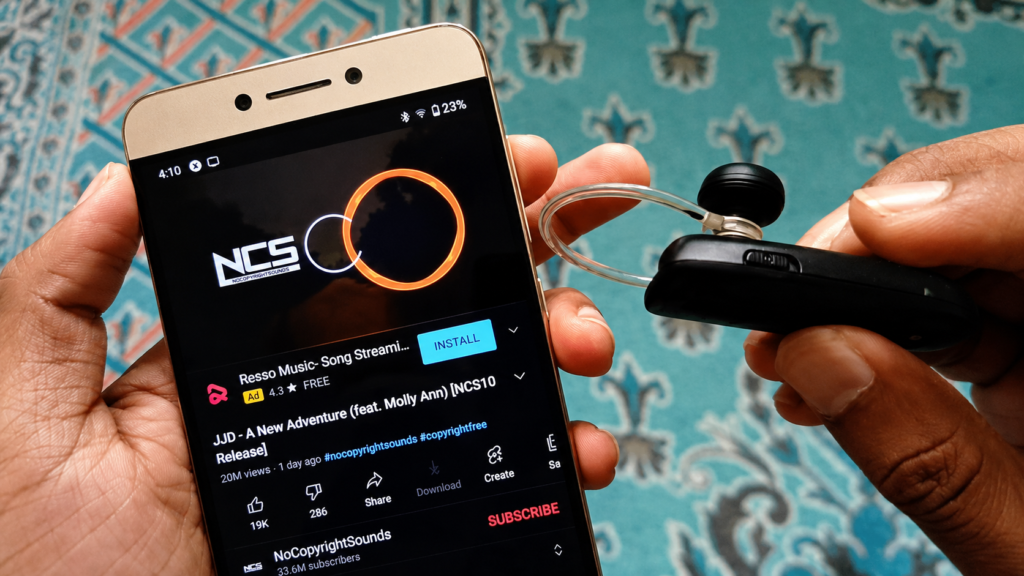
You have a mono Bluetooth headset — the small single-ear type that is mainly used for phone calls. You connect it and try to play music on YouTube, Instagram, or Spotify, but the audio keeps playing from your phone speaker. Your mono Bluetooth headset music is not working.
This is a very common problem. By default, Android treats a mono Bluetooth headset as a call-only device. But there is a free app called BT Mono that completely fixes this — and it works on any Android phone, any brand.
88,400+ people have watched this fix on YouTube. It works on Samsung, Redmi, Realme, and all Android phones. Read on.
Why Is Your Mono Bluetooth Headset Not Playing Music?
Mono Bluetooth headsets — including the Samsung HM1100, Gwalbros K1, and similar single ear Bluetooth earphones — connect using the HFP (Hands-Free Profile) Bluetooth protocol. This profile is built only for voice calls.
Music and media audio require a different protocol called A2DP (Advanced Audio Distribution Profile). Most mono Bluetooth headsets and BT mono earphones do not support A2DP. So your phone does not send media audio to them — it plays from the phone speaker instead.
⚠ Quick test: Play a song. If audio comes from your phone speaker even though your Bluetooth headset is connected — this is your problem. The BT Mono app fix below solves it in 2 minutes.
How to Play Music on a Mono Bluetooth Headset — Step by Step Fix
This method uses a free app called BT Mono. You do not need root access. Works on Android 8 and above.
Step 1 — Connect Your Mono Bluetooth Headset to Your Phone
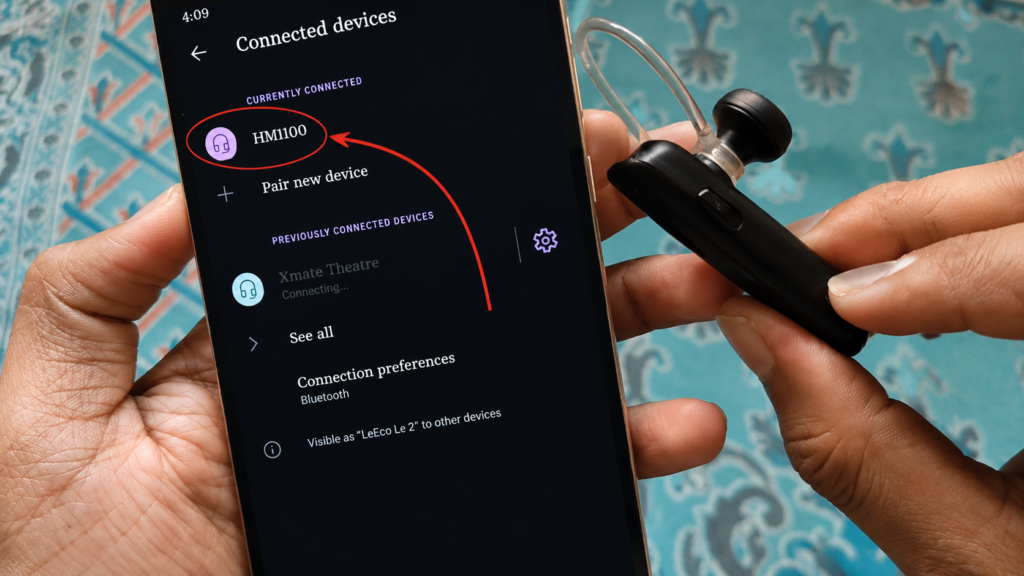
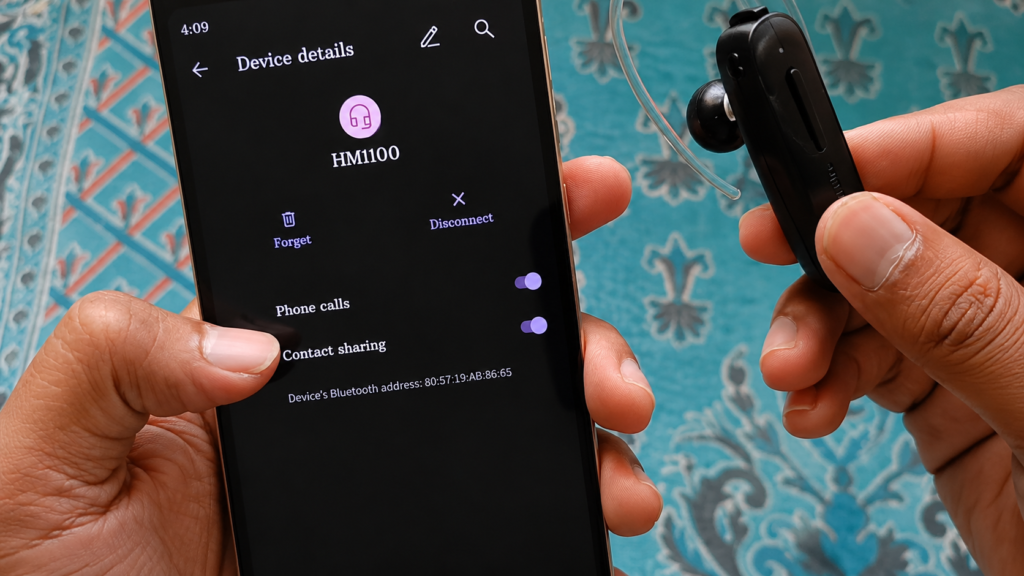
Go to your phone’s Bluetooth settings and pair your single ear Bluetooth headset normally. Wait until it shows as Connected. Make sure it is connected before opening the app.
Step 2 — Download the BT Mono App (Free — Google Play Store)
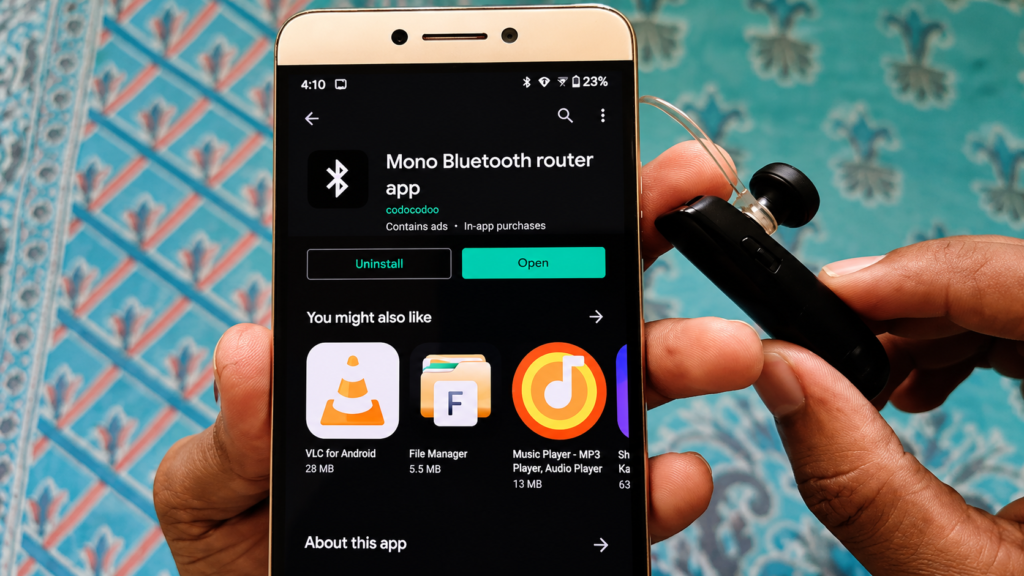
Open Google Play Store and search for BT Mono. Install it — it is completely free and only a few MB in size. You can also find the direct download link in the video description on YouTube.
BT Mono is a well-known, safe app that has been available on the Play Store for years. It specifically solves the problem of mono Bluetooth headsets not playing media audio.
Step 3 — Open BT Mono and Grant Permissions
After installation, open BT Mono. The app will request some permissions to manage Bluetooth audio routing. Allow all permissions — without them the app cannot redirect your media audio.
Step 4 — Add Your Bluetooth Headset Inside the App
Inside BT Mono, you will see an option to add a Bluetooth device. Tap the first option — your connected mono headset should appear in the list. Check the box next to your device name. This tells BT Mono which device to route all media audio to.
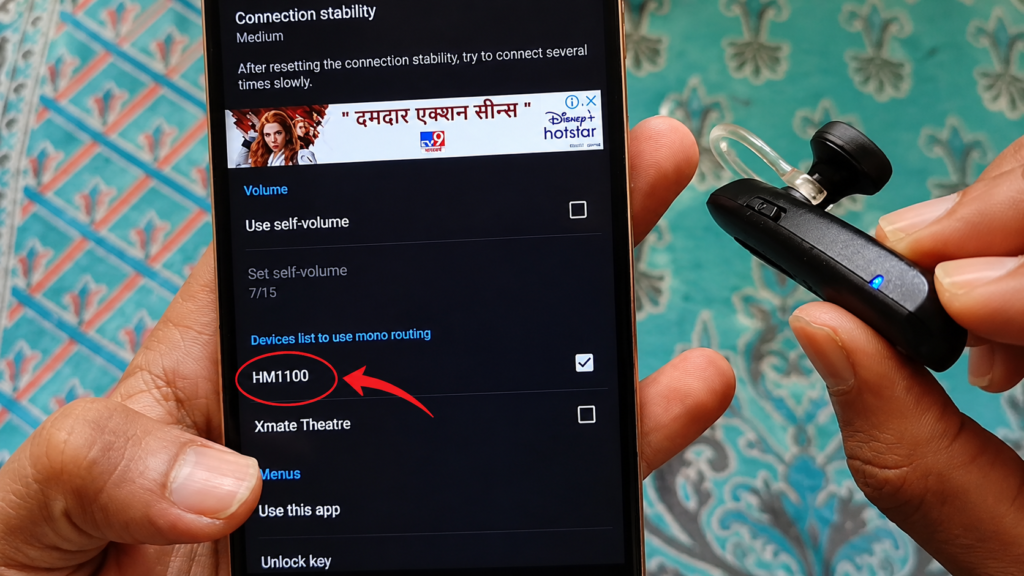
Step 5 — Open YouTube, Instagram, or Spotify and Test
Now open any media app — YouTube, Instagram, Spotify, or any music app. Play a video or song. The audio will now come through your mono Bluetooth headset instead of the phone speaker.
The sound will be mono — not stereo — but it is completely clear and usable for music, podcasts, and video watching on the go.
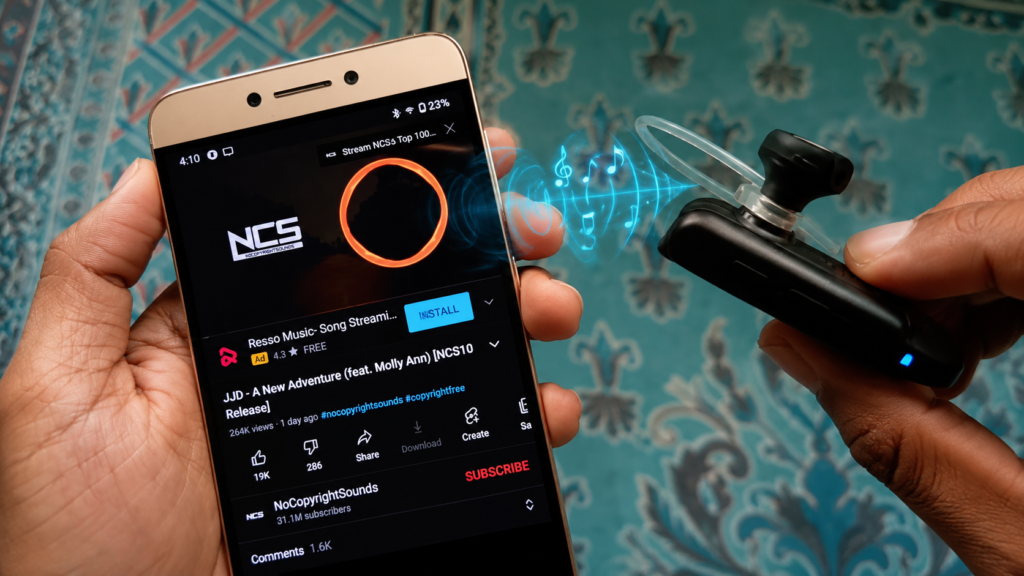
After the Fix — What to Expect
- Bluetooth music will now play through your mono headset from YouTube, Instagram, Spotify, and all media apps
- Phone speaker will go silent while the headset is active
- Call audio continues to work normally as it did before
- Sound quality is mono — clear and functional for everyday use
- No root required — completely safe to use
Which Mono Bluetooth Headsets and Phones Does This Work With?
Headsets Confirmed Working:
- Samsung HM1100 Bluetooth Headset (single ear)
- Gwalbros K1 single ear Bluetooth
- Any generic mono Bluetooth headset / BT mono earphone
- Single Bluetooth earphone from any brand
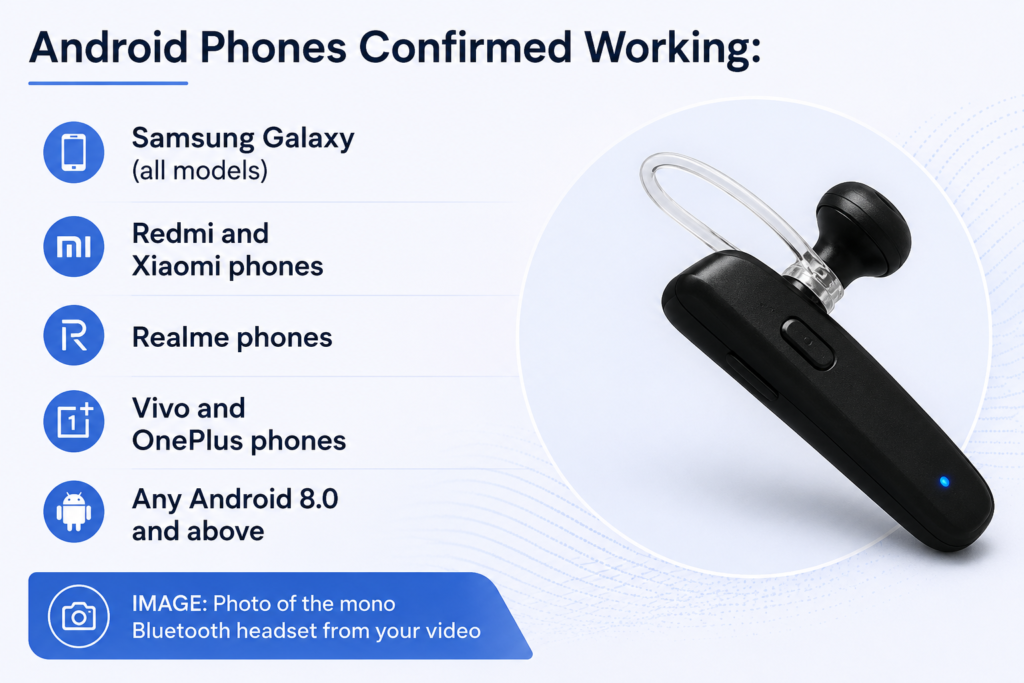
Android Phones Confirmed Working:
- Samsung Galaxy (all models)
- Redmi and Xiaomi phones
- Realme phones
- Vivo and OnePlus phones
- Any Android 8.0 and above
Watch the Full Video Tutorial
I have shown this entire process live — connecting the mono Bluetooth headset, installing BT Mono, adding the device, and testing music on YouTube. Watch it for a clear visual walkthrough of every step.
Search ‘Mono Bluetooth Headset Music Fix TapsVision’ on YouTube or use the video link in the description.
Upgrade Your Bluetooth Audio — Recommended Products
If your current mono headset is too old or you want to upgrade, here are some options:
1. Modern Single Ear Bluetooth Headset
A newer single ear Bluetooth headset with better battery, clearer sound, and multi-device support — great for both calls and media.
2. Budget TWS Earbuds — Best Upgrade from Mono
Want true stereo Bluetooth music? Budget TWS earbuds are the natural next step from a mono headset — with much better audio quality at an affordable price.
3. USB Type-C Fast Charging Cable
A reliable Type-C cable for charging your headset and Android phone — essential for everyday use.
Disclosure: The links above are affiliate links. TapsVision earns a small commission at no extra cost to you.
Frequently Asked Questions
How to use a mono Bluetooth headset for music on Android?
Connect your mono Bluetooth headset to your Android phone. Install the free BT Mono app from Google Play Store. Open BT Mono, add your device inside the app, then play music on YouTube, Spotify, or any media app. The audio will now route through your headset instead of the phone speaker.
What is BT Mono and how does it work?
BT Mono is a free Android app available on Google Play Store. It forces your phone to route all media audio — YouTube, Spotify, Instagram — through a connected mono Bluetooth headset. Without it, mono headsets only receive call audio because they use the HFP protocol, not A2DP which is required for music.
Does this fix work on Samsung Bluetooth headsets?
Yes. This has been tested specifically on the Samsung HM1100 single ear Bluetooth headset and confirmed working. It also works on Gwalbros K1 and any other mono or single ear Bluetooth headset brand.
How to connect Bluetooth headphones to phone for music?
Go to Settings > Bluetooth on your Android phone. Make sure Bluetooth is turned on. Put your headset in pairing mode (usually by pressing and holding the power button until the LED flashes). Your phone will detect it — tap to pair. Once connected, use the BT Mono app to enable music playback if it is a mono headset.
How to use Bluetooth headphones for calls and music both?
TWS (True Wireless Stereo) earbuds and over-ear Bluetooth headphones support both calls and music natively — no app needed. For mono Bluetooth headsets, install BT Mono to enable media audio. After setup, both calls and music will work through the same device.
How to wear a single ear Bluetooth headset properly?
A single ear Bluetooth headset (mono headset) is designed to fit in one ear. The earpiece goes into either your left or right ear. Most models have a small ear hook or ear tip that holds it in place. The microphone side usually faces forward toward your mouth for clear call audio.
Samsung Bluetooth headset not connecting — how to fix?
If your Samsung Bluetooth headset is not connecting, try these steps: turn Bluetooth off and on again on your phone, forget the device from Bluetooth settings and re-pair it, make sure the headset is in pairing mode (LED flashing rapidly), and ensure the headset is charged. If it connects but does not play music, use the BT Mono app fix described in this guide.
Why is Bluetooth music not playing through my headset?
If Bluetooth music is not playing through your headset, the most likely reason is that your headset uses HFP (call-only Bluetooth profile) instead of A2DP (music streaming profile). This is very common with mono and single ear Bluetooth headsets. The BT Mono app solves this by forcing media audio through the HFP connection.
Final Thoughts
A mono Bluetooth headset that only works for calls is not useless — it just needs the right app. BT Mono solves the problem completely and for free. Whether you have an old Samsung HM1100, a Gwalbros K1, or any generic single ear Bluetooth earphone, this fix gets music and YouTube audio playing through it in under 2 minutes.
If this guide helped you, share it with someone whose mono headset is collecting dust. And if you want to see the live demo, watch the full video on YouTube.
— TapsVision