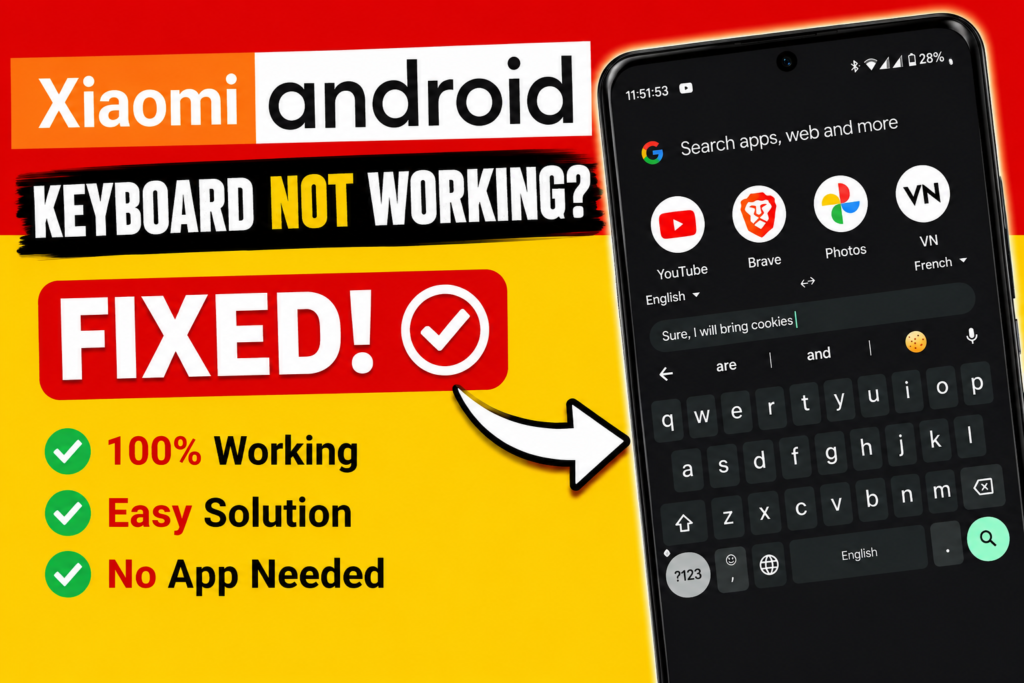
If your Redmi keyboard is not working — it has disappeared, won’t open when you tap a text field, or keeps showing Google Voice Typing instead of the regular keys — you’re not alone. This is a common issue on Redmi, Xiaomi, and Poco phones running MIUI or HyperOS, and it almost always happens because of one small setting that got changed by accident, often after a software update. The good news: you can fix it in under a minute, with no extra app download.
This is one of the most common keyboard problems reported by Redmi, Xiaomi, and Poco users — and the fix shown in this guide works 100% of the time, with no app installation required.
Why Does the Keyboard Stop Working on Redmi/Xiaomi Phones?
This issue almost always comes down to one of two causes inside your phone’s Language & Input settings:
- Wrong default keyboard selected: MIUI sometimes switches your default input method to ‘Mint Keyboard’ (an older built-in MIUI keyboard) after a system update, instead of Gboard or your usual keyboard.
- Google Voice Typing taking over: If Voice Typing is set as active, tapping a text field can open the microphone/voice input screen instead of showing the on-screen keyboard.
- Leftover settings from a language change: If you recently switched your phone or keyboard language, the input method list can get scrambled, leaving the wrong keyboard active.
None of these require reinstalling anything — they are simple toggle fixes inside Settings, and this guide walks through exactly where to find them.
What You Need
- A Redmi, Xiaomi, or Poco phone (MIUI 12/13/14 or HyperOS)
- 2 minutes of your time
- No extra apps or downloads required
- Access to the Settings app (pre-installed on every phone)
Step-by-Step: Fix Redmi Keyboard Not Working
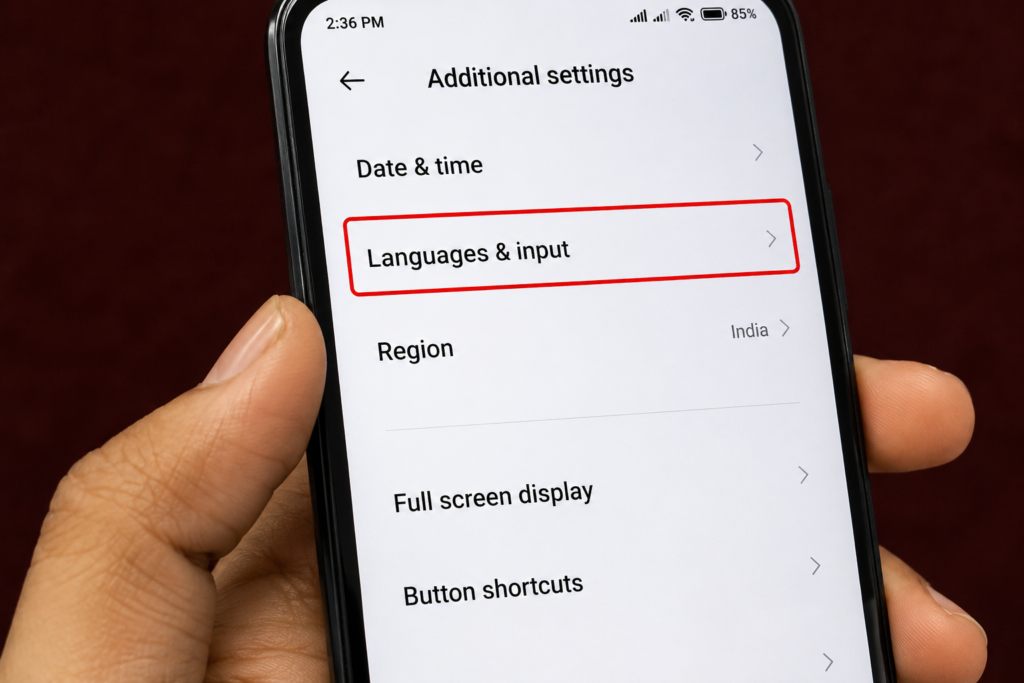
Step 1: Open the Settings App
From your home screen or app drawer, tap the gear-shaped Settings icon. This works the same way whether you’re on MIUI or the newer HyperOS interface.
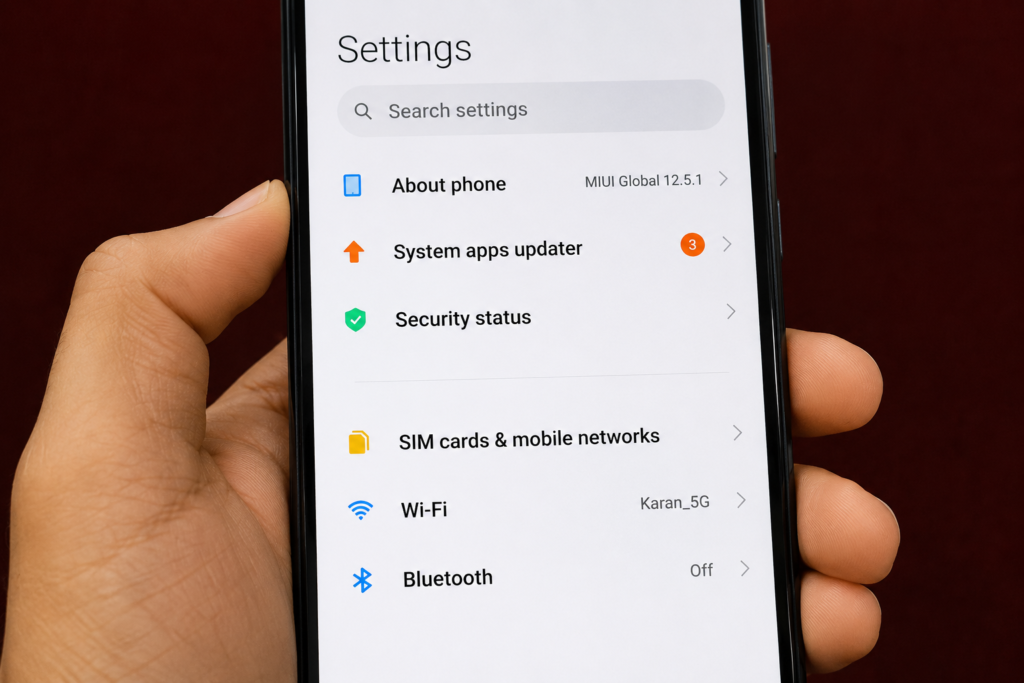
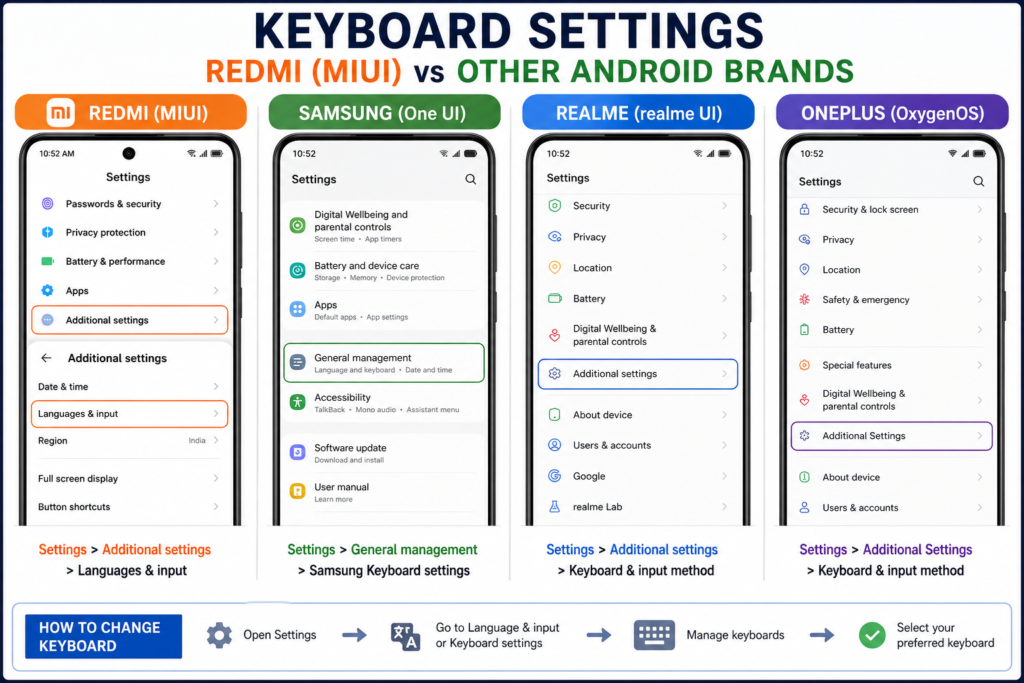
Step 2: Scroll Down to Additional Settings
Inside Settings, scroll all the way down until you see Additional Settings. Tap on it — this is where most of MIUI’s hidden input and language options live.
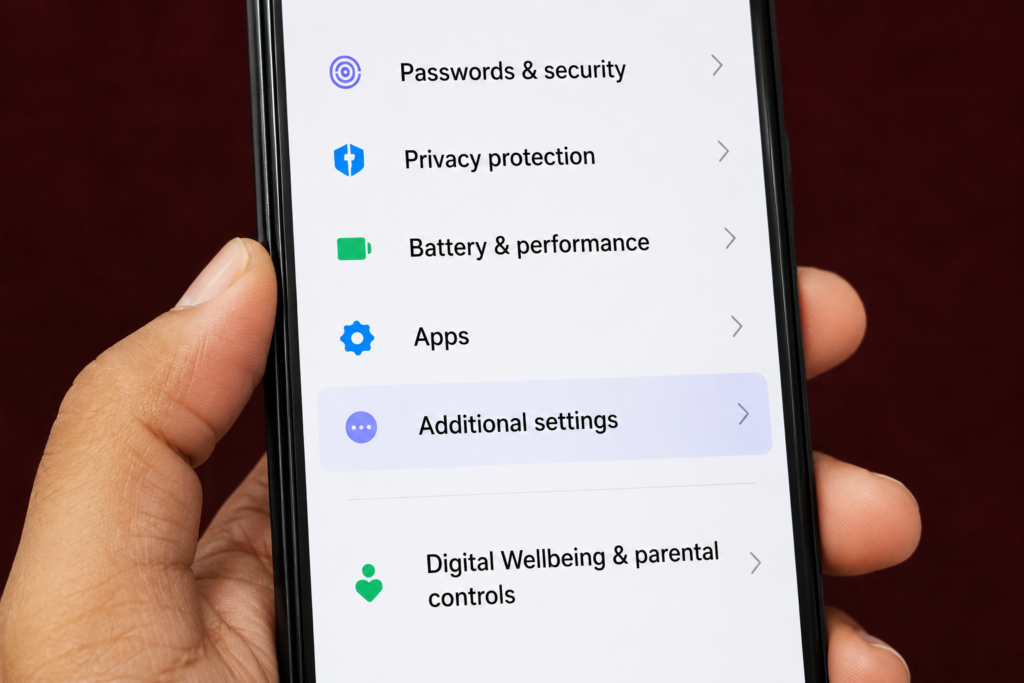
Step 3: Open Language & Input
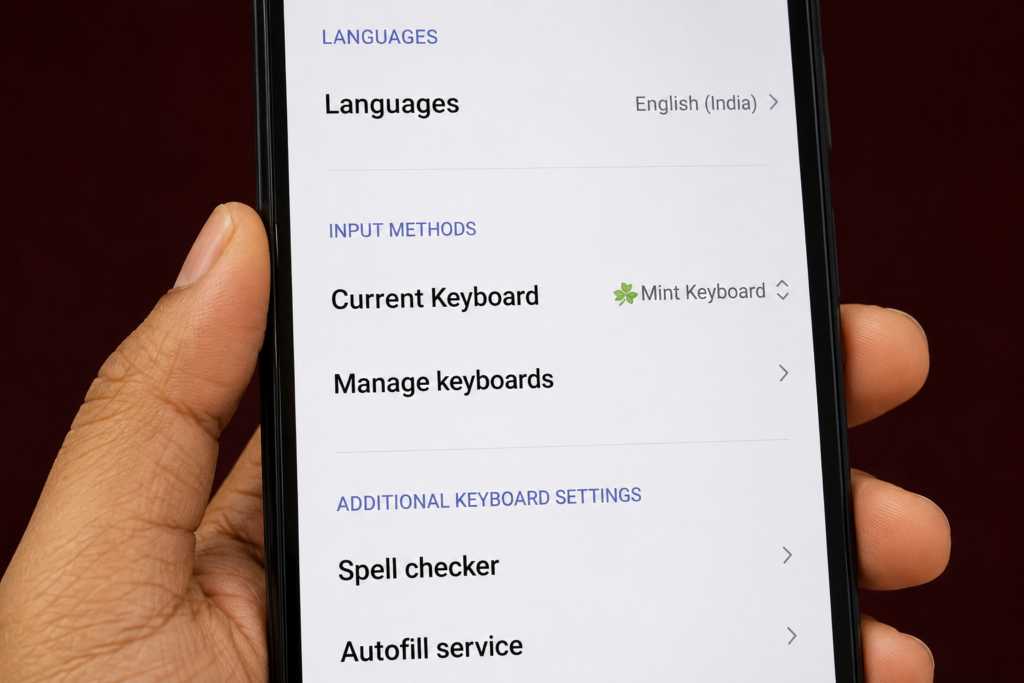
Inside Additional Settings, tap Languages & Input. This screen controls which keyboard is active and how voice typing behaves on your phone.
Step 4: Check Your Current Keyboard
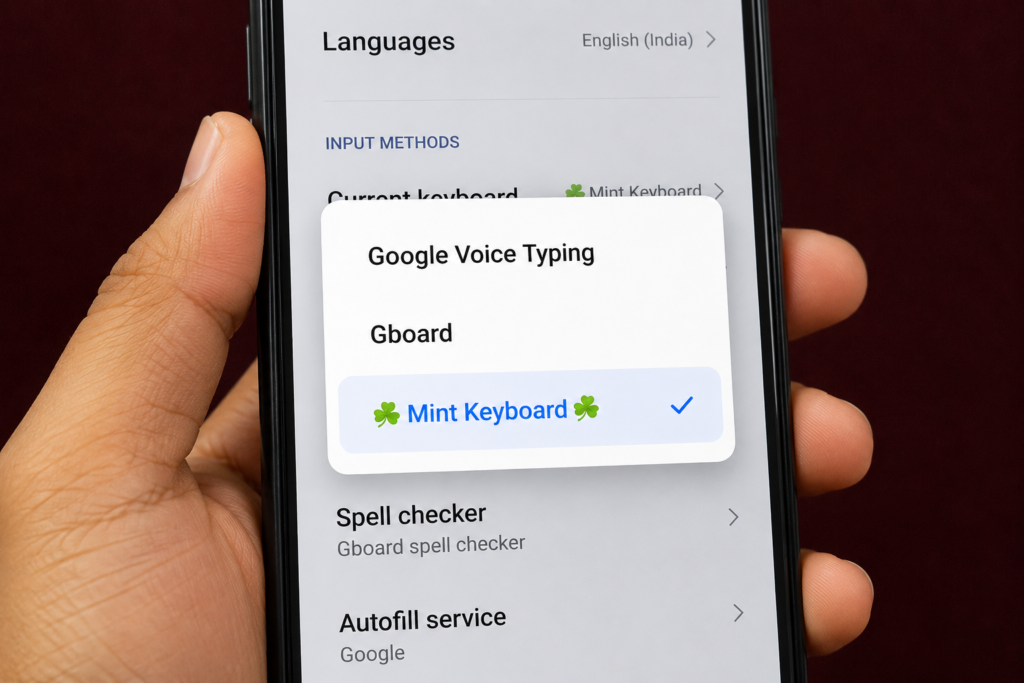
Tap Current Keyboard or Default Keyboard. If you see Mint Keyboard selected instead of Gboard (or whichever keyboard you normally use), this is your problem.
- If Mint Keyboard is selected: Tap to change it to Gboard or your preferred keyboard app
- If Gboard is already selected: Move to Step 5 — the issue is likely Voice Typing
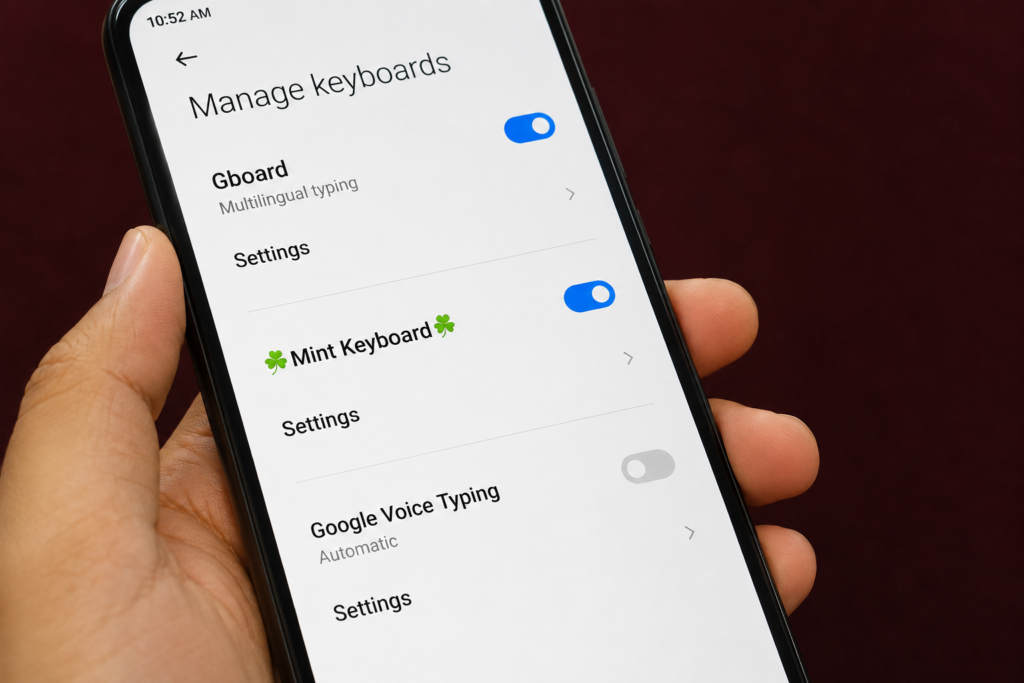
WARNING: Do not uninstall or disable Mint Keyboard completely — just switch the default selection. Removing it entirely can sometimes cause additional input errors on older MIUI versions.
Step 5: Turn Off Google Voice Typing (If Needed)
Go back to Languages & Input and look for Google Voice Typing. If it’s turned on and set as a quick-access option, tap it and toggle it off. This stops the microphone screen from popping up instead of your keyboard.
Step 6: Restart the Keyboard (Quick Test)
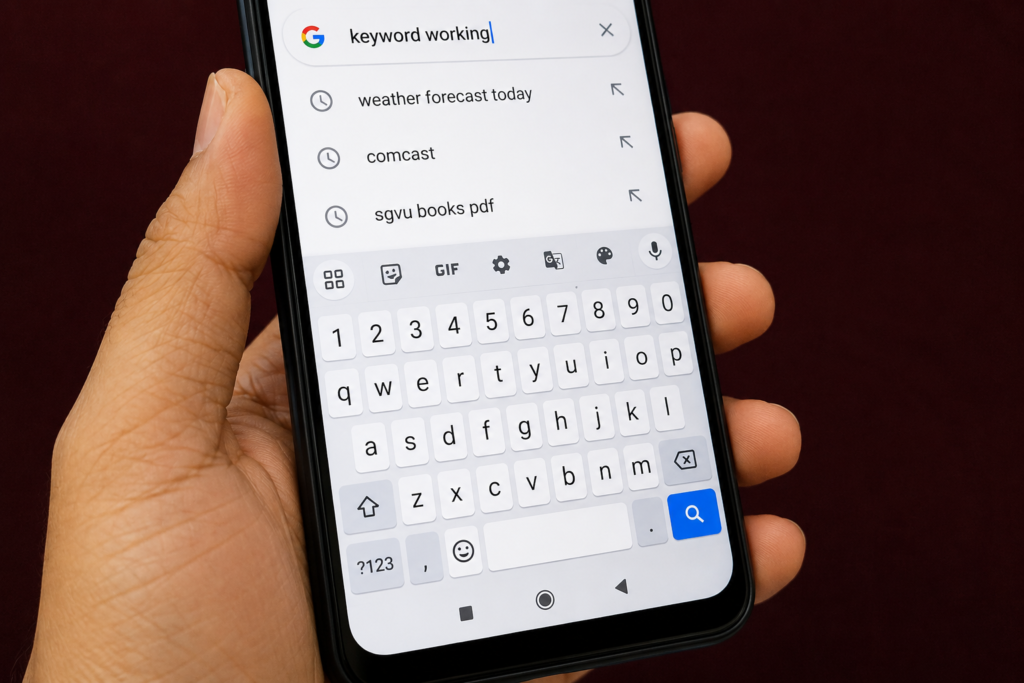
- Open any app with a text field — Messages, Notes, or a search bar
- Tap the text field to bring up the keyboard
- Your normal keyboard (Gboard or your chosen one) should now appear correctly
- If it still doesn’t show up, restart your phone once and try again
TIP: A quick restart after changing keyboard settings forces MIUI/HyperOS to reload the input method list — this fixes the issue in almost every case where the keyboard still doesn’t appear immediately.
After the Fix — What to Expect
- Keyboard appears instantly whenever you tap any text field
- No more accidental voice typing screen popping up unexpectedly
- Typing works normally in WhatsApp, Chrome, Messages, and all apps
- Settings stay saved — you won’t need to repeat this after restarting your phone
- If a future software update resets it again, simply repeat these same steps — it takes under a minute
Which Phones Does This Fix Work On?
Redmi, Xiaomi & Poco (MIUI / HyperOS)
- Redmi Note series (10, 11, 12, 13 — all variants)
- Redmi 9, 10, 12, 13 series
- Xiaomi 11, 12, 13, 14 series
- Poco X, F, and M series
- Any phone running MIUI 12/13/14 or HyperOS
Other Android Brands
- Samsung (One UI): Settings → General Management → Keyboard List and Default
- Realme / Oppo (ColorOS): Settings → Additional Settings → Keyboard & Input Methods
- Vivo (FunTouch OS): Settings → More Settings → Keyboard & Input Method
- OnePlus (OxygenOS): Settings → System → Languages & Input → On-Screen Keyboard
The underlying cause — a wrong default keyboard or Voice Typing override — is the same across all Android brands, even though the exact menu names differ slightly.
Watch the Full Tutorial on YouTube
This quick 1-minute video on TapsVision shows the exact taps on a real Redmi phone — from opening Settings to the keyboard working again at the end.
Recommended Accessories for Better Typing on Android
If you type a lot on your phone, these accessories make a real difference:
1. Compact Bluetooth Keyboard for Android — Great for long messages, emails, or content creation directly from your phone. Pairs instantly with any Android device.
2. Capacitive Stylus Pen — Improves typing accuracy on touchscreens, especially useful on larger phones and tablets.
3. Tempered Glass Screen Protector — A smooth, scratch-free screen surface makes the on-screen keyboard more responsive and accurate.
Disclosure: Some links above may be affiliate links. If you purchase through them, I earn a small commission at no extra cost to you. I only recommend products I personally use or trust.
Frequently Asked Questions
Redmi keyboard not working — what is the fastest fix?
Go to Settings → Additional Settings → Languages & Input → Current Keyboard. If ‘Mint Keyboard’ is selected, switch it to Gboard. Then check Google Voice Typing and turn it off if enabled. Restart your phone if the keyboard still doesn’t appear — this fixes it in under a minute for most Redmi phones.
Xiaomi keyboard not working — how do I fix it?
The fix is identical across all Xiaomi phones running MIUI or HyperOS. Open Settings, scroll to Additional Settings, tap Languages & Input, and check your Current Keyboard setting. If Mint Keyboard or Voice Typing is overriding your normal keyboard, switch it back to Gboard.
Mi keyboard not working — is this a software bug?
It’s usually not a bug — it’s a setting that gets reset, often after a MIUI or HyperOS software update. The system sometimes defaults back to Mint Keyboard or enables Voice Typing as the primary input. Following the steps in this guide resolves it without needing any app reinstall.
Android keyboard not working — does this fix apply to all phones?
The core fix — checking your default keyboard and disabling Voice Typing override — applies to all Android phones, though menu names vary by brand. On Samsung it’s under General Management, on Realme/Oppo it’s under Additional Settings, and on OnePlus it’s under Languages & Input.
Keyboard not showing on Redmi phone — what should I check first?
First check Settings → Additional Settings → Languages & Input → Current Keyboard. This single screen is the cause in over 90% of cases. If the keyboard is set correctly but still doesn’t show, restart your phone once — this reloads the input method service.
Mint Keyboard not working — should I uninstall it?
No, don’t uninstall Mint Keyboard. Simply switch your Default Keyboard to Gboard (or another keyboard app) in Languages & Input settings. Uninstalling Mint Keyboard entirely can sometimes cause additional input errors on certain MIUI versions.
Gboard not working on Redmi — how to fix?
If Gboard specifically isn’t appearing, first confirm it’s selected as your Current Keyboard in Languages & Input settings. If it’s selected but still not showing, open the Google app, check for Gboard updates in Play Store, and restart your phone.
Why does voice typing open instead of my keyboard on Redmi?
This happens when Google Voice Typing is set as an active quick-access input method and takes priority over your regular keyboard. Go to Settings → Additional Settings → Languages & Input → Google Voice Typing, and turn this toggle off.
Poco keyboard not working — same fix as Redmi?
Yes. Poco phones run on the same MIUI/HyperOS base as Redmi and Xiaomi devices, so the exact same steps apply: Settings → Additional Settings → Languages & Input → check Current Keyboard and Google Voice Typing settings.
Redmi mobile mein keyboard nahi aa raha — kya karen?
Settings mein jao, Additional Settings tap karo, fir Languages & Input mein jao. Current Keyboard check karo — agar Mint Keyboard select hai to Gboard pe change kar do. Google Voice Typing bhi off kar do agar on hai. Phone restart karo agar phir bhi keyboard na aaye.
Final Thoughts
A Redmi keyboard not working sounds like a major problem, but it’s almost always a tiny setting buried inside Languages & Input — usually caused by a software update quietly switching your default keyboard or enabling Voice Typing.
The fix takes under a minute, requires no extra apps, and works the same way on Redmi, Xiaomi, Poco, and most other Android phones with slightly different menu names.
If this guide fixed your keyboard, subscribe to TapsVision on YouTube for more quick Android fixes and Xiaomi/Redmi tips in Hindi.
— TapsVision