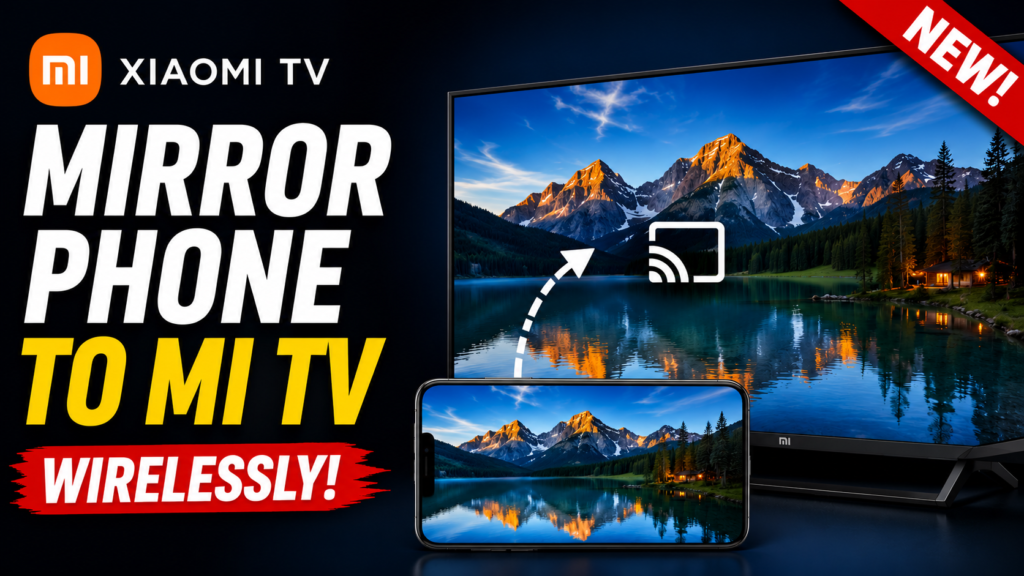
Trying to get your Mi TV connect to phone wirelessly but every YouTube video tells you to download Google Home, a casting app, or some third-party screen mirroring tool? You don’t need any of that. Every Mi TV and Android TV has a built-in feature called Miracast that lets your Android phone mirror directly to the TV — no app installation, no ads, no extra setup. This guide shows you exactly where to find it and how to connect in under 2 minutes.
3,200+ people have watched this tutorial on TapsVision with over 76 hours of total watch time — proof that this no-app method genuinely works for Mi TV and phone connections.
Why Do Most Tutorials Make This Harder Than It Needs to Be?
Search YouTube for ‘connect phone to Mi TV’ and you’ll find dozens of videos telling you to:
- Download and set up Google Home
- Install a third-party casting app from the Play Store
- Sign into multiple Google accounts on both devices
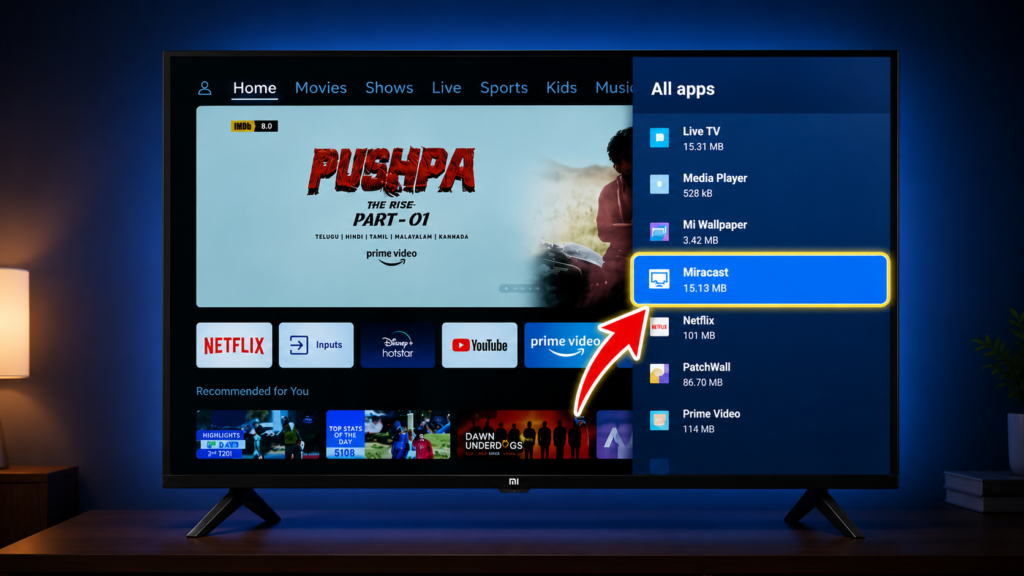
All of these work, but they’re unnecessary extra steps. Every Mi TV (and most Android TVs) already has Miracast built in — Xiaomi labels this system app “RCAST” in the apps list. It uses your phone’s native screen mirroring feature (called Smart View, Screen Cast, or Wireless Display depending on your phone brand) to mirror directly over Wi-Fi, with zero apps to install on either device.
WARNING: Some videos also confuse ‘casting’ (sending a specific app like YouTube to the TV) with ‘screen mirroring’ (showing your entire phone screen on the TV). Miracast does full screen mirroring — perfect for showing photos, presentations, or any app, including ones without built-in cast support.
What You Need
- A Mi TV or Android TV with Miracast support (most models from 2018 onwards)
- An Android phone with screen mirroring / Smart View / Wireless Display feature (built into Android 6.0+)
- Same Wi-Fi network on both devices — or use your phone’s hotspot if you don’t have Wi-Fi
- Updated TV software — check this first, as outdated software can cause Miracast to misbehave
How to Connect Mi TV to Phone Wirelessly — Step by Step
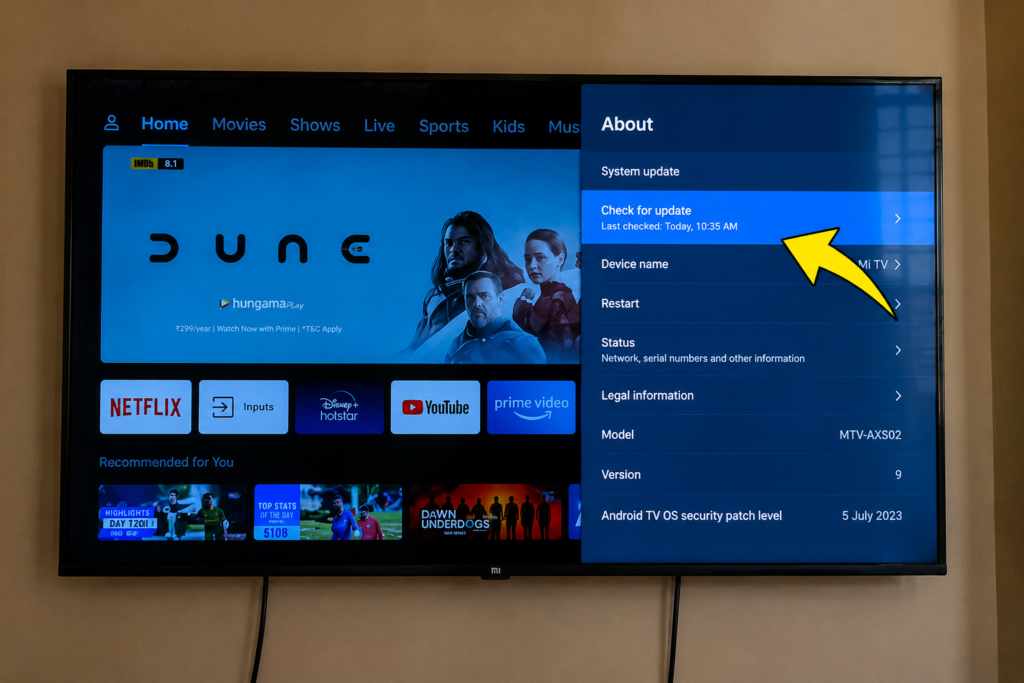
Step 1: Update Your Mi TV’s Software
On your Mi TV, go to Settings → Additional Settings → About. Check for and install any available software update. This step is important — Miracast works far more reliably on the latest MIUI TV / Android TV version.
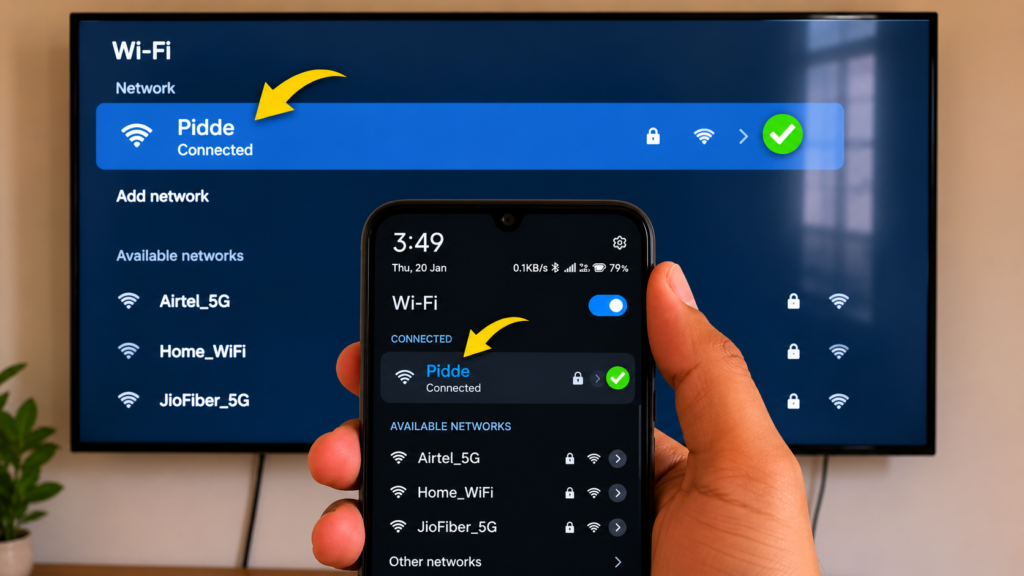
Step 2: Connect Both Devices to the Same Wi-Fi
Make sure your Mi TV and your phone are connected to the same Wi-Fi network. You can check this under Settings → Network & Internet on the TV. If you don’t have a Wi-Fi router, turn on your phone’s mobile hotspot and connect the TV to that instead — this works just as well.
Step 3: Open Miracast (RCAST) on Your Mi TV
Go to Settings → Additional Settings → Apps on your Mi TV. Look for an app called Miracast or RCAST and open it. The TV will show a screen saying it’s “Ready to cast” and waiting for a wireless connection — leave this screen open.
TIP: If you can’t find Miracast under Apps, try the alternative Step 5 below — searching for ‘Wireless Display’ directly in TV settings often opens the same feature.
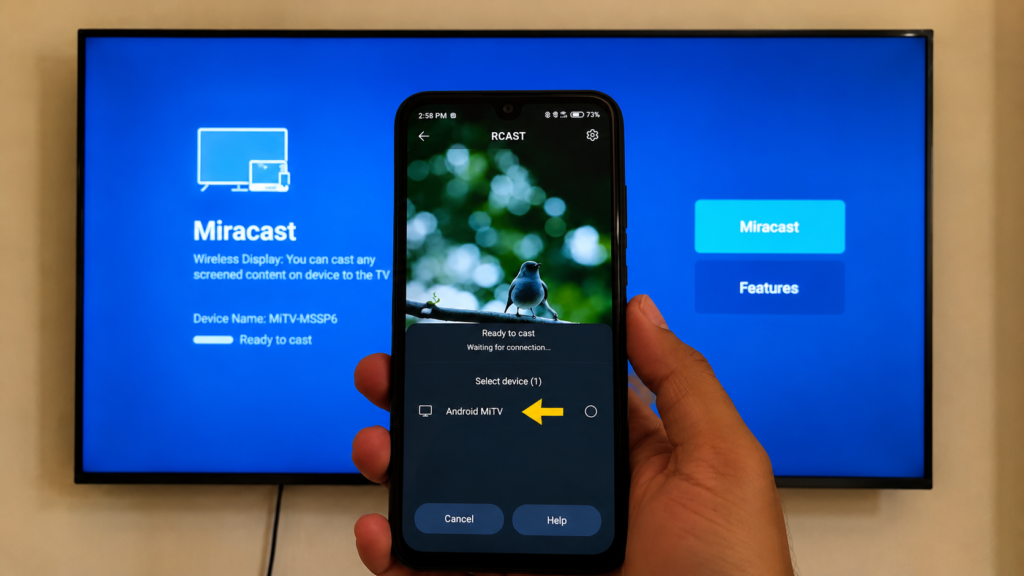
Step 4: Cast from Your Phone
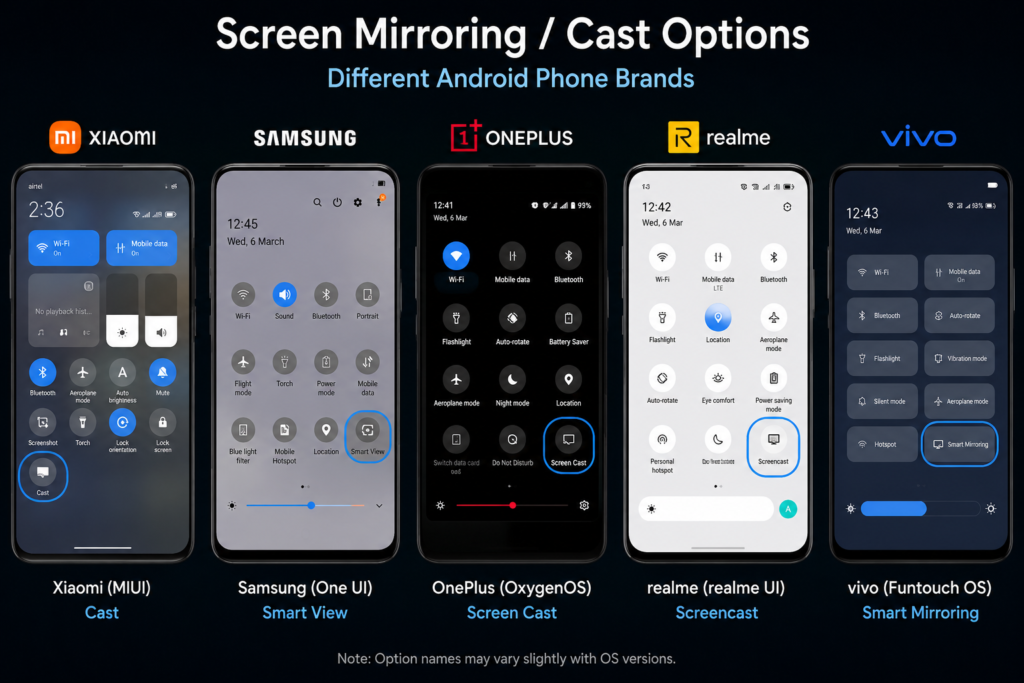
On your Android phone, open the Quick Settings panel (swipe down from the top) and look for Smart View, Screen Cast, Wireless Display, or Cast — the exact name depends on your phone brand. Tap it, and your phone will search for nearby devices. Your Mi TV should appear in the list — tap it to connect.
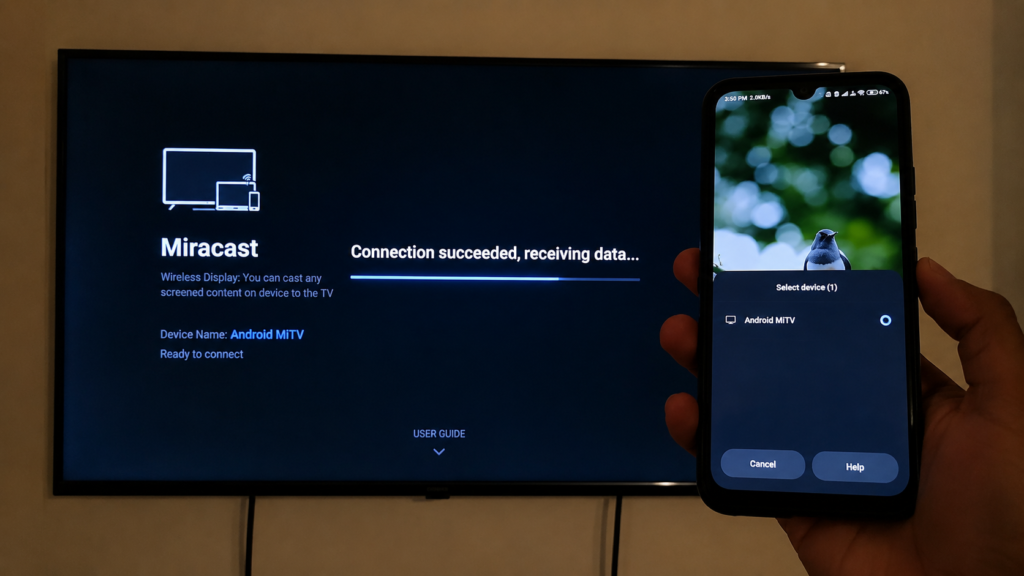
Step 5 (Alternative Method): Wireless Display from TV Settings
If Step 3 and 4 don’t work, try this instead: on your Mi TV, go to Settings and search for “Wireless Display”. Open it, and the TV will show its name (e.g., “Android Mi TV”). On your phone, open Screen Cast / Smart View as in Step 4 — your TV’s name should appear, and tapping it connects automatically.
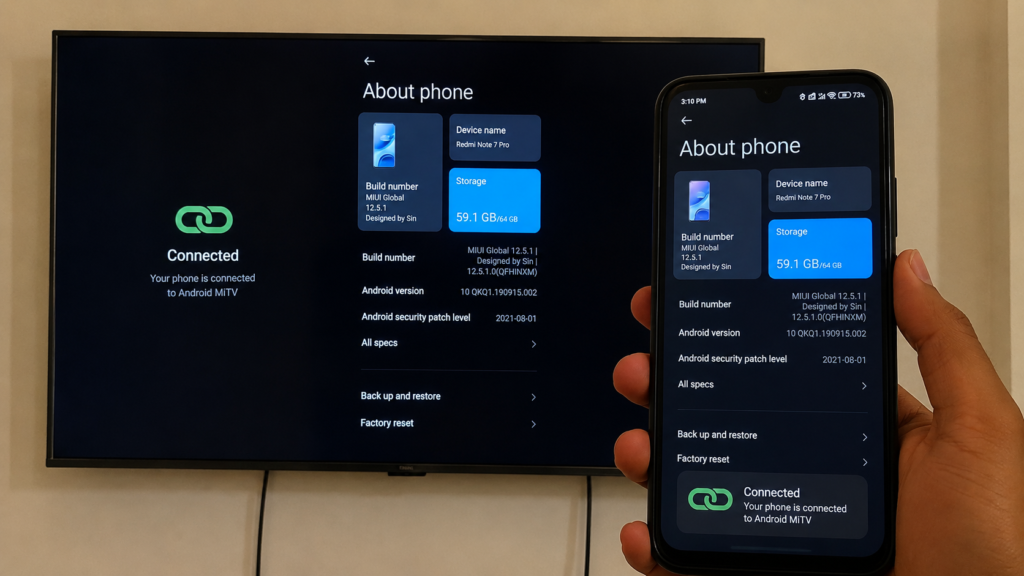
After Connecting — What to Expect
- Your entire phone screen mirrors to the TV — apps, photos, videos, browser, everything
- No lag for normal use — tested for 30+ minutes with videos, photos, and apps with zero freezing or disconnection
- Slight latency during gaming — fine for casual games, but competitive/fast games may feel a touch delayed
- Audio plays through the TV automatically once connected
- Disconnects cleanly — just turn off casting from your phone’s Quick Settings when done
Which TVs and Phones Does This Work On?
Mi TV / Android TV Models
- Mi TV 4A, 4X, 4C series
- Mi TV 5X, 5A series
- Redmi Smart TV series
- Any Android TV (Sony, TCL, OnePlus) with Miracast support under Settings → Apps
Android Phones (Any Brand)
- Xiaomi/Redmi/Poco: Quick Settings → Cast
- Samsung: Quick Settings → Smart View
- OnePlus/Oppo/Realme: Quick Settings → Screen Cast or Wireless Display
- Stock Android (Pixel, Motorola, Nokia): Quick Settings → Cast or Screen Cast
The exact label changes by brand, but the underlying Miracast technology is the same — if your phone supports screen mirroring (almost all Android phones from the last 8 years do), this method works.
Watch the Full Tutorial on YouTube
This 3:50 video on TapsVision shows the entire process live on a real Redmi Note 7 Pro connecting to a Mi TV — including both the Miracast app method and the Wireless Display alternative.
Recommended Accessories for Using Mi TV as a Second Screen
Once your phone is mirroring to the TV, these accessories make the experience even better:
1. Bluetooth Mouse and Keyboard Combo — Pair with your TV to control your mirrored phone screen from across the room, great for presentations or browsing.
2. HDMI Cable (Wired Backup) — If Wi-Fi mirroring ever lags during gaming or live streams, a wired HDMI connection from phone to TV is a reliable backup.
3. Wi-Fi Router (Dual-Band, 5GHz) — A faster router means smoother, lag-free Miracast mirroring, especially for video and gaming.
Disclosure: Some links above may be affiliate links. If you purchase through them, I earn a small commission at no extra cost to you. I only recommend products I personally use or trust.
Frequently Asked Questions
Mi TV connect to phone — what’s the easiest way?
The easiest way is Miracast, built into every Mi TV. Go to Settings → Additional Settings → Apps → Miracast (or RCAST) on the TV, then open Screen Cast / Smart View from your phone’s Quick Settings and select your TV. No app download needed on either device.
How to connect Mi TV with mobile without any app?
Use the built-in Miracast feature. On the Mi TV, open Settings → Additional Settings → Apps → Miracast. On your phone, swipe down to Quick Settings and tap Cast, Smart View, or Screen Cast. Your Mi TV will appear in the list — tap to connect instantly.
How to connect phone to Mi TV — step by step?
1) Update your Mi TV software under Settings → Additional Settings → About. 2) Connect both phone and TV to the same Wi-Fi. 3) Open Miracast/RCAST on the TV from Settings → Additional Settings → Apps. 4) On your phone, open Screen Cast from Quick Settings and select your TV.
How to connect mobile to Mi TV if Miracast isn’t under Apps?
Some Mi TV models hide this under a different path. Go to TV Settings and search directly for ‘Wireless Display’ — this opens the same screen mirroring receiver. Your TV’s name will appear, and selecting it from your phone’s Screen Cast menu connects automatically.
Mi TV me mobile kaise connect kare? (Hindi)
Mi TV mein Settings → Additional Settings → Apps mein jao aur Miracast ya RCAST app kholo. Phone mein Quick Settings se Cast ya Screen Cast option kholo, TV ka naam dikhega, usse connect kar do. Dono devices same Wi-Fi par hone chahiye.
Mi TV screen mirroring not working — how to fix?
First, update your TV’s software under Settings → Additional Settings → About — outdated software is the most common cause. Then confirm both devices are on the same Wi-Fi network. If it still fails, restart both the TV and phone, then try the Wireless Display method from TV Settings directly.
How to connect Mi TV to mobile — does it work on Redmi phones?
Yes. This method was demonstrated on a Redmi Note 7 Pro and works on all Redmi, Xiaomi, and Poco phones. Open Quick Settings on your phone and look for ‘Cast’ — this uses the same Miracast protocol that Mi TV’s RCAST app receives.
Mi TV se mobile kaise connect kare without Google Home?
Google Home is not required. It’s an optional alternative, but the built-in Miracast feature (RCAST on Mi TV) does the same job for full screen mirroring without any app installation on either the phone or TV.
How to cast phone to Mi TV for videos and photos?
Once connected via Miracast, anything on your phone screen — including videos, photos, and any app — mirrors directly to the TV. There’s no need for app-specific casting; the entire screen, including the gallery app or any video player, shows up on the TV in real time.
Connect Mi TV to my phone — will it lag during gaming?
For normal use — videos, photos, browsing, presentations — there’s no noticeable lag even after 30+ minutes of continuous use. For fast-paced or competitive gaming, you may notice slight input latency since the screen is being transmitted wirelessly, so a wired HDMI connection is better for gaming specifically.
Final Thoughts
Getting your Mi TV to connect to phone doesn’t require downloading Google Home, a third-party casting app, or signing into extra accounts. The Miracast feature built into every Mi TV — accessible as RCAST under Settings → Additional Settings → Apps — handles full screen mirroring with nothing extra to install.
The key steps: update your TV software, get both devices on the same Wi-Fi (or hotspot), open Miracast on the TV, and select your TV from your phone’s Screen Cast menu. That’s it — your phone screen appears on the big screen in seconds.
If this guide helped you, subscribe to TapsVision on YouTube for more Mi TV, Android, and Xiaomi tips in Hindi.
— TapsVision