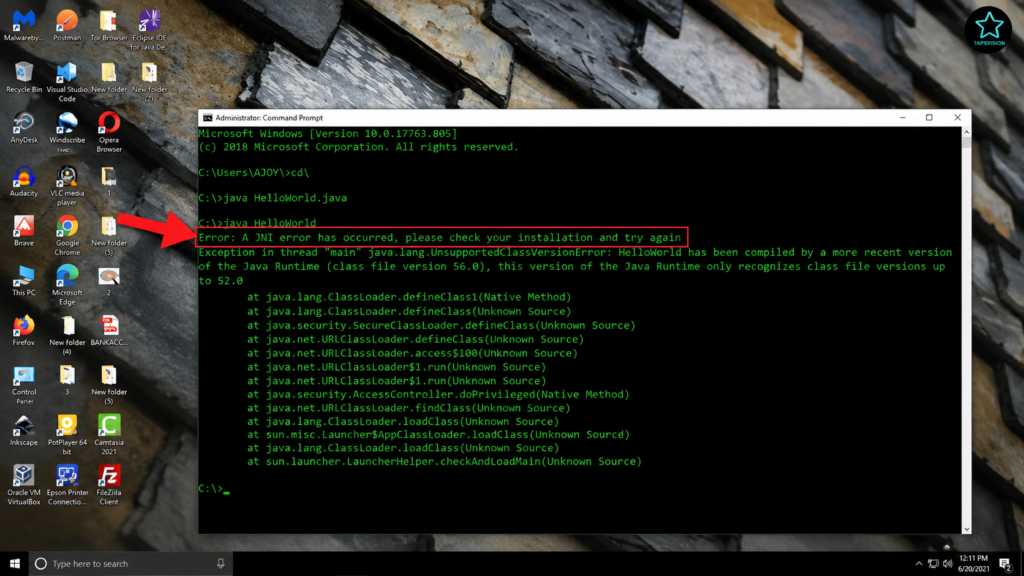
You write your Java code, compile it successfully — and then when you try to run it, you get this error: ‘Error: A JNI error has occurred, please check your installation and try again.’ The code compiled perfectly but will not run. This is one of the most common Java errors on Windows and it has a simple fix.
This guide shows you exactly why the JNI error occurs and how to fix it in under 2 minutes by correcting your Windows PATH environment variable. No reinstalling Java, no complex commands — just one settings change.
73,700+ people have watched this fix on YouTube. Works for Java programs, Minecraft JNI error, TLauncher JNI error, and all Java applications on Windows.

Why Does ‘A JNI Error Has Occurred’ Happen?
JNI stands for Java Native Interface. This error appears when the Java Runtime Environment (JRE) or Java Development Kit (JDK) path in Windows gets corrupted or positioned incorrectly in the System Environment Variables.
Windows reads the PATH variable from top to bottom. If your JDK path is not at the top — or if there are conflicting Java entries — Windows picks up the wrong Java version or the wrong runtime files, causing the JNI error even though your code compiled successfully.
The full error message you will see:
Error: A JNI error has occurred, please check your installation and try again
This happens most commonly when:
- You installed a new version of Java or JDK and the old PATH entry is conflicting
- The JDK path got pushed down in the PATH list by another software installation
- Windows is using the JRE path instead of the JDK path to run your program
- Minecraft or TLauncher is using a different Java version than what your system path points to
⚠ Important: The code compiling successfully but not running is the key symptom here. This confirms it is a PATH issue, not a code issue.
What You Need
- A Windows PC or laptop (Windows 7, 10, or 11)
- Java JDK already installed (if not, install from java.oracle.com)
- 2 minutes — no reinstalling Java, no command line tricks
How to Fix ‘A JNI Error Has Occurred’ — Step by Step
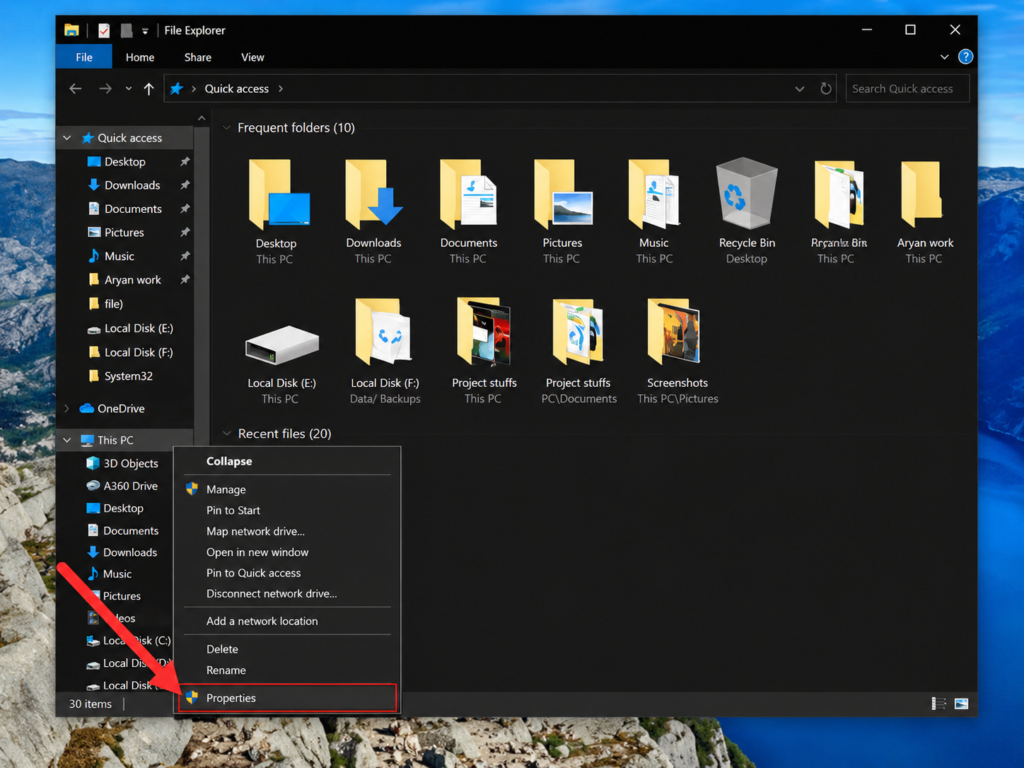
Step 1 — Open File Explorer and Go to This PC Properties
Open File Explorer (Windows key + E). In the left panel, right-click on This PC (or My Computer). Click Properties from the menu.
Step 2 — Click Advanced System Settings
In the Properties window, click Advanced system settings on the left side (or at the top right on Windows 11). The System Properties dialog will open.
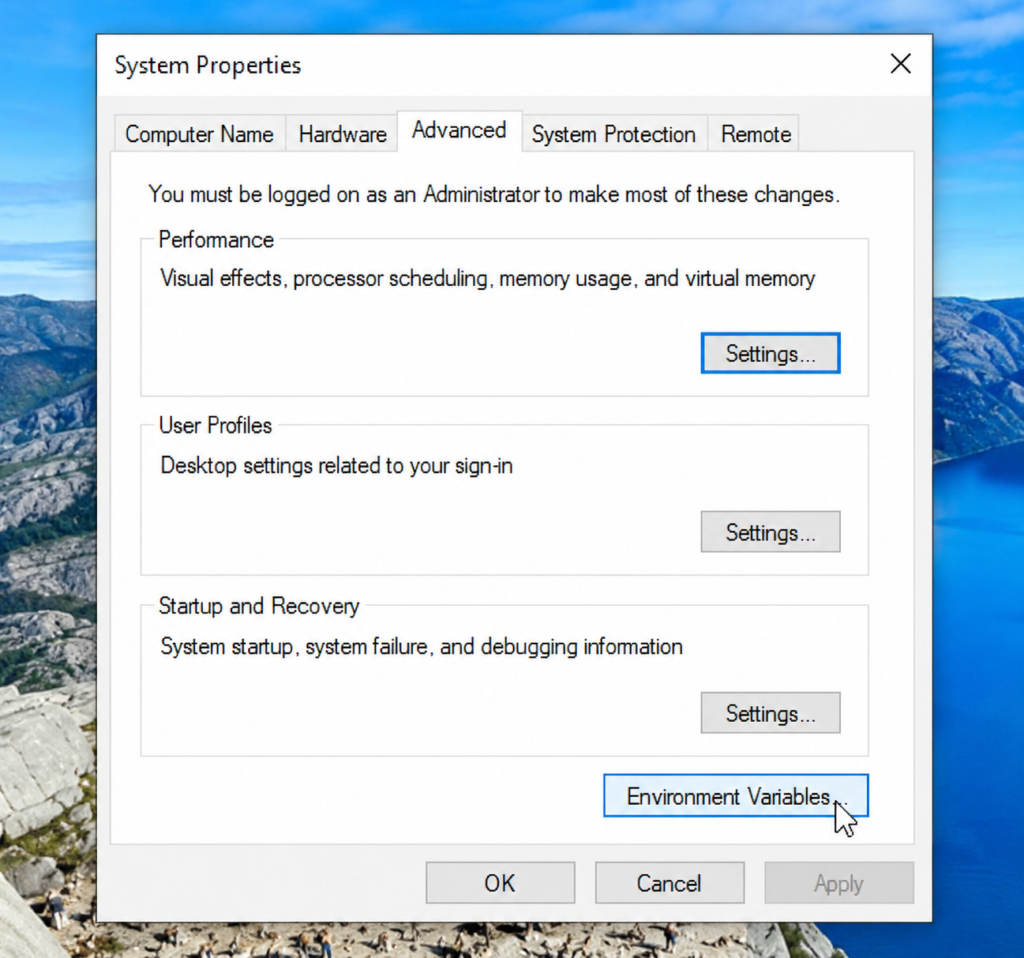
Step 3 — Click Environment Variables
In the System Properties dialog, click the Advanced tab at the top. At the bottom of the window, click the Environment Variables button.
Step 4 — Find PATH in System Variables
In the Environment Variables window, look at the bottom section called System variables. Scroll down and find the variable called Path. Double-click on it to open it.
Step 5 — Find the JDK Entry and Move It to the Top
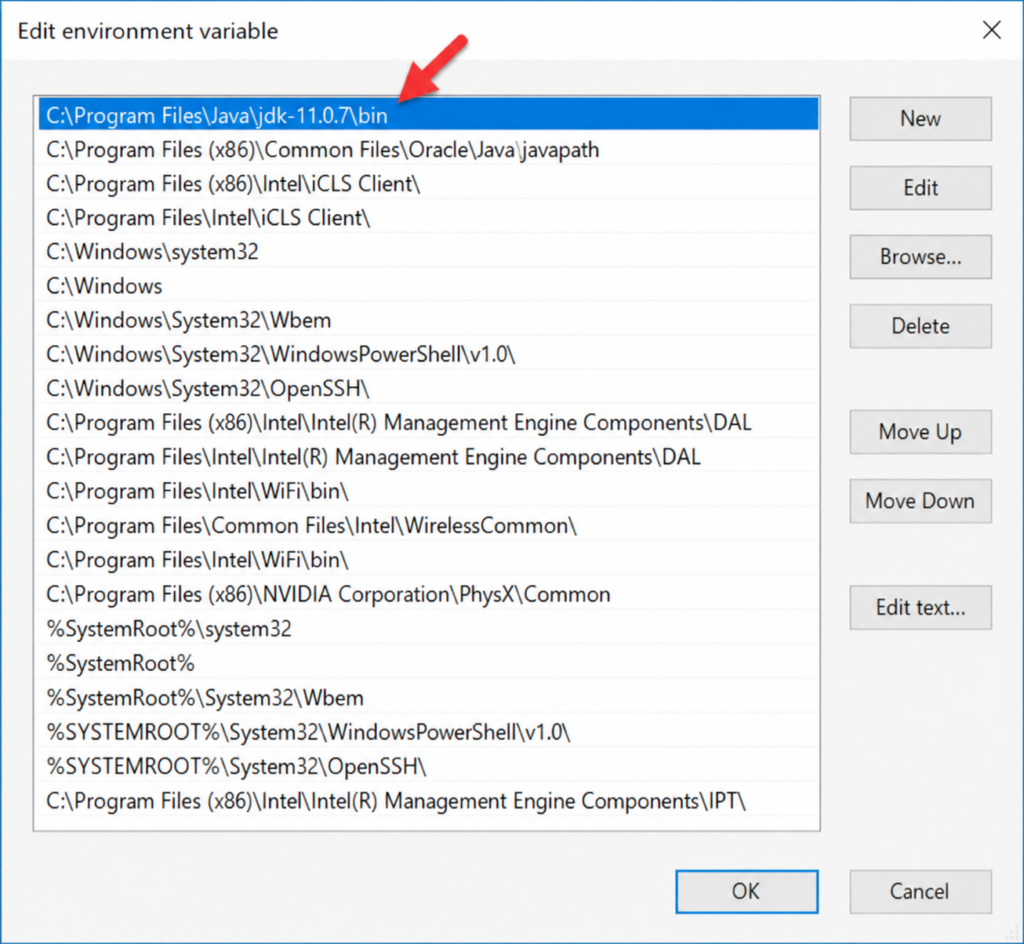
You will see a list of paths. Look for the entry that points to your JDK — it looks like:
C:\Program Files\Java\jdk-XX.X\bin
Click on that JDK entry to select it. Then click Move Up repeatedly until it is at the very top of the list. This ensures Windows reads the correct JDK path first before any conflicting entries.
Step 6 — Click OK and Close All Windows
Click OK on the Edit Environment Variable window. Click OK on Environment Variables. Click OK on System Properties. Close everything.
Step 7 — Open a New CMD and Run Your Java Program Again
This is important — close any CMD or terminal windows you had open. Open a fresh Command Prompt (Windows key + R, type cmd, press Enter). Navigate to your Java file and run it again.
The JNI error will be gone and your Java program will run successfully.
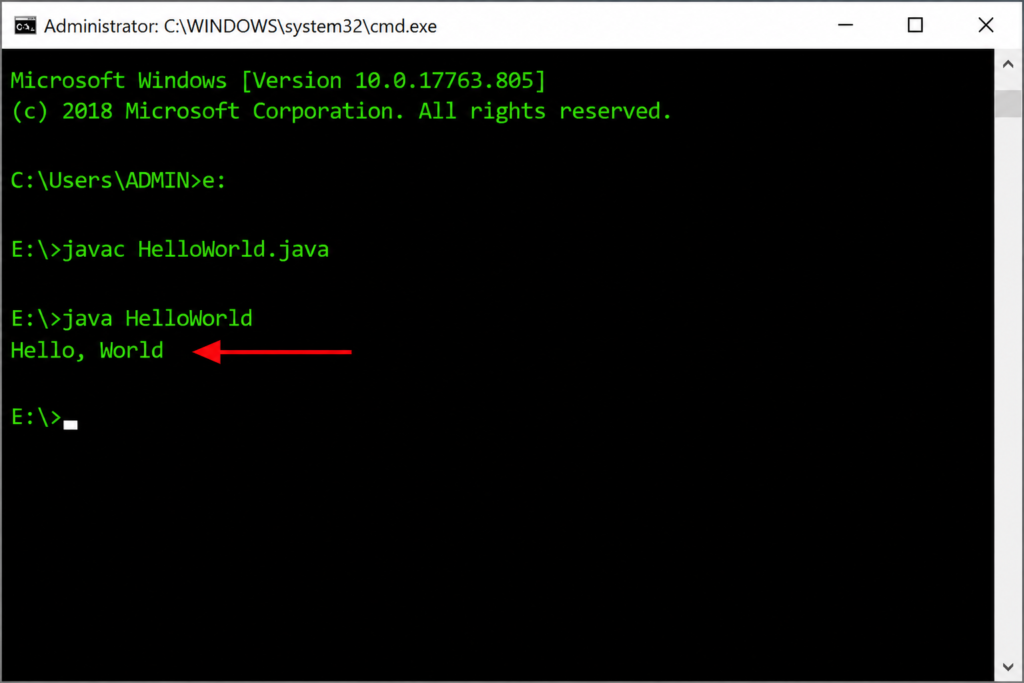
After the Fix — What to Expect
- Java programs will compile and run without the JNI error
- Minecraft will launch without the JNI error if Java was the cause
- TLauncher JNI error will be resolved
- The fix is permanent — unless another software installation moves the PATH again
- If the error returns after installing new software — simply repeat this 2-minute fix
Watch the Full Tutorial on YouTube
I have demonstrated this fix live — showing the CMD error, navigating to Environment Variables, moving the JDK path to the top, and confirming the Java program runs successfully after the fix.
Search ‘JNI Error Fix Java TapsVision’ on YouTube.
Recommended Tools for Java Developers
If you are working with Java regularly, these tools make development much smoother:
1. Mechanical Keyboard for Coding
A good mechanical keyboard makes long coding sessions more comfortable and accurate — reduces errors and fatigue significantly.
2. Portable SSD for Code Backup
Always back up your Java projects. A fast portable SSD keeps your code safe and lets you work from any machine.
3. Laptop RAM Upgrade (8GB to 16GB)
Running Java IDEs, compilers, and Minecraft simultaneously? More RAM keeps everything smooth without lag or crashes.
Disclosure: Affiliate links above. TapsVision earns a small commission at no extra cost to you.
Frequently Asked Questions
What does ‘A JNI error has occurred, please check your installation and try again’ mean?
This error means Windows cannot find the correct Java runtime files when trying to execute your program. The most common cause is a corrupted or incorrectly ordered JDK PATH entry in System Environment Variables. The fix is moving the JDK path to the top position in the PATH list.
How to fix JNI error in Java on Windows?
Right-click This PC > Properties > Advanced system settings > Environment Variables > System Variables > Path > double-click > find the JDK entry > click Move Up until it is first in the list > OK. Open a new CMD window and run your Java program again.
Java compiles but gives JNI error when running — why?
Compilation uses the Java compiler (javac) which is part of the JDK. Running uses the Java Runtime (java.exe). If the PATH points to the wrong java.exe — often from an older JRE installation — compilation succeeds but running fails with the JNI error. Moving JDK path to top fixes this conflict.
Minecraft JNI error has occurred — how to fix?
For Minecraft specifically: first try the PATH fix described in this guide. If that does not work, also check which Java version Minecraft is using in its launcher settings — Minecraft 1.17 and above requires Java 17. Make sure your installed Java version matches what Minecraft needs.
TLauncher JNI error — fix?
TLauncher JNI error is almost always a Java version or PATH conflict issue. Follow the same PATH fix — move JDK to top in Environment Variables. Also try going to TLauncher settings and manually selecting your Java installation path. Make sure you have Java 8 or Java 17 depending on the Minecraft version.
How to fix JNI error in Java Minecraft?
The most reliable fix: uninstall all Java versions, download and install the correct version fresh from java.oracle.com, then verify the PATH is set correctly using the Environment Variables method in this guide. For Minecraft 1.16 and below — use Java 8. For 1.17 and above — use Java 17.
What is a Java exception has occurred — is it the same error?
Not exactly — ‘A Java exception has occurred’ is a different error that usually means a Java application crashed internally. The JNI error is specifically about Java not starting at all due to installation issues. Both can sometimes be fixed by the same PATH correction, but Java exception errors may also need reinstalling the specific application.
Do I need to reinstall Java to fix the JNI error?
No — in most cases you do not need to reinstall Java. Simply moving the JDK PATH to the top in Environment Variables resolves the error. Only reinstall if the PATH fix does not work and you suspect a corrupted Java installation.
JNI error error a JNI error has occurred — does this work on Windows 11?
Yes — the Environment Variables PATH fix works identically on Windows 7, Windows 10, and Windows 11. The path to get there may look slightly different on Windows 11 but the process is the same: System Properties > Advanced > Environment Variables > System Variables > Path.
Java JNI error please check your installation — quick summary?
One line fix: Right-click This PC > Properties > Advanced System Settings > Environment Variables > System Variables > Path > Edit > move JDK entry to top > OK > open new CMD > run program. Done.
Final Thoughts
The JNI error in Java is confusing because your code compiles perfectly — it feels like a code problem when it is actually a Windows configuration problem. The fix is straightforward: make sure Windows reads your JDK path before any other Java-related path.
Right-click This PC → Advanced System Settings → Environment Variables → Path → move JDK to top → open new CMD → problem solved.
If this guide fixed your JNI error, share it with a fellow programmer or Minecraft player who is stuck on the same issue.
— TapsVision