An SSD gives the biggest possible speed jump, but it isn’t always in the budget right away. The good news: it’s entirely possible to make laptop faster without SSD, using nothing but built-in Windows settings and a couple of free tools. This guide covers 10 tested tricks — on an old laptop with just 4GB RAM — that noticeably reduced lag and made everyday use smoother, without spending a rupee.
1. Limit Background Windows Update Activity
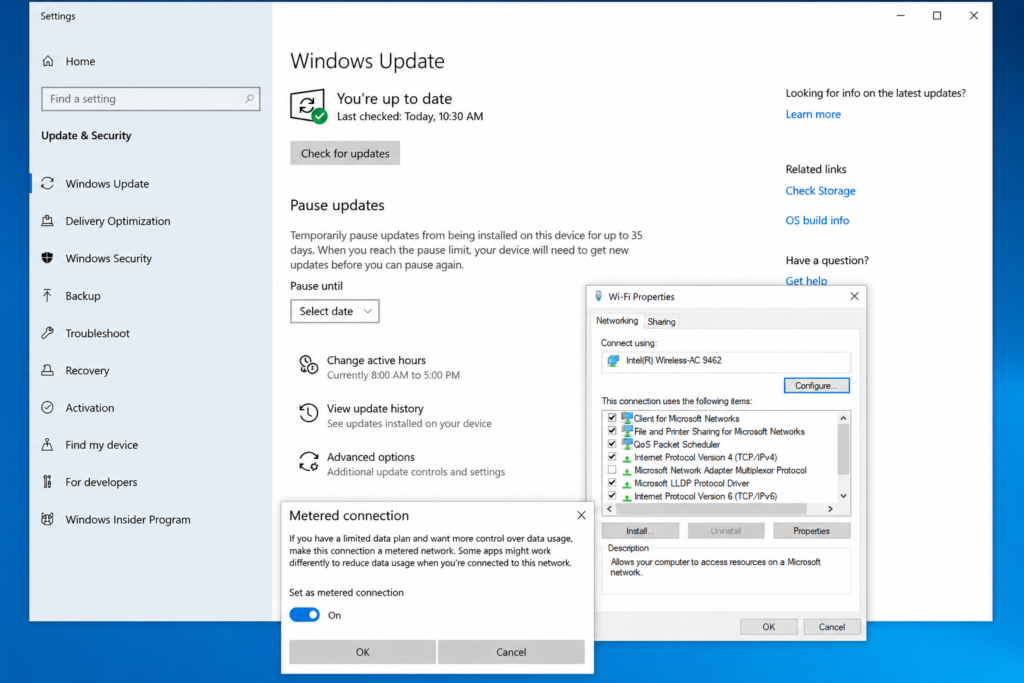
Windows Update running silently in the background is one of the biggest hidden drains on an older laptop — it eats bandwidth and CPU exactly when you’re trying to use the internet or run something else. Rather than fully disabling the Windows Update service (which can leave you missing important security patches), the safer official approach is to set your Wi-Fi connection as a metered connection, or pause updates temporarily from Settings > Windows Update > Pause updates. This stops the constant background downloading without turning updates off for good.
2. Remove Expired or Heavy Third-Party Antivirus
If your laptop came with a trial antivirus that’s now expired and nagging you to buy it, uninstall it. These programs run constantly in the background, scanning and phoning home even when the license has lapsed — and they’re often heavier than the protection Windows already includes for free. Windows Defender (now called Windows Security), built into every version of Windows 10 and 11, is genuinely solid for everyday protection and uses far fewer resources.
3. Turn Off Start Menu Live Tiles and Animations
Live tiles constantly refreshing content in the background use CPU and data even when you’re not looking at the Start menu. Right-click any tile and select “Turn off live tile,” or go to Settings > Personalization > Start and switch off the extra visual options. This alone makes the Start menu feel noticeably snappier on older hardware.
4. Use TeraCopy for Faster File Transfers
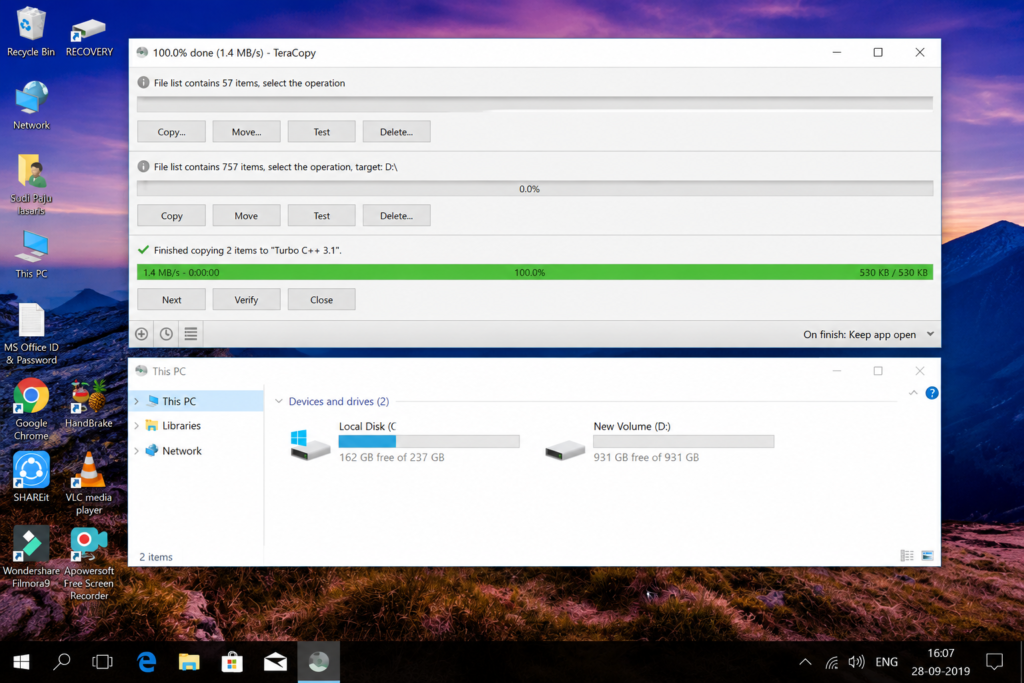
Windows’ built-in copy-paste is slow and clunky on older drives. TeraCopy is a free, well-established utility that speeds up file transfers and lets you pause/resume large copies. Download it only from TeraCopy’s official website, not from a random file-hosting mirror.
5. Check Task Manager for Resource-Hungry Background Apps
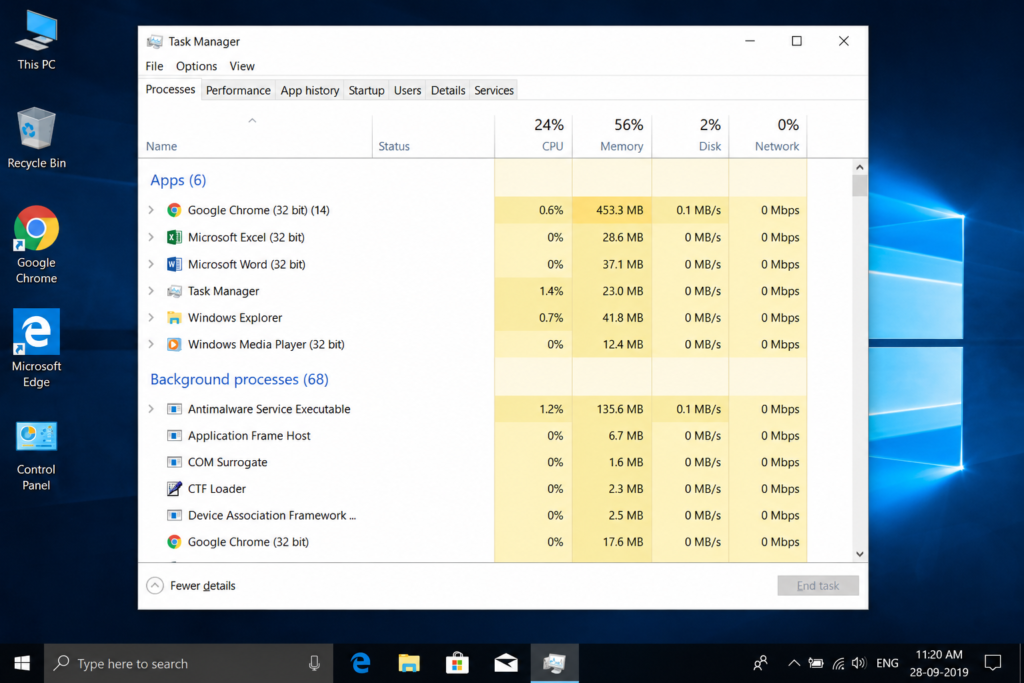
Press Ctrl+Shift+Esc to open Task Manager and check the Processes tab for anything unexpectedly using high CPU, memory, or disk — screen recorders, leftover browser tabs, or apps you forgot were open are common culprits. Closing these frees up resources immediately. The Startup tab is worth checking too: disable anything you don’t need launching automatically every time you turn on your laptop.
6. Switch Power Plans Based on What You’re Doing
Windows lets you switch between Power Saver and Best Performance power plans. Use Best Performance when you’re doing something demanding (editing, recording, heavy multitasking), and switch back to Power Saver or Balanced for everyday browsing. This won’t add new speed, but it stops Windows from artificially throttling your CPU when you actually need it.
7. Lower Screen Refresh Rate to Save Battery (Not Speed)
If your laptop has an Intel graphics control panel, you can lower the display refresh rate (for example, from 60Hz to 40Hz). To be clear: this mainly extends battery life rather than boosting raw performance, but it’s a genuinely useful trade-off if your laptop’s battery health has degraded over time.
8. Manage Wi-Fi, Bluetooth, and Brightness Manually
Leaving Wi-Fi scanning, Bluetooth, and auto-brightness running constantly in the background uses both battery and small amounts of system resources. Switching these to manual control — turning them on only when you actually need them — is a small but real efficiency gain, especially on laptops with weaker batteries.
What Result to Actually Expect
Be realistic about this: none of these tricks replace an SSD. What they do is remove unnecessary background load, so your existing hardware isn’t fighting itself. On a 4GB RAM laptop with a traditional hard drive, combining these steps noticeably reduced lag during browsing and everyday multitasking, and start-up felt less cluttered. If your laptop is still very slow after trying all of these, the RAM and the hard drive itself are likely the real bottleneck — at that point, an SSD or RAM upgrade will give you a far bigger jump than any software tweak.
Compatible Devices
- Windows 10 and Windows 11 laptops and desktops
- Older laptops with traditional hard drives (HDD) rather than SSDs
- Systems with 4GB RAM or more
- Both Intel and AMD-based laptops
Watch the Full Video Walkthrough
If You Want a Bigger Jump Later
1. DDR3/DDR4 RAM Upgrade Kit
If Task Manager shows your RAM constantly maxed out, adding more RAM is often the single cheapest real upgrade available for an old laptop.
2. Laptop Cooling Pad
Older laptops running warm can throttle their own performance to protect the hardware. A basic cooling pad helps maintain consistent speed during longer sessions.
3. SATA SSD (When You’re Ready)
These software tricks help in the meantime, but when your budget allows, an SSD remains the single biggest speed upgrade for any laptop — often felt within the first boot-up alone.
Frequently Asked Questions
How can I make my laptop faster without an SSD?
Reduce background load: limit Windows Update’s background activity, remove heavy or expired antivirus software, turn off Start menu live tiles, and check Task Manager for resource-hungry background apps. Combined, these free up meaningful CPU and RAM on an older laptop.
Laptop ko fast kaise kare Windows 10 mein?
Sabse pehle Task Manager (Ctrl+Shift+Esc) khol kar dekhein kaunsi apps background mein RAM use kar rahi hain. Purana ya expired antivirus hata dein, Start menu ki live tiles band karein, aur Windows Update ko metered connection se limit karein — inse laptop kaafi fast mehsoos hota hai.
Does SSD really make a laptop faster than these tricks?
Yes — an SSD gives a far bigger, near-instant boot and load-time improvement than any software tweak. These tricks are genuinely useful in the meantime, but they manage your existing hardware better rather than replacing the benefit of an SSD.
How can I increase my laptop’s performance for free?
Uninstall unnecessary background software (especially expired antivirus trials), disable unneeded startup apps, turn off Start menu animations, and use Task Manager regularly to spot what’s eating resources. All of this costs nothing.
My laptop is very slow on Windows 10 — what should I check first?
Open Task Manager and sort by CPU and Memory usage to see what’s actually causing the slowdown. Often it’s a single background app, an expired antivirus, or too many startup programs rather than the hardware itself being at fault.
How do I increase HDD speed without replacing it with an SSD?
You can’t make an HDD physically faster, but you can reduce how much it’s fighting for resources — disable unnecessary startup programs, avoid running heavy background scans, and use a tool like TeraCopy for faster file transfers, since it manages disk read/write more efficiently than Windows’ default copy process.
Is it safe to disable antivirus on an old laptop?
It’s safe to remove a third-party antivirus, especially an expired trial version, as long as Windows Defender (Windows Security) stays enabled. Never leave your laptop with no antivirus protection at all.
What is a good, safe game booster for an old Windows 10 laptop?
Rather than third-party “game booster” apps — many of which are unnecessary or bundle unwanted software — Windows’ own Game Mode (Settings > Gaming > Game Mode) prioritizes system resources for the active game without needing any extra installation.
TapsVision-