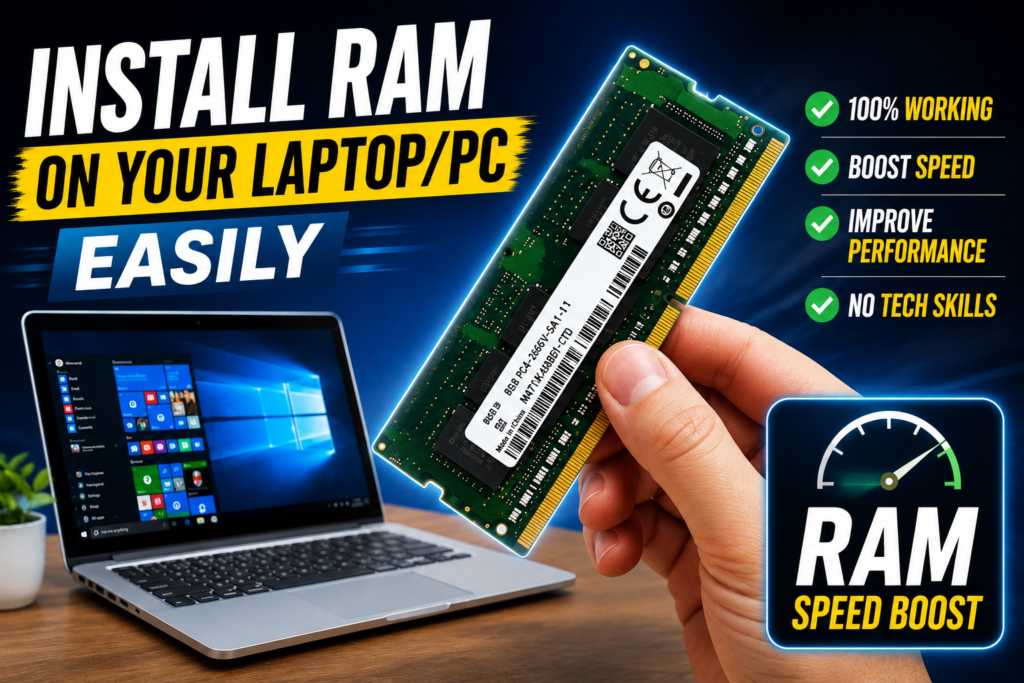
Adding RAM is one of the simplest hardware upgrades you can do yourself — no soldering, no special tools, and it takes just a few minutes once you know how to install RAM in laptop correctly. This guide walks through the entire process on a real HP laptop, from opening the compartment to seating a new 8GB DDR4 stick properly, so you’re not guessing whether it’s clicked in right.
Before You Start
- The correct RAM type for your laptop (DDR3, DDR4, or DDR5 — check your laptop’s manual or use your RAM manufacturer’s official compatibility scanner)
- A small Phillips screwdriver, if your laptop’s RAM compartment is covered by a screwed-down panel
- A flat, static-free surface to work on
One safety step worth adding here that’s easy to skip: always power off your laptop completely, unplug the charger, and if the battery is removable, take it out before opening any compartment. Touching the RAM’s gold connector edge or working on a carpeted surface can also cause static damage — if possible, touch a metal, unpainted surface first to ground yourself.
Step-by-Step: Installing RAM in a Laptop
Step 1: Locate the RAM Compartment
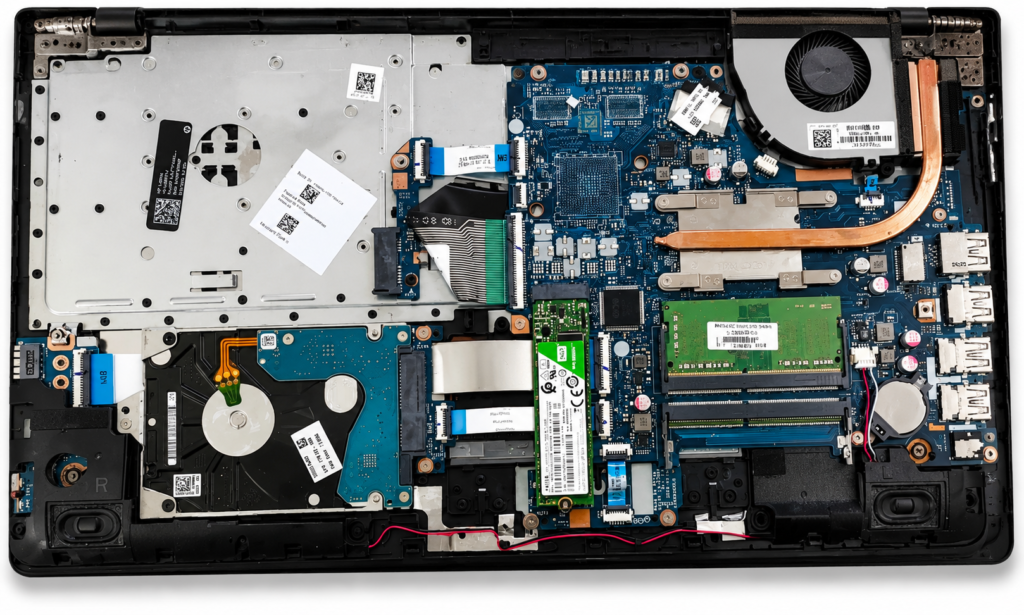
Most laptops have a small panel on the underside, usually held by a few screws, that opens to reveal the RAM and storage slots. On many models, you’ll see two types of slots next to each other — one for storage (SSD) and one or two for RAM, often color-coded green or blue.
Step 2: Remove the Existing RAM (If Upgrading)
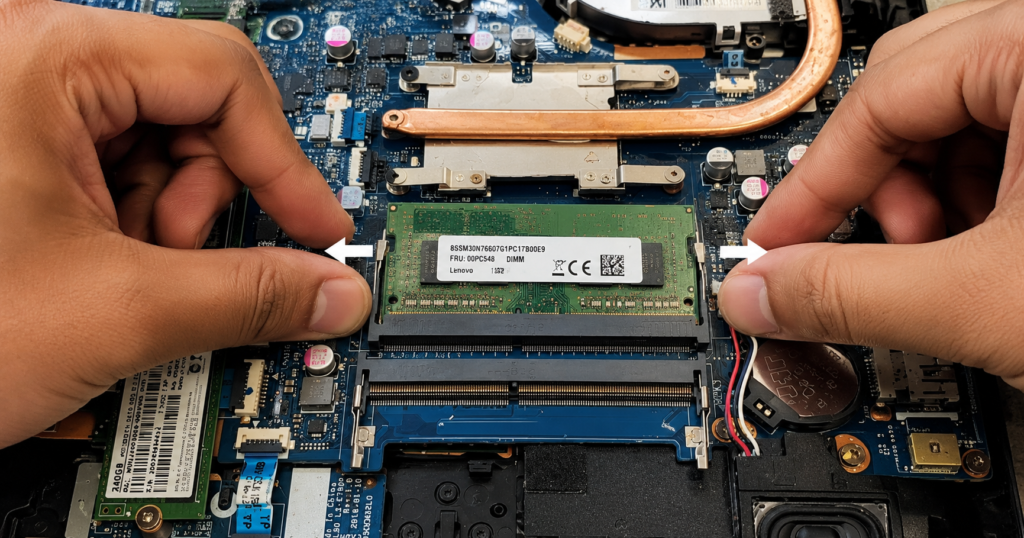
If there’s already a RAM stick installed and you’re replacing or adding to it, look for the small retention clips on either side of the slot. Gently push both clips outward, away from the stick, at the same time. The RAM will pop up at an angle on its own — simply slide it out from there.
Step 3: Align the New RAM Stick
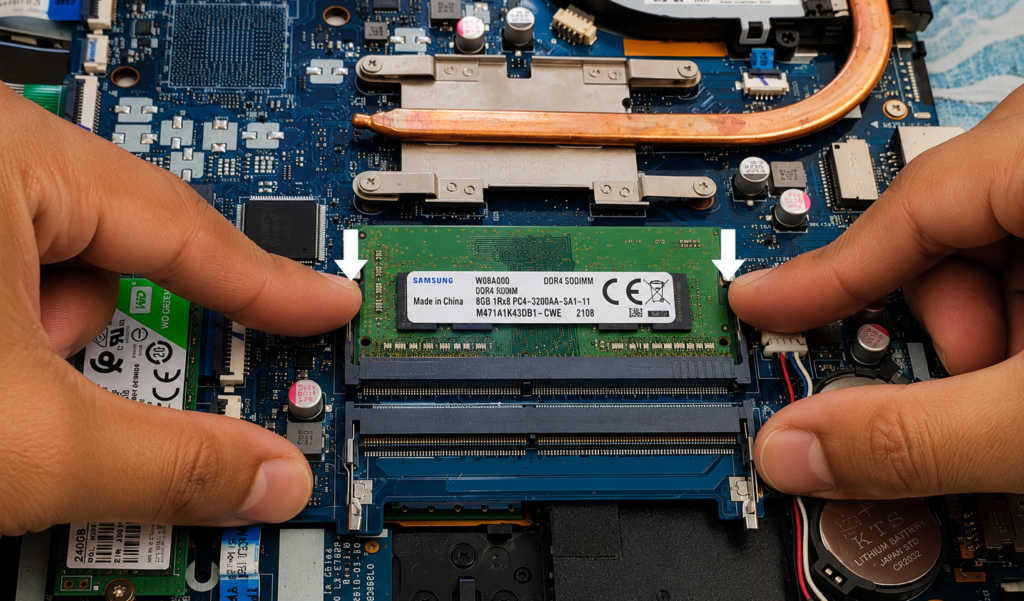
Every RAM stick has a small notch along its gold connector edge that only lines up one way with the slot — this prevents it from being inserted backward. Hold the stick at roughly a 30-degree angle and line up the notch with the matching gap in the slot.
Step 4: Insert and Press Down
Push the stick firmly into the slot at that angle until it’s fully seated, then press it straight down toward the motherboard. You’ll feel and hear both side clips click into place automatically — this is how you know it’s correctly installed. If it doesn’t click, don’t force it further; remove it, recheck the alignment, and try again.
Step 5: Close Up and Verify
Replace the compartment panel and screws, reinsert the battery if you removed it, and power on your laptop. To confirm the new RAM is recognized, go to Settings > System > About on Windows and check the installed RAM amount matches what you expect.
What to Expect After the Upgrade
More RAM won’t make your processor faster, but it noticeably reduces lag when multitasking — switching between browser tabs, apps, and background processes feels smoother almost immediately. If Windows still doesn’t show the new total, power off, reopen the compartment, and double check the stick is fully clicked in on both sides.
Compatible Devices
- Most HP, Dell, Lenovo, Acer, and Asus laptops with a user-accessible RAM compartment
- Desktop PCs with standard DIMM RAM slots
- DDR3, DDR4, and DDR5 RAM modules, provided you buy the correct type for your specific laptop
Watch the Full Video Walkthrough
What You’ll Need for This Upgrade
1. Crucial or Kingston DDR4 RAM (8GB or 16GB)
Stick with well-known brands and always confirm compatibility using the manufacturer’s official scanner tool for your exact laptop model before buying.
2. Precision Screwdriver Kit
Many laptop compartment panels use small Phillips or Torx screws that a standard household screwdriver won’t fit properly.
3. Anti-Static Wrist Strap
A cheap, one-time purchase that removes any risk of static damage to your RAM or motherboard while you work.
Frequently Asked Questions
How do I install RAM in a laptop?
Power off and unplug your laptop, open the RAM compartment panel, release any existing stick by pushing the side clips outward, then align the new stick’s notch with the slot and press down firmly until both clips click into place.
CPU me RAM kaise lagaye?
Laptop ya PC ko band karke unplug karein, RAM wala compartment kholein, agar pehle se RAM lagi hai to dono side ke clips ko bahar push karke usse nikalein, phir nayi RAM ko sahi angle par notch align karke slot mein dabayein jab tak clips apne aap click na ho jaayein.
How do I add more RAM to my laptop?
Check if your laptop has a free RAM slot (many have two — one may be empty). If a slot is free, you can simply insert additional RAM there without removing the existing stick, following the same alignment and insertion steps.
Is installing RAM in a desktop PC different from a laptop?
The core process is the same — align the notch and press until the clips click — though desktop RAM slots are usually easier to access without needing to unscrew a panel.
How do I know if my laptop supports more RAM?
Check your laptop’s official specification sheet or use your RAM manufacturer’s compatibility scanner tool, which tells you the maximum supported RAM and correct type for your exact model.
Can I mix different RAM brands or sizes?
It often works, but for best stability and performance, use matching brand, speed, and capacity across both sticks if your laptop has two slots.
Is installing SSD in a laptop similar to installing RAM?
The compartment is often the same, but the installation process is different since an SSD connects differently than a RAM stick. This is covered in a separate guide on the channel dedicated specifically to SSD installation.
Will installing RAM myself void my laptop’s warranty?
On most consumer laptops with a user-accessible RAM panel, self-upgrading RAM does not void the warranty, but this varies by manufacturer — check your laptop’s warranty terms before opening it if you’re unsure.
TapsVision-