You install Windows fresh, plug in your Bluetooth dongle or try to use your laptop’s built-in Bluetooth — and nothing works. Device Manager shows the driver as working properly but Bluetooth still does not connect. Or worse, you see ‘Bluetooth peripheral device driver not found’. This is the Bluetooth driver problem that frustrates millions of Windows users.
The most reliable fix is installing the Toshiba Bluetooth Stack — a powerful Bluetooth driver package that replaces the default Windows Bluetooth driver and works on virtually any laptop or PC. This guide shows you exactly how to fix the Bluetooth driver problem step by step.
56,200+ people have watched this fix on YouTube. Works on Toshiba laptops, HP, Dell, Lenovo, ASUS — any Windows PC with Bluetooth issues.
Why Does the Bluetooth Driver Problem Happen on Windows?
When you install or reinstall Windows, the default Microsoft Bluetooth driver sometimes does not properly support your hardware — especially on older laptops or when using a Bluetooth USB dongle. The problems show up as:
- Bluetooth is listed in Device Manager as ‘working properly’ but devices will not connect
- ‘Bluetooth peripheral device driver not found’ error
- Bluetooth headset or speaker connects but no audio comes through
- Bluetooth dongle not detected on Windows 7
- Toshiba RFBUS driver error or yellow exclamation mark in Device Manager
- ‘Bluetooth is not ready’ on Toshiba laptop
The Toshiba Bluetooth Stack (v9.10.34T) replaces the generic Windows Bluetooth driver with a comprehensive, fully compatible driver package that properly handles all Bluetooth profiles — audio, file transfer, headset, and more.
⚠ Important: Despite the name ‘Toshiba’, this Bluetooth Stack works on all brands — HP, Dell, Lenovo, ASUS, Acer, and any PC with a Bluetooth module or USB dongle. It is not limited to Toshiba laptops.
What You Need
- A Windows PC or laptop (Windows 7, Windows 8, or Windows 10)
- Toshiba Bluetooth Stack v9.10.34T — download from Station-Drivers.com or Majorgeeks.com (trusted mirrors)
- ~81MB free space for the installer
- 10 minutes of your time
�� Download Toshiba Bluetooth Stack v9.10.34T from a trusted source: Station-Drivers.com or Majorgeeks.com — search ‘Toshiba Bluetooth Stack 9.10.34T’ on either site. Do NOT download from random unknown websites.
How to Fix Bluetooth Driver Problem Using Toshiba Stack — Step by Step
Step 1 — Open Device Manager and Uninstall Existing Bluetooth Driver
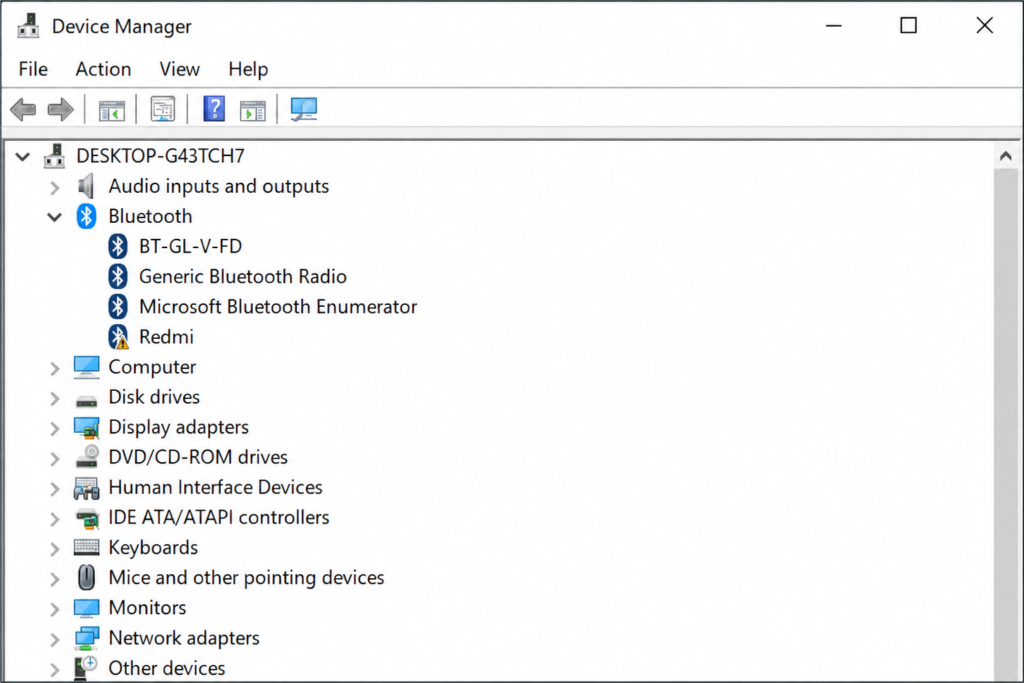
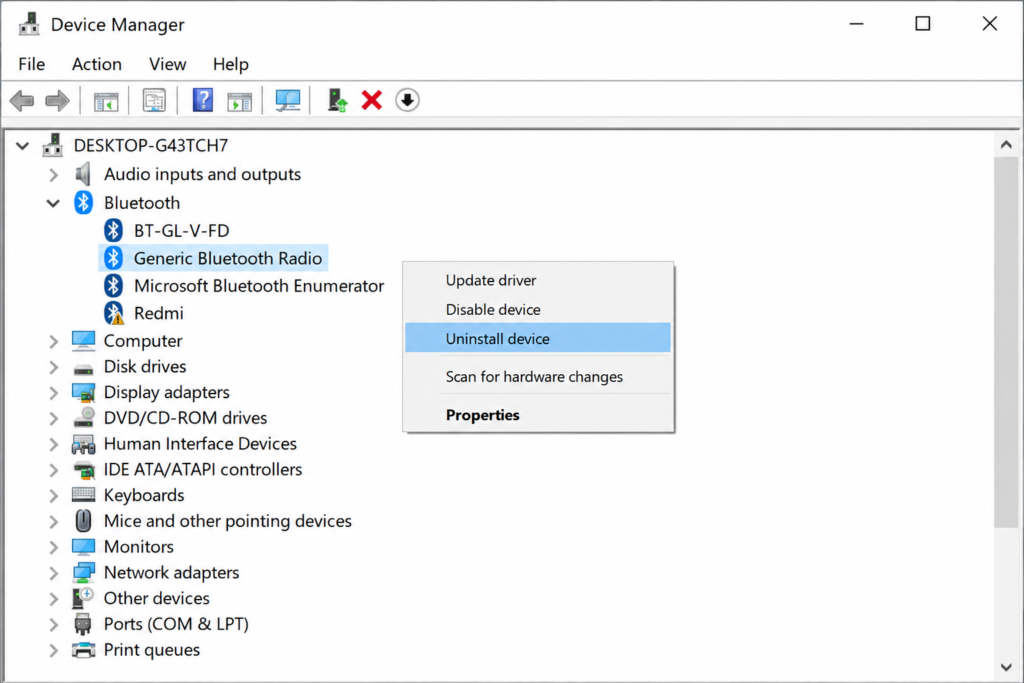
Press Windows key + R, type devmgmt.msc and press Enter to open Device Manager. Expand the Bluetooth section. Right-click on your current Bluetooth driver and select Uninstall Device. Check the box that says ‘Delete the driver software for this device’ if it appears. Click Uninstall.
If you have multiple Bluetooth entries (like Bluetooth RFBUS, Bluetooth RFCOMM, Generic Bluetooth Adapter), uninstall all of them.
Step 2 — Download Toshiba Bluetooth Stack v9.10.34T
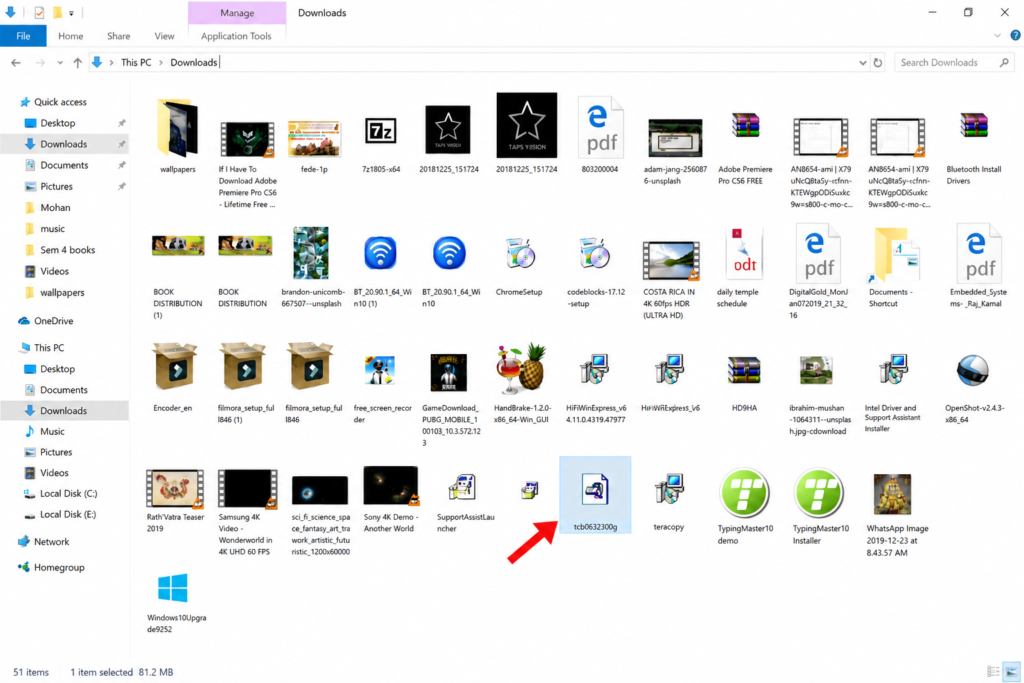
Go to Station-Drivers.com or Majorgeeks.com and search for ‘Toshiba Bluetooth Stack 9.10.34T’. Download the installer — the file is approximately 81MB in size. This is the official Toshiba Bluetooth Stack package used by millions of users to fix Bluetooth driver issues on Windows.
The file name will be something like: ts9003300g.exe or similar. This is the Toshiba Archive Extractor that installs the full Bluetooth Stack.
Step 3 — Run the Toshiba Bluetooth Stack Installer
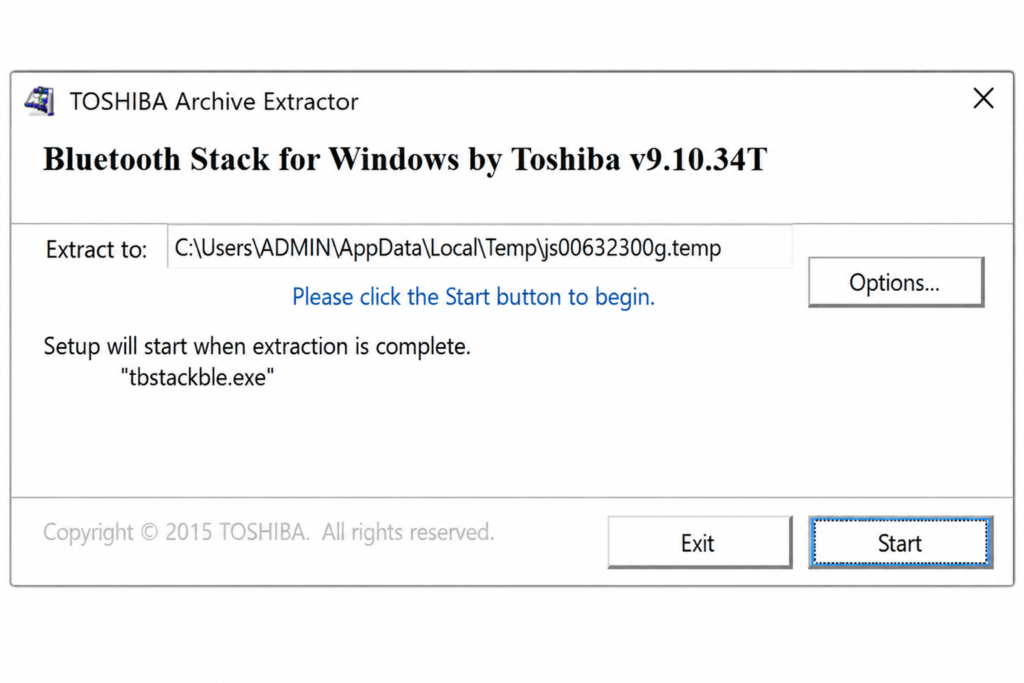
Double-click the downloaded installer file. Windows will ask for permission to run — click Yes. The Toshiba Archive Extractor window will open showing ‘Bluetooth Stack for Windows by Toshiba v9.10.34T’. It will show the extraction path and the message ‘Setup will start when extraction is complete — installbt.exe’.
Click Start to begin. The extractor will unpack the files and automatically launch the Bluetooth Stack installer.
Step 4 — Complete the Installation
Follow the installation wizard. Accept the license agreement and click Next through the setup steps. The Toshiba Bluetooth Stack will install automatically. Once complete, it will prompt you to restart your computer. Click Yes to restart.
Step 5 — Test Your Bluetooth After Restart
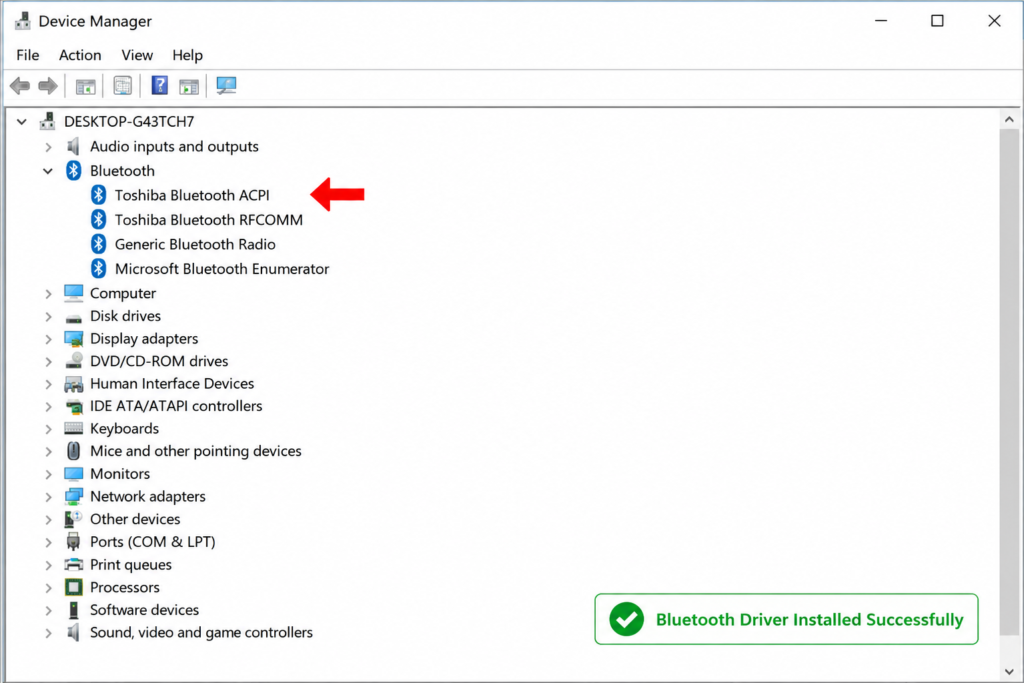
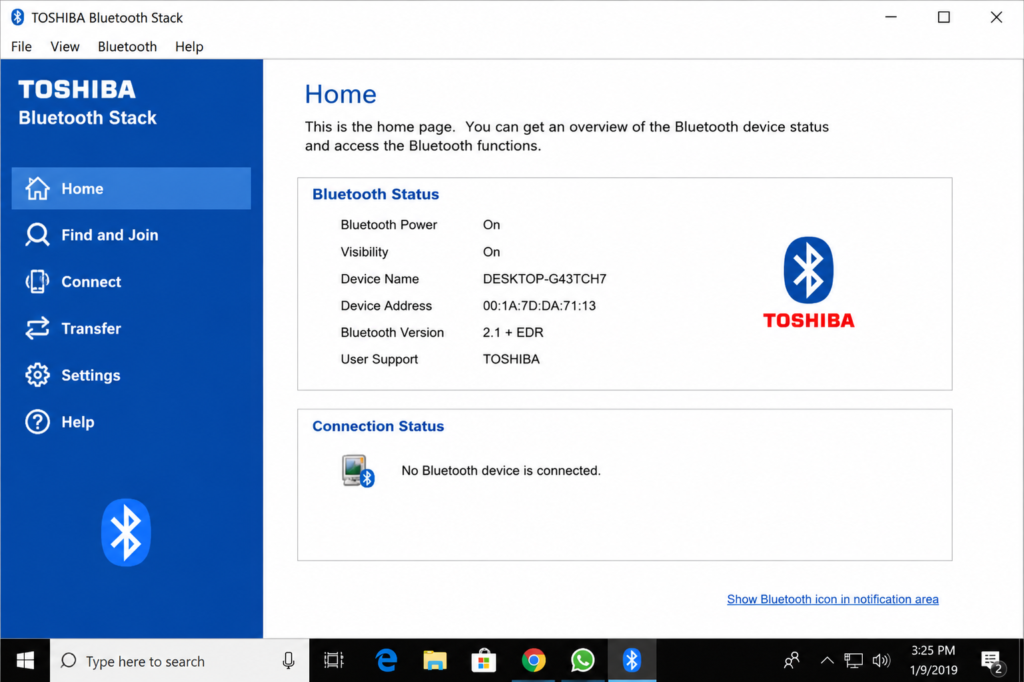
After your PC restarts, the Toshiba Bluetooth Stack will be active. You will see a new Bluetooth icon in your system tray. Try connecting your Bluetooth device — headset, speaker, phone, or dongle. It should now work properly and show up correctly.
Open Device Manager again to confirm — the Bluetooth entries should now show without any yellow warning icons.
After the Fix — What to Expect
- Bluetooth devices will pair and connect properly
- Bluetooth audio — headsets, speakers — will work with full sound
- Bluetooth file transfer will work correctly
- Toshiba Bluetooth icon appears in system tray for easy management
- Device Manager will show no Bluetooth errors or yellow warnings
Which Laptops and PCs Does This Fix Work On?
The Toshiba Bluetooth Stack works on:
- All Toshiba laptop models (Satellite, Portege, Tecra, Qosmio)
- HP laptops and desktops
- Dell laptops and desktops
- Lenovo laptops (IdeaPad, ThinkPad)
- ASUS and Acer laptops
- Any desktop PC with a Bluetooth USB dongle
- Windows 7 (32-bit and 64-bit), Windows 8, Windows 10
Watch the Full Tutorial on YouTube
I have demonstrated this entire process live — uninstalling the old driver, downloading and running the Toshiba Bluetooth Stack, and testing Bluetooth connectivity after the fix.
Search ‘Bluetooth Driver Problem Fixed Toshiba RFBUS TapsVision’ on YouTube.
Recommended Bluetooth Products
Once your Bluetooth is working, here are some reliable Bluetooth accessories worth having:
1. USB Bluetooth Dongle (for PCs without built-in Bluetooth)
A reliable USB Bluetooth 5.0 dongle that works perfectly with the Toshiba Bluetooth Stack — plug in and connect all your Bluetooth devices instantly.
2. Bluetooth Wireless Speaker
A compact Bluetooth speaker that pairs flawlessly with Windows after the driver fix — great for music and calls.
3. Bluetooth Wireless Headset for PC
A good Bluetooth headset for PC calls, meetings, and music — works properly once the Bluetooth driver is correctly installed.
Disclosure: Affiliate links above. TapsVision earns a small commission at no extra cost to you.
Frequently Asked Questions
How to fix Bluetooth driver problem on Windows?
Open Device Manager, uninstall the existing Bluetooth driver. Download Toshiba Bluetooth Stack v9.10.34T from Station-Drivers.com or Majorgeeks.com. Run the installer, follow the steps, restart your PC. Bluetooth will work properly after the restart.
What is the Toshiba RFBUS driver and what does it fix?
The Toshiba RFBUS driver is part of the Toshiba Bluetooth Stack — a comprehensive Bluetooth driver package that replaces Windows’ generic Bluetooth driver. It fixes issues where Bluetooth shows as working in Device Manager but devices will not properly connect or audio does not work.
Toshiba RFBUS driver for Windows 10 64-bit — where to download?
Download Toshiba Bluetooth Stack v9.10.34T from Station-Drivers.com or Majorgeeks.com. Search for ‘Toshiba Bluetooth Stack 9.10.34T’ on either site. These are trusted, reputable driver mirror sites — avoid downloading from unknown sources.
Bluetooth driver for Windows 7 — how to install?
The Toshiba Bluetooth Stack supports Windows 7 both 32-bit and 64-bit. Download the installer, uninstall your current Bluetooth driver from Device Manager first, then run the Toshiba Stack installer. Works on all Windows 7 PCs regardless of brand.
Bluetooth peripheral device driver not found — how to fix?
This error means Windows cannot find the correct driver for your Bluetooth hardware. Install the Toshiba Bluetooth Stack as described in this guide. It provides a complete set of Bluetooth drivers including RFBUS, RFCOMM, and HID profiles that eliminate this error.
Toshiba Bluetooth driver for Windows 10 — does this still work?
Yes. The Toshiba Bluetooth Stack v9.10.34T works on Windows 10. You may need to run the installer in compatibility mode (right-click installer > Properties > Compatibility > Windows 8 or Windows 7) if it does not start automatically on Windows 10.
Bluetooth not working on Windows 7 after reinstall — fix?
After a clean Windows 7 install, the default Microsoft Bluetooth driver often does not support all Bluetooth profiles. Install the Toshiba Bluetooth Stack — it includes all the necessary Bluetooth components and immediately restores full Bluetooth functionality.
Toshiba laptop Bluetooth settings — where to find?
After installing the Toshiba Bluetooth Stack, a Bluetooth icon appears in the Windows system tray (bottom right). Right-click it to access all Bluetooth settings — add devices, manage connections, and configure profiles. This replaces the default Windows Bluetooth Settings panel.
‘Bluetooth is not ready’ on Toshiba laptop — how to fix?
This message usually appears when the Toshiba Bluetooth Stack is installed but the Bluetooth hardware switch is off. On Toshiba laptops, press Fn + F8 (or check for a physical Bluetooth switch on the side). Also go to Settings > Bluetooth and toggle it on. If the issue persists, reinstall the Toshiba Bluetooth Stack.
Toshiba Bluetooth Stack vs Windows built-in Bluetooth — which is better?
The Toshiba Bluetooth Stack is more comprehensive than Windows’ built-in driver — it supports more Bluetooth profiles and works more reliably with older hardware. The downside is it is no longer actively updated since Toshiba exited the PC market. For most Windows 7 and 10 users with Bluetooth problems, it remains the most reliable fix.
Final Thoughts
Bluetooth driver problems on Windows are frustrating precisely because Device Manager often shows everything as ‘working’ — while nothing actually works. The Toshiba Bluetooth Stack has been the community’s go-to fix for this problem for years and it remains reliable on Windows 7 and Windows 10.
Uninstall old driver → Download Toshiba Stack from Station-Drivers or Majorgeeks → Install → Restart → Done.
If this fixed your Bluetooth problem, share it with someone else struggling with the same issue.
— TapsVision