Looking for a clear DJI Mic 2 firmware update guide? You’re in the right place — surprisingly few creators have made a proper Hindi tutorial for this, even though DJI regularly pushes updates that improve audio quality, stability, and battery reporting. This guide walks through updating both your transmitter and receiver using nothing but a USB-C cable and a laptop — no app, no account, no complicated software. The whole process takes under 5 minutes once you know the steps.
610+ views and 22 hours of watch time on TapsVision — one of the only Hindi-language DJI Mic 2 firmware tutorials available, based on a real update performed on camera.
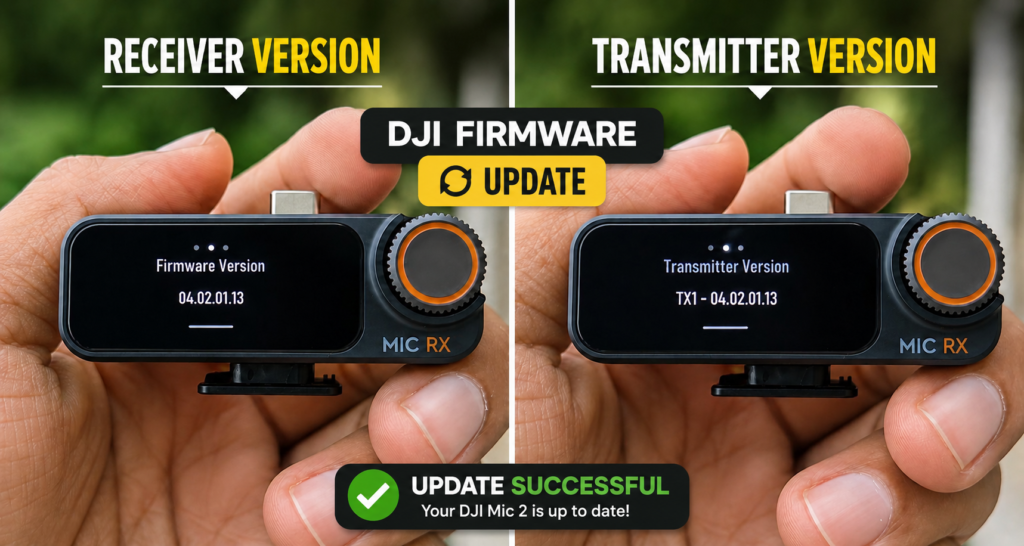
Why Update Your DJI Mic 2 Firmware?
DJI regularly releases firmware updates for the Mic 2 that bring real, noticeable improvements:
- Better audio quality — improved bass response and equalizer behavior in recent updates
- More stable connection — fewer dropouts between transmitter and receiver
- New controls and features — DJI has added functionality through firmware updates after launch
- Bug fixes — resolves issues reported by users since the previous firmware version
If you bought your DJI Mic 2 a while ago and never checked for updates, there’s a good chance you’re missing out on meaningful audio improvements DJI has shipped since launch.
What You Need
- DJI Mic 2 transmitter and receiver
- A laptop or computer (Windows or Mac)
- A USB-C cable (the one included with your Mic 2, or any compatible USB-C cable)
- About 15 minutes total (most of the wait time is the receiver update itself)
DJI Mic 2 Firmware Update — Step by Step
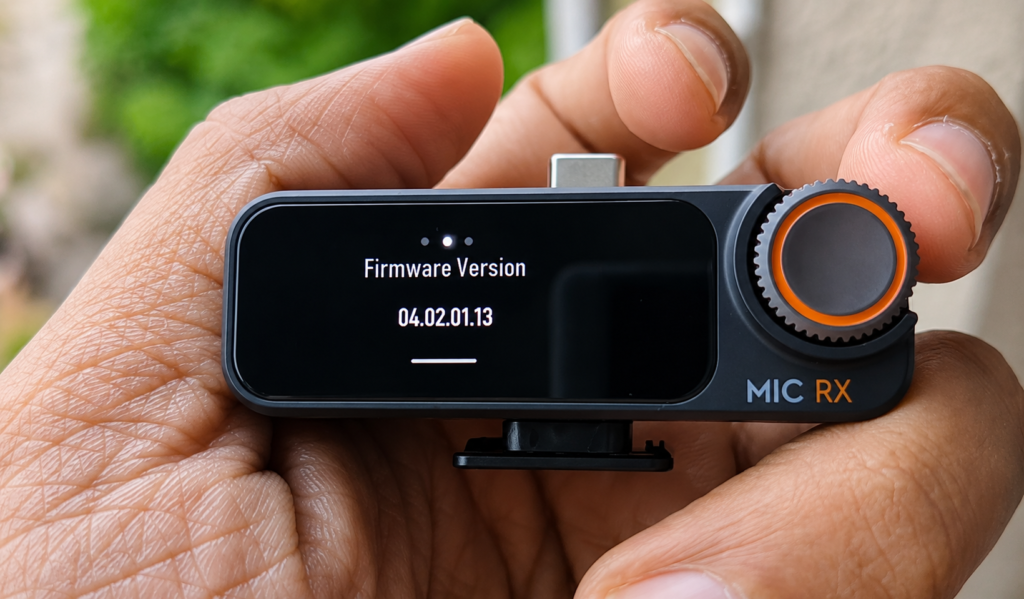
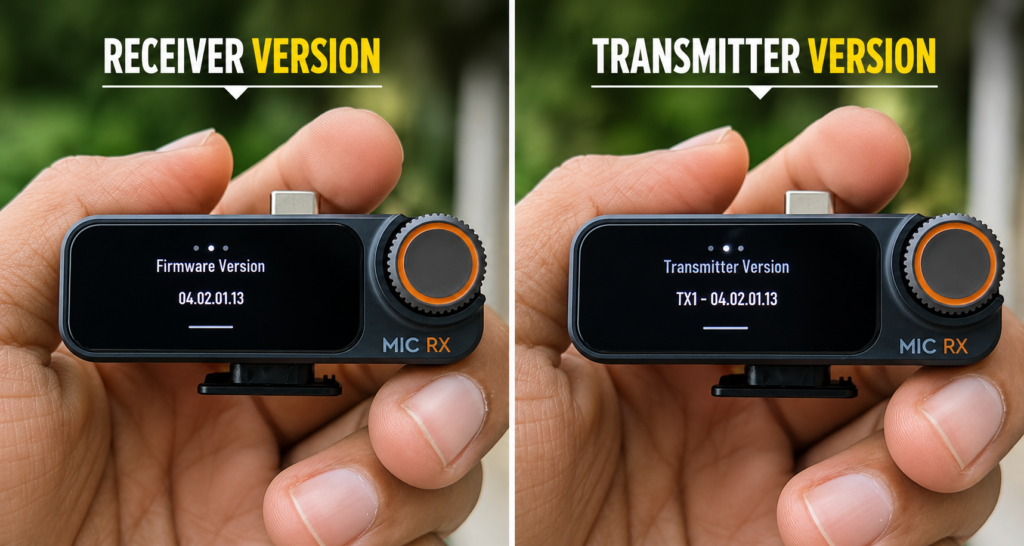
Step 1: Check Your Current Firmware Version
On your receiver, scroll the screen and go to the Settings option (usually accessible via the left-side menu). Inside Settings, you’ll find a Version field showing your current firmware number for both the receiver and the connected transmitter.
Step 2: Download the Latest Firmware from DJI’s Website
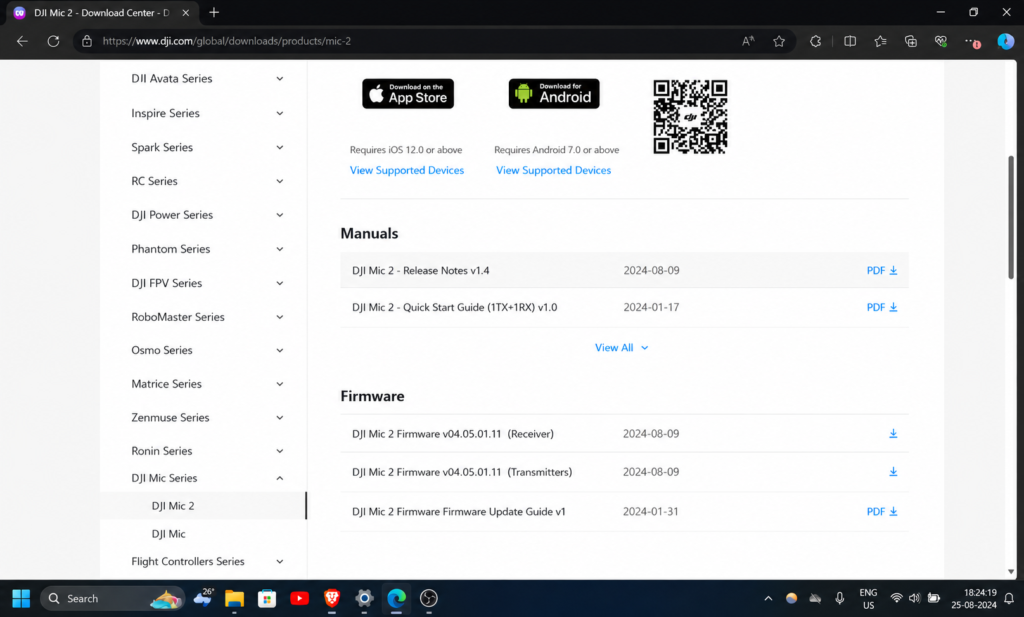
- Go to the official DJI Mic 2 downloads page on dji.com
- Find the Support section and click Download Center
- Look for DJI Mic Series, then select DJI Mic 2
- Download both firmware files: one marked TX (for the transmitter) and one marked RX (for the receiver)
TIP: Always download both the TX and RX firmware files together, even if you only plan to update one device first — this avoids version mismatches between your transmitter and receiver.
Step 3: Prepare the Receiver for Update
Power off your receiver completely. Connect it to your laptop using the USB-C cable. Once connected, your laptop will show it as a removable USB drive.
WARNING: The receiver must be switched OFF before connecting to your computer for the firmware update to register correctly. The transmitter, on the other hand, can be either on or off when connected.
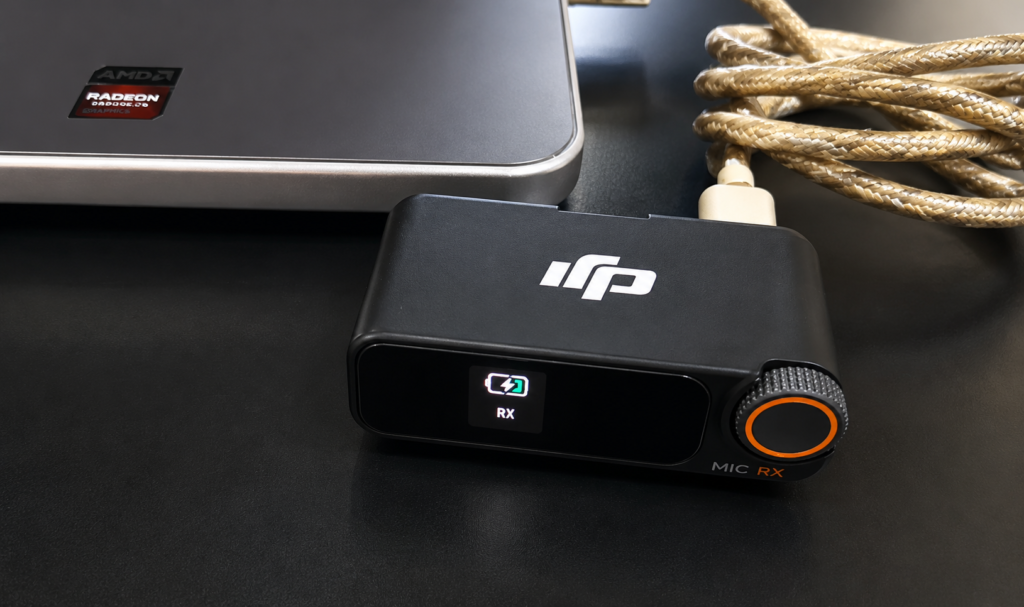
Step 4: Copy the Receiver Firmware File
- Open the USB drive that appeared after connecting the receiver
- Copy the RX firmware file you downloaded into this drive
- Once the copy is complete, safely disconnect/unplug the USB cable
- The receiver screen will now show ‘Updating’ automatically — this takes around 10–12 minutes
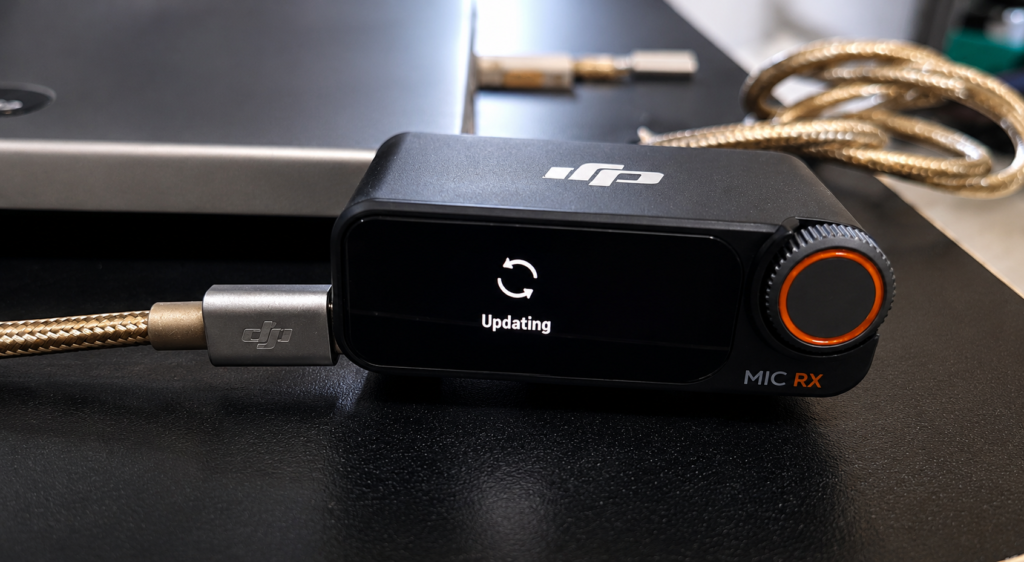
Step 5: Update the Transmitter
Power on your transmitter and connect it to your laptop using the same USB-C cable. It will also appear as a removable USB drive — copy the TX firmware file into it the same way. Unlike the receiver, the transmitter update begins almost immediately after you unplug the cable.
- Transmitter update LED behavior: One light turns green, followed by an orange/yellow blinking light during the update
- Update speed: Much faster than the receiver — often completes within a minute or two
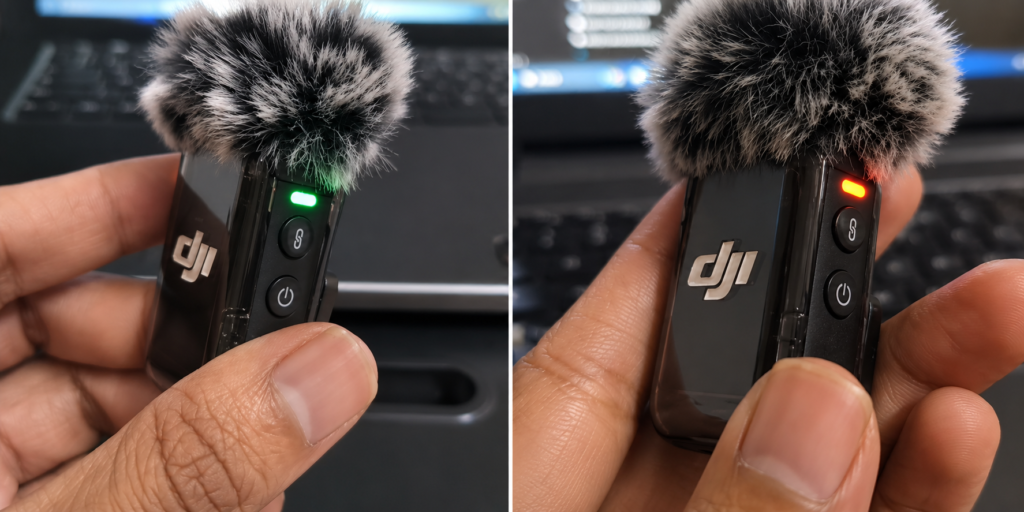
Step 6: Confirm the Update Was Successful
Go back to your receiver’s Settings → Version screen, just like in Step 1. Compare the version number to what it was before — if it shows the new version number (matching what you downloaded), the update completed successfully.
TIP: If the update fails or gets stuck, simply download the firmware files again, restart both the transmitter and receiver, and repeat the copy process. This resolves the update in almost all cases.
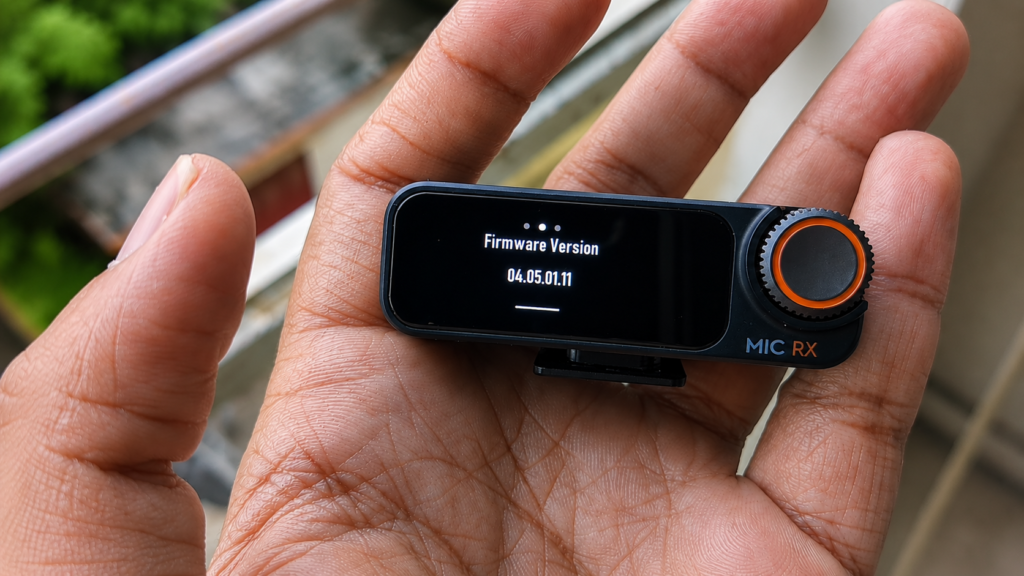
After the Update — What to Expect
- Noticeably improved bass and audio quality — confirmed by many user reviews after recent firmware updates
- More stable equalizer behavior — DJI has refined EQ presets in firmware updates
- Same pairing and settings retained — no need to re-pair transmitter and receiver after updating
- Updated version number visible on the receiver’s Settings screen for future reference
Common DJI Mic 2 Firmware Update Issues
- Receiver not showing as USB drive: Try a different USB-C cable or port. Make sure the receiver is fully powered off before connecting.
- Update stuck or frozen: Restart both devices, re-download the firmware files, and try the copy process again.
- Transmitter doesn’t start updating automatically: Make sure auto-record is disabled on the receiver touchscreen, or manually stop any internal recording on the transmitter before connecting it for the update.
- Version still shows old number after update: Double-check you copied the file into the root folder of the USB drive, not into a subfolder.
Watch the Full Tutorial on YouTube
This 3:57 video on TapsVision shows the entire firmware update process live — from checking the current version, to downloading firmware, to updating both the receiver and transmitter.
Recommended Accessories for DJI Mic 2 Owners
A few accessories that pair well with the DJI Mic 2:
1. DJI Mic 2 Furry Windscreen Cover — Reduces wind noise during outdoor recording, essential for vloggers and outdoor content creators.
2. USB-C to USB-C Fast Cable — A reliable spare cable for charging and firmware updates, useful to keep one at your desk permanently.
3. DJI Mic Mini Charging Case — If you only have the single TX+RX combo, the charging case version makes carrying and charging much more convenient.
Disclosure: Some links above may be affiliate links. If you purchase through them, I earn a small commission at no extra cost to you. I only recommend products I personally use or trust.
Frequently Asked Questions
How do I do a DJI Mic 2 firmware update?
Download the TX and RX firmware files from DJI’s official downloads page. Power off the receiver and connect it via USB-C to your computer, then copy the RX file into the drive that appears. Disconnect, and it updates automatically. Repeat with the transmitter using the TX file, which updates almost instantly.
DJI Mic 2 update — do I need an app?
No app is required for the DJI Mic 2 firmware update. The entire process uses only a USB-C cable connected to a laptop or computer, plus the firmware files downloaded directly from DJI’s website.
DJI Mic 2 update firmware — how long does it take?
The receiver typically takes around 10-12 minutes to complete its firmware update after you disconnect the USB cable. The transmitter updates much faster, usually within a minute or two of disconnecting.
DJI Mic firmware update — how do I check my current version?
On the receiver, scroll to the Settings menu (usually on the left side of the screen) and look for the Version field. This shows the firmware version for both the receiver and the currently connected transmitter.
DJI Mic 2 reset — is this the same as a firmware update?
No, resetting and updating firmware are different processes. A firmware update installs new software via USB-C and a computer, as covered in this guide. A factory reset typically clears pairing and settings without changing the firmware version — check DJI’s official manual for reset-specific steps.
DJI Mic 3 hindi — is the firmware update process the same?
The DJI Mic 3 actually has an easier update method — its receiver can connect to your phone via the DJI Mimo app for wireless firmware updates, including updating the transmitter and charging case through the same app. This differs from the Mic 2, which requires the USB-C and computer method shown in this guide.
DJI Mic 2 firmware update failed — what should I do?
If the update fails or gets stuck, download the firmware files again from DJI’s website, restart both the transmitter and receiver, and repeat the copy process. This resolves failed updates in the vast majority of cases.
Final Thoughts
Doing a DJI Mic 2 firmware update is far simpler than it sounds — no app, no DJI account, just a USB-C cable and the official firmware files from DJI’s website. The whole process, including both the transmitter and receiver, takes well under 15 minutes, and the audio quality and stability improvements are genuinely noticeable based on user feedback after recent updates.
If you bought your DJI Mic 2 some time ago and never checked for updates, it’s worth taking 15 minutes to do this — you may be missing real improvements DJI has already shipped.
If this guide helped you, subscribe to TapsVision on YouTube for more DJI, audio gear, and tech tutorials in Hindi.
— TapsVision