Want to use Samsung DeX on laptop without any cables, dock, or extra hardware? You can — using a built-in Windows feature most people don’t know exists. This guide shows the exact setup I used to mirror my Samsung Galaxy S23’s DeX desktop wirelessly onto an old Windows laptop (7-8 years old, no special hardware), turning my phone into a full desktop experience on the bigger screen. The whole setup takes about 5 minutes, most of it a one-time Windows configuration.
4,700+ views and 128 hours of watch time on TapsVision — with ‘Samsung DeX on laptop’ alone accounting for over 21% of all search traffic to this video.
How Does Samsung DeX Work Wirelessly on a Laptop?
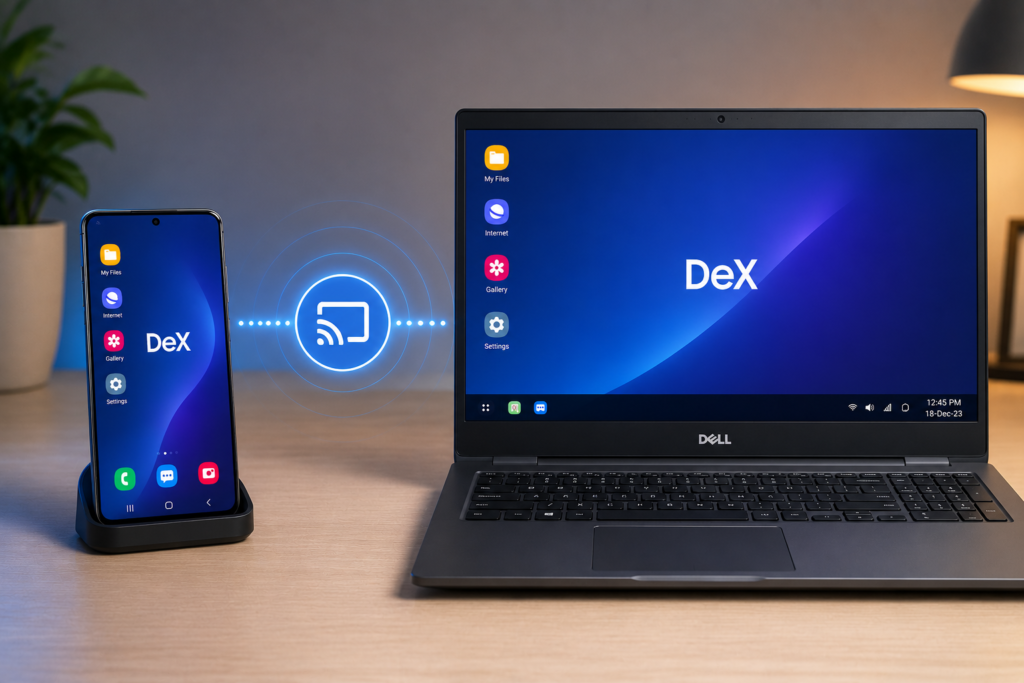
Samsung DeX normally needs a USB-C to HDMI cable or a DeX Station dock to connect to a monitor or TV. But for laptops and PCs, there’s a wireless alternative: Windows has a built-in Wireless Display receiver feature (based on Miracast) that DeX can connect to directly — no app, no extra software, no cable.
This works because Samsung DeX’s wireless mode uses the same Miracast screen-mirroring protocol that Windows already supports natively. You just need to make sure the right Windows feature is turned on first.
What You Need
- A Samsung Galaxy phone with DeX support (Galaxy S8 and newer support wired DeX; S20 and newer support wireless DeX)
- A Windows 10 or Windows 11 laptop/PC with Wi-Fi support (even older laptops work — tested on a 7-8 year old laptop in this guide)
- Both devices on the same Wi-Fi network
- No extra hardware, dock, or cable required
How to Connect Samsung DeX to Laptop — Step by Step
Step 1: Enable ‘Wireless Display’ as an Optional Feature in Windows
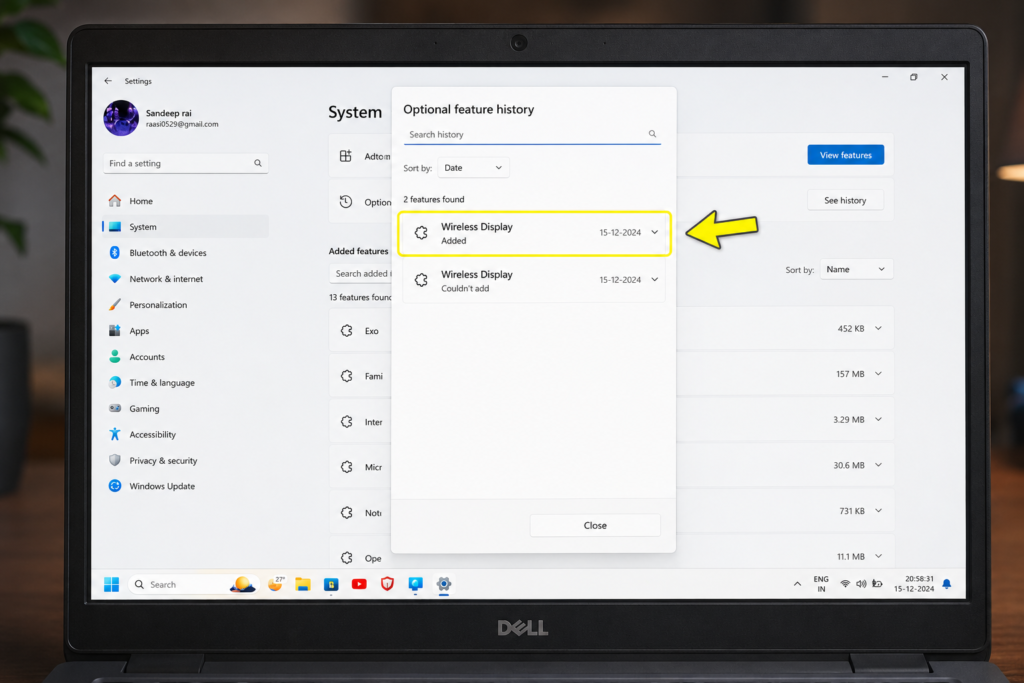
On your laptop, open Settings and search for “Optional Features”. Click Add an optional feature, then View features, and search for “Wireless Display”. If it’s not already installed, select it and click Install.
TIP: If you’ve already added Wireless Display before, you’ll see it listed under your installed optional features — you can confirm this by checking the install date/history.
Step 2: Restart Your Laptop
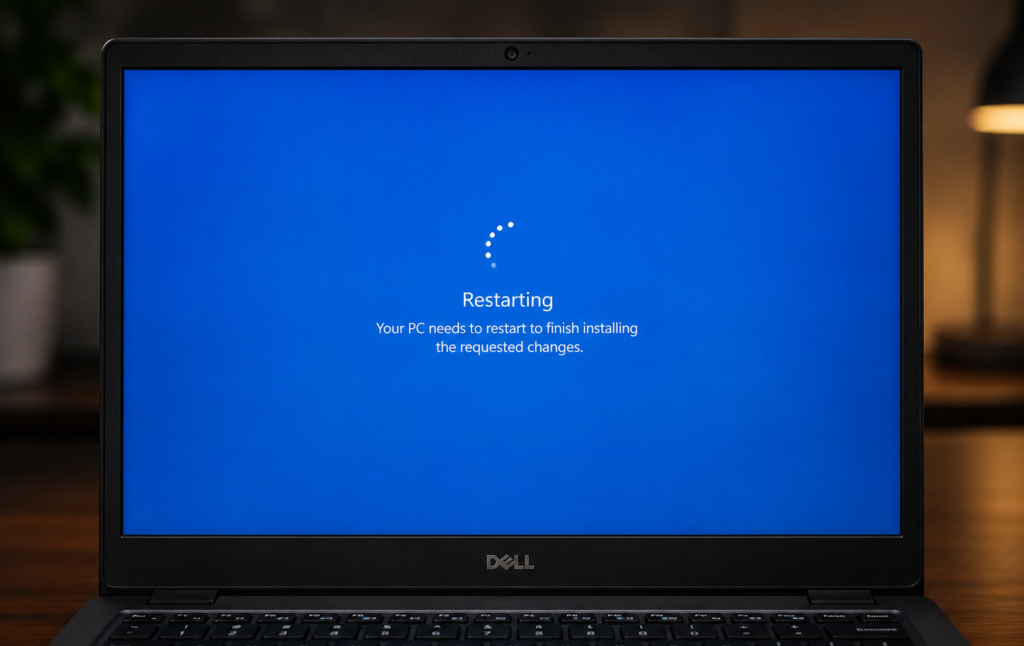
After adding the Wireless Display feature, restart your laptop once. This ensures the feature is fully activated and ready to receive a wireless connection.
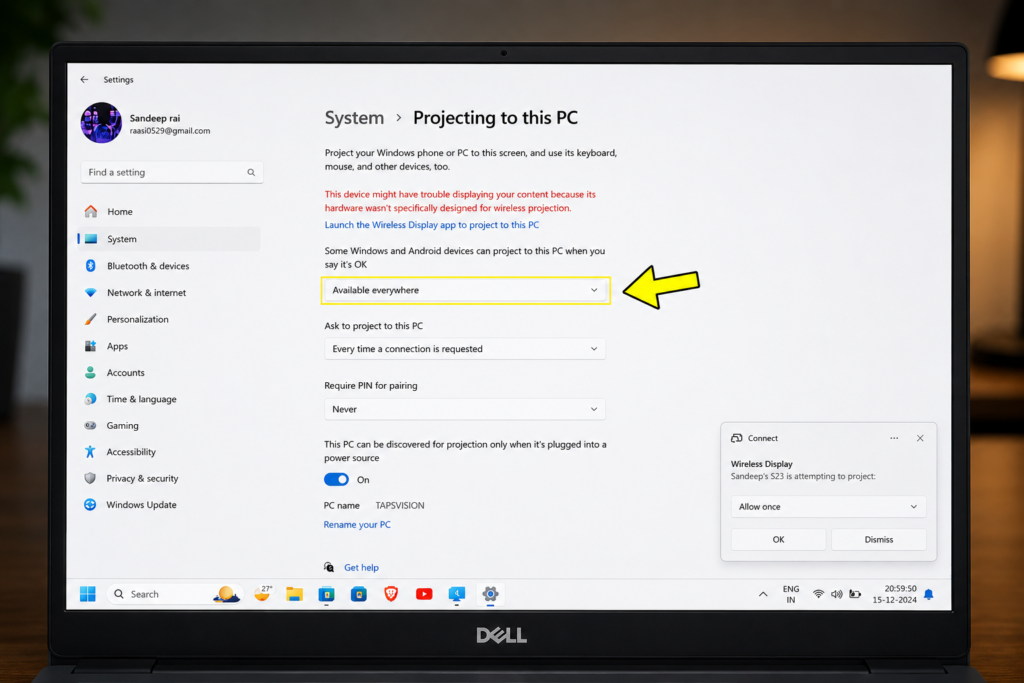
Step 3: Enable ‘Projecting to This PC’ in Windows Settings
After restarting, search “Projecting to this PC” in Windows Settings. By default, this is set to “Never”. Change it to “Available everywhere” (or “Available everywhere on secure networks” for added security). This setting allows your laptop to accept incoming wireless display connections, like from your Samsung phone’s DeX.
WARNING: This setting is OFF by default on most Windows installations. If you skip this step, your laptop will never appear as an option when trying to connect DeX wirelessly — this is the most commonly missed step.
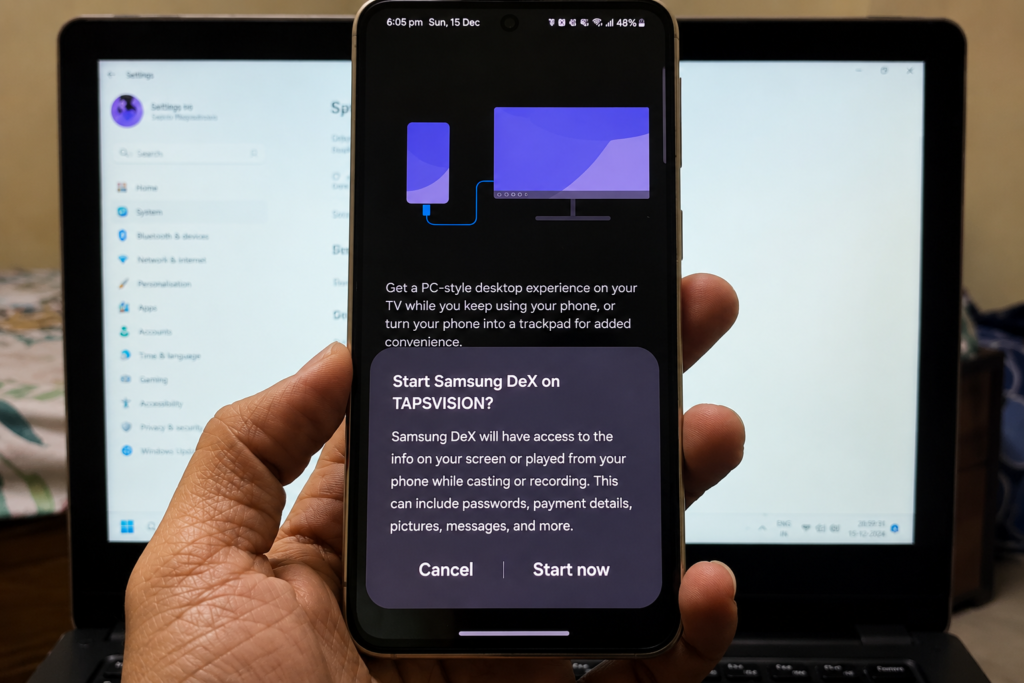
Step 4: Start DeX on Your Samsung Phone
On your Samsung phone, open the DeX option (via Quick Settings panel or Settings → Connected Devices → DeX). Your laptop should appear in the list of available devices by its device name. Tap it to start the connection.
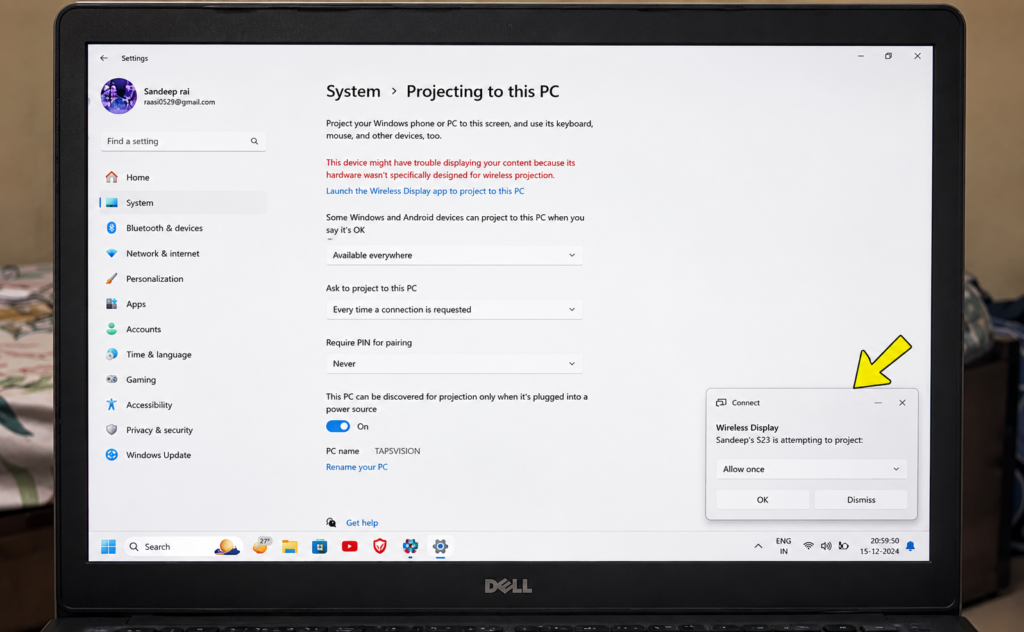
Step 5: Allow the Connection Permission
Your laptop will show a permission prompt asking to allow the incoming DeX connection. Tap Allow, and within a few seconds, the Samsung DeX desktop interface will appear on your laptop screen.
Step 6 (Important): Match Your Wi-Fi Networks
Double-check that your phone and laptop are connected to the exact same Wi-Fi network. This is required for the wireless connection to work — DeX cannot find your laptop if they’re on different networks (e.g., phone on mobile hotspot while laptop is on home Wi-Fi).
Using Samsung DeX on Your Laptop — Trackpad, Keyboard & Apps
Using Your Laptop’s Trackpad
Once connected, your laptop’s trackpad works as a mouse for the DeX interface automatically. There’s a brief learning curve — the gesture behavior feels slightly different from normal Windows trackpad use at first, but becomes natural after a few minutes.
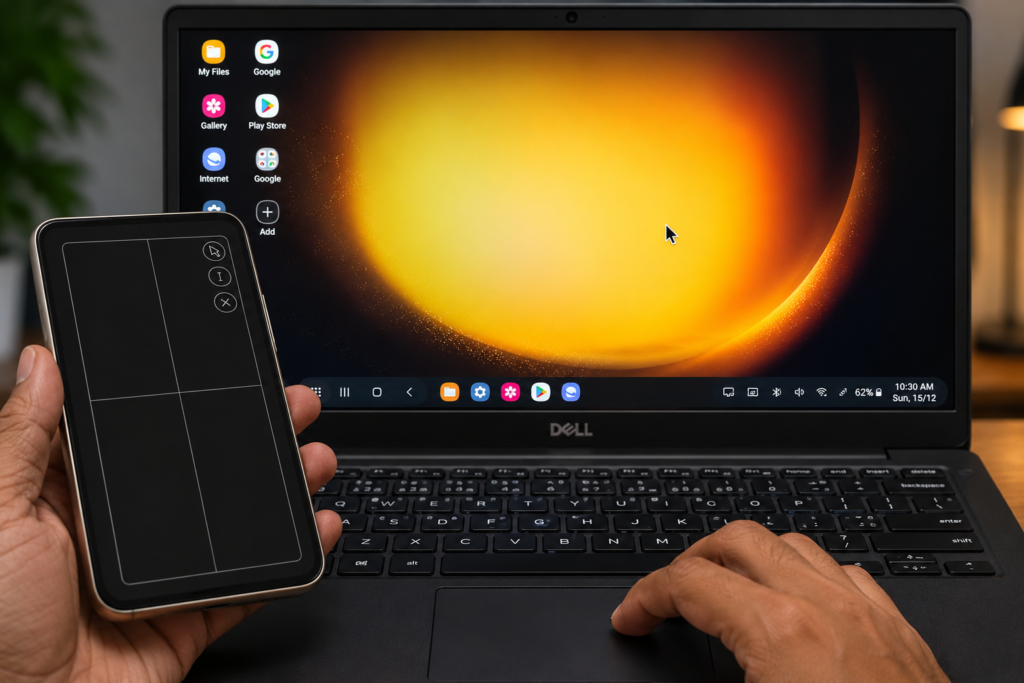
Using Your Laptop’s Keyboard
Your physical laptop keyboard works immediately for typing within any DeX app — no pairing or extra setup needed, since the connection handles both video and input simultaneously.
Opening and Resizing Apps
Apps open in a resizable pop-up window within the DeX desktop — similar to how Windows apps work. You can drag to resize, move windows around, and run multiple apps side by side, just like a real desktop multitasking experience.
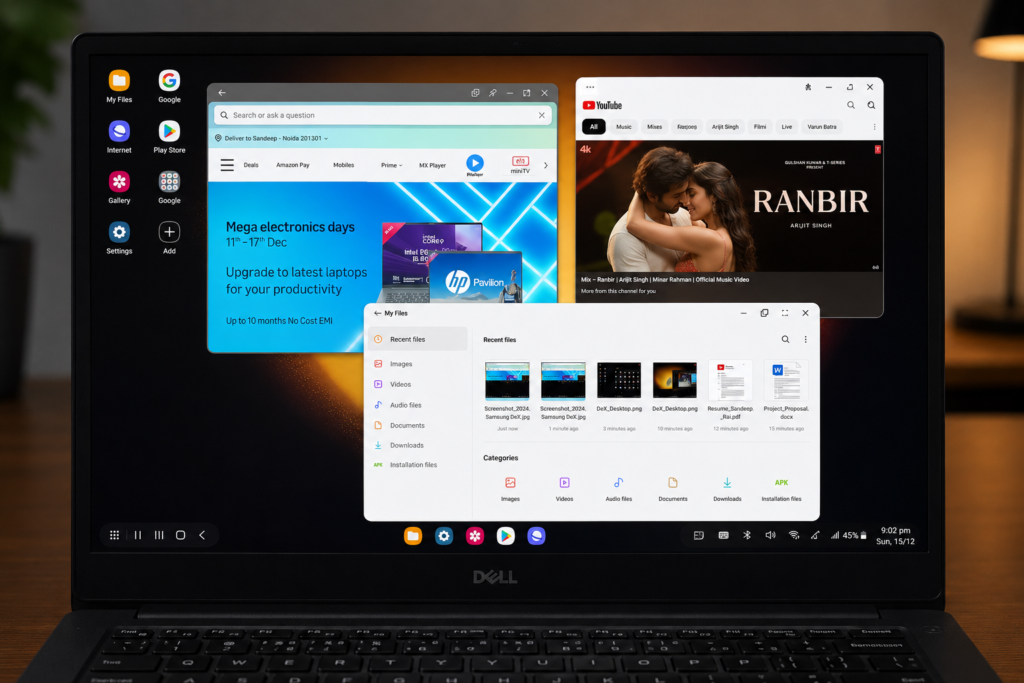
Exiting DeX
- Double-tap on the trackpad to exit out of the currently open app window
- Then navigate to the DeX menu and select Exit DeX
- This safely disconnects the wireless session from both devices
After Setup — What to Expect
- Works on Windows 10 and Windows 11 — confirmed working on both versions
- No cables needed — fully wireless from setup to daily use
- Works on old laptops too — tested successfully on a laptop 7-8 years old
- Internet speed matters — a faster Wi-Fi connection gives a smoother, more responsive DeX experience
- One-time setup — once Wireless Display and Projecting to this PC are configured, you won’t need to repeat Steps 1-3 for future connections
Samsung DeX on Laptop Not Working? Common Fixes
- Laptop doesn’t appear in DeX’s device list: Re-check that ‘Projecting to this PC’ is set to Available everywhere, and that both devices are on the same Wi-Fi network
- Connection drops or is laggy: Move closer to your Wi-Fi router, or switch to a 5GHz Wi-Fi band if available
- Wireless Display feature missing from Optional Features list: Some very old Windows 10 builds may need a Windows Update first — check for updates before retrying
- DeX not working on One UI 7: If you’ve recently updated to One UI 7 and DeX wireless stopped working, try restarting both your phone and laptop, then repeat Steps 3-4
Watch the Full Setup on YouTube
This 5:05 video on TapsVision shows the entire process live — from the Windows Optional Features setup to a working DeX session, including trackpad and app usage demos.
Recommended Accessories for Samsung DeX on Laptop
These accessories make the Samsung DeX laptop experience even better:
1. Bluetooth Mouse — For a more precise pointing experience than the trackpad while using DeX, especially for productivity tasks.
2. Wi-Fi Router (5GHz, Dual-Band) — A faster router reduces lag during wireless DeX sessions, especially important for video playback or gaming.
3. USB-C to HDMI Cable (Wired Backup) — For when you need a more stable, lag-free connection than wireless can provide.
Disclosure: Some links above may be affiliate links. If you purchase through them, I earn a small commission at no extra cost to you. I only recommend products I personally use or trust.
Frequently Asked Questions
How do I connect Samsung DeX to a laptop?
Enable the ‘Wireless Display’ optional feature in Windows Settings, restart your laptop, then set ‘Projecting to this PC’ to Available everywhere. Open DeX on your Samsung phone, select your laptop from the device list, and allow the connection prompt on your laptop.
How do I use Samsung DeX on a laptop?
Once connected wirelessly, your laptop’s trackpad acts as a mouse and the keyboard works for typing directly within the DeX interface. Apps open in resizable windows just like a normal desktop, letting you multitask between multiple apps.
Samsung DeX laptop — do I need special hardware?
No special hardware is required for wireless DeX on a laptop. Any Windows 10 or 11 laptop with Wi-Fi support works, including older laptops — this guide was tested successfully on a laptop that was 7-8 years old.
Samsung DeX Hindi mein kaise use karein?
Samsung DeX laptop pe wirelessly use karne ke liye Windows Settings mein ‘Wireless Display’ feature install karo, laptop restart karo, fir ‘Projecting to this PC’ ko ‘Available everywhere’ set karo. Phone mein DeX open karo aur laptop select karo.
Samsung DeX wireless laptop — will it work without internet?
You need Wi-Fi enabled on both devices (connected to the same network) for wireless DeX, but an active internet connection is not strictly required — a local Wi-Fi network or even a mobile hotspot without internet access can work, since the connection is device-to-device.
Samsung DeX Windows 11 — is the setup different from Windows 10?
The setup steps are identical on both Windows 10 and Windows 11: enable Wireless Display under Optional Features, restart, then set Projecting to this PC to Available everywhere. Both versions support this natively without extra downloads.
Samsung DeX not working — what’s the most common fix?
The most common issue is the ‘Projecting to this PC’ setting still being set to ‘Never’ (the Windows default). Search for this setting specifically and change it to ‘Available everywhere’ — this alone resolves the majority of DeX-to-laptop connection failures.
Samsung DeX on PC — does this work on desktop computers too?
Yes, as long as your desktop PC has Wi-Fi capability (built-in or via a USB Wi-Fi adapter) and runs Windows 10 or 11, the same Wireless Display and Projecting to this PC setup works identically to a laptop.
How to use Samsung DeX in laptop without Wi-Fi router?
You can use your phone’s mobile hotspot as the shared network — connect your laptop to your phone’s hotspot, then start DeX. As long as both devices share the same network, a traditional Wi-Fi router isn’t strictly necessary.
Final Thoughts
Getting Samsung DeX on laptop working wirelessly comes down to two Windows settings most people never touch: enabling the Wireless Display optional feature, and changing ‘Projecting to this PC’ from Never to Available everywhere. Once those are set, connecting DeX is as simple as tapping your laptop’s name from your phone.
This setup works on old laptops, doesn’t require any special hardware or cables, and gives you a genuinely usable desktop experience powered entirely by your Samsung phone.
If this guide helped you, subscribe to TapsVision on YouTube for more Samsung tips, Windows tricks, and Android tutorials in Hindi.
— TapsVision