Want to record a cinematic video on your Pixel 6a with that smooth background blur effect? The problem: Pixel 6a and Pixel 6 do not have the native Cinematic Mode that came with the Pixel 7 and Pixel 7 Pro. But here’s a completely free workaround that works on any Android smartphone — using Instagram Reels’ background blur effect.
�� 18,600+ views since May 2023. This trick works on Pixel 6a, Pixel 6, and all Android phones — Samsung, OnePlus, Realme, Poco, and more.
Does Pixel 6a Have Cinematic Mode?
No — Pixel 6a does not have a native Cinematic Mode. Google’s Cinematic Mode (which blurs the background during video recording while keeping the subject sharp) was introduced with the Pixel 7 and Pixel 7 Pro. It is not available on Pixel 6, Pixel 6a, or earlier models.
Apple iPhone has had a similar feature called Cinematic Mode since iPhone 13. Google brought a comparable feature to Pixel, but only starting with the 7th generation. Pixel 6a users were left out.
The good news: you can get a very similar background blur cinematic effect on your Pixel 6a — and even on any other Android phone — completely free using an Instagram Reels blur effect.
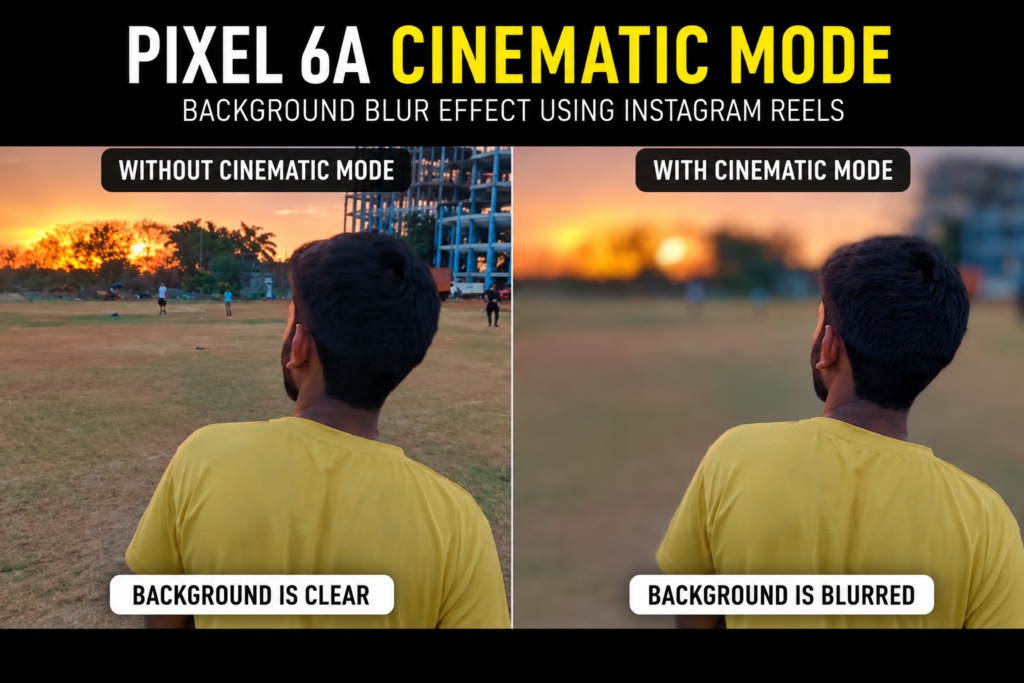
How to Get Cinematic Background Blur on Pixel 6a — Using Instagram Reels
You do not need any paid app or external camera accessory. You just need Instagram installed on your phone. Here is the complete step-by-step method:
Step 1: Open Instagram and Start a Reel
- Open Instagram on your Pixel 6a (or any Android phone)
- Tap the “+” (Create) button at the bottom
- Select Reel from the options
- Set the duration to 90 seconds (this is the maximum for Reels and gives you the most recording flexibility)
Step 2: Find the Background Blur Effect
- Tap the Effects icon (smiley face / sparkle icon) on the left side of the camera screen
- Tap the Search bar inside Effects
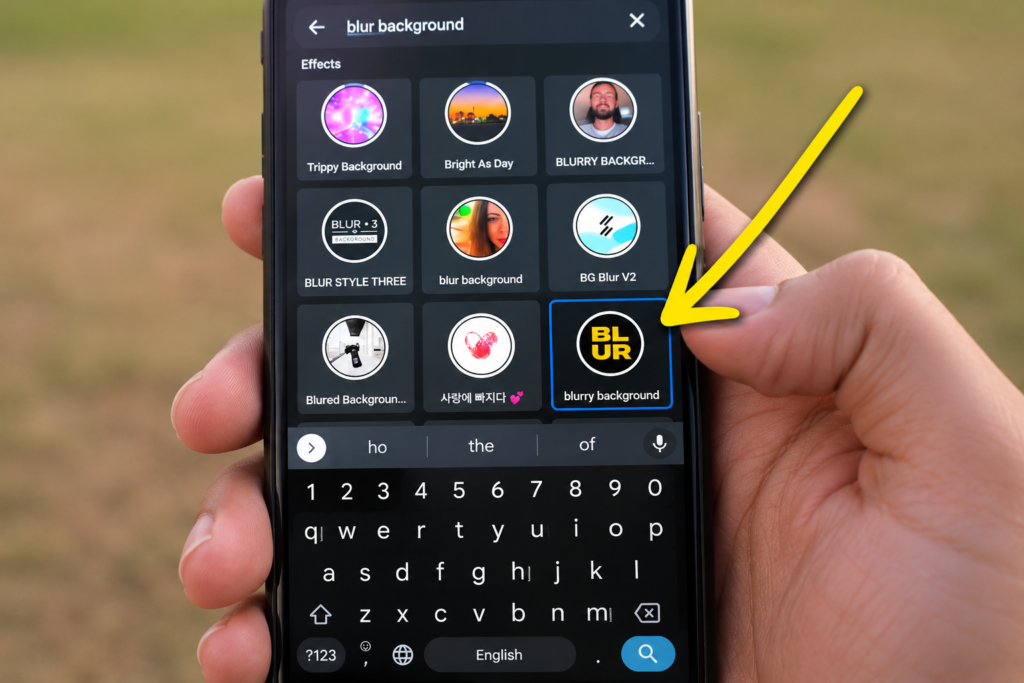
- Type “blur background” and search
- Scroll down through the results until you find the Blur Background effect (it may also appear in the top suggestions after you search)
- Tap on it to preview and select the effect
�� Tip: Once you’ve used it once, Instagram saves it under your recently used effects — so you won’t need to search every time.
Step 3: Record Your Cinematic Video
- With the Blur Background effect active, press and hold the record button to start recording
- Point your camera at your subject — person, object, or anything you want in focus
- The background will automatically blur while your subject stays sharp
- You can record in short clips — just tap record, pause, and record again for the next clip within the 90 second window
�� Pro tip: Have your subject move slightly between foreground and background while recording — the blur effect responds to depth and looks more natural and cinematic when there is some movement.
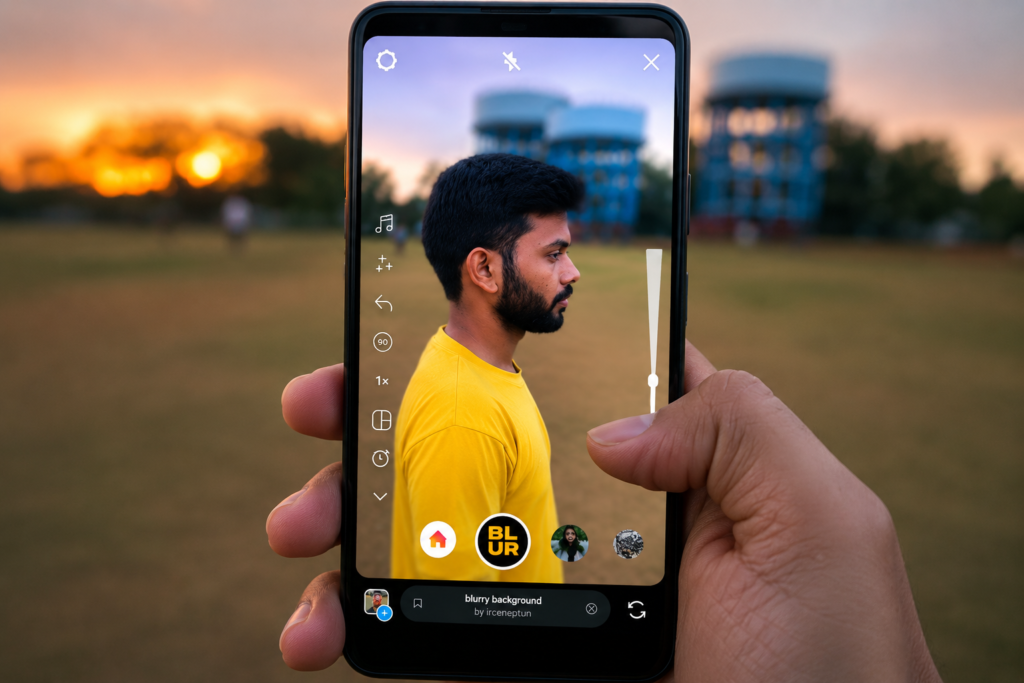
What Does the Blur Background Effect Actually Look Like?
The effect is genuinely impressive. The background gets a soft, natural-looking blur similar to a shallow depth-of-field effect from a DSLR or a phone with dedicated portrait video mode. The subject stays sharp and well-defined.
I demonstrated this live in the video with a friend as the subject. As the subject moved between the foreground and background, the blur adjusted naturally. The transition between the subject and blurred background looks clean.
Compatible Phones — Does This Work on Other Android Phones Too?
Yes — this trick works on any Android phone with Instagram installed. It does not require any specific hardware. Here is a quick compatibility overview:
| Phone | Instagram Blur Trick Works? |
| Google Pixel 6a | ✅ Yes — confirmed in this video |
| Google Pixel 6 / 6 Pro | ✅ Yes |
| Google Pixel 7 / 7a / 7 Pro | ✅ Yes (also has native Cinematic Mode) |
| Samsung Galaxy (any model) | ✅ Yes |
| OnePlus / Realme / Poco | ✅ Yes |
| iPhone (any) | ✅ Yes (Instagram app) |
Watch the Full Video on YouTube
In the video, I demonstrated live recording using the Instagram blur background effect on my Pixel 6a. You can see the real-time blur effect applied to the background while my friend moves as the subject — the cinematic depth-of-field result looks genuinely impressive.
Frequently Asked Questions
Pixel 6a cinematic video — does Pixel 6a have cinematic mode?
No. Google Pixel 6a does not have a native Cinematic Mode in its camera app. Cinematic Mode was introduced with the Pixel 7 and Pixel 7 Pro. However, you can achieve a very similar background blur cinematic effect using the Instagram Reels blur background effect — for free, on any Android phone.
Google Pixel 6a cinematic video — how to get the blur background?
Open Instagram, start a Reel, set duration to 90 seconds, tap Effects, search ‘blur background’, select the effect, and start recording. The background will blur automatically while your subject stays in focus. This works on Pixel 6a, Pixel 6, and all Android phones.
Pixel 6a cinematic mode — is it available after any update?
As of May 2023, Pixel 6a does not have native cinematic mode even after updates. Google has not added this feature to Pixel 6a. The Instagram Reels method in this guide is the best free alternative available.
Google pixel 6a cinematic mode — can I use any other app for background blur video?
Yes. Besides Instagram, apps like Snap Camera and some third-party camera apps offer blur background effects. However, the Instagram Reels blur background effect gives one of the cleanest and most natural-looking results among free options — which is why I recommend it.
Pixel 7a cinematic video — does the Instagram trick work on Pixel 7a too?
Yes. The Instagram blur background trick works on Pixel 7a as well. Additionally, Pixel 7a has the native Cinematic Mode in its camera app, giving you two options. For Pixel 6a users, the Instagram method is the only free way to achieve this effect.
Pixel 6a portrait video — is background blur possible during video?
Pixel 6a supports portrait mode for photos but not for video natively. For portrait-style video with background blur, use the Instagram Reels blur background method described in this guide. The result looks very similar to a portrait video.
Google pixel 6a camera settings — any settings to enable for better cinematic video?
For the best cinematic video quality on Pixel 6a, set your camera to 4K resolution before recording. For the background blur trick, use Instagram Reels as described. No special camera settings inside the Pixel camera app are needed for the Instagram method.
Pixel 6a cinematic video kaise shoot karein?
Pixel 6a mein native cinematic mode nahi hai. Instagram use karo: Reel banao, 90 second duration select karo, Effects mein ‘blur background’ search karo, effect select karo aur record karo. Background blur hoga, subject sharp rahega. Ye trick kisi bhi Android phone pe kaam karta hai.
Google pixel 6a video quality — is it good for cinematic content?
Pixel 6a records excellent video — up to 4K resolution with good dynamic range and Google’s computational photography processing. When combined with the Instagram background blur effect, the cinematic video output looks very polished for a mid-range phone.
Pixel 6 cinematic video — same Instagram trick works?
Yes. The Instagram Reels blur background trick works exactly the same way on Pixel 6 and Pixel 6 Pro. Neither of these models has native cinematic mode, so the Instagram method is the best free alternative for all Pixel 6 series users.
Final Thoughts
The Pixel 6a cinematic video limitation — no native Cinematic Mode — is frustrating, but this Instagram Reels blur background trick is a genuinely good workaround. It is free, requires no extra app download, and produces a natural-looking background blur that looks great in both indoor and outdoor settings.
The trick works on any Android phone — not just Pixel. Whether you have a Samsung, OnePlus, Poco, Realme, or any other Android device, you can get this cinematic effect in under 2 minutes using nothing but Instagram.
Try it out and let me know in the comments how it looks on your device. If your background blur is working, drop a comment below — would love to see your results!
For more Pixel tips and Android camera tricks in Hindi, subscribe to TapsVision on YouTube.
— TapsVision