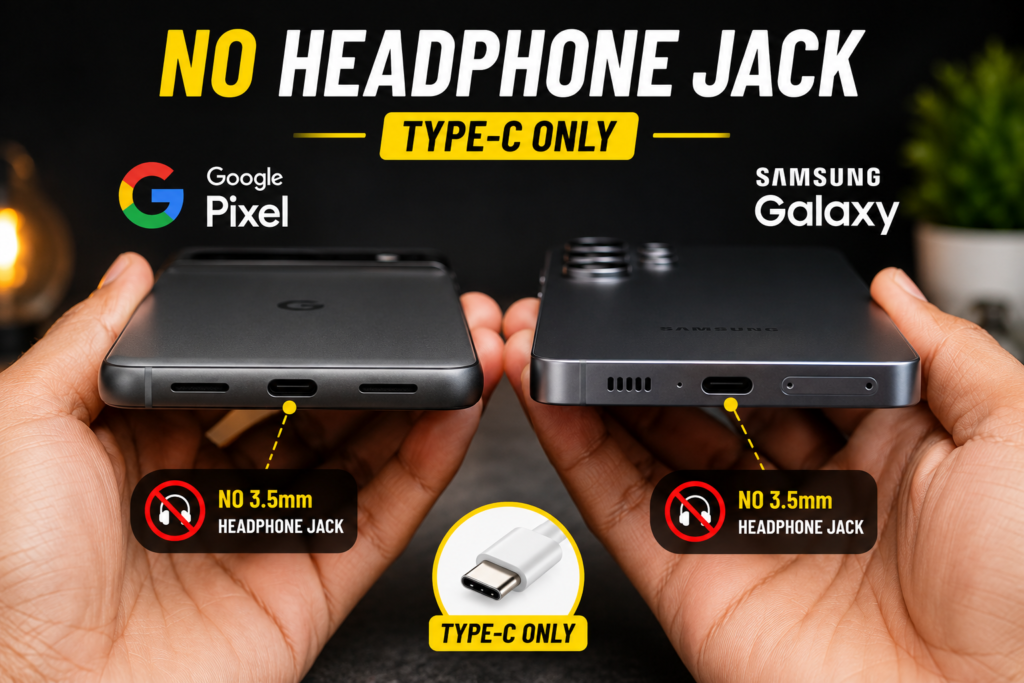
Trying to connect an external mic to a Google Pixel or Samsung phone but stuck because there’s no 3.5mm headphone jack? You’re not imagining it — Pixel phones and recent Samsung models (like the S24 series) have dropped the audio jack entirely. If you own a wired lavalier mic like the Boya BY-M1 and want to use it for vlogging or interviews, you need one small, cheap accessory: a Type-C to 3.5mm dongle. But not every dongle works — here’s exactly which one does and how to set it up.
680+ views and over 10 hours of watch time on TapsVision — based on real testing with multiple dongles to find one that actually carries microphone audio, not just headphone output.
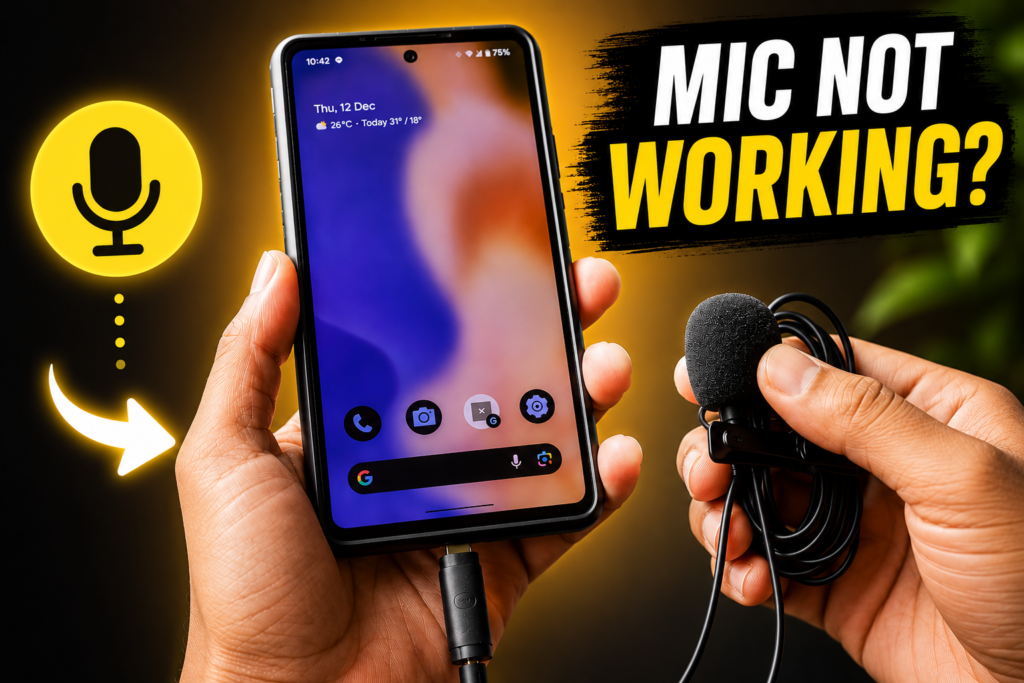
Why Won’t My External Mic Work on Pixel or Samsung?
This isn’t a defect — it’s a hardware design choice that creates a real compatibility issue:
- No 3.5mm headphone jack: Google Pixel phones (6 series onward) and recent Samsung flagships (S24 series and similar) removed the analog audio jack entirely.
- Not every USB-C dongle supports microphone input: Most cheap Type-C to 3.5mm dongles are designed only for headphone output — they don’t carry the microphone signal back into the phone.
- You need a dongle with a built-in DAC chip that supports both directions: audio out (for monitoring) AND mic in (for recording).
WARNING: Many budget dongles will let you plug in a wired mic, but the phone simply won’t detect it as a microphone — it’ll just register as headphones with no mic function. This is the most common reason people think their lavalier mic is ‘broken’ when it’s actually the dongle’s fault.
What You Need
- A Google Pixel or Samsung phone without a 3.5mm headphone jack
- A wired lavalier microphone (e.g., Boya BY-M1, or similar 3.5mm TRRS mic)
- A Type-C to 3.5mm dongle that supports microphone input — not just audio output (covered below)
- A camera or recording app (Google Camera, Samsung Camera, or Samsung Voice Recorder)
Which Type-C Dongle Actually Works for External Mics?
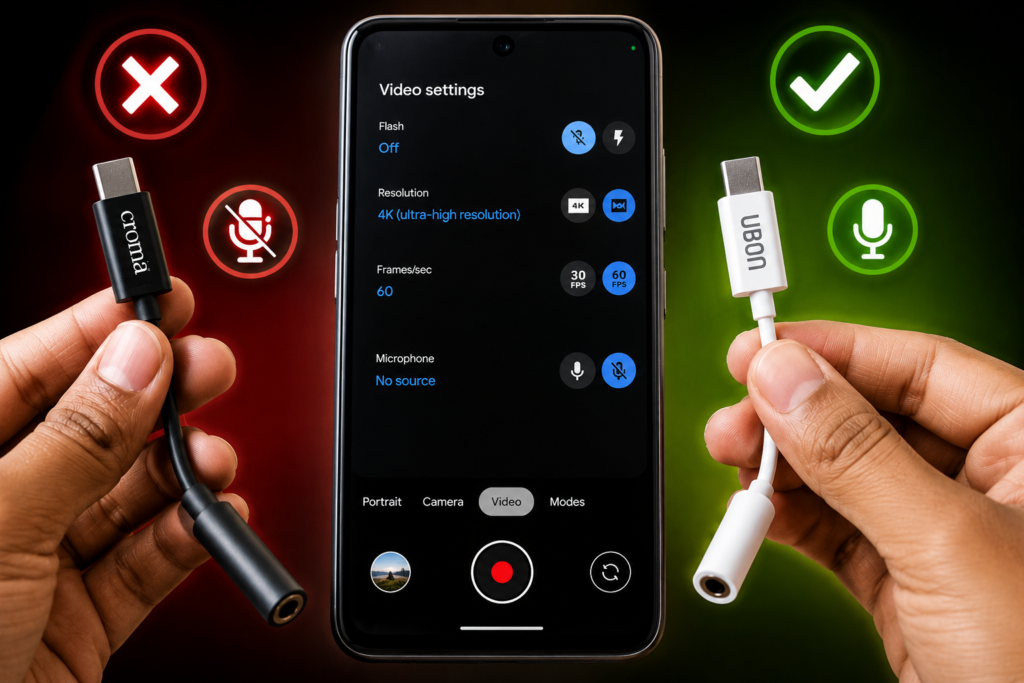
This is the part most tutorials get wrong. I personally tested a Croma-branded dongle first — it worked fine for headphones/earphones but failed to carry microphone input from my Boya lavalier mic. After researching further, I found a dongle from Ubon that worked perfectly with the Boya mic.
- Croma dongle: Worked for earphones, but the Boya mic was not detected — not suitable for external mic use
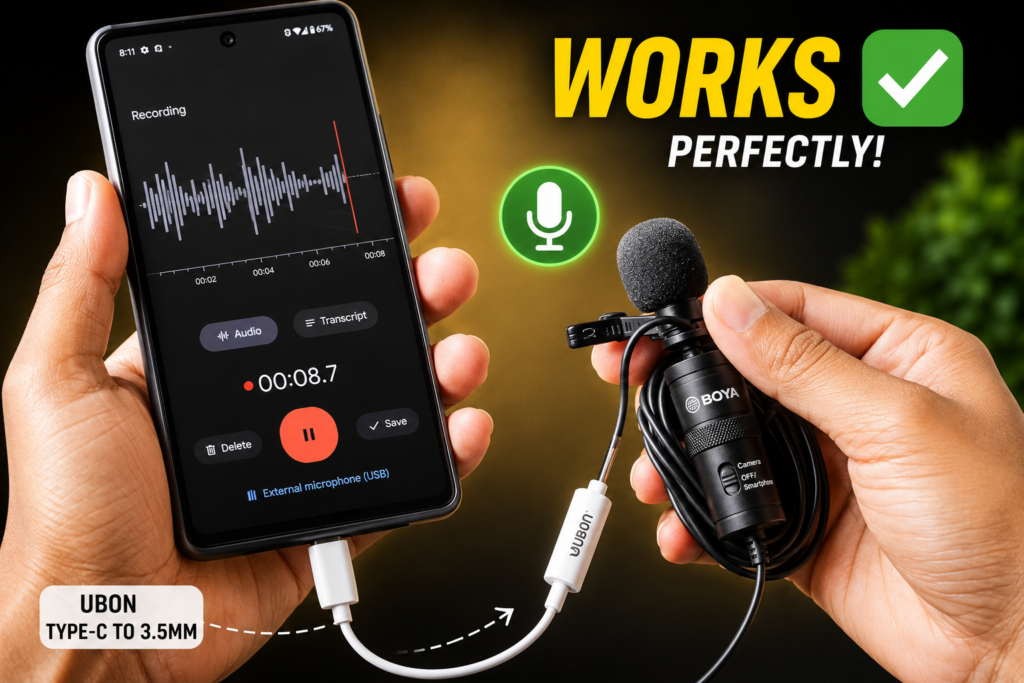
- Ubon dongle: Confirmed working with the Boya BY-M1 lavalier mic — mic input properly detected and recorded
TIP: Availability of specific mic-compatible dongles can be inconsistent online — they often show as out of stock on Amazon and Flipkart. Checking a local electronics or mobile accessory shop is often faster and cheaper (this dongle cost under ₹200 locally).
How to Connect and Set Up Your External Mic — Step by Step
Step 1: Connect the Dongle and Microphone
- Plug the Type-C to 3.5mm dongle into your Pixel or Samsung phone’s charging port
- Plug your wired lavalier mic (e.g., Boya BY-M1) into the 3.5mm end of the dongle
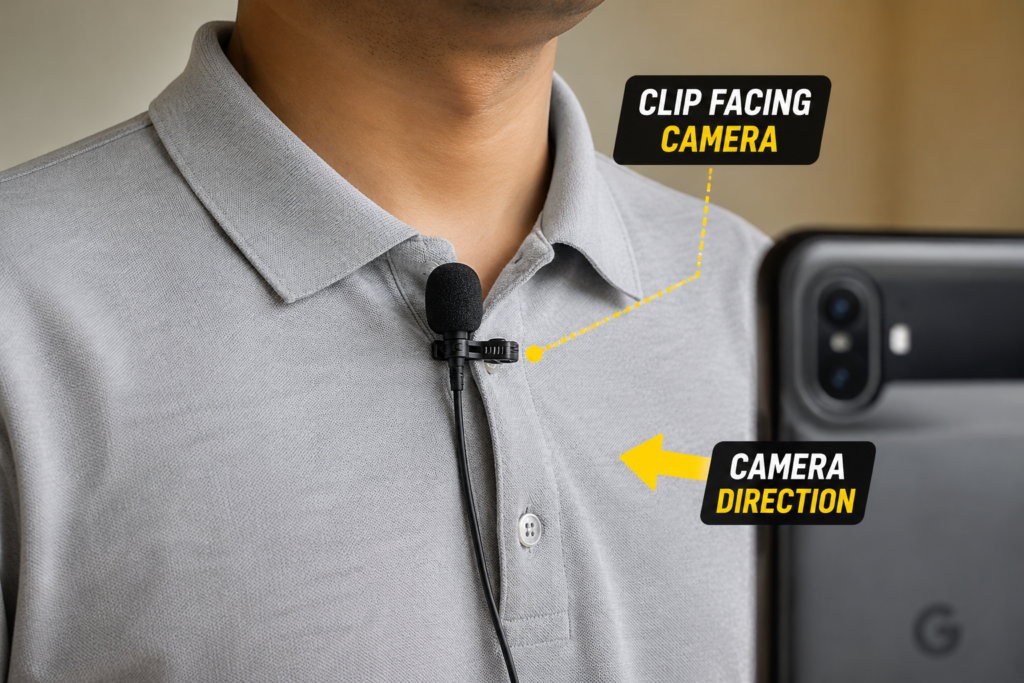
- Clip the microphone onto your collar, with the clip facing toward your smartphone’s camera
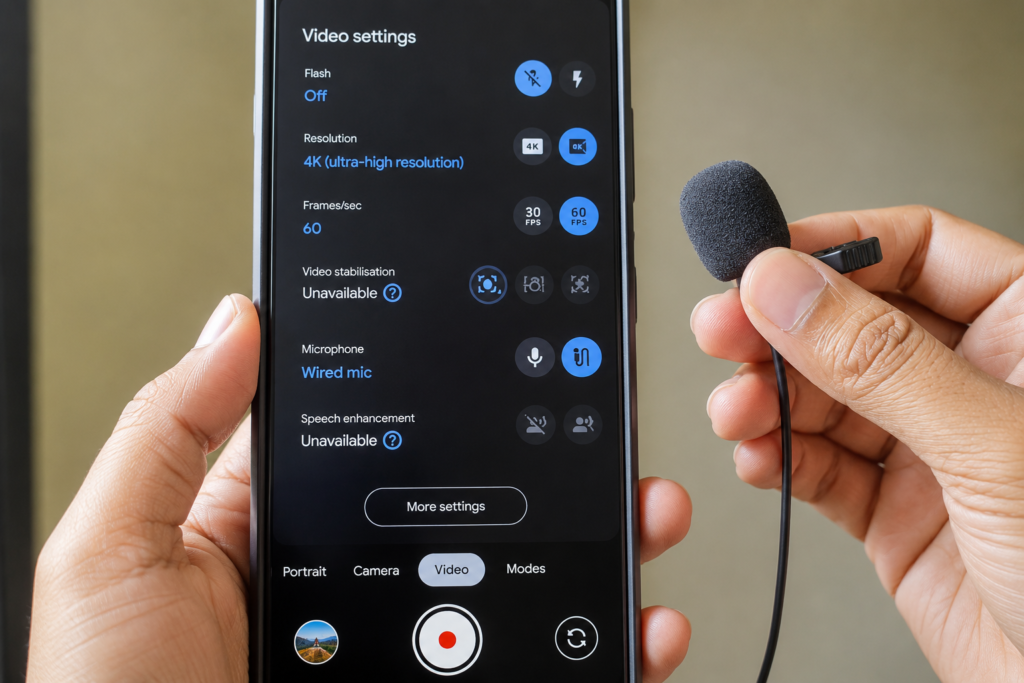
Step 2: Select the External Mic in Your Camera App
- Open your phone’s Camera app
- Tap the Settings icon, then find the Microphone option
- By default, it will show ‘Phone Mic’ — tap this and change it to ‘Wired Mic’
- Your external lavalier mic is now active for video recording
Step 3: Using It with Recorder Apps (Samsung/Google)
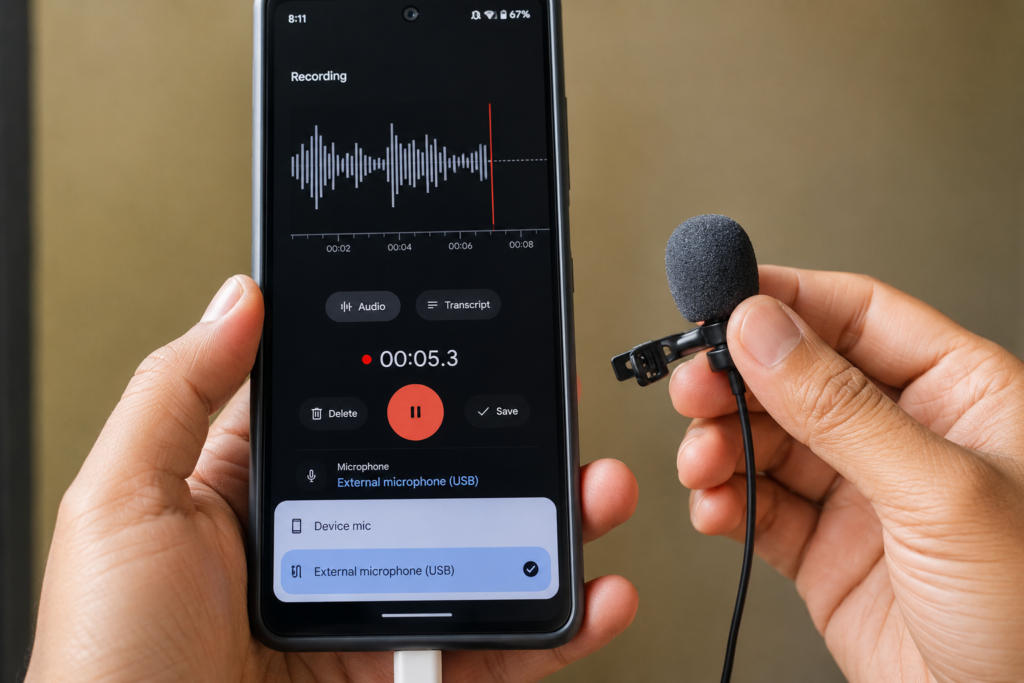
The same external mic option is available in Samsung’s Voice Recorder and Google’s default Recorder app. Open the app, go to settings, and select External Mic instead of the built-in phone microphone — useful for podcasts, interviews, or any audio-only recording.
Step 4: Test Your Audio Before Recording
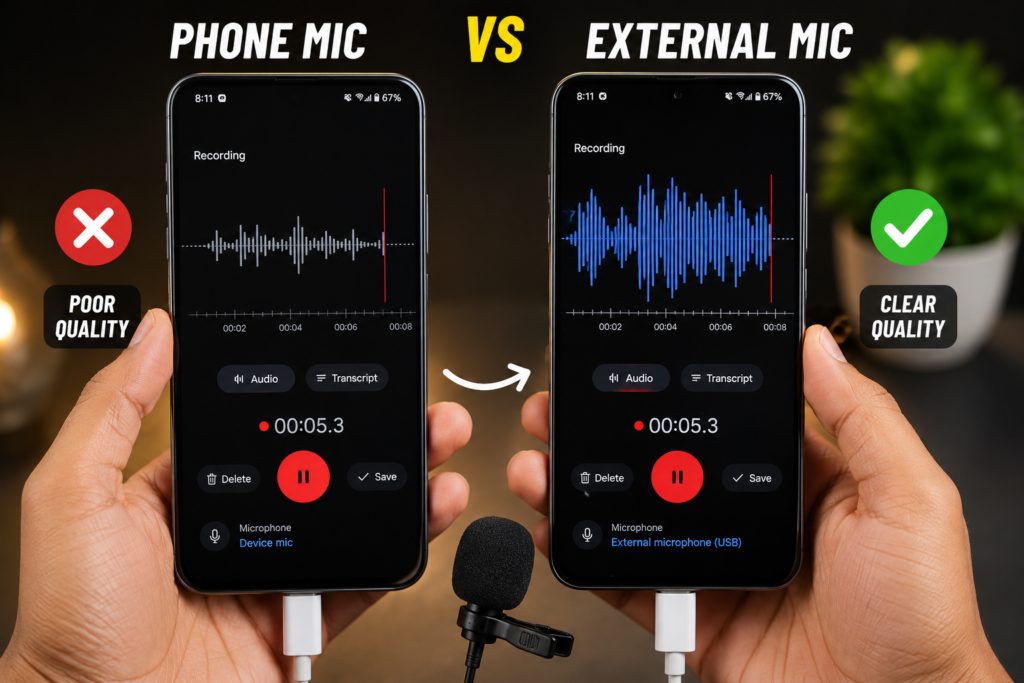
- Record a short test clip using your phone’s built-in mic first, for comparison
- Then record the same test using the external wired mic through the dongle
- Play both back and compare clarity, background noise, and volume levels
TIP: The difference is usually dramatic — a lavalier mic clipped close to your mouth picks up far clearer audio with much less background noise compared to your phone’s built-in mic, especially in outdoor or noisy environments.
After Setup — What to Expect
- Clear, close-range audio from the lavalier mic, much better than the phone’s built-in mic for vlogging or interviews
- Works across apps — once selected, the wired mic setting applies to Camera, Recorder, and most third-party recording apps
- No app installation required — this uses your phone’s native audio routing, no extra software needed
- Reusable setup — once you confirm your dongle works, you can plug and unplug the mic anytime without reconfiguring
Which Phones Need This Dongle Setup?
Google Pixel (No Headphone Jack)
- Pixel 6, 6a, 6 Pro
- Pixel 7, 7a, 7 Pro
- Pixel 8, 8a, 8 Pro and newer
Samsung (No Headphone Jack)
- Galaxy S24, S24+, S24 Ultra
- Galaxy S23, S23+ (most variants)
- Newer Galaxy A-series flagship models
If your phone still has a 3.5mm jack (many budget Android phones still do), you can skip the dongle entirely and plug the lavalier mic directly into your phone.
Watch the Full Tutorial on YouTube
This 2:44 video on TapsVision shows the entire dongle testing process — including the Croma dongle that didn’t work, the working alternative, camera settings, and a live audio sample comparison.
Recommended Mic and Dongle Combo — Buy Links
Based on personal testing, here’s the exact combo that works:
1. Type-C to 3.5mm Audio Dongle (Mic-Compatible) — Confirmed working with wired lavalier mics, unlike many budget dongles that only support headphone output.
2. Boya BY-M1 Lavalier Microphone — The exact wired lavalier mic used in this guide, known for clear voice pickup and an affordable price.
3. DJI Mic 2 (Wireless Alternative) — If you want to skip dongles entirely, a wireless mic system like DJI Mic 2 connects without needing a 3.5mm dongle at all.
Disclosure: Some links above may be affiliate links. If you purchase through them, I earn a small commission at no extra cost to you. I only recommend products I personally use or trust.
Frequently Asked Questions
How do I connect an external mic to a Google Pixel phone?
Use a Type-C to 3.5mm dongle that supports microphone input (not just audio output). Plug the dongle into your Pixel’s charging port, plug your wired mic into the dongle, then go to your Camera app’s settings and change the microphone option from ‘Phone Mic’ to ‘Wired Mic’.
How do I connect an external mic to a Samsung phone with no headphone jack?
Same method as Pixel — use a Type-C to 3.5mm dongle compatible with microphone input. Connect your wired mic through the dongle, then select ‘External Mic’ or ‘Wired Mic’ in your Camera app or Samsung Voice Recorder settings.
What is the best Type-C to 3.5mm dongle for microphones?
Not all dongles support microphone input — many only carry audio output for headphones. In testing, a Croma-branded dongle failed to detect the mic, while an Ubon dongle worked correctly with a Boya BY-M1 lavalier mic. Always check that the dongle explicitly supports mic-in, not just audio-out.
Boya microphone setup mobile — how do I get it working?
Connect the Boya BY-M1 (or similar wired mic) to a mic-compatible Type-C to 3.5mm dongle, plug the dongle into your phone, clip the mic to your collar facing your camera, then select ‘Wired Mic’ in your Camera app’s microphone settings.
Google Pixel 6a microphone — does it support external mics?
Yes, but since the Pixel 6a has no 3.5mm jack, you need a Type-C to 3.5mm dongle with microphone support to use any wired external mic. Once connected, select ‘Wired Mic’ in the Camera app settings to activate it.
Type C to aux adapter — will any adapter work for recording?
No, not every Type-C to aux adapter supports two-way audio. Many budget adapters only carry audio output for headphones and don’t pass microphone signal back to the phone. Look specifically for dongles marketed as supporting both audio output and microphone input.
Lavalier mic no headphone jack — what’s the workaround?
The workaround is a Type-C to 3.5mm dongle with microphone support. This lets you continue using any standard 3.5mm wired lavalier mic on phones that have removed the headphone jack, like recent Pixel and Samsung models.
External mic not working on Android — how to troubleshoot?
First, confirm your dongle supports microphone input, not just headphone output — this is the most common cause. Then check your Camera or Recorder app settings to ensure ‘Wired Mic’ or ‘External Mic’ is selected instead of the default phone microphone.
Wired mic android phone — which camera setting do I change?
Open your Camera app, tap Settings, find the Microphone option (usually shows ‘Phone Mic’ by default), and change it to ‘Wired Mic’. The same external mic option is also available in Samsung’s Voice Recorder and Google’s Recorder app.
Final Thoughts
Losing the 3.5mm headphone jack on Google Pixel and Samsung phones doesn’t mean you’re stuck without external mic support — it just means you need the right Type-C to 3.5mm dongle. The key is making sure the dongle explicitly supports microphone input, not just headphone audio output, since many budget dongles only handle one direction.
Once you have a working dongle, the setup itself takes seconds: plug in, clip your mic, and switch your Camera app’s microphone setting to ‘Wired Mic’. The audio quality improvement over your phone’s built-in mic is significant, especially for vlogging, interviews, or any content where clear voice matters.
If this guide helped you get your mic working, subscribe to TapsVision on YouTube for more Android, Pixel, and Samsung tech tips in Hindi.
— TapsVision