Don’t have a laptop handy but need to write or edit some HTML, CSS, or JavaScript right now? You can do the entire thing from your Android phone using a free app called Acode. In this guide, we’ll install Acode, grab a free starter template from Bootstrap, edit it directly on your phone, and preview the live result in your browser — no computer required at any step.
Quick answer: install Acode from the Play Store, paste a free HTML template from getbootstrap.com into a new file, tap Run, and select your browser to preview the live website — all directly on your phone.
Note: One single search term — “acode app se website kaise banaye” — accounts for over 19% of all views this video has ever received, a strong sign this exact question is what most people are looking for.
Video Stats: “Coding a website in a Android Smartphone | Acode…” | 929 views since published | 18.1 watch hours | Top search: ‘acode app se website kaise banaye’ (122 views, 19.1%)
Does This Method Still Work in 2026?
Yes — and Acode has actually gotten better since this video was made. It’s still actively updated (the current version as of mid-2026 continues to receive regular updates), and it’s still recommended by multiple independent 2026 tech reviews as one of the best code editors for Android. It has also picked up a genuinely useful new feature: a built-in AI Assistant plugin that can connect to OpenAI, Google, or Ollama models directly inside the app, letting you generate boilerplate code or debug through a chat interface — on top of the manual editing method shown in this guide.
What Is Acode and Why Use It Instead of a Laptop?
Acode is a free, lightweight code editor built specifically for Android. It supports syntax highlighting for more than 100 languages, has a live preview mode for web pages, and — unlike many mobile code editors — it can open, edit, and run real HTML/CSS/JavaScript projects without needing an internet connection for the editing itself. It’s not a replacement for a full development setup, but for quick edits, learning, or building a simple site while away from your computer, it’s genuinely capable.
How to Build a Website Using Acode on Your Phone
Here’s the exact process, step by step.
Step 1: Install Acode
- Open the Play Store on your Android phone.
- Search for “Acode” and install it (it’s free, with an optional paid Pro upgrade to remove ads).
- Open the app once installed.
Step 2: Get a Free Starter Template from Bootstrap
- Open your phone’s browser and go to getbootstrap.com.
- Find the “Starter Template” (or any example template) and open it.
- Copy the full HTML code shown for that template.
Step 3: Create a New File in Acode and Paste the Code
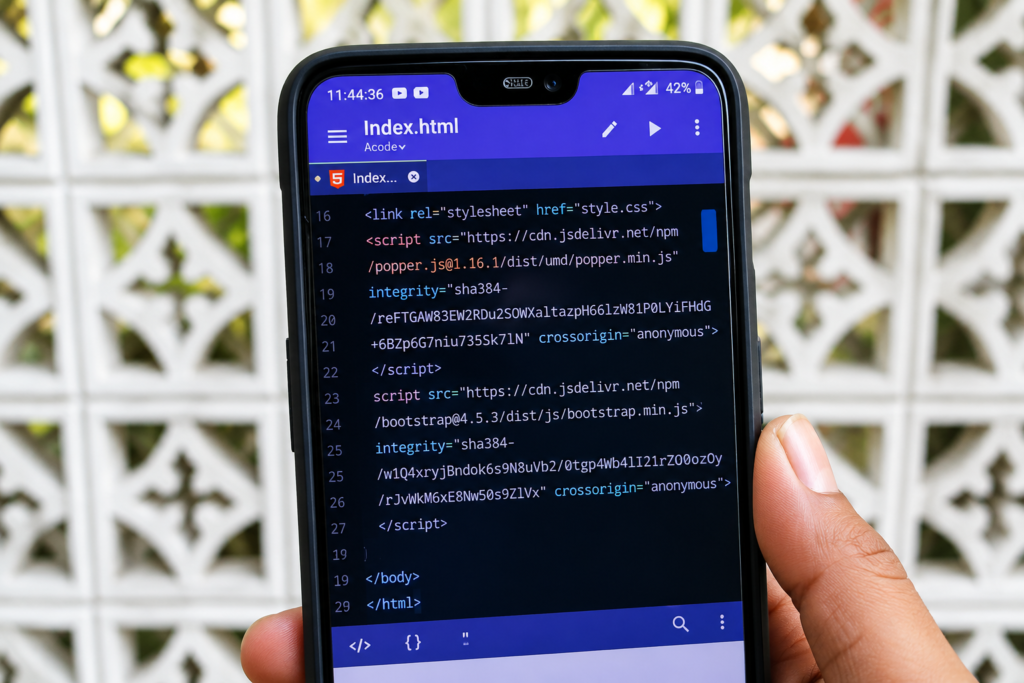
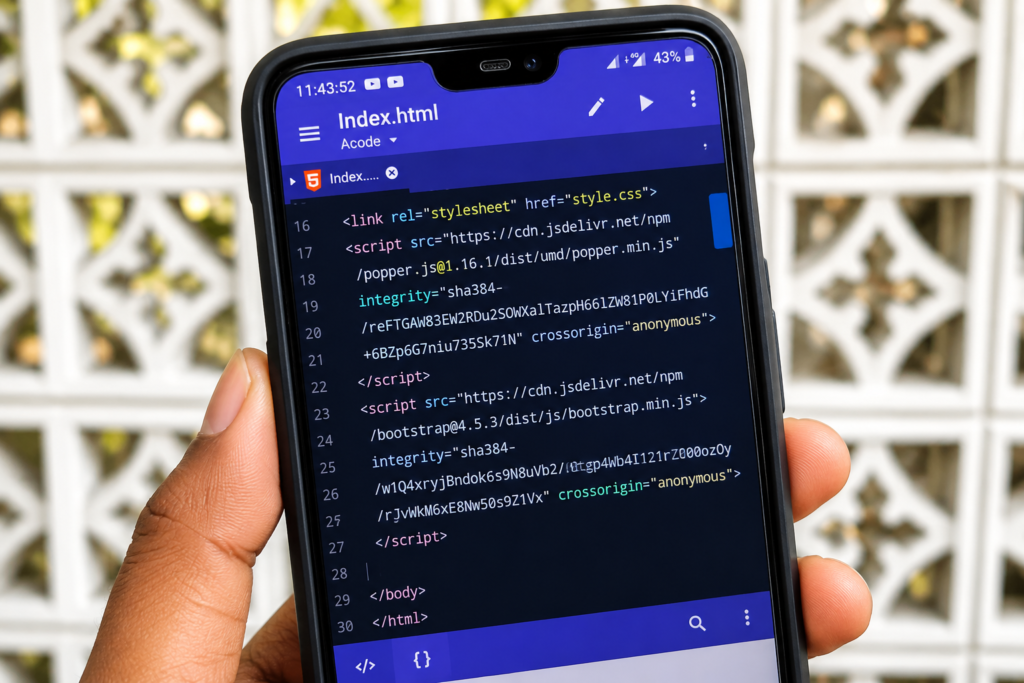
- In Acode, create a new file and name it index.html.
- Paste the Bootstrap template code you copied.
- Save the file.
Step 4: Preview Your Website
- Tap the Run button inside Acode.
- Choose your preferred browser when prompted.
- Your phone’s browser will open and show the live “Hello, World!” starter page — this confirms your setup is working correctly.
Step 5: Customize It — Add a Navigation Bar
- Go back to getbootstrap.com’s examples section and find a navbar component you like.
- Copy that navbar’s HTML code.
- Paste it into your index.html file inside Acode, replacing or adding to your existing content.
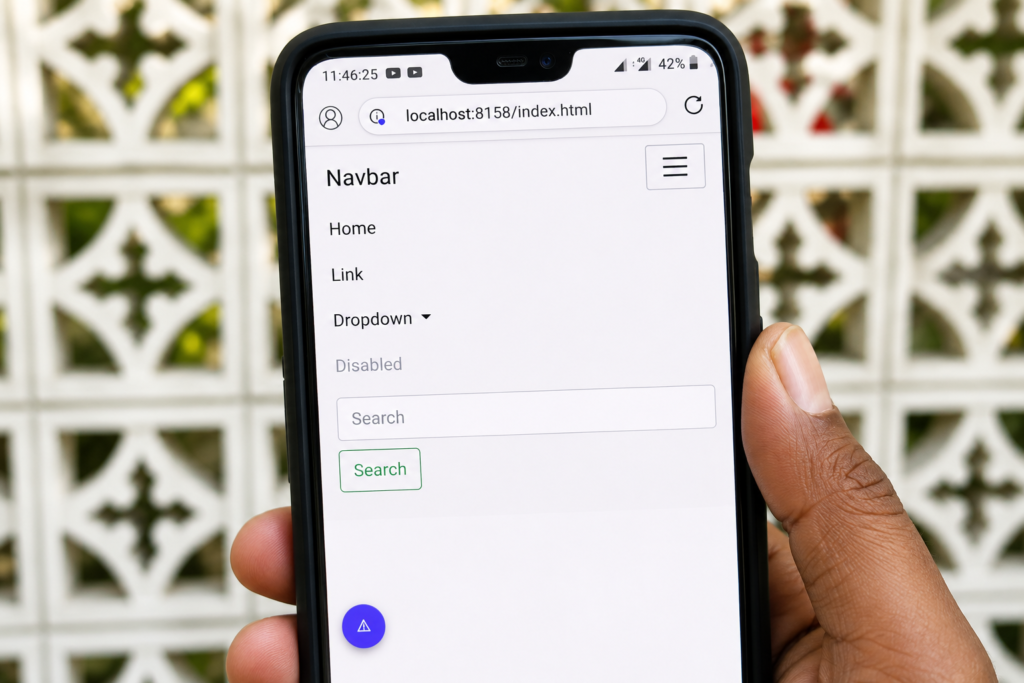
- Tap Run again to preview — you should now see your custom navbar live in the browser, with working links and a responsive menu.
Step 6: Keep Building
From here, the process is the same for any section you want to add — cards, forms, footers, image galleries. Browse Bootstrap’s examples, copy the HTML you like, paste it into Acode, and hit Run to preview. You can build a genuinely complete, responsive website this way, entirely from your phone.
Pro Tips for Coding on Your Phone
- Keep your file names and folder structure simple at first — deeply nested folders are harder to manage on a small screen.
- Use Acode’s plugin store to add extras like a live server, Git integration, or the built-in AI Assistant if you want help generating code faster.
- A physical or Bluetooth keyboard makes longer coding sessions much more comfortable, though it’s completely optional for quick edits.
- Save frequently — Acode has file recovery, but it’s good practice regardless of the tool.
FAQs — Frequently Asked Questions
Q1. Acode app se website kaise banaye?
Install Acode from the Play Store, create a new HTML file, paste a free starter template from getbootstrap.com, and tap Run to preview it in your browser. You can then customize it by copying and pasting more Bootstrap components like navbars, cards, and forms.
Q2. What is Acode used for?
Acode is a free Android code editor used for writing and editing HTML, CSS, JavaScript, Python, and many other languages directly on your phone. It’s especially popular for quick web development edits when a computer isn’t available.
Q3. Can I build a real, working website using only the Acode app?
Yes — you can write complete HTML, CSS, and JavaScript files and preview them live in your phone’s browser. For actually publishing the site online, you’d additionally need a hosting service, but all the coding itself can be done in Acode.
Q4. Is there a tutorial for using the Acode app as a beginner?
The step-by-step guide above covers the basics: installing Acode, pasting a starter template, and previewing it. From there, exploring Bootstrap’s example components is the fastest way to keep learning by doing.
Q5. How do I use HTML in the Acode app?
Create a new file with a .html extension inside Acode, write or paste your HTML code, save it, and tap the Run button to preview it directly in your phone’s browser.
Q6. Is Acode a powerful enough code editor for real projects?
For learning, prototyping, and small-to-medium projects, yes — it supports syntax highlighting for over 100 languages, multi-file projects, and a plugin system for extra features like Git integration. For large, complex production codebases, a full desktop IDE is still the better tool.
Q7. Does Acode have AI features now?
Yes — a newer addition is a built-in AI Assistant plugin that connects to OpenAI, Google, or Ollama models, letting you generate boilerplate code or get help debugging directly inside the app through a chat interface.
Q8. What’s the difference between coding a website manually and using AI tools like Claude?
Manually coding with Acode and Bootstrap templates (this guide) gives you full control and helps you actually learn HTML/CSS. Using an AI tool like Claude to generate a site for you is faster if you just want a finished result without writing code yourself. We’re covering that AI-based approach in an upcoming guide — for now, this method is the best way to actually understand how the code works.
Final Thoughts — You Don’t Need a Laptop to Start Coding
Between Acode’s continued updates and its new AI Assistant plugin, this phone-only coding method is more capable in 2026 than when this video was first made. If you just want to learn HTML/CSS hands-on or make a quick edit while away from your computer, this is a genuinely solid way to do it. Keep an eye out for our upcoming guide on building a full website using AI tools like Claude directly from your phone — a faster, complementary approach for when you just want a finished site without writing the code by hand.
If you found this guide helpful, subscribe to the TapsVision YouTube channel and hit the bell icon — we post practical Android and web development guides regularly, in both Hindi and Hinglish, just for you!
Subscribe TapsVision on YouTube for daily Hindi tech tips — Android, coding, web development, and more!
Have a question? Comment below or message us on the YouTube video. Everyone is welcome in the TapsVision community!
— TapsVision