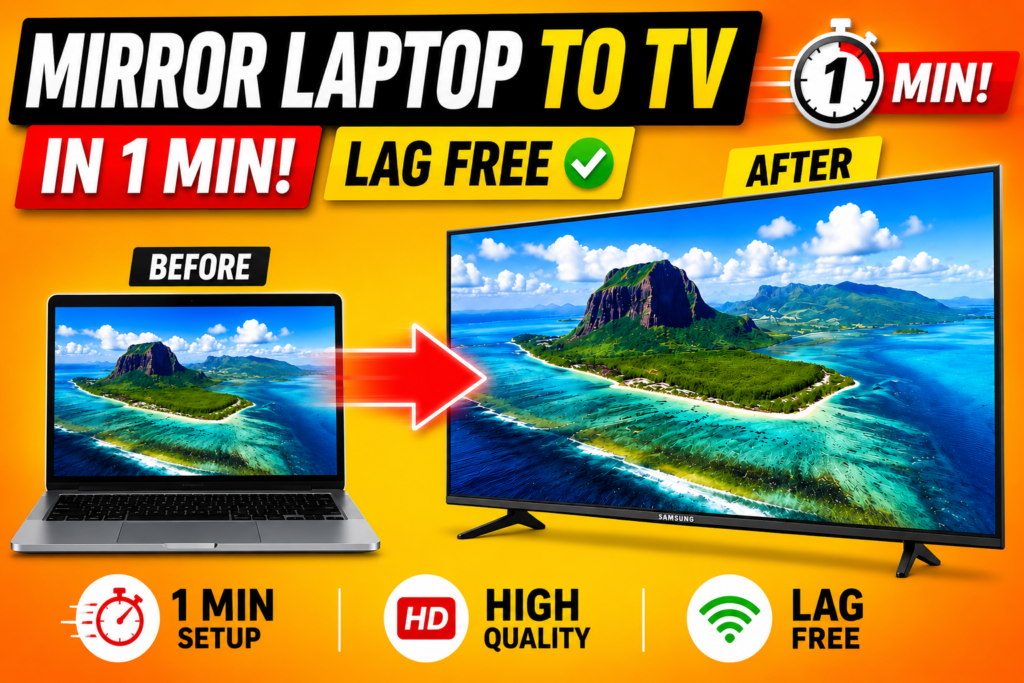
Bored of your small laptop screen? The simplest and most reliable way to connect your laptop to TV is with an HDMI cable. No Wi-Fi needed, no app required, no lag, no delay — just plug in and your laptop screen mirrors to your TV instantly.
This guide shows you exactly how to connect laptop to TV with HDMI cable in under 1 minute. Works on any TV brand — Samsung, LG, Sony, Mi, OnePlus — and any laptop running Windows, MacOS or Linux.
An HDMI cable costs as little as ₹100-200 and gives you a completely lag-free, zero-delay connection. Wireless screen sharing cannot match this speed.
Why Use HDMI Cable Instead of Wireless?
There are multiple ways to connect a laptop to a TV — Wi-Fi casting, Chromecast, Miracast, Samsung DeX — but HDMI cable is the best for most users because:
- Zero lag and zero delay — cables are always faster than wireless
- No app installation required — pure plug and play
- Works on any TV with an HDMI port — Samsung, LG, Sony, Mi, OnePlus, any brand
- Works on any laptop — Windows, Mac, Linux
- Audio also plays through the TV automatically
- No internet required — works even without Wi-Fi
- Perfect for movies, coding, trading, presentations, gaming
What You Need
- An HDMI cable (standard Type-A HDMI) — available for ₹100-200 online or at any electronics shop
- A laptop with an HDMI port (most laptops have one)
- A TV with an HDMI port (all modern TVs have at least one)
- TV remote to switch input source
⚠ If your laptop has a Mini HDMI, Micro HDMI, or USB-C port instead of full-size HDMI, you will need an adapter. Check your laptop’s port type before buying the cable.
How to Connect Laptop to TV with HDMI Cable — Step by Step
Step 1 — Connect the HDMI Cable to Your TV
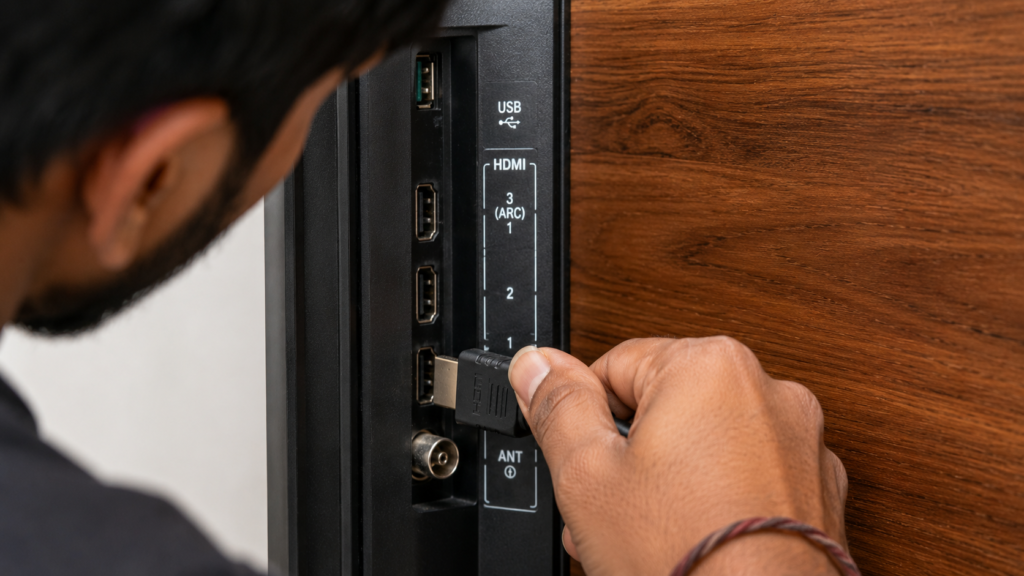
Take your HDMI cable and plug one end into the HDMI port on your TV. Most TVs have 2-3 HDMI ports on the back or side. Remember which HDMI port number you used — HDMI 1, HDMI 2, or HDMI 3.
Step 2 — Connect the Other End to Your Laptop
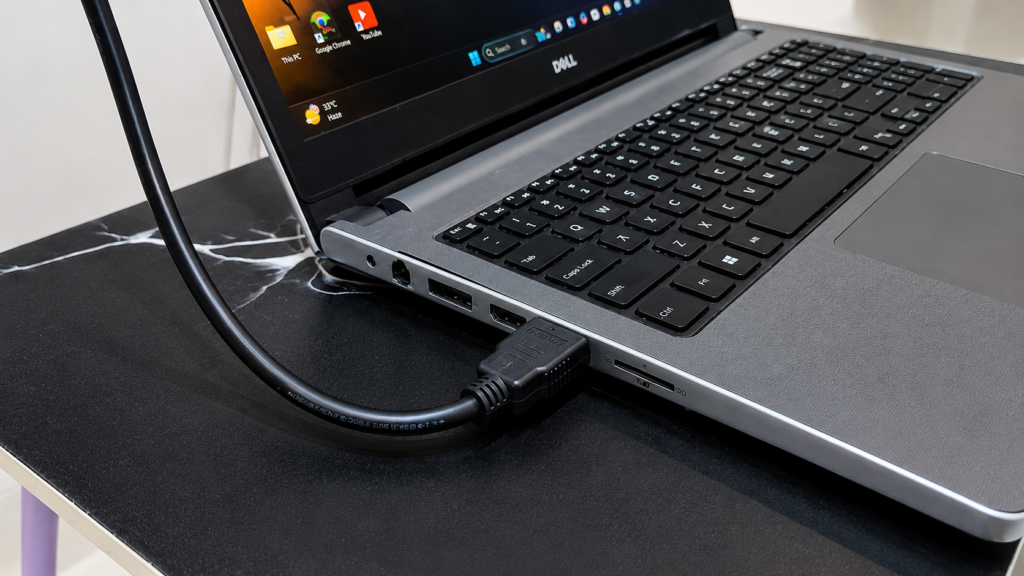
Plug the other end of the HDMI cable into your laptop’s HDMI port. It is usually on the left or right side of the laptop. The connection is one-directional — one end is TV, other end is laptop.
Step 3 — Select HDMI Input on Your TV Remote
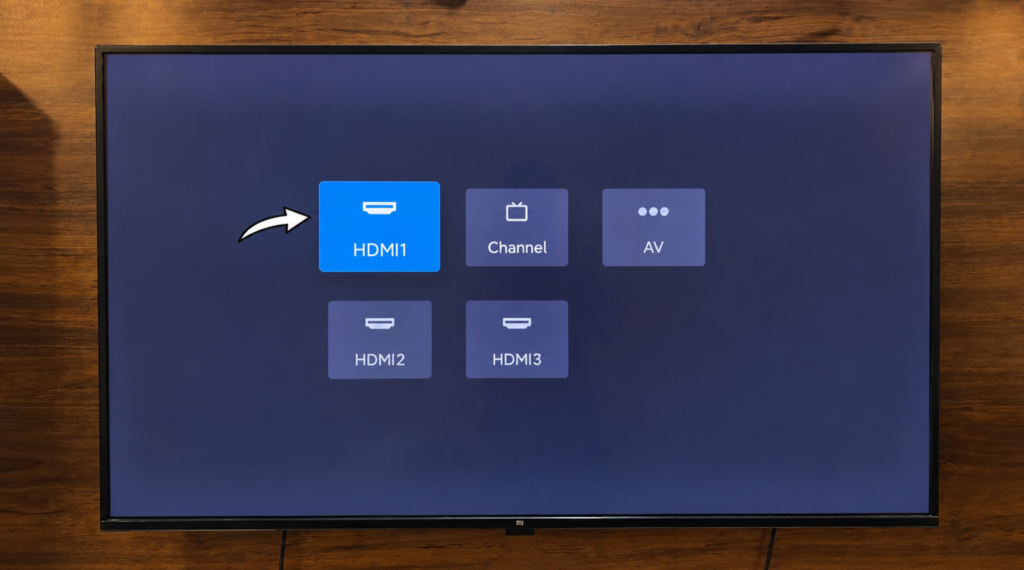
Pick up your TV remote. Press the Input or Source button (sometimes labelled as Input, Source, or a rectangle with an arrow icon). A list of inputs will appear on your TV screen. Select the HDMI port number you plugged into — HDMI 1, HDMI 2, or HDMI 3.
Step 4 — Your Laptop Screen Mirrors to TV Automatically
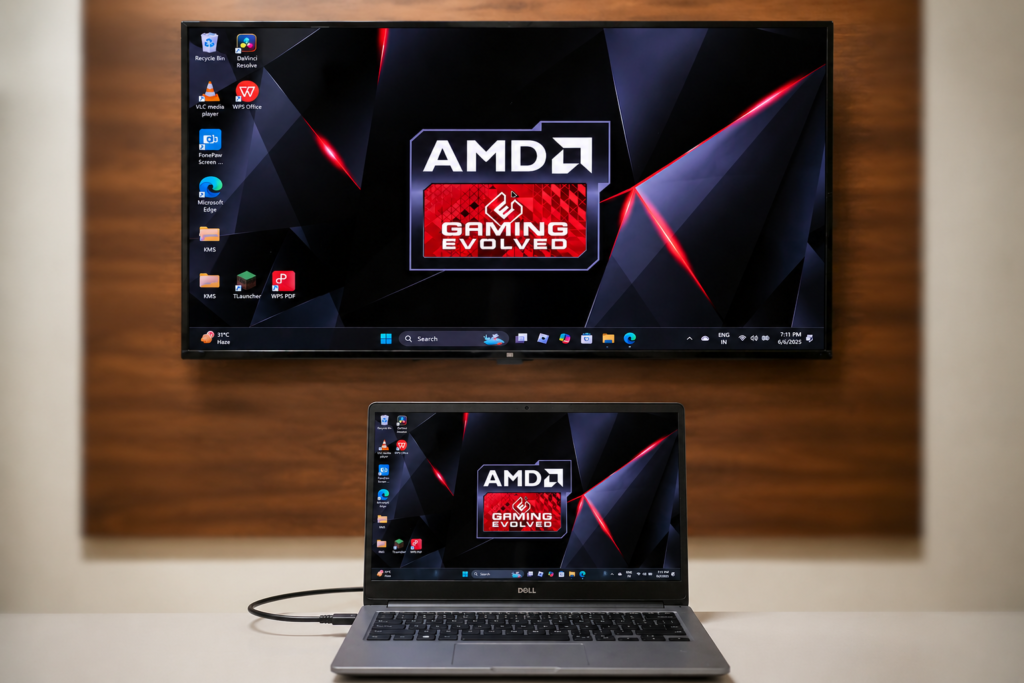
That is it. Your laptop screen will immediately appear on the TV — lag free, zero delay. No extra settings, no software installation needed. Audio will also automatically play through the TV speakers.
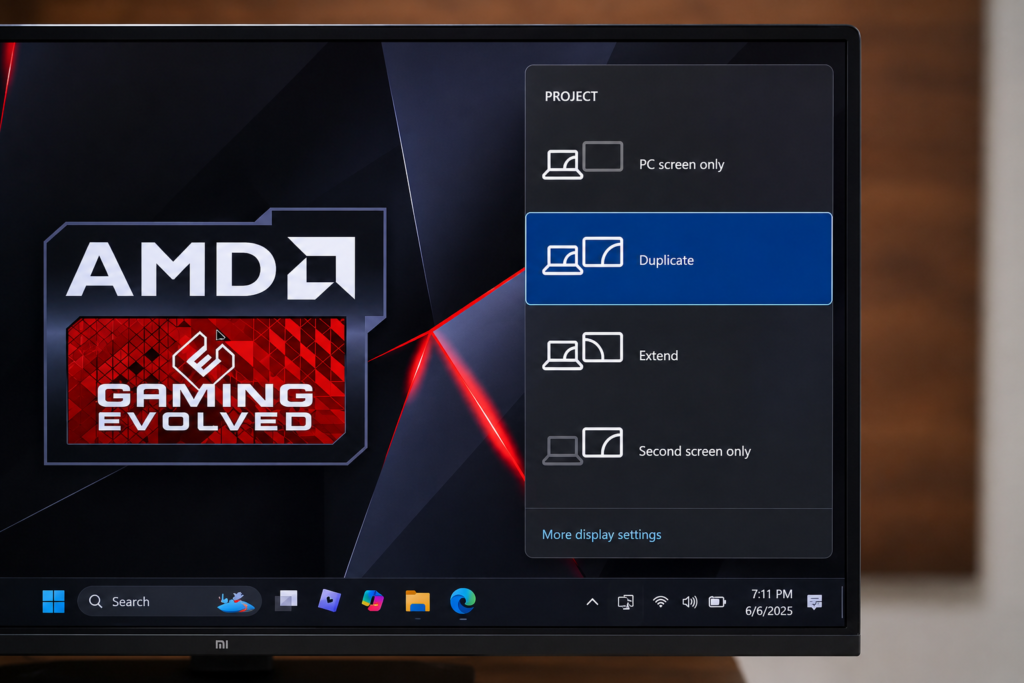
If the screen does not appear automatically on Windows, press Windows key + P and select Duplicate or Extend to set the display mode.
Windows Display Modes — Duplicate, Extend, or Second Screen Only
On Windows, press Windows key + P to choose how your screen appears on the TV:
- Duplicate — same screen on both laptop and TV (most common use case)
- Extend — TV becomes a second screen, extending your desktop (great for work and trading)
- Second screen only — TV shows content, laptop screen goes off (great for movies)
- PC screen only — only laptop screen, TV goes blank
What Can You Do After Connecting Laptop to TV?
- Watch movies and web series on your 40-50 inch TV screen — far better than a 15-inch laptop
- Trading — monitor multiple charts on a big screen without squinting
- Coding — extend your desktop to TV and have code on one screen, browser on another
- Gaming — play PC games on a big TV screen for an immersive experience
- Presentations — show your slides on TV for family, clients or students
- YouTube and streaming — better video and audio quality on TV
Watch the Full Tutorial on YouTube
I have shown the complete setup live — connecting the HDMI cable, selecting the TV input, and the final result on a real 50-inch TV with zero lag. Watch it for the full visual walkthrough.
Best HDMI Cables to Buy — Recommended Products
Here are reliable HDMI cables available in India that will give you a lag-free connection:
1. Portronics Konnect HDMI Cable (1.5m / 3m)
Reliable, durable HDMI cable with gold-plated connectors. Supports 4K resolution. Available in 1.5m and 3m lengths — great value for the price.
2. AmazonBasics HDMI Cable — Budget Option
One of the most reliable budget HDMI cables. Supports Full HD and 4K. Well-reviewed with millions of units sold worldwide.
3. USB-C to HDMI Adapter (for newer laptops without HDMI port)
Many newer slim laptops only have USB-C ports. This adapter lets you connect a standard HDMI cable from USB-C — works perfectly for lag-free TV mirroring.
Disclosure: Affiliate links above. TapsVision earns a small commission at no extra cost to you.
Frequently Asked Questions
How to connect laptop to TV with HDMI cable?
Plug one end of the HDMI cable into your TV’s HDMI port. Plug the other end into your laptop’s HDMI port. Use your TV remote to select the correct HDMI input (HDMI 1, 2 or 3). Your laptop screen will immediately appear on the TV — no extra settings needed.
How to connect PC to TV using HDMI?
The process is identical for a desktop PC. Connect HDMI from your PC’s graphics card output to your TV’s HDMI input. Select the correct HDMI source on your TV. On Windows, press Win + P to choose Duplicate, Extend or Second Screen Only.
How to mirror laptop screen to TV?
Connect via HDMI cable, then on Windows press Win + P and select Duplicate. This mirrors your exact laptop screen on the TV. For wireless mirroring, use Miracast (built into Windows 10/11) or Chromecast — but these have more delay than a wired HDMI connection.
HDMI cable laptop to TV — is there any lag?
No — HDMI cable connection has zero lag. Cables transmit data faster than any wireless protocol. This is why HDMI is preferred for gaming, trading, and any task where real-time display matters. Wireless screen sharing always introduces some delay.
How to connect Samsung TV to laptop?
Samsung TVs have 2-3 HDMI ports. Connect HDMI from laptop to any Samsung TV HDMI port. Press Source on your Samsung remote and select HDMI 1 or whichever port you used. Your laptop screen mirrors instantly. Samsung TVs also support wireless screen mirroring via SmartThings but HDMI gives better quality.
How to connect LG TV to laptop?
Same process — connect HDMI cable from laptop to LG TV’s HDMI port. Press Input on LG remote and select the correct HDMI source. LG TVs also support wireless via LG Screen Share but HDMI is faster and more reliable.
How to share laptop screen on TV wirelessly?
On Windows 10/11, press Win + K to open Cast settings. Select your TV from the list (your TV must support Miracast or have a Chromecast device). Note that wireless screen sharing has more delay compared to HDMI. For movies and gaming, always prefer HDMI cable for a lag-free experience.
HDMI no signal on TV — how to fix?
If you see ‘No Signal’ after connecting the HDMI cable: make sure the cable is fully inserted on both ends, select the correct HDMI input number on your TV remote, try a different HDMI port on your TV, and on Windows press Win + P and select Duplicate. If it still does not work, try a different HDMI cable.
How to connect phone to TV with HDMI cable?
Most Android phones need a USB-C to HDMI adapter to connect to TV via cable. Some phones support video output through USB-C (like Samsung DeX-capable phones), while others do not. Check your phone’s spec sheet for ‘DisplayPort Alt Mode’ or ‘Video output’ support. For iPhones, use a Lightning to HDMI adapter.
How to connect laptop to TV without HDMI?
If your laptop or TV does not have HDMI: use VGA cable (older laptops/TVs), USB-C to HDMI adapter (newer laptops), DisplayPort to HDMI adapter, or wireless options like Chromecast, Miracast, or AirPlay (for Mac). HDMI remains the easiest and most universal option.
Final Thoughts
Connecting your laptop to TV with an HDMI cable is the simplest upgrade you can make to your setup. A ₹100-200 cable turns your TV into a giant monitor — lag free, zero delay, no Wi-Fi required.
Plug HDMI into TV → Plug HDMI into laptop → Select HDMI input on TV remote → Done. Total time: 1 minute.
If this guide helped you, share it with someone still squinting at their small laptop screen.—
–TapsVision